

Claude Code overview
Choose your environment to get started. Most surfaces require a Claude subscription or Anthropic Console account. The Terminal CLI and VS Code also support third-party providers.
- Terminal
- VS Code
- Web
- JetBrains
The full-featured CLI for working with Claude Code directly in your terminal. Edit files, run commands, and manage your entire project from the command line.
To install Claude Code, use one of the following methods:
- Native Install (Recommended)
- Homebrew
Windows PowerShell:
irm https://claude.ai/install.ps1 | iex
macOS, Linux, WSL:
curl -fsSL https://claude.ai/install.sh | bash
Native Windows setups require Git for Windows. Install it first if you don't have it. WSL setups do not need it.
Info
Native installations automatically update in the background to keep you on the latest version.
brew install --cask claude-code
Homebrew offers two casks. claude-code tracks the stable release channel, which is typically about a week behind and skips releases with major regressions. claude-code@latest tracks the latest channel and receives new versions as soon as they ship.
Info
Homebrew installations do not auto-update. Run brew upgrade claude-code or brew upgrade claude-code@latest, depending on which cask you installed, to get the latest features and security fixes.
Then start Claude Code in any project:
cd your-project
claude
You'll be prompted to log in on first use. That's it! Continue with the Quickstart →
Tip
See advanced setup for installation options, manual updates, or uninstallation instructions. Visit troubleshooting if you hit issues.
The VS Code extension provides inline diffs, @-mentions, plan review, and conversation history directly in your editor.
Or search for "Claude Code" in the Extensions view (Cmd+Shift+X on Mac, Ctrl+Shift+X on Windows/Linux). After installing, open the Command Palette (Cmd+Shift+P / Ctrl+Shift+P), type "Claude Code", and select Open in New Tab.
Run Claude Code in your browser with no local setup. Kick off long-running tasks and check back when they're done, work on repos you don't have locally, or run multiple tasks in parallel. Available on desktop browsers and the Claude iOS app.
Start coding at claude.ai/code.
A plugin for IntelliJ IDEA, PyCharm, WebStorm, and other JetBrains IDEs with interactive diff viewing and selection context sharing.
Install the Claude Code plugin from the JetBrains Marketplace and restart your IDE.
What you can do
Here are some of the ways you can use Claude Code:
Automate the work you keep putting off
Claude Code handles the tedious tasks that eat up your day: writing tests for untested code, fixing lint errors across a project, resolving merge conflicts, updating dependencies, and writing release notes.
claude "write tests for the auth module, run them, and fix any failures"
Build features and fix bugs
Describe what you want in plain language. Claude Code plans the approach, writes the code across multiple files, and verifies it works.
For bugs, paste an error message or describe the symptom. Claude Code traces the issue through your codebase, identifies the root cause, and implements a fix. See common workflows for more examples.
Create commits and pull requests
Claude Code works directly with git. It stages changes, writes commit messages, creates branches, and opens pull requests.
claude "commit my changes with a descriptive message"
In CI, you can automate code review and issue triage with GitHub Actions or GitLab CI/CD.
Connect your tools with MCP
The Model Context Protocol (MCP) is an open standard for connecting AI tools to external data sources. With MCP, Claude Code can read your design docs in Google Drive, update tickets in Jira, pull data from Slack, or use your own custom tooling.
Customize with instructions, skills, and hooks
CLAUDE.md is a markdown file you add to your project root that Claude Code reads at the start of every session. Use it to set coding standards, architecture decisions, preferred libraries, and review checklists. Claude also builds auto memory as it works, saving learnings like build commands and debugging insights across sessions without you writing anything.
Create custom commands to package repeatable workflows your team can share, like /review-pr or /deploy-staging.
Hooks let you run shell commands before or after Claude Code actions, like auto-formatting after every file edit or running lint before a commit.
Run agent teams and build custom agents
Spawn multiple Claude Code agents that work on different parts of a task simultaneously. A lead agent coordinates the work, assigns subtasks, and merges results.
For fully custom workflows, the Agent SDK lets you build your own agents powered by Claude Code's tools and capabilities, with full control over orchestration, tool access, and permissions.
Pipe, script, and automate with the CLI
Claude Code is composable and follows the Unix philosophy. Pipe logs into it, run it in CI, or chain it with other tools:
# Analyze recent log output
tail -200 app.log | claude -p "Slack me if you see any anomalies"

# Automate translations in CI
claude -p "translate new strings into French and raise a PR for review"

# Bulk operations across files
git diff main --name-only | claude -p "review these changed files for security issues"
See the CLI reference for the full set of commands and flags.
Schedule recurring tasks
Run Claude on a schedule to automate work that repeats: morning PR reviews, overnight CI failure analysis, weekly dependency audits, or syncing docs after PRs merge.
- Cloud scheduled tasks run on Anthropic-managed infrastructure, so they keep running even when your computer is off. Create them from the web or by running
/schedulein the CLI. /looprepeats a prompt within a CLI session for quick polling
Work from anywhere
Sessions aren't tied to a single surface. Move work between environments as your context changes:
- Step away from your desk and keep working from your phone or any browser with Remote Control
- Kick off a long-running task on the web or iOS app, then pull it into your terminal with
claude --teleport - Route tasks from team chat: mention
@Claudein Slack with a bug report and get a pull request back
Use Claude Code everywhere
Each surface connects to the same underlying Claude Code engine, so your CLAUDE.md files, settings, and MCP servers work across all of them.
Beyond the Terminal, VS Code, JetBrains, Desktop, and Web environments above, Claude Code integrates with CI/CD, chat, and browser workflows:
| I want to... | Best option |
|---|---|
| Continue a local session from my phone or another device | Remote Control |
| Push events from Telegram, Discord, iMessage, or my own webhooks into a session | Channels |
| Start a task locally, continue on mobile | Web or Claude iOS app |
| Run Claude on a recurring schedule | Cloud scheduled tasks or Desktop scheduled tasks |
| Automate PR reviews and issue triage | GitHub Actions or GitLab CI/CD |
| Get automatic code review on every PR | GitHub Code Review |
| Route bug reports from Slack to pull requests | Slack |
| Debug live web applications | Chrome |
| Build custom agents for your own workflows | Agent SDK |
Next steps
Once you've installed Claude Code, these guides help you go deeper.
- Quickstart: walk through your first real task, from exploring a codebase to committing a fix
- Store instructions and memories: give Claude persistent instructions with CLAUDE.md files and auto memory
- Common workflows and best practices: patterns for getting the most out of Claude Code
- Settings: customize Claude Code for your workflow
- Troubleshooting: solutions for common issues
- code.claude.com: demos, pricing, and product details
Quickstart
Welcome to Claude Code!
This quickstart guide will have you using AI-powered coding assistance in a few minutes. By the end, you'll understand how to use Claude Code for common development tasks.
Before you begin
Make sure you have:
- A terminal or command prompt open
- If you've never used the terminal before, check out the terminal guide
- A code project to work with
- A Claude subscription (Pro, Max, Team, or Enterprise), Claude Console account, or access through a supported cloud provider
Note
This guide covers the terminal CLI. Claude Code is also available on the web, as a desktop app, in VS Code and JetBrains IDEs, in Slack, and in CI/CD with GitHub Actions and GitLab. See all interfaces.
Step 1: Install Claude Code
To install Claude Code, use one of the following methods:
- Native Install (Recommended)
- Homebrew
Windows PowerShell:
irm https://claude.ai/install.ps1 | iex
macOS, Linux, WSL:
curl -fsSL https://claude.ai/install.sh | bash
Native Windows setups require Git for Windows. Install it first if you don't have it. WSL setups do not need it.
Info
Native installations automatically update in the background to keep you on the latest version.
brew install --cask claude-code
Homebrew offers two casks. claude-code tracks the stable release channel, which is typically about a week behind and skips releases with major regressions. claude-code@latest tracks the latest channel and receives new versions as soon as they ship.
Info
Homebrew installations do not auto-update. Run brew upgrade claude-code or brew upgrade claude-code@latest, depending on which cask you installed, to get the latest features and security fixes.
Step 2: Log in to your account
Claude Code requires an account to use. When you start an interactive session with the claude command, you'll need to log in:
claude
# You'll be prompted to log in on first use
/login
# Follow the prompts to log in with your account
You can log in using any of these account types:
- Claude Pro, Max, Team, or Enterprise (recommended)
- Claude Console (API access with pre-paid credits). On first login, a "Claude Code" workspace is automatically created in the Console for centralized cost tracking.
- Amazon Bedrock, Google Vertex AI, or Microsoft Foundry (enterprise cloud providers)
Once logged in, your credentials are stored and you won't need to log in again. To switch accounts later, use the /login command.
Step 3: Start your first session
Open your terminal in any project directory and start Claude Code:
cd /path/to/your/project
claude
You'll see the Claude Code welcome screen with your session information, recent conversations, and latest updates. Type /help for available commands or /resume to continue a previous conversation.
Tip
After logging in (Step 2), your credentials are stored on your system. Learn more in Credential Management.
Step 4: Ask your first question
Let's start with understanding your codebase. Try one of these commands:
what does this project do?
Claude will analyze your files and provide a summary. You can also ask more specific questions:
what technologies does this project use?
where is the main entry point?
explain the folder structure
You can also ask Claude about its own capabilities:
what can Claude Code do?
how do I create custom skills in Claude Code?
can Claude Code work with Docker?
Note
Claude Code reads your project files as needed. You don't have to manually add context.
Step 5: Make your first code change
Now let's make Claude Code do some actual coding. Try a simple task:
add a hello world function to the main file
Claude Code will:
- Find the appropriate file
- Show you the proposed changes
- Ask for your approval
- Make the edit
Note
Claude Code always asks for permission before modifying files. You can approve individual changes or enable "Accept all" mode for a session.
Step 6: Use Git with Claude Code
Claude Code makes Git operations conversational:
what files have I changed?
commit my changes with a descriptive message
You can also prompt for more complex Git operations:
create a new branch called feature/quickstart
show me the last 5 commits
help me resolve merge conflicts
Step 7: Fix a bug or add a feature
Claude is proficient at debugging and feature implementation.
Describe what you want in natural language:
add input validation to the user registration form
Or fix existing issues:
there's a bug where users can submit empty forms - fix it
Claude Code will:
- Locate the relevant code
- Understand the context
- Implement a solution
- Run tests if available
Step 8: Test out other common workflows
There are a number of ways to work with Claude:
Refactor code
refactor the authentication module to use async/await instead of callbacks
Write tests
write unit tests for the calculator functions
Update documentation
update the README with installation instructions
Code review
review my changes and suggest improvements
Tip
Talk to Claude like you would a helpful colleague. Describe what you want to achieve, and it will help you get there.
Essential commands
Here are the most important commands for daily use:
| Command | What it does | Example |
|---|---|---|
claude |
Start interactive mode | claude |
claude "task" |
Run a one-time task | claude "fix the build error" |
claude -p "query" |
Run one-off query, then exit | claude -p "explain this function" |
claude -c |
Continue most recent conversation in current directory | claude -c |
claude -r |
Resume a previous conversation | claude -r |
/clear |
Clear conversation history | /clear |
/help |
Show available commands | /help |
exit or Ctrl+D |
Exit Claude Code | exit |
See the CLI reference for a complete list of commands.
Pro tips for beginners
For more, see best practices and common workflows.
Be specific with your requests
Instead of: "fix the bug"
Try: "fix the login bug where users see a blank screen after entering wrong credentials"
Use step-by-step instructions
Break complex tasks into steps:
1. create a new database table for user profiles
2. create an API endpoint to get and update user profiles
3. build a webpage that allows users to see and edit their information
Let Claude explore first
Before making changes, let Claude understand your code:
analyze the database schema
build a dashboard showing products that are most frequently returned by our UK customers
Save time with shortcuts
- Press
?to see all available keyboard shortcuts - Use Tab for command completion
- Press ↑ for command history
- Type
/to see all commands and skills
What's next?
Now that you've learned the basics, explore more advanced features:
Understand the agentic loop, built-in tools, and how Claude Code interacts with your project
Get better results with effective prompting and project setup
Step-by-step guides for common tasks
Customize with CLAUDE.md, skills, hooks, MCP, and more
Getting help
- In Claude Code: Type
/helpor ask "how do I..." - Documentation: You're here! Browse other guides
- Community: Join our Discord for tips and support
Changelog
Release notes for Claude Code, including new features, improvements, and bug fixes by version.
This page is generated from the CHANGELOG.md on GitHub.
Run claude --version to check your installed version.
- Show thinking hints sooner during long operations
- Added
pathparameter to theEnterWorktreetool to switch into an existing worktree of the current repository - Added PreCompact hook support: hooks can now block compaction by exiting with code 2 or returning
{"decision":"block"} - Added background monitor support for plugins via a top-level
monitorsmanifest key that auto-arms at session start or on skill invoke /proactiveis now an alias for/loop- Improved stalled API stream handling: streams now abort after 5 minutes of no data and retry non-streaming instead of hanging indefinitely
- Improved network error messages: connection errors now show a retry message immediately instead of a silent spinner
- Improved file write display: long single-line writes (e.g. minified JSON) are now truncated in the UI instead of paginating across many screens
- Improved
/doctorlayout with status icons; pressfto have Claude fix reported issues - Improved
/configlabels and descriptions for clarity - Improved skill description handling: raised the listing cap from 250 to 1,536 characters and added a startup warning when descriptions are truncated
- Improved
WebFetchto strip<style>and<script>contents from fetched pages so CSS-heavy pages no longer exhaust the content budget before reaching actual text - Improved stale agent worktree cleanup to remove worktrees whose PR was squash-merged instead of keeping them indefinitely
- Improved MCP large-output truncation prompt to give format-specific recipes (e.g.
jqfor JSON, computed Read chunk sizes for text) - Fixed images attached to queued messages (sent while Claude is working) being dropped
- Fixed screen going blank when the prompt input wraps to a second line in long conversations
- Fixed leading whitespace getting copied when selecting multi-line assistant responses in fullscreen mode
- Fixed leading whitespace being trimmed from assistant messages, breaking ASCII art and indented diagrams
- Fixed garbled bash output when commands print clickable file links (e.g. Python
rich/logurulogging) - Fixed alt+enter not inserting a newline in terminals using ESC-prefix alt encoding, and Ctrl+J not inserting a newline (regression in 2.1.100)
- Fixed duplicate "Creating worktree" text in EnterWorktree/ExitWorktree tool display
- Fixed queued user prompts disappearing from focus mode
- Fixed one-shot scheduled tasks re-firing repeatedly when the file watcher missed the post-fire cleanup
- Fixed inbound channel notifications being silently dropped after the first message for Team/Enterprise users
- Fixed marketplace plugins with
package.jsonand lockfile not having dependencies installed automatically after install/update - Fixed marketplace auto-update leaving the official marketplace in a broken state when a plugin process holds files open during the update
- Fixed "Resume this session with..." hint not printing on exit after
/resume,--worktree, or/branch - Fixed feedback survey shortcut keys firing when typed at the end of a longer prompt
- Fixed stdio MCP server emitting malformed (non-JSON) output hanging the session instead of failing fast with "Connection closed"
- Fixed MCP tools missing on the first turn of headless/remote-trigger sessions when MCP servers connect asynchronously
- Fixed
/modelpicker on AWS Bedrock in non-US regions persisting invalidus.*model IDs tosettings.jsonwhen inference profile discovery is still in-flight - Fixed 429 rate-limit errors showing a raw JSON dump instead of a clean message for API-key, Bedrock, and Vertex users
- Fixed crash on resume when session contains malformed text blocks
- Fixed
/helpdropping the tab bar, Shortcuts heading, and footer at short terminal heights - Fixed malformed keybinding entry values in
keybindings.jsonbeing silently loaded instead of rejected with a clear error - Fixed
CLAUDE_CODE_DISABLE_NONESSENTIAL_TRAFFICin one project's settings permanently disabling usage metrics for all projects on the machine - Fixed washed-out 16-color palette when using Ghostty, Kitty, Alacritty, WezTerm, foot, rio, or Contour over SSH/mosh
- Fixed Bash tool suggesting
acceptEditspermission mode when exiting plan mode would downgrade from a higher permission level
- Added
/team-onboardingcommand to generate a teammate ramp-up guide from your local Claude Code usage - Added OS CA certificate store trust by default, so enterprise TLS proxies work without extra setup (set
CLAUDE_CODE_CERT_STORE=bundledto use only bundled CAs) /ultraplanand other remote-session features now auto-create a default cloud environment instead of requiring web setup first- Improved brief mode to retry once when Claude responds with plain text instead of a structured message
- Improved focus mode: Claude now writes more self-contained summaries since it knows you only see its final message
- Improved tool-not-available errors to explain why and how to proceed when the model calls a tool that exists but isn't available in the current context
- Improved rate-limit retry messages to show which limit was hit and when it resets instead of an opaque seconds countdown
- Improved refusal error messages to include the API-provided explanation when available
- Improved
claude -p --resume <name>to accept session titles set via/renameor--name - Improved settings resilience: an unrecognized hook event name in
settings.jsonno longer causes the entire file to be ignored - Improved plugin hooks from plugins force-enabled by managed settings to run when
allowManagedHooksOnlyis set - Improved
/pluginandclaude plugin updateto show a warning when the marketplace could not be refreshed, instead of silently reporting a stale version - Improved plan mode to hide the "Refine with Ultraplan" option when the user's org or auth setup can't reach Claude Code on the web
- Improved beta tracing to honor
OTEL_LOG_USER_PROMPTS,OTEL_LOG_TOOL_DETAILS, andOTEL_LOG_TOOL_CONTENT; sensitive span attributes are no longer emitted unless opted in - Improved SDK
queryto clean up subprocess and temp files when consumersbreakfromfor awaitor useawait using - Fixed a command injection vulnerability in the POSIX
whichfallback used by LSP binary detection - Fixed a memory leak where long sessions retained dozens of historical copies of the message list in the virtual scroller
- Fixed
--resume/--continuelosing conversation context on large sessions when the loader anchored on a dead-end branch instead of the live conversation - Fixed
--resumechain recovery bridging into an unrelated subagent conversation when a subagent message landed near a main-chain write gap - Fixed a crash on
--resumewhen a persisted Edit/Write tool result was missing itsfile_path - Fixed a hardcoded 5-minute request timeout that aborted slow backends (local LLMs, extended thinking, slow gateways) regardless of
API_TIMEOUT_MS - Fixed
permissions.denyrules not overriding a PreToolUse hook'spermissionDecision: "ask"— previously the hook could downgrade a deny into a prompt - Fixed
--setting-sourceswithoutusercausing background cleanup to ignorecleanupPeriodDaysand delete conversation history older than 30 days - Fixed Bedrock SigV4 authentication failing with 403 when
ANTHROPIC_AUTH_TOKEN,apiKeyHelper, orANTHROPIC_CUSTOM_HEADERSset an Authorization header - Fixed
claude -w <name>failing with "already exists" after a previous session's worktree cleanup left a stale directory - Fixed subagents not inheriting MCP tools from dynamically-injected servers
- Fixed sub-agents running in isolated worktrees being denied Read/Edit access to files inside their own worktree
- Fixed sandboxed Bash commands failing with
mktemp: No such file or directoryafter a fresh boot - Fixed
claude mcp servetool calls failing with "Tool execution failed" in MCP clients that validateoutputSchema - Fixed
RemoteTriggertool'srunaction sending an empty body and being rejected by the server - Fixed several
/resumepicker issues: narrow default view hiding sessions from other projects, unreachable preview on Windows Terminal, incorrect cwd in worktrees, session-not-found errors not surfacing in stderr, terminal title not being set, and resume hint overlapping the prompt input - Fixed Grep tool ENOENT when the embedded ripgrep binary path becomes stale (VS Code extension auto-update, macOS App Translocation); now falls back to system
rgand self-heals mid-session - Fixed
/btwwriting a copy of the entire conversation to disk on every use - Fixed
/contextFree space and Messages breakdown disagreeing with the header percentage - Fixed several plugin issues: slash commands resolving to the wrong plugin with duplicate
name:frontmatter,/plugin updatefailing withENAMETOOLONG, Discover showing already-installed plugins, directory-source plugins loading from a stale version cache, and skills not honoringcontext: forkandagentfrontmatter fields - Fixed the
/mcpmenu offering OAuth-specific actions for MCP servers configured withheadersHelper; Reconnect is now offered instead to re-invoke the helper script - Fixed
ctrl+],ctrl+\, andctrl+^keybindings not firing in terminals that send raw C0 control bytes (Terminal.app, default iTerm2, xterm) - Fixed
/loginOAuth URL rendering with padding that prevented clean mouse selection - Fixed rendering issues: flicker in non-fullscreen mode when content above the visible area changed, terminal scrollback being wiped during long sessions in non-fullscreen mode, and mouse-scroll escape sequences occasionally leaking into the prompt as text
- Fixed crash when
settings.jsonenv values are numbers instead of strings - Fixed in-app settings writes (e.g.
/add-dir --remember,/config) not refreshing the in-memory snapshot, preventing removed directories from being revoked mid-session - Fixed custom keybindings (
~/.claude/keybindings.json) not loading on Bedrock, Vertex, and other third-party providers - Fixed
claude --continue -pnot correctly continuing sessions created by-por the SDK - Fixed several Remote Control issues: worktrees removed on session crash, connection failures not persisting in the transcript, spurious "Disconnected" indicator in brief mode for local sessions, and
/remote-controlfailing over SSH when onlyCLAUDE_CODE_ORGANIZATION_UUIDis set - Fixed
/insightssometimes omitting the report file link from its response - [VSCode] Fixed the file attachment below the chat input not clearing when the last editor tab is closed
- Added interactive Google Vertex AI setup wizard accessible from the login screen when selecting "3rd-party platform", guiding you through GCP authentication, project and region configuration, credential verification, and model pinning
- Added
CLAUDE_CODE_PERFORCE_MODEenv var: when set, Edit/Write/NotebookEdit fail on read-only files with ap4 edithint instead of silently overwriting them - Added Monitor tool for streaming events from background scripts
- Added subprocess sandboxing with PID namespace isolation on Linux when
CLAUDE_CODE_SUBPROCESS_ENV_SCRUBis set, andCLAUDE_CODE_SCRIPT_CAPSenv var to limit per-session script invocations - Added
--exclude-dynamic-system-prompt-sectionsflag to print mode for improved cross-user prompt caching - Added
workspace.git_worktreeto the status line JSON input, set whenever the current directory is inside a linked git worktree - Added W3C
TRACEPARENTenv var to Bash tool subprocesses when OTEL tracing is enabled, so child-process spans correctly parent to Claude Code's trace tree - LSP: Claude Code now identifies itself to language servers via
clientInfoin the initialize request - Fixed a Bash tool permission bypass where a backslash-escaped flag could be auto-allowed as read-only and lead to arbitrary code execution
- Fixed compound Bash commands bypassing forced permission prompts for safety checks and explicit ask rules in auto and bypass-permissions modes
- Fixed read-only commands with env-var prefixes not prompting unless the var is known-safe (
LANG,TZ,NO_COLOR, etc.) - Fixed redirects to
/dev/tcp/...or/dev/udp/...not prompting instead of auto-allowing - Fixed stalled streaming responses timing out instead of falling back to non-streaming mode
- Fixed 429 retries burning all attempts in ~13s when the server returns a small
Retry-After— exponential backoff now applies as a minimum - Fixed MCP OAuth
oauth.authServerMetadataUrlconfig override not being honored on token refresh after restart, affecting ADFS and similar IdPs - Fixed capital letters being dropped to lowercase on xterm and VS Code integrated terminal when the kitty keyboard protocol is active
- Fixed macOS text replacements deleting the trigger word instead of inserting the substitution
- Fixed
--dangerously-skip-permissionsbeing silently downgraded to accept-edits mode after approving a write to a protected path via Bash - Fixed managed-settings allow rules remaining active after an admin removed them, until process restart
- Fixed
permissions.additionalDirectorieschanges not applying mid-session — removed directories lose access immediately and added ones work without restart - Fixed removing a directory from
additionalDirectoriesrevoking access to the same directory passed via--add-dir - Fixed
Bash(cmd:*)andBash(git commit *)wildcard permission rules failing to match commands with extra spaces or tabs - Fixed
Bash(...)deny rules being downgraded to a prompt for piped commands that mixcdwith other segments - Fixed false Bash permission prompts for
cut -d /,paste -d /,column -s /,awk '{print $1}' file, and filenames containing% - Fixed permission rules with names matching JavaScript prototype properties (e.g.
toString) causingsettings.jsonto be silently ignored - Fixed agent team members not inheriting the leader's permission mode when using
--dangerously-skip-permissions - Fixed a crash in fullscreen mode when hovering over MCP tool results
- Fixed copying wrapped URLs in fullscreen mode inserting spaces at line breaks
- Fixed file-edit diffs disappearing from the UI on
--resumewhen the edited file was larger than 10KB - Fixed several
/resumepicker issues:--resume <name>opening uneditable, filter reload wiping search state, empty list swallowing arrow keys, cross-project staleness, and transient task-status text replacing conversation summaries - Fixed
/exportnot honoring absolute paths and~, and silently rewriting user-supplied extensions to.txt - Fixed
/effort maxbeing denied for unknown or future model IDs - Fixed slash command picker breaking when a plugin's frontmatter
nameis a YAML boolean keyword - Fixed rate-limit upsell text being hidden after message remounts
- Fixed MCP tools with
_meta["anthropic/maxResultSizeChars"]not bypassing the token-based persist layer - Fixed voice mode leaking dozens of space characters into the input when re-holding the push-to-talk key while the previous transcript is still processing
- Fixed
DISABLE_AUTOUPDATERnot fully suppressing the npm registry version check and symlink modification on npm-based installs - Fixed a memory leak where Remote Control permission handler entries were retained for the lifetime of the session
- Fixed background subagents that fail with an error not reporting partial progress to the parent agent
- Fixed prompt-type Stop/SubagentStop hooks failing on long sessions, and hook evaluator API errors showing "JSON validation failed" instead of the real message
- Fixed feedback survey rendering when dismissed
- Fixed Bash
grep -f FILE/rg -f FILEnot prompting when reading a pattern file outside the working directory - Fixed stale subagent worktree cleanup removing worktrees that contain untracked files
- Fixed
sandbox.network.allowMachLookupnot taking effect on macOS - Improved
/resumefilter hint labels and added project/worktree/branch names in the filter indicator - Improved footer indicators (Focus, notifications) to stay on the mode-indicator row instead of wrapping at narrow terminal widths
- Improved
/agentswith a tabbed layout: a Running tab shows live subagents, and the Library tab adds Run agent and View running instance actions - Improved
/reload-pluginsto pick up plugin-provided skills without requiring a restart - Improved Accept Edits mode to auto-approve filesystem commands prefixed with safe env vars or process wrappers
- Improved Vim mode:
j/kin NORMAL mode now navigate history and select the footer pill at the input boundary - Improved hook errors in the transcript to include the first line of stderr for self-diagnosis without
--debug - Improved OTEL tracing: interaction spans now correctly wrap full turns under concurrent SDK calls, and headless turns end spans per-turn
- Improved transcript entries to carry final token usage instead of streaming placeholders
- Updated the
/claude-apiskill to cover Managed Agents alongside Claude API - [VSCode] Fixed false-positive "requires git-bash" error on Windows when
CLAUDE_CODE_GIT_BASH_PATHis set or Git is installed at a default location - Fixed
CLAUDE_CODE_MAX_CONTEXT_TOKENSto honorDISABLE_COMPACTwhen it is set. - Dropped
/compacthints whenDISABLE_COMPACTis set.
- Added focus view toggle (
Ctrl+O) inNO_FLICKERmode showing prompt, one-line tool summary with edit diffstats, and final response - Added
refreshIntervalstatus line setting to re-run the status line command every N seconds - Added
workspace.git_worktreeto the status line JSON input, set when the current directory is inside a linked git worktree - Added
● N runningindicator in/agentsnext to agent types with live subagent instances - Added syntax highlighting for Cedar policy files (
.cedar,.cedarpolicy) - Fixed
--dangerously-skip-permissionsbeing silently downgraded to accept-edits mode after approving a write to a protected path - Fixed and hardened Bash tool permissions, tightening checks around env-var prefixes and network redirects, and reducing false prompts on common commands
- Fixed permission rules with names matching JavaScript prototype properties (e.g.
toString) causingsettings.jsonto be silently ignored - Fixed managed-settings allow rules remaining active after an admin removed them until process restart
- Fixed
permissions.additionalDirectorieschanges in settings not applying mid-session - Fixed removing a directory from
settings.permissions.additionalDirectoriesrevoking access to the same directory passed via--add-dir - Fixed MCP HTTP/SSE connections accumulating ~50 MB/hr of unreleased buffers when servers reconnect
- Fixed MCP OAuth
oauth.authServerMetadataUrlnot being honored on token refresh after restart, fixing ADFS and similar IdPs - Fixed 429 retries burning all attempts in ~13 seconds when the server returns a small
Retry-After— exponential backoff now applies as a minimum - Fixed rate-limit upgrade options disappearing after context compaction
- Fixed several
/resumepicker issues:--resume <name>opening uneditable, Ctrl+A reload wiping search, empty list swallowing navigation, task-status text replacing conversation summary, and cross-project staleness - Fixed file-edit diffs disappearing on
--resumewhen the edited file was larger than 10KB - Fixed
--resumecache misses and lost mid-turn input from attachment messages not being saved to the transcript - Fixed messages typed while Claude is working not being persisted to the transcript
- Fixed prompt-type
Stop/SubagentStophooks failing on long sessions, and hook evaluator API errors displaying "JSON validation failed" instead of the actual message - Fixed subagents with worktree isolation or
cwd:override leaking their working directory back to the parent session's Bash tool - Fixed compaction writing duplicate multi-MB subagent transcript files on prompt-too-long retries
- Fixed
claude plugin updatereporting "already at the latest version" for git-based marketplace plugins when the remote had newer commits - Fixed slash command picker breaking when a plugin's frontmatter
nameis a YAML boolean keyword - Fixed copying wrapped URLs in
NO_FLICKERmode inserting spaces at line breaks - Fixed scroll rendering artifacts in
NO_FLICKERmode when running inside zellij - Fixed a crash in
NO_FLICKERmode when hovering over MCP tool results - Fixed a
NO_FLICKERmode memory leak where API retries left stale streaming state - Fixed slow mouse-wheel scrolling in
NO_FLICKERmode on Windows Terminal - Fixed custom status line not displaying in
NO_FLICKERmode on terminals shorter than 24 rows - Fixed Shift+Enter and Alt/Cmd+arrow shortcuts not working in Warp with
NO_FLICKERmode - Fixed Korean/Japanese/Unicode text becoming garbled when copied in no-flicker mode on Windows
- Fixed Bedrock SigV4 authentication failing when
AWS_BEARER_TOKEN_BEDROCKorANTHROPIC_BEDROCK_BASE_URLare set to empty strings (as GitHub Actions does for unset inputs) - Improved Accept Edits mode to auto-approve filesystem commands prefixed with safe env vars or process wrappers (e.g.
LANG=C rm foo,timeout 5 mkdir out) - Improved auto mode and bypass-permissions mode to auto-approve sandbox network access prompts
- Improved sandbox:
sandbox.network.allowMachLookupnow takes effect on macOS - Improved image handling: pasted and attached images are now compressed to the same token budget as images read via the Read tool
- Improved slash command and
@-mention completion to trigger after CJK sentence punctuation, so Japanese/Chinese input no longer requires a space before/or@ - Improved Bridge sessions to show the local git repo, branch, and working directory on the claude.ai session card
- Improved footer layout: indicators (Focus, notifications) now stay on the mode-indicator row instead of wrapping below
- Improved context-low warning to show as a transient footer notification instead of a persistent row
- Improved markdown blockquotes to show a continuous left bar across wrapped lines
- Improved session transcript size by skipping empty hook entries and capping stored pre-edit file copies
- Improved transcript accuracy: per-block entries now carry the final token usage instead of the streaming placeholder
- Improved Bash tool OTEL tracing: subprocesses now inherit a W3C
TRACEPARENTenv var when tracing is enabled - Updated
/claude-apiskill to cover Managed Agents alongside the Claude API
- Fixed Bedrock requests failing with
403 "Authorization header is missing"when usingAWS_BEARER_TOKEN_BEDROCKorCLAUDE_CODE_SKIP_BEDROCK_AUTH(regression in 2.1.94)
- Added support for Amazon Bedrock powered by Mantle, set
CLAUDE_CODE_USE_MANTLE=1 - Changed default effort level from medium to high for API-key, Bedrock/Vertex/Foundry, Team, and Enterprise users (control this with
/effort) - Added compact
Slacked #channelheader with a clickable channel link for Slack MCP send-message tool calls - Added
keep-coding-instructionsfrontmatter field support for plugin output styles - Added
hookSpecificOutput.sessionTitletoUserPromptSubmithooks for setting the session title - Plugin skills declared via
"skills": ["./"]now use the skill's frontmatternamefor the invocation name instead of the directory basename, giving a stable name across install methods - Fixed agents appearing stuck after a 429 rate-limit response with a long Retry-After header — the error now surfaces immediately instead of silently waiting
- Fixed Console login on macOS silently failing with "Not logged in" when the login keychain is locked or its password is out of sync — the error is now surfaced and
claude doctordiagnoses the fix - Fixed plugin skill hooks defined in YAML frontmatter being silently ignored
- Fixed plugin hooks failing with "No such file or directory" when
CLAUDE_PLUGIN_ROOTwas not set - Fixed
${CLAUDE_PLUGIN_ROOT}resolving to the marketplace source directory instead of the installed cache for local-marketplace plugins on startup - Fixed scrollback showing the same diff repeated and blank pages in long-running sessions
- Fixed multiline user prompts in the transcript indenting wrapped lines under the
❯caret instead of under the text - Fixed Shift+Space inserting the literal word "space" instead of a space character in search inputs
- Fixed hyperlinks opening two browser tabs when clicked inside tmux running in an xterm.js-based terminal (VS Code, Hyper, Tabby)
- Fixed an alt-screen rendering bug where content height changes mid-scroll could leave compounding ghost lines
- Fixed
FORCE_HYPERLINKenvironment variable being ignored when set viasettings.jsonenv - Fixed native terminal cursor not tracking the selected tab in dialogs, so screen readers and magnifiers can follow tab navigation
- Fixed Bedrock invocation of Sonnet 3.5 v2 by using the
us.inference profile ID - Fixed SDK/print mode not preserving the partial assistant response in conversation history when interrupted mid-stream
- Improved
--resumeto resume sessions from other worktrees of the same repo directly instead of printing acdcommand - Fixed CJK and other multibyte text being corrupted with U+FFFD in stream-json input/output when chunk boundaries split a UTF-8 sequence
- [VSCode] Reduced cold-open subprocess work on starting a session
- [VSCode] Fixed dropdown menus selecting the wrong item when the mouse was over the list while typing or using arrow keys
- [VSCode] Added a warning banner when
settings.jsonfiles fail to parse, so users know their permission rules are not being applied
- Added
forceRemoteSettingsRefreshpolicy setting: when set, the CLI blocks startup until remote managed settings are freshly fetched, and exits if the fetch fails (fail-closed) - Added interactive Bedrock setup wizard accessible from the login screen when selecting "3rd-party platform" — guides you through AWS authentication, region configuration, credential verification, and model pinning
- Added per-model and cache-hit breakdown to
/costfor subscription users /release-notesis now an interactive version picker- Remote Control session names now use your hostname as the default prefix (e.g.
myhost-graceful-unicorn), overridable with--remote-control-session-name-prefix - Pro users now see a footer hint when returning to a session after the prompt cache has expired, showing roughly how many tokens the next turn will send uncached
- Fixed subagent spawning permanently failing with "Could not determine pane count" after tmux windows are killed or renumbered during a long-running session
- Fixed prompt-type Stop hooks incorrectly failing when the small fast model returns
ok:false, and restoredpreventContinuation:truesemantics for non-Stop prompt-type hooks - Fixed tool input validation failures when streaming emits array/object fields as JSON-encoded strings
- Fixed an API 400 error that could occur when extended thinking produced a whitespace-only text block alongside real content
- Fixed accidental feedback survey submissions from auto-pilot keypresses and consecutive-prompt digit collisions
- Fixed misleading "esc to interrupt" hint appearing alongside "esc to clear" when a text selection exists in fullscreen mode during processing
- Fixed Homebrew install update prompts to use the cask's release channel (
claude-code→ stable,claude-code@latest→ latest) - Fixed
ctrl+ejumping to the end of the next line when already at end of line in multiline prompts - Fixed an issue where the same message could appear at two positions when scrolling up in fullscreen mode (iTerm2, Ghostty, and other terminals with DEC 2026 support)
- Fixed idle-return "/clear to save X tokens" hint showing cumulative session tokens instead of current context size
- Fixed plugin MCP servers stuck "connecting" on session start when they duplicate a claude.ai connector that is unauthenticated
- Improved Write tool diff computation speed for large files (60% faster on files with tabs/
&/$) - Removed
/tagcommand - Removed
/vimcommand (toggle vim mode via/config→ Editor mode) - Linux sandbox now ships the
apply-seccomphelper in both npm and native builds, restoring unix-socket blocking for sandboxed commands
- Added MCP tool result persistence override via
_meta["anthropic/maxResultSizeChars"]annotation (up to 500K), allowing larger results like DB schemas to pass through without truncation - Added
disableSkillShellExecutionsetting to disable inline shell execution in skills, custom slash commands, and plugin commands - Added support for multi-line prompts in
claude-cli://open?q=deep links (encoded newlines%0Ano longer rejected) - Plugins can now ship executables under
bin/and invoke them as bare commands from the Bash tool - Fixed transcript chain breaks on
--resumethat could lose conversation history when async transcript writes fail silently - Fixed
cmd+deletenot deleting to start of line on iTerm2, kitty, WezTerm, Ghostty, and Windows Terminal - Fixed plan mode in remote sessions losing track of the plan file after a container restart, which caused permission prompts on plan edits and an empty plan-approval modal
- Fixed JSON schema validation for
permissions.defaultMode: "auto"in settings.json - Fixed Windows version cleanup not protecting the active version's rollback copy
/feedbacknow explains why it's unavailable instead of disappearing from the slash menu- Improved
/claude-apiskill guidance for agent design patterns including tool surface decisions, context management, and caching strategy - Improved performance: faster
stripAnsion Bun by routing throughBun.stripANSI - Edit tool now uses shorter
old_stringanchors, reducing output tokens
- Added
/powerup— interactive lessons teaching Claude Code features with animated demos - Added
CLAUDE_CODE_PLUGIN_KEEP_MARKETPLACE_ON_FAILUREenv var to keep the existing marketplace cache whengit pullfails, useful in offline environments - Added
.huskyto protected directories (acceptEdits mode) - Fixed an infinite loop where the rate-limit options dialog would repeatedly auto-open after hitting your usage limit, eventually crashing the session
- Fixed
--resumecausing a full prompt-cache miss on the first request for users with deferred tools, MCP servers, or custom agents (regression since v2.1.69) - Fixed
Edit/Writefailing with "File content has changed" when a PostToolUse format-on-save hook rewrites the file between consecutive edits - Fixed
PreToolUsehooks that emit JSON to stdout and exit with code 2 not correctly blocking the tool call - Fixed collapsed search/read summary badge appearing multiple times in fullscreen scrollback when a CLAUDE.md file auto-loads during a tool call
- Fixed auto mode not respecting explicit user boundaries ("don't push", "wait for X before Y") even when the action would otherwise be allowed
- Fixed click-to-expand hover text being nearly invisible on light terminal themes
- Fixed UI crash when malformed tool input reached the permission dialog
- Fixed headers disappearing when scrolling
/model,/config, and other selection screens - Hardened PowerShell tool permission checks: fixed trailing
&background job bypass,-ErrorAction Breakdebugger hang, archive-extraction TOCTOU, and parse-fail fallback deny-rule degradation - Improved performance: eliminated per-turn JSON.stringify of MCP tool schemas on cache-key lookup
- Improved performance: SSE transport now handles large streamed frames in linear time (was quadratic)
- Improved performance: SDK sessions with long conversations no longer slow down quadratically on transcript writes
- Improved
/resumeall-projects view to load project sessions in parallel, improving load times for users with many projects - Changed
--resumepicker to no longer show sessions created byclaude -por SDK invocations - Removed
Get-DnsClientCacheandipconfig /displaydnsfrom auto-allow (DNS cache privacy)
- Added
"defer"permission decision toPreToolUsehooks — headless sessions can pause at a tool call and resume with-p --resumeto have the hook re-evaluate - Added
CLAUDE_CODE_NO_FLICKER=1environment variable to opt into flicker-free alt-screen rendering with virtualized scrollback - Added
PermissionDeniedhook that fires after auto mode classifier denials — return{retry: true}to tell the model it can retry - Added named subagents to
@mention typeahead suggestions - Added
MCP_CONNECTION_NONBLOCKING=truefor-pmode to skip the MCP connection wait entirely, and bounded--mcp-configserver connections at 5s instead of blocking on the slowest server - Auto mode: denied commands now show a notification and appear in
/permissions→ Recent tab where you can retry withr - Fixed
Edit(//path/**)andRead(//path/**)allow rules to check the resolved symlink target, not just the requested path - Fixed voice push-to-talk not activating for some modifier-combo bindings, and voice mode on Windows failing with "WebSocket upgrade rejected with HTTP 101"
- Fixed Edit/Write tools doubling CRLF on Windows and stripping Markdown hard line breaks (two trailing spaces)
- Fixed
StructuredOutputschema cache bug causing ~50% failure rate when using multiple schemas - Fixed memory leak where large JSON inputs were retained as LRU cache keys in long-running sessions
- Fixed a crash when removing a message from very large session files (over 50MB)
- Fixed LSP server zombie state after crash — server now restarts on next request instead of failing until session restart
- Fixed prompt history entries containing CJK or emoji being silently dropped when they fall on a 4KB boundary in
~/.claude/history.jsonl - Fixed
/statsundercounting tokens by excluding subagent usage, and losing historical data beyond 30 days when the stats cache format changes - Fixed
-p --resumehangs when the deferred tool input exceeds 64KB or no deferred marker exists, and-p --continuenot resuming deferred tools - Fixed
claude-cli://deep links not opening on macOS - Fixed MCP tool errors truncating to only the first content block when the server returns multi-element error content
- Fixed skill reminders and other system context being dropped when sending messages with images via the SDK
- Fixed PreToolUse/PostToolUse hooks to receive
file_pathas an absolute path for Write/Edit/Read tools, matching the documented behavior - Fixed autocompact thrash loop — now detects when context refills to the limit immediately after compacting three times in a row and stops with an actionable error instead of burning API calls
- Fixed prompt cache misses in long sessions caused by tool schema bytes changing mid-session
- Fixed nested CLAUDE.md files being re-injected dozens of times in long sessions that read many files
- Fixed
--resumecrash when transcript contains a tool result from an older CLI version or interrupted write - Fixed misleading "Rate limit reached" message when the API returned an entitlement error — now shows the actual error with actionable hints
- Fixed hooks
ifcondition filtering not matching compound commands (ls && git push) or commands with env-var prefixes (FOO=bar git push) - Fixed collapsed search/read group badges duplicating in terminal scrollback during heavy parallel tool use
- Fixed notification
invalidatesnot clearing the currently-displayed notification immediately - Fixed prompt briefly disappearing after submit when background messages arrived during processing
- Fixed Devanagari and other combining-mark text being truncated in assistant output
- Fixed rendering artifacts on main-screen terminals after layout shifts
- Fixed voice mode failing to request microphone permission on macOS Apple Silicon
- Fixed Shift+Enter submitting instead of inserting a newline on Windows Terminal Preview 1.25
- Fixed periodic UI jitter during streaming in iTerm2 when running inside tmux
- Fixed PowerShell tool incorrectly reporting failures when commands like
git pushwrote progress to stderr on Windows PowerShell 5.1 - Fixed a potential out-of-memory crash when the Edit tool was used on very large files (>1 GiB)
- Improved collapsed tool summary to show "Listed N directories" for
ls/tree/duinstead of "Read N files" - Improved Bash tool to warn when a formatter/linter command modifies files you have previously read, preventing stale-edit errors
- Improved
@-mention typeahead to rank source files above MCP resources with similar names - Improved PowerShell tool prompt with version-appropriate syntax guidance (5.1 vs 7+)
- Changed
Editto work on files viewed viaBashwithsed -norcat, without requiring a separateReadcall first - Changed hook output over 50K characters to be saved to disk with a file path + preview instead of being injected directly into context
- Changed
cleanupPeriodDays: 0in settings.json to be rejected with a validation error — it previously silently disabled transcript persistence - Changed thinking summaries to no longer be generated by default in interactive sessions — set
showThinkingSummaries: truein settings.json to restore - Documented
TaskCreatedhook event and its blocking behavior - Preserved task notifications when backgrounding a running command with Ctrl+B
- PowerShell tool on Windows: external-command arguments containing both a double-quote and whitespace now prompt instead of auto-allowing (PS 5.1 argument-splitting hardening)
/envnow applies to PowerShell tool commands (previously only affected Bash)/usagenow hides redundant "Current week (Sonnet only)" bar for Pro and Enterprise plans- Image paste no longer inserts a trailing space
- Pasting
!commandinto an empty prompt now enters bash mode, matching typed!behavior /buddyis here for April 1st — hatch a small creature that watches you code
- Fixed messages in Cowork Dispatch not getting delivered
- Added
X-Claude-Code-Session-Idheader to API requests so proxies can aggregate requests by session without parsing the body - Added
.jjand.slto VCS directory exclusion lists so Grep and file autocomplete don't descend into Jujutsu or Sapling metadata - Fixed
--resumefailing with "tool_use ids were found without tool_result blocks" on sessions created before v2.1.85 - Fixed Write/Edit/Read failing on files outside the project root (e.g.,
~/.claude/CLAUDE.md) when conditional skills or rules are configured - Fixed unnecessary config disk writes on every skill invocation that could cause performance issues and config corruption on Windows
- Fixed potential out-of-memory crash when using
/feedbackon very long sessions with large transcript files - Fixed
--baremode dropping MCP tools in interactive sessions and silently discarding messages enqueued mid-turn - Fixed the
cshortcut copying only ~20 characters of the OAuth login URL instead of the full URL - Fixed masked input (e.g., OAuth code paste) leaking the start of the token when wrapping across multiple lines on narrow terminals
- Fixed official marketplace plugin scripts failing with "Permission denied" on macOS/Linux since v2.1.83
- Fixed statusline showing another session's model when running multiple Claude Code instances and using
/modelin one of them - Fixed scroll not following new messages after wheel scroll or click-to-select at the bottom of a long conversation
- Fixed
/pluginuninstall dialog: pressingnnow correctly uninstalls the plugin while preserving its data directory - Fixed a regression where pressing Enter after clicking could leave the transcript blank until the response arrived
- Fixed
ultrathinkhint lingering after deleting the keyword - Fixed memory growth in long sessions from markdown/highlight render caches retaining full content strings
- Reduced startup event-loop stalls when many claude.ai MCP connectors are configured (macOS keychain cache extended from 5s to 30s)
- Reduced token overhead when mentioning files with
@— raw string content no longer JSON-escaped - Improved prompt cache hit rate for Bedrock, Vertex, and Foundry users by removing dynamic content from tool descriptions
- Memory filenames in the "Saved N memories" notice now highlight on hover and open on click
- Skill descriptions in the
/skillslisting are now capped at 250 characters to reduce context usage - Changed
/skillsmenu to sort alphabetically for easier scanning - Auto mode now shows "unavailable for your plan" when disabled by plan restrictions (was "temporarily unavailable")
- [VSCode] Fixed extension incorrectly showing "Not responding" during long-running operations
- [VSCode] Fixed extension defaulting Max plan users to Sonnet after the OAuth token refreshes (8 hours after login)
- Read tool now uses compact line-number format and deduplicates unchanged re-reads, reducing token usage
- Added
CLAUDE_CODE_MCP_SERVER_NAMEandCLAUDE_CODE_MCP_SERVER_URLenvironment variables to MCPheadersHelperscripts, allowing one helper to serve multiple servers - Added conditional
iffield for hooks using permission rule syntax (e.g.,Bash(git *)) to filter when they run, reducing process spawning overhead - Added timestamp markers in transcripts when scheduled tasks (
/loop,CronCreate) fire - Added trailing space after
[Image #N]placeholder when pasting images - Deep link queries (
claude-cli://open?q=…) now support up to 5,000 characters, with a "scroll to review" warning for long pre-filled prompts - MCP OAuth now follows RFC 9728 Protected Resource Metadata discovery to find the authorization server
- Plugins blocked by organization policy (
managed-settings.json) can no longer be installed or enabled, and are hidden from marketplace views - PreToolUse hooks can now satisfy
AskUserQuestionby returningupdatedInputalongsidepermissionDecision: "allow", enabling headless integrations that collect answers via their own UI tool_parametersin OpenTelemetry tool_result events are now gated behindOTEL_LOG_TOOL_DETAILS=1- Fixed
/compactfailing with "context exceeded" when the conversation has grown too large for the compact request itself to fit - Fixed
/plugin enableand/plugin disablefailing when a plugin's install location differs from where it's declared in settings - Fixed
--worktreeexiting with an error in non-git repositories before theWorktreeCreatehook could run - Fixed
deniedMcpServerssetting not blocking claude.ai MCP servers - Fixed
switch_displayin the computer-use tool returning "not available in this session" on multi-monitor setups - Fixed crash when
OTEL_LOGS_EXPORTER,OTEL_METRICS_EXPORTER, orOTEL_TRACES_EXPORTERis set tonone - Fixed diff syntax highlighting not working in non-native builds
- Fixed MCP step-up authorization failing when a refresh token exists — servers requesting elevated scopes via
403 insufficient_scopenow correctly trigger the re-authorization flow - Fixed memory leak in remote sessions when a streaming response is interrupted
- Fixed persistent ECONNRESET errors during edge connection churn by using a fresh TCP connection on retry
- Fixed prompts getting stuck in the queue after running certain slash commands, with up-arrow unable to retrieve them
- Fixed Python Agent SDK:
type:'sdk'MCP servers passed via--mcp-configare no longer dropped during startup - Fixed raw key sequences appearing in the prompt when running over SSH or in the VS Code integrated terminal
- Fixed Remote Control session status staying stuck on "Requires Action" after a permission is resolved
- Fixed shift+enter and meta+enter being intercepted by typeahead suggestions instead of inserting newlines
- Fixed stale content bleeding through when scrolling up during streaming
- Fixed terminal left in enhanced keyboard mode after exit in Ghostty, Kitty, WezTerm, and other terminals supporting the Kitty keyboard protocol — Ctrl+C and Ctrl+D now work correctly after quitting
- Improved @-mention file autocomplete performance on large repositories
- Improved PowerShell dangerous command detection
- Improved scroll performance with large transcripts by replacing WASM yoga-layout with a pure TypeScript implementation
- Reduced UI stutter when compaction triggers on large sessions
- Added PowerShell tool for Windows as an opt-in preview. Learn more at https://code.claude.com/docs/en/tools-reference#powershell-tool
- Added
ANTHROPIC_DEFAULT_{OPUS,SONNET,HAIKU}_MODEL_SUPPORTSenv vars to override effort/thinking capability detection for pinned default models for 3p (Bedrock, Vertex, Foundry), and_MODEL_NAME/_DESCRIPTIONto customize the/modelpicker label - Added
CLAUDE_STREAM_IDLE_TIMEOUT_MSenv var to configure the streaming idle watchdog threshold (default 90s) - Added
TaskCreatedhook that fires when a task is created viaTaskCreate - Added
WorktreeCreatehook support fortype: "http"— return the created worktree path viahookSpecificOutput.worktreePathin the response JSON - Added
allowedChannelPluginsmanaged setting for team/enterprise admins to define a channel plugin allowlist - Added
x-client-request-idheader to API requests for debugging timeouts - Added idle-return prompt that nudges users returning after 75+ minutes to
/clear, reducing unnecessary token re-caching on stale sessions - Deep links (
claude-cli://) now open in your preferred terminal instead of whichever terminal happens to be first in the detection list - Rules and skills
paths:frontmatter now accepts a YAML list of globs - MCP tool descriptions and server instructions are now capped at 2KB to prevent OpenAPI-generated servers from bloating context
- MCP servers configured both locally and via claude.ai connectors are now deduplicated — the local config wins
- Background bash tasks that appear stuck on an interactive prompt now surface a notification after ~45 seconds
- Token counts ≥1M now display as "1.5m" instead of "1512.6k"
- Global system-prompt caching now works when
ToolSearchis enabled, including for users with MCP tools configured - Fixed voice push-to-talk: holding the voice key no longer leaks characters into the text input, and transcripts now insert at the correct position
- Fixed up/down arrow keys being unresponsive when a footer item is focused
- Fixed
Ctrl+U(kill-to-line-start) being a no-op at line boundaries in multiline input, so repeatedCtrl+Unow clears across lines - Fixed null-unbinding a default chord binding (e.g.
"ctrl+x ctrl+k": null) still entering chord-wait mode instead of freeing the prefix key - Fixed mouse events inserting literal "mouse" text into transcript search input
- Fixed workflow subagents failing with API 400 when the outer session uses
--json-schemaand the subagent also specifies a schema - Fixed missing background color behind certain emoji in user message bubbles on some terminals
- Fixed the "allow Claude to edit its own settings for this session" permission option not sticking for users with
Edit(.claude)allow rules - Fixed a hang when generating attachment snippets for large edited files
- Fixed MCP tool/resource cache leak on server reconnect
- Fixed a startup performance issue where partial clone repositories (Scalar/GVFS) triggered mass blob downloads
- Fixed native terminal cursor not tracking the text input caret, so IME composition (CJK input) now renders inline and screen readers can follow the input position
- Fixed spurious "Not logged in" errors on macOS caused by transient keychain read failures
- Fixed cold-start race where core tools could be deferred without their bypass active, causing Edit/Write to fail with InputValidationError on typed parameters
- Improved detection for dangerous removals of Windows drive roots (
C:\,C:\Windows, etc.) - Improved interactive startup by ~30ms by running
setupin parallel with slash command and agent loading - Improved startup for
claude "prompt"with MCP servers — the REPL now renders immediately instead of blocking until all servers connect - Improved Remote Control to show a specific reason when blocked instead of a generic "not yet enabled" message
- Improved p90 prompt cache rate
- Reduced scroll-to-top resets in long sessions by making the message window immune to compaction and grouping changes
- Reduced terminal flickering when animated tool progress scrolls above the viewport
- Changed issue/PR references to only become clickable links when written as
owner/repo#123— bare#123is no longer auto-linked - Slash commands unavailable for the current auth setup (
/voice,/mobile,/chrome,/upgrade, etc.) are now hidden instead of shown - [VSCode] Added rate limit warning banner with usage percentage and reset time
- Stats screenshot (Ctrl+S in /stats) now works in all builds and is 16× faster
- Added
managed-settings.d/drop-in directory alongsidemanaged-settings.json, letting separate teams deploy independent policy fragments that merge alphabetically - Added
CwdChangedandFileChangedhook events for reactive environment management (e.g., direnv) - Added
sandbox.failIfUnavailablesetting to exit with an error when sandbox is enabled but cannot start, instead of running unsandboxed - Added
disableDeepLinkRegistrationsetting to preventclaude-cli://protocol handler registration - Added
CLAUDE_CODE_SUBPROCESS_ENV_SCRUB=1to strip Anthropic and cloud provider credentials from subprocess environments (Bash tool, hooks, MCP stdio servers) - Added transcript search — press
/in transcript mode (Ctrl+O) to search,n/Nto step through matches - Added
Ctrl+X Ctrl+Eas an alias for opening the external editor (readline-native binding;Ctrl+Gstill works) - Pasted images now insert an
[Image #N]chip at the cursor so you can reference them positionally in your prompt - Agents can now declare
initialPromptin frontmatter to auto-submit a first turn chat:killAgentsandchat:fastModeare now rebindable via~/.claude/keybindings.json- Fixed mouse tracking escape sequences leaking to shell prompt after exit
- Fixed Claude Code hanging on exit on macOS
- Fixed screen flashing blank after being idle for a few seconds
- Fixed a hang when diffing very large files with few common lines — diffs now time out after 5 seconds and fall back gracefully
- Fixed a 1–8 second UI freeze on startup when voice input was enabled, caused by eagerly loading the native audio module
- Fixed a startup regression where Claude Code would wait ~3s for claude.ai MCP config fetch before proceeding
- Fixed
--mcp-configCLI flag bypassingallowedMcpServers/deniedMcpServersmanaged policy enforcement - Fixed claude.ai MCP connectors (Slack, Gmail, etc.) not being available in single-turn
--printmode - Fixed
caffeinateprocess not properly terminating when Claude Code exits, preventing Mac from sleeping - Fixed bash mode not activating when tab-accepting
!-prefixed command suggestions - Fixed stale slash command selection showing wrong highlighted command after navigating suggestions
- Fixed
/configmenu showing both the search cursor and list selection at the same time - Fixed background subagents becoming invisible after context compaction, which could cause duplicate agents to be spawned
- Fixed background agent tasks staying stuck in "running" state when git or API calls hang during cleanup
- Fixed
--channelsshowing "Channels are not currently available" on first launch after upgrade - Fixed uninstalled plugin hooks continuing to fire until the next session
- Fixed queued commands flickering during streaming responses
- Fixed slash commands being sent to the model as text when submitted while a message is processing
- Fixed scrollback jumping when collapsed read/search groups finish after scrolling offscreen
- Fixed scrollback jumping to top when the model starts or stops thinking
- Fixed SDK session history loss on resume caused by hook progress/attachment messages forking the parentUuid chain
- Fixed copy-on-select not firing when you release the mouse outside the terminal window
- Fixed ghost characters appearing in height-constrained lists when items overflow
- Fixed
Ctrl+Binterfering with readline backward-char at an idle prompt — it now only fires when a foreground task can be backgrounded - Fixed tool result files never being cleaned up, ignoring the
cleanupPeriodDayssetting - Fixed space key being swallowed for up to 3 seconds after releasing voice hold-to-talk
- Fixed ALSA library errors corrupting the terminal UI when using voice mode on Linux without audio hardware (Docker, headless, WSL1)
- Fixed voice mode SoX detection on Termux/Android where spawning
whichis kernel-restricted - Fixed Remote Control sessions showing as Idle in the web session list while actively running
- Fixed footer navigation selecting an invisible Remote Control pill in config-driven mode
- Fixed memory leak in remote sessions where tool use IDs accumulate indefinitely
- Improved Bedrock SDK cold-start latency by overlapping profile fetch with other boot work
- Improved
--resumememory usage and startup latency on large sessions - Improved plugin startup — commands, skills, and agents now load from disk cache without re-fetching
- Improved Remote Control session titles: AI-generated titles now appear within seconds of the first message
- Improved
WebFetchto identify asClaude-Userso site operators can recognize and allowlist Claude Code traffic viarobots.txt - Reduced
WebFetchpeak memory usage for large pages - Reduced scrollback resets in long sessions from once per turn to once per ~50 messages
- Faster
claude -pstartup with unauthenticated HTTP/SSE MCP servers (~600ms saved) - Bash ghost-text suggestions now include just-submitted commands immediately
- Increased non-streaming fallback token cap (21k → 64k) and timeout (120s → 300s local) so fallback requests are less likely to be truncated
- Interrupting a prompt before any response now automatically restores your input so you can edit and resubmit
/statusnow works while Claude is responding, instead of being queued until the turn finishes- Plugin MCP servers that duplicate an org-managed connector are now suppressed instead of running a second connection
- Linux: respect
XDG_DATA_HOMEwhen registering theclaude-cli://protocol handler - Changed "stop all background agents" keybinding from
Ctrl+FtoCtrl+X Ctrl+Kto stop shadowing readline forward-char - Deprecated
TaskOutputtool in favor of usingReadon the background task's output file path - Added
CLAUDE_CODE_DISABLE_NONSTREAMING_FALLBACKenv var to disable the non-streaming fallback when streaming fails - Plugin options (
manifest.userConfig) now available externally — plugins can prompt for configuration at enable time, withsensitive: truevalues stored in keychain (macOS) or protected credentials file (other platforms) - Claude can now reference the on-disk path of clipboard-pasted images for file operations
Ctrl+Lnow clears the screen and forces a full redraw — use this to recover when Cmd+K leaves the UI partially blank. UseCtrl+Uor double-Esc to clear prompt input.--bare -p(SDK pattern) is ~14% faster to the API request- Memory:
MEMORY.mdindex now truncates at 25KB as well as 200 lines - Disabled
AskUserQuestionand plan-mode tools when--channelsis active - Fixed API 400 error when a pasted image was queued during a failing tool call
- Fixed MCP tool calls hanging indefinitely when an SSE connection drops mid-call and exhausts its reconnection attempts
- Fixed Remote Control session titles showing raw XML when a background agent completed before the first user message
- Fixed remote sessions forgetting conversation history after a container restart due to progress-message gaps in the resumed transcript chain
- Fixed remote sessions requiring re-login on transient auth errors instead of retrying automatically
- Fixed
rg ... | wc -land similar piped commands hanging and returning0in sandbox mode on Linux - Fixed voice input hold-to-talk not activating when a CJK IME inserts a full-width space
- Fixed
--worktreehanging silently when the worktree name contained a forward slash - [VSCode] Spinner now turns red with "Not responding" when the backend hasn't responded for 60 seconds
- [VSCode] Fixed session history not loading correctly when reopening a session via URL or after restart
- [VSCode] Added Esc-twice (or
/rewind) to open a keyboard-navigable rewind picker - [VSCode] Fixed "Fork conversation from here" and rewind actions failing silently after the session cache goes stale
- Added
--bareflag for scripted-pcalls — skips hooks, LSP, plugin sync, and skill directory walks; requiresANTHROPIC_API_KEYor anapiKeyHelpervia--settings(OAuth and keychain auth disabled); auto-memory fully disabled - Added
--channelspermission relay — channel servers that declare the permission capability can forward tool approval prompts to your phone - Fixed multiple concurrent Claude Code sessions requiring repeated re-authentication when one session refreshes its OAuth token
- Fixed voice mode silently swallowing retry failures and showing a misleading "check your network" message instead of the actual error
- Fixed voice mode audio not recovering when the server silently drops the WebSocket connection
- Fixed
CLAUDE_CODE_DISABLE_EXPERIMENTAL_BETASnot suppressing the structured-outputs beta header, causing 400 errors on proxy gateways forwarding to Vertex/Bedrock - Fixed
--channelsbypass for Team/Enterprise orgs with no other managed settings configured - Fixed a crash on Node.js 18
- Fixed unnecessary permission prompts for Bash commands containing dashes in strings
- Fixed plugin hooks blocking prompt submission when the plugin directory is deleted mid-session
- Fixed a race condition where background agent task output could hang indefinitely when the task completed between polling intervals
- Resuming a session that was in a worktree now switches back to that worktree
- Fixed
/btwnot including pasted text when used during an active response - Fixed a race where fast Cmd+Tab followed by paste could beat the clipboard copy under tmux
- Fixed terminal tab title not updating with an auto-generated session description
- Fixed invisible hook attachments inflating the message count in transcript mode
- Fixed Remote Control sessions showing a generic title instead of deriving from the first prompt
- Fixed
/renamenot syncing the title for Remote Control sessions - Fixed Remote Control
/exitnot reliably archiving the session - Improved MCP read/search tool calls to collapse into a single "Queried
{server}" line (expand with Ctrl+O) - Improved
!bash mode discoverability — Claude now suggests it when you need to run an interactive command - Improved plugin freshness — ref-tracked plugins now re-clone on every load to pick up upstream changes
- Improved Remote Control session titles to refresh after your third message
- Updated MCP OAuth to support Client ID Metadata Document (CIMD / SEP-991) for servers without Dynamic Client Registration
- Changed plan mode to hide the "clear context" option by default (restore with
"showClearContextOnPlanAccept": true) - Disabled line-by-line response streaming on Windows (including WSL in Windows Terminal) due to rendering issues
- [VSCode] Fixed Windows PATH inheritance for Bash tool when using Git Bash (regression in v2.1.78)
- Added
rate_limitsfield to statusline scripts for displaying Claude.ai rate limit usage (5-hour and 7-day windows withused_percentageandresets_at) - Added
source: 'settings'plugin marketplace source — declare plugin entries inline in settings.json - Added CLI tool usage detection to plugin tips, in addition to file pattern matching
- Added
effortfrontmatter support for skills and slash commands to override the model effort level when invoked - Added
--channels(research preview) — allow MCP servers to push messages into your session - Fixed
--resumedropping parallel tool results — sessions with parallel tool calls now restore all tool_use/tool_result pairs instead of showing[Tool result missing]placeholders - Fixed voice mode WebSocket failures caused by Cloudflare bot detection on non-browser TLS fingerprints
- Fixed 400 errors when using fine-grained tool streaming through API proxies, Bedrock, or Vertex
- Fixed
/remote-controlappearing for gateway and third-party provider deployments where it cannot function - Fixed
/sandboxtab switching not responding to Tab or arrow keys - Improved responsiveness of
@file autocomplete in large git repositories - Improved
/effortto show what auto currently resolves to, matching the status bar indicator - Improved
/permissions— Tab and arrow keys now switch tabs from within a list - Improved background tasks panel — left arrow now closes from the list view
- Simplified plugin install tips to use a single
/plugin installcommand instead of a two-step flow - Reduced memory usage on startup in large repositories (~80 MB saved on 250k-file repos)
- Fixed managed settings (
enabledPlugins,permissions.defaultMode, policy-set env vars) not being applied at startup whenremote-settings.jsonwas cached from a prior session
- Added
--consoleflag toclaude auth loginfor Anthropic Console (API billing) authentication - Added "Show turn duration" toggle to the
/configmenu - Fixed
claude -phanging when spawned as a subprocess without explicit stdin (e.g. Pythonsubprocess.run) - Fixed Ctrl+C not working in
-p(print) mode - Fixed
/btwreturning the main agent's output instead of answering the side question when triggered during streaming - Fixed voice mode not activating correctly on startup when
voiceEnabled: trueis set - Fixed left/right arrow tab navigation in
/permissions - Fixed
CLAUDE_CODE_DISABLE_TERMINAL_TITLEnot preventing terminal title from being set on startup - Fixed custom status line showing nothing when workspace trust is blocking it
- Fixed enterprise users being unable to retry on rate limit (429) errors
- Fixed
SessionEndhooks not firing when using interactive/resumeto switch sessions - Improved startup memory usage by ~18MB across all scenarios
- Improved non-streaming API fallback with a 2-minute per-attempt timeout, preventing sessions from hanging indefinitely
CLAUDE_CODE_PLUGIN_SEED_DIRnow supports multiple seed directories separated by the platform path delimiter (:on Unix,;on Windows)- [VSCode] Added
/remote-control— bridge your session to claude.ai/code to continue from a browser or phone - [VSCode] Session tabs now get AI-generated titles based on your first message
- [VSCode] Fixed the thinking pill showing "Thinking" instead of "Thought for Ns" after a response completes
- [VSCode] Fixed missing session diff button when opening sessions from the left sidebar
- Added
StopFailurehook event that fires when the turn ends due to an API error (rate limit, auth failure, etc.) - Added
${CLAUDE_PLUGIN_DATA}variable for plugin persistent state that survives plugin updates;/plugin uninstallprompts before deleting it - Added
effort,maxTurns, anddisallowedToolsfrontmatter support for plugin-shipped agents - Terminal notifications (iTerm2/Kitty/Ghostty popups, progress bar) now reach the outer terminal when running inside tmux with
set -g allow-passthrough on - Response text now streams line-by-line as it's generated
- Fixed
git log HEADfailing with "ambiguous argument" inside sandboxed Bash on Linux, and stub files pollutinggit statusin the working directory - Fixed
cc logand--resumesilently truncating conversation history on large sessions (>5 MB) that used subagents - Fixed infinite loop when API errors triggered stop hooks that re-fed blocking errors to the model
- Fixed
deny: ["mcp__servername"]permission rules not removing MCP server tools before sending to the model, allowing it to see and attempt blocked tools - Fixed
sandbox.filesystem.allowWritenot working with absolute paths (previously required//prefix) - Fixed
/sandboxDependencies tab showing Linux prerequisites on macOS instead of macOS-specific info - Security: Fixed silent sandbox disable when
sandbox.enabled: trueis set but dependencies are missing — now shows a visible startup warning - Fixed
.git,.claude, and other protected directories being writable without a prompt inbypassPermissionsmode - Fixed ctrl+u in normal mode scrolling instead of readline kill-line (ctrl+u/ctrl+d half-page scroll moved to transcript mode only)
- Fixed voice mode modifier-combo push-to-talk keybindings (e.g. ctrl+k) requiring a hold instead of activating immediately
- Fixed voice mode not working on WSL2 with WSLg (Windows 11); WSL1/Win10 users now get a clear error
- Fixed
--worktreeflag not loading skills and hooks from the worktree directory - Fixed
CLAUDE_CODE_DISABLE_GIT_INSTRUCTIONSandincludeGitInstructionssetting not suppressing the git status section in the system prompt - Fixed Bash tool not finding Homebrew and other PATH-dependent binaries when VS Code is launched from Dock/Spotlight
- Fixed washed-out Claude orange color in VS Code/Cursor/code-server terminals that don't advertise truecolor support
- Added
ANTHROPIC_CUSTOM_MODEL_OPTIONenv var to add a custom entry to the/modelpicker, with optional_NAMEand_DESCRIPTIONsuffixed vars for display - Fixed
ANTHROPIC_BETASenvironment variable being silently ignored when using Haiku models - Fixed queued prompts being concatenated without a newline separator
- Improved memory usage and startup time when resuming large sessions
- [VSCode] Fixed a brief flash of the login screen when opening the sidebar while already authenticated
- [VSCode] Fixed "API Error: Rate limit reached" when selecting Opus — model dropdown no longer offers 1M context variant to subscribers whose plan tier is unknown
- Increased default maximum output token limits for Claude Opus 4.6 to 64k tokens, and the upper bound for Opus 4.6 and Sonnet 4.6 models to 128k tokens
- Added
allowReadsandbox filesystem setting to re-allow read access withindenyReadregions /copynow accepts an optional index:/copy Ncopies the Nth-latest assistant response- Fixed "Always Allow" on compound bash commands (e.g.
cd src && npm test) saving a single rule for the full string instead of per-subcommand, leading to dead rules and repeated permission prompts - Fixed auto-updater starting overlapping binary downloads when the slash-command overlay repeatedly opened and closed, accumulating tens of gigabytes of memory
- Fixed
--resumesilently truncating recent conversation history due to a race between memory-extraction writes and the main transcript - Fixed PreToolUse hooks returning
"allow"bypassingdenypermission rules, including enterprise managed settings - Fixed Write tool silently converting line endings when overwriting CRLF files or creating files in CRLF directories
- Fixed memory growth in long-running sessions from progress messages surviving compaction
- Fixed cost and token usage not being tracked when the API falls back to non-streaming mode
- Fixed
CLAUDE_CODE_DISABLE_EXPERIMENTAL_BETASnot stripping beta tool-schema fields, causing proxy gateways to reject requests - Fixed Bash tool reporting errors for successful commands when the system temp directory path contains spaces
- Fixed paste being lost when typing immediately after pasting
- Fixed Ctrl+D in
/feedbacktext input deleting forward instead of the second press exiting the session - Fixed API error when dragging a 0-byte image file into the prompt
- Fixed Claude Desktop sessions incorrectly using the terminal CLI's configured API key instead of OAuth
- Fixed
git-subdirplugins at different subdirectories of the same monorepo commit colliding in the plugin cache - Fixed ordered list numbers not rendering in terminal UI
- Fixed a race condition where stale-worktree cleanup could delete an agent worktree just resumed from a previous crash
- Fixed input deadlock when opening
/mcpor similar dialogs while the agent is running - Fixed Backspace and Delete keys not working in vim NORMAL mode
- Fixed status line not updating when vim mode is toggled on or off
- Fixed hyperlinks opening twice on Cmd+click in VS Code, Cursor, and other xterm.js-based terminals
- Fixed background colors rendering as terminal-default inside tmux with default configuration
- Fixed iTerm2 session crash when selecting text inside tmux over SSH
- Fixed clipboard copy silently failing in tmux sessions; copy toast now indicates whether to paste with
⌘Vor tmuxprefix+] - Fixed
←/→accidentally switching tabs in settings, permissions, and sandbox dialogs while navigating lists - Fixed IDE integration not auto-connecting when Claude Code is launched inside tmux or screen
- Fixed CJK characters visually bleeding into adjacent UI elements when clipped at the right edge
- Fixed teammate panes not closing when the leader exits
- Fixed iTerm2 auto mode not detecting iTerm2 for native split-pane teammates
- Faster startup on macOS (~60ms) by reading keychain credentials in parallel with module loading
- Faster
--resumeon fork-heavy and very large sessions — up to 45% faster loading and ~100-150MB less peak memory - Improved Esc to abort in-flight non-streaming API requests
- Improved
claude plugin validateto check skill, agent, and command frontmatter plushooks/hooks.json, catching YAML parse errors and schema violations - Background bash tasks are now killed if output exceeds 5GB, preventing runaway processes from filling disk
- Sessions are now auto-named from plan content when you accept a plan
- Improved headless mode plugin installation to compose correctly with
CLAUDE_CODE_PLUGIN_SEED_DIR - Show a notice when
apiKeyHelpertakes longer than 10s, preventing it from blocking the main loop - The Agent tool no longer accepts a
resumeparameter — useSendMessage({to: agentId})to continue a previously spawned agent SendMessagenow auto-resumes stopped agents in the background instead of returning an error- Renamed
/forkto/branch(/forkstill works as an alias) - [VSCode] Improved plan preview tab titles to use the plan's heading instead of "Claude's Plan"
- [VSCode] When option+click doesn't trigger native selection on macOS, the footer now points to the
macOptionClickForcesSelectionsetting
- Added MCP elicitation support — MCP servers can now request structured input mid-task via an interactive dialog (form fields or browser URL)
- Added new
ElicitationandElicitationResulthooks to intercept and override responses before they're sent back - Added
-n/--name <name>CLI flag to set a display name for the session at startup - Added
worktree.sparsePathssetting forclaude --worktreein large monorepos to check out only the directories you need via git sparse-checkout - Added
PostCompacthook that fires after compaction completes - Added
/effortslash command to set model effort level - Added session quality survey — enterprise admins can configure the sample rate via the
feedbackSurveyRatesetting - Fixed deferred tools (loaded via
ToolSearch) losing their input schemas after conversation compaction, causing array and number parameters to be rejected with type errors - Fixed slash commands showing "Unknown skill"
- Fixed plan mode asking for re-approval after the plan was already accepted
- Fixed voice mode swallowing keypresses while a permission dialog or plan editor was open
- Fixed
/voicenot working on Windows when installed via npm - Fixed spurious "Context limit reached" when invoking a skill with
model:frontmatter on a 1M-context session - Fixed "adaptive thinking is not supported on this model" error when using non-standard model strings
- Fixed
Bash(cmd:*)permission rules not matching when a quoted argument contains# - Fixed "don't ask again" in the Bash permission dialog showing the full raw command for pipes and compound commands
- Fixed auto-compaction retrying indefinitely after consecutive failures — a circuit breaker now stops after 3 attempts
- Fixed MCP reconnect spinner persisting after successful reconnection
- Fixed LSP plugins not registering servers when the LSP Manager initialized before marketplaces were reconciled
- Fixed clipboard copying in tmux over SSH — now attempts both direct terminal write and tmux clipboard integration
- Fixed
/exportshowing only the filename instead of the full file path in the success message - Fixed transcript not auto-scrolling to new messages after selecting text
- Fixed Escape key not working to exit the login method selection screen
- Fixed several Remote Control issues: sessions silently dying when the server reaps an idle environment, rapid messages being queued one-at-a-time instead of batched, and stale work items causing redelivery after JWT refresh
- Fixed bridge sessions failing to recover after extended WebSocket disconnects
- Fixed slash commands not found when typing the exact name of a soft-hidden command
- Improved
--worktreestartup performance by reading git refs directly and skipping redundantgit fetchwhen the remote branch is already available locally - Improved background agent behavior — killing a background agent now preserves its partial results in the conversation context
- Improved model fallback notifications — now always visible instead of hidden behind verbose mode, with human-friendly model names
- Improved blockquote readability on dark terminal themes — text is now italic with a left bar instead of dim
- Improved stale worktree cleanup — worktrees left behind after an interrupted parallel run are now automatically cleaned up
- Improved Remote Control session titles — now derived from your first prompt instead of showing "Interactive session"
- Improved
/voiceto show your dictation language on enable and warn when yourlanguagesetting isn't supported for voice input - Updated
--plugin-dirto only accept one path to support subcommands — use repeated--plugin-dirfor multiple directories - [VSCode] Fixed gitignore patterns containing commas silently excluding entire filetypes from the @-mention file picker
- Added 1M context window for Opus 4.6 by default for Max, Team, and Enterprise plans (previously required extra usage)
- Added
/colorcommand for all users to set a prompt-bar color for your session - Added session name display on the prompt bar when using
/rename - Added last-modified timestamps to memory files, helping Claude reason about which memories are fresh vs. stale
- Added hook source display (settings/plugin/skill) in permission prompts when a hook requires confirmation
- Fixed voice mode not activating correctly on fresh installs without toggling
/voicetwice - Fixed the Claude Code header not updating the displayed model name after switching models with
/modelor Option+P - Fixed session crash when an attachment message computation returns undefined values
- Fixed Bash tool mangling
!in piped commands (e.g.,jq 'select(.x != .y)'now works correctly) - Fixed managed-disabled plugins showing up in the
/pluginInstalled tab — plugins force-disabled by your organization are now hidden - Fixed token estimation over-counting for thinking and
tool_useblocks, preventing premature context compaction - Fixed corrupted marketplace config path handling
- Fixed
/resumelosing session names after resuming a forked or continued session - Fixed Esc not closing the
/statusdialog after visiting the Config tab - Fixed input handling when accepting or rejecting a plan
- Fixed footer hint in agent teams showing "↓ to expand" instead of the correct "shift + ↓ to expand"
- Improved startup performance on macOS non-MDM machines by skipping unnecessary subprocess spawns
- Suppressed async hook completion messages by default (visible with
--verboseor transcript mode) - Breaking change: Removed deprecated Windows managed settings fallback at
C:\ProgramData\ClaudeCode\managed-settings.json— useC:\Program Files\ClaudeCode\managed-settings.json
- Added actionable suggestions to
/contextcommand — identifies context-heavy tools, memory bloat, and capacity warnings with specific optimization tips - Added
autoMemoryDirectorysetting to configure a custom directory for auto-memory storage - Fixed memory leak where streaming API response buffers were not released when the generator was terminated early, causing unbounded RSS growth on the Node.js/npm code path
- Fixed managed policy
askrules being bypassed by userallowrules or skillallowed-tools - Fixed full model IDs (e.g.,
claude-opus-4-5) being silently ignored in agent frontmattermodel:field and--agentsJSON config — agents now accept the same model values as--model - Fixed MCP OAuth authentication hanging when the callback port is already in use
- Fixed MCP OAuth refresh never prompting for re-auth after the refresh token expires, for OAuth servers that return errors with HTTP 200 (e.g. Slack)
- Fixed voice mode silently failing on the macOS native binary for users whose terminal had never been granted microphone permission — the binary now includes the
audio-inputentitlement so macOS prompts correctly - Fixed
SessionEndhooks being killed after 1.5 s on exit regardless ofhook.timeout— now configurable viaCLAUDE_CODE_SESSIONEND_HOOKS_TIMEOUT_MS - Fixed
/plugin installfailing inside the REPL for marketplace plugins with local sources - Fixed marketplace update not syncing git submodules — plugin sources in submodules no longer break after update
- Fixed unknown slash commands with arguments silently dropping input — now shows your input as a warning
- Fixed Hebrew, Arabic, and other RTL text not rendering correctly in Windows Terminal, conhost, and VS Code integrated terminal
- Fixed LSP servers not working on Windows due to malformed file URIs
- Changed
--plugin-dirso local dev copies now override installed marketplace plugins with the same name (unless that plugin is force-enabled by managed settings) - [VSCode] Fixed delete button not working for Untitled sessions
- [VSCode] Improved scroll wheel responsiveness in the integrated terminal with terminal-aware acceleration
- Added
modelOverridessetting to map model picker entries to custom provider model IDs (e.g. Bedrock inference profile ARNs) - Added actionable guidance when OAuth login or connectivity checks fail due to SSL certificate errors (corporate proxies,
NODE_EXTRA_CA_CERTS) - Fixed freezes and 100% CPU loops triggered by permission prompts for complex bash commands
- Fixed a deadlock that could freeze Claude Code when many skill files changed at once (e.g. during
git pullin a repo with a large.claude/skills/directory) - Fixed Bash tool output being lost when running multiple Claude Code sessions in the same project directory
- Fixed subagents with
model: opus/sonnet/haikubeing silently downgraded to older model versions on Bedrock, Vertex, and Microsoft Foundry - Fixed background bash processes spawned by subagents not being cleaned up when the agent exits
- Fixed
/resumeshowing the current session in the picker - Fixed
/idecrashing withonInstall is not definedwhen auto-installing the extension - Fixed
/loopnot being available on Bedrock/Vertex/Foundry and when telemetry was disabled - Fixed SessionStart hooks firing twice when resuming a session via
--resumeor--continue - Fixed JSON-output hooks injecting no-op system-reminder messages into the model's context on every turn
- Fixed voice mode session corruption when a slow connection overlaps a new recording
- Fixed Linux sandbox failing to start with "ripgrep (rg) not found" on native builds
- Fixed Linux native modules not loading on Amazon Linux 2 and other glibc 2.26 systems
- Fixed "media_type: Field required" API error when receiving images via Remote Control
- Fixed
/heapdumpfailing on Windows withEEXISTerror when the Desktop folder already exists - Improved Up arrow after interrupting Claude — now restores the interrupted prompt and rewinds the conversation in one step
- Improved IDE detection speed at startup
- Improved clipboard image pasting performance on macOS
- Improved
/effortto work while Claude is responding, matching/modelbehavior - Improved voice mode to automatically retry transient connection failures during rapid push-to-talk re-press
- Improved the Remote Control spawn mode selection prompt with better context
- Changed default Opus model on Bedrock, Vertex, and Microsoft Foundry to Opus 4.6 (was Opus 4.1)
- Deprecated
/output-stylecommand — use/configinstead. Output style is now fixed at session start for better prompt caching - VSCode: Fixed HTTP 400 errors for users behind proxies or on Bedrock/Vertex with Claude 4.5 models
- Fixed tool search to activate even with
ANTHROPIC_BASE_URLas long asENABLE_TOOL_SEARCHis set. - Added
wkey in/copyto write the focused selection directly to a file, bypassing the clipboard (useful over SSH) - Added optional description argument to
/plan(e.g.,/plan fix the auth bug) that enters plan mode and immediately starts - Added
ExitWorktreetool to leave anEnterWorktreesession - Added
CLAUDE_CODE_DISABLE_CRONenvironment variable to immediately stop scheduled cron jobs mid-session - Added
lsof,pgrep,tput,ss,fd, andfdfindto the bash auto-approval allowlist, reducing permission prompts for common read-only operations - Restored the
modelparameter on the Agent tool for per-invocation model overrides - Simplified effort levels to low/medium/high (removed max) with new symbols (○ ◐ ●) and a brief notification instead of a persistent icon. Use
/effort autoto reset to default - Improved
/config— Escape now cancels changes, Enter saves and closes, Space toggles settings - Improved up-arrow history to show current session's messages first when running multiple concurrent sessions
- Improved voice input transcription accuracy for repo names and common dev terms (regex, OAuth, JSON)
- Improved bash command parsing by switching to a native module — faster initialization and no memory leak
- Reduced bundle size by ~510 KB
- Changed CLAUDE.md HTML comments (
<!-- ... -->) to be hidden from Claude when auto-injected. Comments remain visible when read with the Read tool - Fixed slow exits when background tasks or hooks were slow to respond
- Fixed agent task progress stuck on "Initializing…"
- Fixed skill hooks firing twice per event when a hooks-enabled skill is invoked by the model
- Fixed several voice mode issues: occasional input lag, false "No speech detected" errors after releasing push-to-talk, and stale transcripts re-filling the prompt after submission
- Fixed
--continuenot resuming from the most recent point after--compact - Fixed bash security parsing edge cases
- Added support for marketplace git URLs without
.gitsuffix (Azure DevOps, AWS CodeCommit) - Improved marketplace clone failure messages to show diagnostic info even when git produces no stderr
- Fixed several plugin issues: installation failing on Windows with
EEXISTerror in OneDrive folders, marketplace blocking user-scope installs when a project-scope install exists,CLAUDE_CODE_PLUGIN_CACHE_DIRcreating literal~directories, andplugin.jsonwith marketplace-only fields failing to load - Fixed feedback survey appearing too frequently in long sessions
- Fixed
--effortCLI flag being reset by unrelated settings writes on startup - Fixed backgrounded Ctrl+B queries losing their transcript or corrupting the new conversation after
/clear - Fixed
/clearkilling background agent/bash tasks — only foreground tasks are now cleared - Fixed worktree isolation issues: Task tool resume not restoring cwd, and background task notifications missing
worktreePathandworktreeBranch - Fixed
/modelnot displaying results when run while Claude is working - Fixed digit keys selecting menu options instead of typing in plan mode permission prompt's text input
- Fixed sandbox permission issues: certain file write operations incorrectly allowed without prompting, and output redirections to allowlisted directories (like
/tmp/claude/) prompting unnecessarily - Improved CPU utilization in long sessions
- Fixed prompt cache invalidation in SDK
querycalls, reducing input token costs up to 12x - Fixed Escape key becoming unresponsive after cancelling a query
- Fixed double Ctrl+C not exiting when background agents or tasks are running
- Fixed team agents to inherit the leader's model
- Fixed "Always Allow" saving permission rules that never match again
- Fixed several hooks issues:
transcript_pathpointing to the wrong directory for resumed/forked sessions, agentpromptbeing silently deleted from settings.json on every settings write, PostToolUse block reason displaying twice, async hooks not receiving stdin with bashread -r, and validation error message showing an example that fails validation - Fixed session crashes in Desktop/SDK when Read returned files containing U+2028/U+2029 characters
- Fixed terminal title being cleared on exit even when
CLAUDE_CODE_DISABLE_TERMINAL_TITLEwas set - Fixed several permission rule matching issues: wildcard rules not matching commands with heredocs, embedded newlines, or no arguments;
sandbox.excludedCommandsfailing with env var prefixes; "always allow" suggesting overly broad prefixes for nested CLI tools; and deny rules not applying to all command forms - Fixed oversized and truncated images from Bash data-URL output
- Fixed a crash when resuming sessions that contained Bedrock API errors
- Fixed intermittent "expected boolean, received string" validation errors on Edit, Bash, and Grep tool inputs
- Fixed multi-line session titles when forking from a conversation whose first message contained newlines
- Fixed queued messages not showing attached images, and images being lost when pressing ↑ to edit a queued message
- Fixed parallel tool calls where a failed Read/WebFetch/Glob would cancel its siblings — only Bash errors now cascade
- VSCode: Fixed scroll speed in integrated terminals not matching native terminals
- VSCode: Fixed Shift+Enter submitting input instead of inserting a newline for users with older keybindings
- VSCode: Added effort level indicator on the input border
- VSCode: Added
vscode://anthropic.claude-code/openURI handler to open a new Claude Code tab programmatically, with optionalpromptandsessionquery parameters
- Added
/loopcommand to run a prompt or slash command on a recurring interval (e.g./loop 5m check the deploy) - Added cron scheduling tools for recurring prompts within a session
- Added
voice:pushToTalkkeybinding to make the voice activation key rebindable inkeybindings.json(default: space) — modifier+letter combos likemeta+khave zero typing interference - Added
fmt,comm,cmp,numfmt,expr,test,printf,getconf,seq,tsort, andprto the bash auto-approval allowlist - Fixed stdin freeze in long-running sessions where keystrokes stop being processed but the process stays alive
- Fixed a 5–8 second startup freeze for users with voice mode enabled, caused by CoreAudio initialization blocking the main thread after system wake
- Fixed startup UI freeze when many claude.ai proxy connectors refresh an expired OAuth token simultaneously
- Fixed forked conversations (
/fork) sharing the same plan file, which caused plan edits in one fork to overwrite the other - Fixed the Read tool putting oversized images into context when image processing failed, breaking subsequent turns in long image-heavy sessions
- Fixed false-positive permission prompts for compound bash commands containing heredoc commit messages
- Fixed plugin installations being lost when running multiple Claude Code instances
- Fixed claude.ai connectors failing to reconnect after OAuth token refresh
- Fixed claude.ai MCP connector startup notifications appearing for every org-configured connector instead of only previously connected ones
- Fixed background agent completion notifications missing the output file path, which made it difficult for parent agents to recover agent results after context compaction
- Fixed duplicate output in Bash tool error messages when commands exit with non-zero status
- Fixed Chrome extension auto-detection getting permanently stuck on "not installed" after running on a machine without local Chrome
- Fixed
/plugin marketplace updatefailing with merge conflicts when the marketplace is pinned to a branch/tag ref - Fixed
/plugin marketplace add owner/repo@refincorrectly parsing@— previously only#worked as a ref separator, causing undiagnosable errors withstrictKnownMarketplaces - Fixed duplicate entries in
/permissionsWorkspace tab when the same directory is added with and without a trailing slash - Fixed
--printhanging forever when team agents are configured — the exit loop no longer waits on long-livedin_process_teammatetasks - Fixed "❯ Tool loaded." appearing in the REPL after every
ToolSearchcall - Fixed prompting for
cd <cwd> && git ...on Windows when the model uses a mingw-style path - Improved startup time by deferring native image processor loading to first use
- Improved bridge session reconnection to complete within seconds after laptop wake from sleep, instead of waiting up to 10 minutes
- Improved
/plugin uninstallto disable project-scoped plugins in.claude/settings.local.jsoninstead of modifying.claude/settings.json, so changes don't affect teammates - Improved plugin-provided MCP server deduplication — servers that duplicate a manually-configured server (same command/URL) are now skipped, preventing duplicate connections and tool sets. Suppressions are shown in the
/pluginmenu. - Updated
/debugto toggle debug logging on mid-session, since debug logs are no longer written by default - Removed startup notification noise for unauthenticated org-registered claude.ai connectors
- Fixed API 400 errors when using
ANTHROPIC_BASE_URLwith a third-party gateway — tool search now correctly detects proxy endpoints and disablestool_referenceblocks - Fixed
API Error: 400 This model does not support the effort parameterwhen using custom Bedrock inference profiles or other model identifiers not matching standard Claude naming patterns - Fixed empty model responses immediately after
ToolSearch— the server renders tool schemas with system-prompt-style tags at the prompt tail, which could confuse models into stopping early - Fixed prompt-cache bust when an MCP server with
instructionsconnects after the first turn - Fixed Enter inserting a newline instead of submitting when typing over a slow SSH connection
- Fixed clipboard corrupting non-ASCII text (CJK, emoji) on Windows/WSL by using PowerShell
Set-Clipboard - Fixed extra VS Code windows opening at startup on Windows when running from the VS Code integrated terminal
- Fixed voice mode failing on Windows native binary with "native audio module could not be loaded"
- Fixed push-to-talk not activating on session start when
voiceEnabled: truewas set in settings - Fixed markdown links containing
#NNNreferences incorrectly pointing to the current repository instead of the linked URL - Fixed repeated "Model updated to Opus 4.6" notification when a project's
.claude/settings.jsonhas a legacy Opus model string pinned - Fixed plugins showing as inaccurately installed in
/plugin - Fixed plugins showing "not found in marketplace" errors on fresh startup by auto-refreshing after marketplace installation
- Fixed
/security-reviewcommand failing withunknown option merge-baseon older git versions - Fixed
/colorcommand having no way to reset back to the default color —/color default,/color gray,/color reset, and/color nonenow restore the default - Fixed a performance regression in the
AskUserQuestionpreview dialog that re-ran markdown rendering on every keystroke in the notes input - Fixed feature flags read during early startup never refreshing their disk cache, causing stale values to persist across sessions
- Fixed
permissions.defaultModesettings values other thanacceptEditsorplanbeing applied in Claude Code Remote environments — they are now ignored - Fixed skill listing being re-injected on every
--resume(~600 tokens saved per resume) - Fixed teleport marker not rendering in VS Code teleported sessions
- Improved error message when microphone captures silence to distinguish from "no speech detected"
- Improved compaction to preserve images in the summarizer request, allowing prompt cache reuse for faster and cheaper compaction
- Improved
/renameto work while Claude is processing, instead of being silently queued - Reduced prompt input re-renders during turns by ~74%
- Reduced startup memory by ~426KB for users without custom CA certificates
- Reduced Remote Control
/pollrate to once per 10 minutes while connected (was 1–2s), cutting server load ~300×. Reconnection is unaffected — transport loss immediately wakes fast polling. - [VSCode] Added spark icon in VS Code activity bar that lists all Claude Code sessions, with sessions opening as full editors
- [VSCode] Added full markdown document view for plans in VS Code, with support for adding comments to provide feedback
- [VSCode] Added native MCP server management dialog — use
/mcpin the chat panel to enable/disable servers, reconnect, and manage OAuth authentication without switching to the terminal
- Added the
/claude-apiskill for building applications with the Claude API and Anthropic SDK - Added Ctrl+U on an empty bash prompt (
!) to exit bash mode, matchingescapeandbackspace - Added numeric keypad support for selecting options in Claude's interview questions (previously only the number row above QWERTY worked)
- Added optional name argument to
/remote-controlandclaude remote-control(/remote-control My Projector--name "My Project") to set a custom session title visible in claude.ai/code - Added Voice STT support for 10 new languages (20 total) — Russian, Polish, Turkish, Dutch, Ukrainian, Greek, Czech, Danish, Swedish, Norwegian
- Added effort level display (e.g., "with low effort") to the logo and spinner, making it easier to see which effort setting is active
- Added agent name display in terminal title when using
claude --agent - Added
sandbox.enableWeakerNetworkIsolationsetting (macOS only) to allow Go programs likegh,gcloud, andterraformto verify TLS certificates when using a custom MITM proxy withhttpProxyPort - Added
includeGitInstructionssetting (andCLAUDE_CODE_DISABLE_GIT_INSTRUCTIONSenv var) to remove built-in commit and PR workflow instructions from Claude's system prompt - Added
/reload-pluginscommand to activate pending plugin changes without restarting - Added a one-time startup prompt suggesting Claude Code Desktop on macOS and Windows (max 3 showings, dismissible)
- Added
${CLAUDE_SKILL_DIR}variable for skills to reference their own directory in SKILL.md content - Added
InstructionsLoadedhook event that fires when CLAUDE.md or.claude/rules/*.mdfiles are loaded into context - Added
agent_id(for subagents) andagent_type(for subagents and--agent) to hook events - Added
worktreefield to status line hook commands with name, path, branch, and original repo directory when running in a--worktreesession - Added
pluginTrustMessagein managed settings to append organization-specific context to the plugin trust warning shown before installation - Added policy limit fetching (e.g., remote control restrictions) for Team plan OAuth users, not just Enterprise
- Added
pathPatterntostrictKnownMarketplacesfor regex-matching file/directory marketplace sources alongsidehostPatternrestrictions - Added plugin source type
git-subdirto point to a subdirectory within a git repo - Added
oauth.authServerMetadataUrlconfig option for MCP servers to specify a custom OAuth metadata discovery URL when standard discovery fails - Fixed a security issue where nested skill discovery could load skills from gitignored directories like
node_modules - Fixed trust dialog silently enabling all
.mcp.jsonservers on first run. You'll now see the per-server approval dialog as expected - Fixed
claude remote-controlcrashing immediately on npm installs with "bad option: --sdk-url" (anthropics/claude-code#28334) - Fixed
--model claude-opus-4-0and--model claude-opus-4-1resolving to deprecated Opus versions instead of current - Fixed macOS keychain corruption when using multiple OAuth MCP servers. Large OAuth metadata blobs could overflow the
security -istdin buffer, silently leaving stale credentials behind and causing repeated/loginprompts. - Fixed
.credentials.jsonlosingsubscriptionType(showing "Claude API" instead of "Claude Pro"/"Claude Max") when the profile endpoint transiently fails during token refresh (anthropics/claude-code#30185) - Fixed ghost dotfiles (
.bashrc,HEAD, etc.) appearing as untracked files in the working directory after sandboxed Bash commands on Linux - Fixed Shift+Enter printing
[27;2;13~instead of inserting a newline in Ghostty over SSH - Fixed stash (Ctrl+S) being cleared when submitting a message while Claude is working
- Fixed ctrl+o (transcript toggle) freezing for many seconds in long sessions with lots of file edits
- Fixed plan mode feedback input not supporting multi-line text entry (backslash+Enter and Shift+Enter now insert newlines)
- Fixed cursor not moving down into blank lines at the top of the input box
- Fixed
/statscrash when transcript files contain entries with missing or malformed timestamps - Fixed a brief hang after a streaming error on long sessions (the transcript was being fully rewritten to drop one line; it is now truncated in place)
- Fixed
--setting-sources usernot blocking dynamically discovered project skills - Fixed duplicate CLAUDE.md, slash commands, agents, and rules when running from a worktree nested inside its main repo (e.g.
claude -w) - Fixed plugin Stop/SessionEnd/etc hooks not firing after any
/pluginoperation - Fixed plugin hooks being silently dropped when two plugins use the same
${CLAUDE_PLUGIN_ROOT}/...command template - Fixed memory leak in long-running SDK/CCR sessions where conversation messages were retained unnecessarily
- Fixed API 400 errors in forked agents (autocompact, summarization) when resuming sessions that were interrupted mid-tool-batch
- Fixed "unexpected tool_use_id found in tool_result blocks" error when resuming conversations that start with an orphaned tool result
- Fixed teammates accidentally spawning nested teammates via the Agent tool's
nameparameter - Fixed
CLAUDE_CODE_MAX_OUTPUT_TOKENSbeing ignored during conversation compaction - Fixed
/compactsummary rendering as a user bubble in SDK consumers (Claude Code Remote web UI, VSCode extension) - Fixed voice space bar getting stuck after a failed voice activation (module loading race, cold GrowthBook)
- Fixed worktree file copy on Windows
- Fixed global
.claudefolder detection on Windows - Fixed symlink bypass where writing new files through a symlinked parent directory could escape the working directory in
acceptEditsmode - Fixed sandbox prompting users to approve non-allowed domains when
allowManagedDomainsOnlyis enabled in managed settings — non-allowed domains are now blocked automatically with no bypass - Fixed interactive tools (e.g.,
AskUserQuestion) being silently auto-allowed when listed in a skill's allowed-tools, bypassing the permission prompt and running with empty answers - Fixed multi-GB memory spike when committing with large untracked binary files in the working tree
- Fixed Escape not interrupting a running turn when the input box has draft text. Use Up arrow to pull queued messages back for editing, or Ctrl+U to clear the input line.
- Fixed Android app crash when running local slash commands (
/voice,/cost) in Remote Control sessions - Fixed a memory leak where old message array versions accumulated in React Compiler
memoCacheover long sessions - Fixed a memory leak where REPL render scopes accumulated over long sessions (~35MB over 1000 turns)
- Fixed memory retention in in-process teammates where the parent's full conversation history was pinned for the teammate's lifetime, preventing GC after
/clearor auto-compact - Fixed a memory leak in interactive mode where hook events could accumulate unboundedly during long sessions
- Fixed hang when
--mcp-configpoints to a corrupted file - Fixed slow startup when many skills/plugins are installed
- Fixed
cd <outside-dir> && <cmd>permission prompt to surface the chained command instead of only showing "Yes, allow reading from<dir>/" - Fixed conditional
.claude/rules/*.mdfiles (withpaths:frontmatter) and nested CLAUDE.md files not loading in print mode (claude -p) - Fixed
/clearnot fully clearing all session caches, reducing memory retention in long sessions - Fixed terminal flicker caused by animated elements at the scrollback boundary
- Fixed UI frame drops on macOS when using MCP servers with OAuth (regression from 2.1.x)
- Fixed occasional frame stalls during typing caused by synchronous debug log flushes
- Fixed
TeammateIdleandTaskCompletedhooks to support{"continue": false, "stopReason": "..."}to stop the teammate, matchingStophook behavior - Fixed
WorktreeCreateandWorktreeRemoveplugin hooks being silently ignored - Fixed skill descriptions with colons (e.g., "Triggers include: X, Y, Z") failing to load from SKILL.md frontmatter
- Fixed project skills without a
description:frontmatter field not appearing in Claude's available skills list - Fixed
/contextshowing identical token counts for all MCP tools from a server - Fixed literal
nulfile creation on Windows when the model uses CMD-style2>nulredirection in Git Bash - Fixed extra blank lines appearing below each tool call in the expanded subagent transcript view (Ctrl+O)
- Fixed Tab/arrow keys not cycling Settings tabs when
/configsearch box is focused but empty - Fixed service key OAuth sessions (CCR containers) spamming
[ERROR]logs with 403s from profile-scoped endpoints - Fixed inconsistent color for "Remote Control active" status indicator
- Fixed Voice waveform cursor covering the first suffix letter when dictating mid-input
- Fixed Voice input showing all 5 spaces during warmup instead of capping at ~2 (aligning with the "keep holding…" hint)
- Improved spinner performance by isolating the 50ms animation loop from the surrounding shell, reducing render and CPU overhead during turns
- Improved UI rendering performance in native binaries with React Compiler
- Improved
--worktreestartup by eliminating a git subprocess on the startup path - Improved macOS startup by eliminating redundant settings-file reloads when managed settings resolve
- Improved macOS startup for Claude.ai enterprise/team users by skipping an unnecessary keychain lookup
- Improved MCP
-pstartup by pipelining claude.ai config fetch with local connections and using a concurrency pool instead of sequential batching - Improved voice startup by removing imperceptible warmup pulse animations that were causing re-render stutter
- Improved MCP binary content handling: tools returning PDFs, Office documents, or audio now save decoded bytes to disk with the correct file extension instead of dumping raw base64 into the conversation context. WebFetch also saves binary responses alongside its summary.
- Improved memory usage in long sessions by stabilizing
onSubmitacross message updates - Improved LSP tool rendering and memory context building to no longer read entire files
- Improved session upload and memory sync to avoid reading large files into memory before size/binary checks
- Improved file operation performance by avoiding reading file contents for existence checks (6 sites)
- Improved documentation to clarify that
--append-system-prompt-fileand--system-prompt-filework in interactive mode (the docs previously said print mode only) - Reduced baseline memory by ~16MB by deferring Yoga WASM preloading
- Reduced memory footprint for SDK and CCR sessions using stream-json output
- Reduced memory usage when resuming large sessions (including compacted history)
- Reduced token usage on multi-agent tasks with more concise subagent final reports
- Changed Sonnet 4.5 users on Pro/Max/Team Premium to be automatically migrated to Sonnet 4.6
- Changed the
/resumepicker to show your most recent prompt instead of the first one. This also resolves some titles appearing as(session). - Changed claude.ai MCP connector failures to show a notification instead of silently disappearing from the tool list
- Changed example command suggestions to be generated deterministically instead of calling Haiku
- Changed resuming after compaction to no longer produce a preamble recap before continuing
- [SDK] Changed task creation to no longer require the
activeFormfield — the spinner falls back to the task subject - [VSCode] Added compaction display as a collapsible "Compacted chat" card with the summary inside
- [VSCode] The permission mode picker now respects
permissions.disableBypassPermissionsModefrom your effective Claude Code settings (including managed/policy settings) — when set todisable, bypass permissions mode is hidden from the picker - [VSCode] Fixed RTL text (Arabic, Hebrew, Persian) rendering reversed in the chat panel (regression in v2.1.63)
- Opus 4.6 now defaults to medium effort for Max and Team subscribers. Medium effort works well for most tasks — it's the sweet spot between speed and thoroughness. You can change this anytime with
/model - Re-introduced the "ultrathink" keyword to enable high effort for the next turn
- Removed Opus 4 and 4.1 from Claude Code on the first-party API — users with these models pinned are automatically moved to Opus 4.6
- Reduced spurious error logging
- Added
/simplifyand/batchbundled slash commands - Fixed local slash command output like /cost appearing as user-sent messages instead of system messages in the UI
- Project configs & auto memory now shared across git worktrees of the same repository
- Added
ENABLE_CLAUDEAI_MCP_SERVERS=falseenv var to opt out from making claude.ai MCP servers available - Improved
/modelcommand to show the currently active model in the slash command menu - Added HTTP hooks, which can POST JSON to a URL and receive JSON instead of running a shell command
- Fixed listener leak in bridge polling loop
- Fixed listener leak in MCP OAuth flow cleanup
- Added manual URL paste fallback during MCP OAuth authentication. If the automatic localhost redirect doesn't work, you can paste the callback URL to complete authentication.
- Fixed memory leak when navigating hooks configuration menu
- Fixed listener leak in interactive permission handler during auto-approvals
- Fixed file count cache ignoring glob ignore patterns
- Fixed memory leak in bash command prefix cache
- Fixed MCP tool/resource cache leak on server reconnect
- Fixed IDE host IP detection cache incorrectly sharing results across ports
- Fixed WebSocket listener leak on transport reconnect
- Fixed memory leak in git root detection cache that could cause unbounded growth in long-running sessions
- Fixed memory leak in JSON parsing cache that grew unbounded over long sessions
- VSCode: Fixed remote sessions not appearing in conversation history
- Fixed a race condition in the REPL bridge where new messages could arrive at the server interleaved with historical messages during the initial connection flush, causing message ordering issues.
- Fixed memory leak where long-running teammates retained all messages in AppState even after conversation compaction
- Fixed a memory leak where MCP server fetch caches were not cleared on disconnect, causing growing memory usage with servers that reconnect frequently
- Improved memory usage in long sessions with subagents by stripping heavy progress message payloads during context compaction
- Added "Always copy full response" option to the
/copypicker. When selected, future/copycommands will skip the code block picker and copy the full response directly. - VSCode: Added session rename and remove actions to the sessions list
- Fixed
/clearnot resetting cached skills, which could cause stale skill content to persist in the new conversation
- Fixed prompt suggestion cache regression that reduced cache hit rates
- Fixed concurrent writes corrupting config file on Windows
- Claude automatically saves useful context to auto-memory. Manage with /memory
- Added
/copycommand to show an interactive picker when code blocks are present, allowing selection of individual code blocks or the full response. - Improved "always allow" prefix suggestions for compound bash commands (e.g.
cd /tmp && git fetch && git push) to compute smarter per-subcommand prefixes instead of treating the whole command as one - Improved ordering of short task lists
- Improved memory usage in multi-agent sessions by releasing completed subagent task state
- Fixed MCP OAuth token refresh race condition when running multiple Claude Code instances simultaneously
- Fixed shell commands not showing a clear error message when the working directory has been deleted
- Fixed config file corruption that could wipe authentication when multiple Claude Code instances ran simultaneously
- Expand Remote Control to more users
- VS Code: Fixed another cause of "command 'claude-vscode.editor.openLast' not found" crashes
- Fixed BashTool failing on Windows with EINVAL error
- Fixed a UI flicker where user input would briefly disappear after submission before the message rendered
- Fixed bulk agent kill (ctrl+f) to send a single aggregate notification instead of one per agent, and to properly clear the command queue
- Fixed graceful shutdown sometimes leaving stale sessions when using Remote Control by parallelizing teardown network calls
- Fixed
--worktreesometimes being ignored on first launch - Fixed a panic ("switch on corrupted value") on Windows
- Fixed a crash that could occur when spawning many processes on Windows
- Fixed a crash in the WebAssembly interpreter on Linux x64 & Windows x64
- Fixed a crash that sometimes occurred after 2 minutes on Windows ARM64
- VS Code: Fixed extension crash on Windows ("command 'claude-vscode.editor.openLast' not found")
- Added
claude remote-controlsubcommand for external builds, enabling local environment serving for all users. - Updated plugin marketplace default git timeout from 30s to 120s and added
CLAUDE_CODE_PLUGIN_GIT_TIMEOUT_MSto configure. - Added support for custom npm registries and specific version pinning when installing plugins from npm sources
- BashTool now skips login shell (
-lflag) by default when a shell snapshot is available, improving command execution performance. Previously this required settingCLAUDE_BASH_NO_LOGIN=true. - Fixed a security issue where
statusLineandfileSuggestionhook commands could execute without workspace trust acceptance in interactive mode. - Tool results larger than 50K characters are now persisted to disk (previously 100K). This reduces context window usage and improves conversation longevity.
- Fixed a bug where duplicate
control_responsemessages (e.g. from WebSocket reconnects) could cause API 400 errors by pushing duplicate assistant messages into the conversation. - Added
CLAUDE_CODE_ACCOUNT_UUID,CLAUDE_CODE_USER_EMAIL, andCLAUDE_CODE_ORGANIZATION_UUIDenvironment variables for SDK callers to provide account info synchronously, eliminating a race condition where early telemetry events lacked account metadata. - Fixed slash command autocomplete crashing when a plugin's SKILL.md description is a YAML array or other non-string type
- The
/modelpicker now shows human-readable labels (e.g., "Sonnet 4.5") instead of raw model IDs for pinned model versions, with an upgrade hint when a newer version is available. - Managed settings can now be set via macOS plist or Windows Registry. Learn more at https://code.claude.com/docs/en/settings#settings-files
- Added support for
startupTimeoutconfiguration for LSP servers - Added
WorktreeCreateandWorktreeRemovehook events, enabling custom VCS setup and teardown when agent worktree isolation creates or removes worktrees. - Fixed a bug where resumed sessions could be invisible when the working directory involved symlinks, because the session storage path was resolved at different times during startup. Also fixed session data loss on SSH disconnect by flushing session data before hooks and analytics in the graceful shutdown sequence.
- Linux: Fixed native modules not loading on systems with glibc older than 2.30 (e.g., RHEL 8)
- Fixed memory leak in agent teams where completed teammate tasks were never garbage collected from session state
- Fixed
CLAUDE_CODE_SIMPLEto fully strip down skills, session memory, custom agents, and CLAUDE.md token counting - Fixed
/mcp reconnectfreezing the CLI when given a server name that doesn't exist - Fixed memory leak where completed task state objects were never removed from AppState
- Added support for
isolation: worktreein agent definitions, allowing agents to declaratively run in isolated git worktrees. CLAUDE_CODE_SIMPLEmode now also disables MCP tools, attachments, hooks, and CLAUDE.md file loading for a fully minimal experience.- Fixed bug where MCP tools were not discovered when tool search is enabled and a prompt is passed in as a launch argument
- Improved memory usage during long sessions by clearing internal caches after compaction
- Added
claude agentsCLI command to list all configured agents - Improved memory usage during long sessions by clearing large tool results after they have been processed
- Fixed a memory leak where LSP diagnostic data was never cleaned up after delivery, causing unbounded memory growth in long sessions
- Fixed a memory leak where completed task output was not freed from memory, reducing memory usage in long sessions with many tasks
- Improved startup performance for headless mode (
-pflag) by deferring Yoga WASM and UI component imports - Fixed prompt suggestion cache regression that reduced cache hit rates
- Fixed unbounded memory growth in long sessions by capping file history snapshots
- Added
CLAUDE_CODE_DISABLE_1M_CONTEXTenvironment variable to disable 1M context window support - Opus 4.6 (fast mode) now includes the full 1M context window
- VSCode: Added
/extra-usagecommand support in VS Code sessions - Fixed memory leak where TaskOutput retained recent lines after cleanup
- Fixed memory leak in CircularBuffer where cleared items were retained in the backing array
- Fixed memory leak in shell command execution where ChildProcess and AbortController references were retained after cleanup
- Improved MCP OAuth authentication with step-up auth support and discovery caching, reducing redundant network requests during server connections
- Added
--worktree(-w) flag to start Claude in an isolated git worktree - Subagents support
isolation: "worktree"for working in a temporary git worktree - Added Ctrl+F keybinding to kill background agents (two-press confirmation)
- Agent definitions support
background: trueto always run as a background task - Plugins can ship
settings.jsonfor default configuration - Fixed file-not-found errors to suggest corrected paths when the model drops the repo folder
- Fixed Ctrl+C and ESC being silently ignored when background agents are running and the main thread is idle. Pressing twice within 3 seconds now kills all background agents.
- Fixed prompt suggestion cache regression that reduced cache hit rates.
- Fixed
plugin enableandplugin disableto auto-detect the correct scope when--scopeis not specified, instead of always defaulting to user scope - Simple mode (
CLAUDE_CODE_SIMPLE) now includes the file edit tool in addition to the Bash tool, allowing direct file editing in simple mode. - Permission suggestions are now populated when safety checks trigger an ask response, enabling SDK consumers to display permission options
- Sonnet 4.5 with 1M context is being removed from the Max plan in favor of our frontier Sonnet 4.6 model, which now has 1M context. Please switch in /model.
- Fixed verbose mode not updating thinking block display when toggled via
/config— memo comparators now correctly detect verbose changes - Fixed unbounded WASM memory growth during long sessions by periodically resetting the tree-sitter parser
- Fixed potential rendering issues caused by stale yoga layout references
- Improved performance in non-interactive mode (
-p) by skipping unnecessary API calls during startup - Improved performance by caching authentication failures for HTTP and SSE MCP servers, avoiding repeated connection attempts to servers requiring auth
- Fixed unbounded memory growth during long-running sessions caused by Yoga WASM linear memory never shrinking
- SDK model info now includes
supportsEffort,supportedEffortLevels, andsupportsAdaptiveThinkingfields so consumers can discover model capabilities. - Added
ConfigChangehook event that fires when configuration files change during a session, enabling enterprise security auditing and optional blocking of settings changes. - Improved startup performance by caching MCP auth failures to avoid redundant connection attempts
- Improved startup performance by reducing HTTP calls for analytics token counting
- Improved startup performance by batching MCP tool token counting into a single API call
- Fixed
disableAllHookssetting to respect managed settings hierarchy — non-managed settings can no longer disable managed hooks set by policy (#26637) - Fixed
--resumesession picker showing raw XML tags for sessions that start with commands like/clear. Now correctly falls through to the session ID fallback. - Improved permission prompts for path safety and working directory blocks to show the reason for the restriction instead of a bare prompt with no context
- Fixed FileWriteTool line counting to preserve intentional trailing blank lines instead of stripping them with
trimEnd. - Fixed Windows terminal rendering bugs caused by
os.EOL(\r\n) in display code — line counts now show correct values instead of always showing 1 on Windows. - Improved VS Code plan preview: auto-updates as Claude iterates, enables commenting only when the plan is ready for review, and keeps the preview open when rejecting so Claude can revise.
- Fixed a bug where bold and colored text in markdown output could shift to the wrong characters on Windows due to
\r\nline endings. - Fixed compaction failing when conversation contains many PDF documents by stripping document blocks alongside images before sending to the compaction API (anthropics/claude-code#26188)
- Improved memory usage in long-running sessions by releasing API stream buffers, agent context, and skill state after use
- Improved startup performance by deferring SessionStart hook execution, reducing time-to-interactive by ~500ms.
- Fixed an issue where bash tool output was silently discarded on Windows when using MSYS2 or Cygwin shells.
- Improved performance of
@file mentions - file suggestions now appear faster by pre-warming the index on startup and using session-based caching with background refresh. - Improved memory usage by trimming agent task message history after tasks complete
- Improved memory usage during long agent sessions by eliminating O(n²) message accumulation in progress updates
- Fixed the bash permission classifier to validate that returned match descriptions correspond to actual input rules, preventing hallucinated descriptions from incorrectly granting permissions
- Fixed user-defined agents only loading one file on NFS/FUSE filesystems that report zero inodes (anthropics/claude-code#26044)
- Fixed plugin agent skills silently failing to load when referenced by bare name instead of fully-qualified plugin name (anthropics/claude-code#25834)
- Search patterns in collapsed tool results are now displayed in quotes for clarity
- Windows: Fixed CWD tracking temp files never being cleaned up, causing them to accumulate indefinitely (anthropics/claude-code#17600)
- Use
ctrl+fto kill all background agents instead of double-pressing ESC. Background agents now continue running when you press ESC to cancel the main thread, giving you more control over agent lifecycle. - Fixed API 400 errors ("thinking blocks cannot be modified") that occurred in sessions with concurrent agents, caused by interleaved streaming content blocks preventing proper message merging.
- Simplified teammate navigation to use only Shift+Down (with wrapping) instead of both Shift+Up and Shift+Down.
- Fixed an issue where a single file write/edit error would abort all other parallel file write/edit operations. Independent file mutations now complete even when a sibling fails.
- Added
last_assistant_messagefield to Stop and SubagentStop hook inputs, providing the final assistant response text so hooks can access it without parsing transcript files. - Fixed custom session titles set via
/renamebeing lost after resuming a conversation (anthropics/claude-code#23610) - Fixed collapsed read/search hint text overflowing on narrow terminals by truncating from the start.
- Fixed an issue where bash commands with backslash-newline continuation lines (e.g., long commands split across multiple lines with
\) would produce spurious empty arguments, potentially breaking command execution. - Fixed built-in slash commands (
/help,/model,/compact, etc.) being hidden from the autocomplete dropdown when many user skills are installed (anthropics/claude-code#22020) - Fixed MCP servers not appearing in the MCP Management Dialog after deferred loading
- Fixed session name persisting in status bar after
/clearcommand (anthropics/claude-code#26082) - Fixed crash when a skill's
nameordescriptionin SKILL.md frontmatter is a bare number (e.g.,name: 3000) — the value is now properly coerced to a string (anthropics/claude-code#25837) - Fixed /resume silently dropping sessions when the first message exceeds 16KB or uses array-format content (anthropics/claude-code#25721)
- Added
chat:newlinekeybinding action for configurable multi-line input (anthropics/claude-code#26075) - Added
added_dirsto the statusline JSONworkspacesection, exposing directories added via/add-dirto external scripts (anthropics/claude-code#26096) - Fixed
claude doctormisclassifying mise and asdf-managed installations as native installs (anthropics/claude-code#26033) - Fixed zsh heredoc failing with "read-only file system" error in sandboxed commands (anthropics/claude-code#25990)
- Fixed agent progress indicator showing inflated tool use count (anthropics/claude-code#26023)
- Fixed image pasting not working on WSL2 systems where Windows copies images as BMP format (anthropics/claude-code#25935)
- Fixed background agent results returning raw transcript data instead of the agent's final answer (anthropics/claude-code#26012)
- Fixed Warp terminal incorrectly prompting for Shift+Enter setup when it supports it natively (anthropics/claude-code#25957)
- Fixed CJK wide characters causing misaligned timestamps and layout elements in the TUI (anthropics/claude-code#26084)
- Fixed custom agent
modelfield in.claude/agents/*.mdbeing ignored when spawning team teammates (anthropics/claude-code#26064) - Fixed plan mode being lost after context compaction, causing the model to switch from planning to implementation mode (anthropics/claude-code#26061)
- Fixed
alwaysThinkingEnabled: truein settings.json not enabling thinking mode on Bedrock and Vertex providers (anthropics/claude-code#26074) - Fixed
tool_decisionOTel telemetry event not being emitted in headless/SDK mode (anthropics/claude-code#26059) - Fixed session name being lost after context compaction — renamed sessions now preserve their custom title through compaction (anthropics/claude-code#26121)
- Increased initial session count in resume picker from 10 to 50 for faster session discovery (anthropics/claude-code#26123)
- Windows: fixed worktree session matching when drive letter casing differs (anthropics/claude-code#26123)
- Fixed
/resume <session-id>failing to find sessions whose first message exceeds 16KB (anthropics/claude-code#25920) - Fixed "Always allow" on multiline bash commands creating invalid permission patterns that corrupt settings (anthropics/claude-code#25909)
- Fixed React crash (error #31) when a skill's
argument-hintin SKILL.md frontmatter uses YAML sequence syntax (e.g.,[topic: foo | bar]) — the value is now properly coerced to a string (anthropics/claude-code#25826) - Fixed crash when using
/forkon sessions that used web search — null entries in search results from transcript deserialization are now handled gracefully (anthropics/claude-code#25811) - Fixed read-only git commands triggering FSEvents file watcher loops on macOS by adding --no-optional-locks flag (anthropics/claude-code#25750)
- Fixed custom agents and skills not being discovered when running from a git worktree — project-level
.claude/agents/and.claude/skills/from the main repository are now included (anthropics/claude-code#25816) - Fixed non-interactive subcommands like
claude doctorandclaude plugin validatebeing blocked inside nested Claude sessions (anthropics/claude-code#25803) - Windows: Fixed the same CLAUDE.md file being loaded twice when drive letter casing differs between paths (anthropics/claude-code#25756)
- Fixed inline code spans in markdown being incorrectly parsed as bash commands (anthropics/claude-code#25792)
- Fixed teammate spinners not respecting custom spinnerVerbs from settings (anthropics/claude-code#25748)
- Fixed shell commands permanently failing after a command deletes its own working directory (anthropics/claude-code#26136)
- Fixed hooks (PreToolUse, PostToolUse) silently failing to execute on Windows by using Git Bash instead of cmd.exe (anthropics/claude-code#25981)
- Fixed LSP
findReferencesand other location-based operations returning results from gitignored files (e.g.,node_modules/,venv/) (anthropics/claude-code#26051) - Moved config backup files from home directory root to
~/.claude/backups/to reduce home directory clutter (anthropics/claude-code#26130) - Fixed sessions with large first prompts (>16KB) disappearing from the /resume list (anthropics/claude-code#26140)
- Fixed shell functions with double-underscore prefixes (e.g.,
__git_ps1) not being preserved across shell sessions (anthropics/claude-code#25824) - Fixed spinner showing "0 tokens" counter before any tokens have been received (anthropics/claude-code#26105)
- VSCode: Fixed conversation messages appearing dimmed while the AskUserQuestion dialog is open (anthropics/claude-code#26078)
- Fixed background tasks failing in git worktrees due to remote URL resolution reading from worktree-specific gitdir instead of the main repository config (anthropics/claude-code#26065)
- Fixed Right Alt key leaving visible
[25~escape sequence residue in the input field on Windows/Git Bash terminals (anthropics/claude-code#25943) - The
/renamecommand now updates the terminal tab title by default (anthropics/claude-code#25789) - Fixed Edit tool silently corrupting Unicode curly quotes (\u201c\u201d \u2018\u2019) by replacing them with straight quotes when making edits (anthropics/claude-code#26141)
- Fixed OSC 8 hyperlinks only being clickable on the first line when link text wraps across multiple terminal lines.
- Fixed orphaned CC processes after terminal disconnect on macOS
- Added support for using claude.ai MCP connectors in Claude Code
- Added support for Claude Sonnet 4.6
- Added support for reading
enabledPluginsandextraKnownMarketplacesfrom--add-dirdirectories - Added
spinnerTipsOverridesetting to customize spinner tips — configuretipswith an array of custom tip strings, and optionally setexcludeDefault: trueto show only your custom tips instead of the built-in ones - Added
SDKRateLimitInfoandSDKRateLimitEventtypes to the SDK, enabling consumers to receive rate limit status updates including utilization, reset times, and overage information - Fixed Agent Teams teammates failing on Bedrock, Vertex, and Foundry by propagating API provider environment variables to tmux-spawned processes (anthropics/claude-code#23561)
- Fixed sandbox "operation not permitted" errors when writing temporary files on macOS by using the correct per-user temp directory (anthropics/claude-code#21654)
- Fixed Task tool (backgrounded agents) crashing with a
ReferenceErroron completion (anthropics/claude-code#22087) - Fixed autocomplete suggestions not being accepted on Enter when images are pasted in the input
- Fixed skills invoked by subagents incorrectly appearing in main session context after compaction
- Fixed excessive
.claude.json.backupfiles accumulating on every startup - Fixed plugin-provided commands, agents, and hooks not being available immediately after installation without requiring a restart
- Improved startup performance by removing eager loading of session history for stats caching
- Improved memory usage for shell commands that produce large output — RSS no longer grows unboundedly with command output size
- Improved collapsed read/search groups to show the current file or search pattern being processed beneath the summary line while active
- [VSCode] Improved permission destination choice (project/user/session) to persist across sessions
- Fixed ENAMETOOLONG errors for deeply-nested directory paths
- Fixed auth refresh errors
- Fixed AWS auth refresh hanging indefinitely by adding a 3-minute timeout
- Fixed spurious warnings for non-agent markdown files in
.claude/agents/directory - Fixed structured-outputs beta header being sent unconditionally on Vertex/Bedrock
- Improved startup performance by deferring Zod schema construction
- Improved prompt cache hit rates by moving date out of system prompt
- Added one-time Opus 4.6 effort callout for eligible users
- Fixed /resume showing interrupt messages as session titles
- Fixed image dimension limit errors to suggest /compact
- Added guard against launching Claude Code inside another Claude Code session
- Fixed Agent Teams using wrong model identifier for Bedrock, Vertex, and Foundry customers
- Fixed a crash when MCP tools return image content during streaming
- Fixed /resume session previews showing raw XML tags instead of readable command names
- Improved model error messages for Bedrock/Vertex/Foundry users with fallback suggestions
- Fixed plugin browse showing misleading "Space to Toggle" hint for already-installed plugins
- Fixed hook blocking errors (exit code 2) not showing stderr to the user
- Added
speedattribute to OTel events and trace spans for fast mode visibility - Added
claude auth login,claude auth status, andclaude auth logoutCLI subcommands - Added Windows ARM64 (win32-arm64) native binary support
- Improved
/renameto auto-generate session name from conversation context when called without arguments - Improved narrow terminal layout for prompt footer
- Fixed file resolution failing for @-mentions with anchor fragments (e.g.,
@README.md#installation) - Fixed FileReadTool blocking the process on FIFOs,
/dev/stdin, and large files - Fixed background task notifications not being delivered in streaming Agent SDK mode
- Fixed cursor jumping to end on each keystroke in classifier rule input
- Fixed markdown link display text being dropped for raw URL
- Fixed auto-compact failure error notifications being shown to users
- Fixed permission wait time being included in subagent elapsed time display
- Fixed proactive ticks firing while in plan mode
- Fixed clear stale permission rules when settings change on disk
- Fixed hook blocking errors showing stderr content in UI
- Improved terminal rendering performance
- Fixed fatal errors being swallowed instead of displayed
- Fixed process hanging after session close
- Fixed character loss at terminal screen boundary
- Fixed blank lines in verbose transcript view
- Fixed VS Code terminal scroll-to-top regression introduced in 2.1.37
- Fixed Tab key queueing slash commands instead of autocompleting
- Fixed bash permission matching for commands using environment variable wrappers
- Fixed text between tool uses disappearing when not using streaming
- Fixed duplicate sessions when resuming in VS Code extension
- Improved heredoc delimiter parsing to prevent command smuggling
- Blocked writes to
.claude/skillsdirectory in sandbox mode
- Fixed an issue where /fast was not immediately available after enabling /extra-usage
- Fast mode is now available for Opus 4.6. Learn more at https://code.claude.com/docs/en/fast-mode
- Fixed a crash when agent teams setting changed between renders
- Fixed a bug where commands excluded from sandboxing (via
sandbox.excludedCommandsordangerouslyDisableSandbox) could bypass the Bash ask permission rule whenautoAllowBashIfSandboxedwas enabled
- Fixed agent teammate sessions in tmux to send and receive messages
- Fixed warnings about agent teams not being available on your current plan
- Added
TeammateIdleandTaskCompletedhook events for multi-agent workflows - Added support for restricting which sub-agents can be spawned via
Task(agent_type)syntax in agent "tools" frontmatter - Added
memoryfrontmatter field support for agents, enabling persistent memory withuser,project, orlocalscope - Added plugin name to skill descriptions and
/skillsmenu for better discoverability - Fixed an issue where submitting a new message while the model was in extended thinking would interrupt the thinking phase
- Fixed an API error that could occur when aborting mid-stream, where whitespace text combined with a thinking block would bypass normalization and produce an invalid request
- Fixed API proxy compatibility issue where 404 errors on streaming endpoints no longer triggered non-streaming fallback
- Fixed an issue where proxy settings configured via
settings.jsonenvironment variables were not applied to WebFetch and other HTTP requests on the Node.js build - Fixed
/resumesession picker showing raw XML markup instead of clean titles for sessions started with slash commands - Improved error messages for API connection failures — now shows specific cause (e.g., ECONNREFUSED, SSL errors) instead of generic "Connection error"
- Errors from invalid managed settings are now surfaced
- VSCode: Added support for remote sessions, allowing OAuth users to browse and resume sessions from claude.ai
- VSCode: Added git branch and message count to the session picker, with support for searching by branch name
- VSCode: Fixed scroll-to-bottom under-scrolling on initial session load and session switch
- Claude Opus 4.6 is now available!
- Added research preview agent teams feature for multi-agent collaboration (token-intensive feature, requires setting CLAUDE_CODE_EXPERIMENTAL_AGENT_TEAMS=1)
- Claude now automatically records and recalls memories as it works
- Added "Summarize from here" to the message selector, allowing partial conversation summarization.
- Skills defined in
.claude/skills/within additional directories (--add-dir) are now loaded automatically. - Fixed
@file completion showing incorrect relative paths when running from a subdirectory - Updated --resume to re-use --agent value specified in previous conversation by default.
- Fixed: Bash tool no longer throws "Bad substitution" errors when heredocs contain JavaScript template literals like
${index + 1}, which previously interrupted tool execution - Skill character budget now scales with context window (2% of context), so users with larger context windows can see more skill descriptions without truncation
- Fixed Thai/Lao spacing vowels (สระ า, ำ) not rendering correctly in the input field
- VSCode: Fixed slash commands incorrectly being executed when pressing Enter with preceding text in the input field
- VSCode: Added spinner when loading past conversations list
- Added session resume hint on exit, showing how to continue your conversation later
- Added support for full-width (zenkaku) space input from Japanese IME in checkbox selection
- Fixed PDF too large errors permanently locking up sessions, requiring users to start a new conversation
- Fixed bash commands incorrectly reporting failure with "Read-only file system" errors when sandbox mode was enabled
- Fixed a crash that made sessions unusable after entering plan mode when project config in
~/.claude.jsonwas missing default fields - Fixed
temperatureOverridebeing silently ignored in the streaming API path, causing all streaming requests to use the default temperature (1) regardless of the configured override - Fixed LSP shutdown/exit compatibility with strict language servers that reject null params
- Improved system prompts to more clearly guide the model toward using dedicated tools (Read, Edit, Glob, Grep) instead of bash equivalents (
cat,sed,grep,find), reducing unnecessary bash command usage - Improved PDF and request size error messages to show actual limits (100 pages, 20MB)
- Reduced layout jitter in the terminal when the spinner appears and disappears during streaming
- Removed misleading Anthropic API pricing from model selector for third-party provider (Bedrock, Vertex, Foundry) users
- Added
pagesparameter to the Read tool for PDFs, allowing specific page ranges to be read (e.g.,pages: "1-5"). Large PDFs (>10 pages) now return a lightweight reference when@mentioned instead of being inlined into context. - Added pre-configured OAuth client credentials for MCP servers that don't support Dynamic Client Registration (e.g., Slack). Use
--client-idand--client-secretwithclaude mcp add. - Added
/debugfor Claude to help troubleshoot the current session - Added support for additional
git logandgit showflags in read-only mode (e.g.,--topo-order,--cherry-pick,--format,--raw) - Added token count, tool uses, and duration metrics to Task tool results
- Added reduced motion mode to the config
- Fixed phantom "(no content)" text blocks appearing in API conversation history, reducing token waste and potential model confusion
- Fixed prompt cache not correctly invalidating when tool descriptions or input schemas changed, only when tool names changed
- Fixed 400 errors that could occur after running
/loginwhen the conversation contained thinking blocks - Fixed a hang when resuming sessions with corrupted transcript files containing
parentUuidcycles - Fixed rate limit message showing incorrect "/upgrade" suggestion for Max 20x users when extra-usage is unavailable
- Fixed permission dialogs stealing focus while actively typing
- Fixed subagents not being able to access SDK-provided MCP tools because they were not synced to the shared application state
- Fixed a regression where Windows users with a
.bashrcfile could not run bash commands - Improved memory usage for
--resume(68% reduction for users with many sessions) by replacing the session index with lightweight stat-based loading and progressive enrichment - Improved
TaskStoptool to display the stopped command/task description in the result line instead of a generic "Task stopped" message - Changed
/modelto execute immediately instead of being queued - [VSCode] Added multiline input support to the "Other" text input in question dialogs (use Shift+Enter for new lines)
- [VSCode] Fixed duplicate sessions appearing in the session list when starting a new conversation
- Fixed startup performance issues when resuming sessions that have
saved_hook_context
- Added tool call failures and denials to debug logs
- Fixed context management validation error for gateway users, ensuring
CLAUDE_CODE_DISABLE_EXPERIMENTAL_BETAS=1avoids the error - Added
--from-prflag to resume sessions linked to a specific GitHub PR number or URL - Sessions are now automatically linked to PRs when created via
gh pr create - Fixed /context command not displaying colored output
- Fixed status bar duplicating background task indicator when PR status was shown
- Windows: Fixed bash command execution failing for users with
.bashrcfiles - Windows: Fixed console windows flashing when spawning child processes
- VSCode: Fixed OAuth token expiration causing 401 errors after extended sessions
- Fixed beta header validation error for gateway users on Bedrock and Vertex, ensuring
CLAUDE_CODE_DISABLE_EXPERIMENTAL_BETAS=1avoids the error
- Added customizable spinner verbs setting (
spinnerVerbs) - Fixed mTLS and proxy connectivity for users behind corporate proxies or using client certificates
- Fixed per-user temp directory isolation to prevent permission conflicts on shared systems
- Fixed a race condition that could cause 400 errors when prompt caching scope was enabled
- Fixed pending async hooks not being cancelled when headless streaming sessions ended
- Fixed tab completion not updating the input field when accepting a suggestion
- Fixed ripgrep search timeouts silently returning empty results instead of reporting errors
- Improved terminal rendering performance with optimized screen data layout
- Changed Bash commands to show timeout duration alongside elapsed time
- Changed merged pull requests to show a purple status indicator in the prompt footer
- [IDE] Fixed model options displaying incorrect region strings for Bedrock users in headless mode
- Fixed structured outputs for non-interactive (-p) mode
- Added support for full-width (zenkaku) number input from Japanese IME in option selection prompts
- Fixed shell completion cache files being truncated on exit
- Fixed API errors when resuming sessions that were interrupted during tool execution
- Fixed auto-compact triggering too early on models with large output token limits
- Fixed task IDs potentially being reused after deletion
- Fixed file search not working in VS Code extension on Windows
- Improved read/search progress indicators to show "Reading…" while in progress and "Read" when complete
- Improved Claude to prefer file operation tools (Read, Edit, Write) over bash equivalents (cat, sed, awk)
- [VSCode] Added automatic Python virtual environment activation, ensuring
pythonandpipcommands use the correct interpreter (configurable viaclaudeCode.usePythonEnvironmentsetting) - [VSCode] Fixed message action buttons having incorrect background colors
- Added arrow key history navigation in vim normal mode when cursor cannot move further
- Added external editor shortcut (Ctrl+G) to the help menu for better discoverability
- Added PR review status indicator to the prompt footer, showing the current branch's PR state (approved, changes requested, pending, or draft) as a colored dot with a clickable link
- Added support for loading
CLAUDE.mdfiles from additional directories specified via--add-dirflag (requires settingCLAUDE_CODE_ADDITIONAL_DIRECTORIES_CLAUDE_MD=1) - Added ability to delete tasks via the
TaskUpdatetool - Fixed session compaction issues that could cause resume to load full history instead of the compact summary
- Fixed agents sometimes ignoring user messages sent while actively working on a task
- Fixed wide character (emoji, CJK) rendering artifacts where trailing columns were not cleared when replaced by narrower characters
- Fixed JSON parsing errors when MCP tool responses contain special Unicode characters
- Fixed up/down arrow keys in multi-line and wrapped text input to prioritize cursor movement over history navigation
- Fixed draft prompt being lost when pressing UP arrow to navigate command history
- Fixed ghost text flickering when typing slash commands mid-input
- Fixed marketplace source removal not properly deleting settings
- Fixed duplicate output in some commands like
/context - Fixed task list sometimes showing outside the main conversation view
- Fixed syntax highlighting for diffs occurring within multiline constructs like Python docstrings
- Fixed crashes when cancelling tool use
- Improved
/sandboxcommand UI to show dependency status with installation instructions when dependencies are missing - Improved thinking status text with a subtle shimmer animation
- Improved task list to dynamically adjust visible items based on terminal height
- Improved fork conversation hint to show how to resume the original session
- Changed collapsed read/search groups to show present tense ("Reading", "Searching for") while in progress, and past tense ("Read", "Searched for") when complete
- Changed
ToolSearchresults to appear as a brief notification instead of inline in the conversation - Changed the
/commit-push-prskill to automatically post PR URLs to Slack channels when configured via MCP tools - Changed the
/copycommand to be available to all users - Changed background agents to prompt for tool permissions before launching
- Changed permission rules like
Bash(*)to be accepted and treated as equivalent toBash - Changed config backups to be timestamped and rotated (keeping 5 most recent) to prevent data loss
- Added env var
CLAUDE_CODE_ENABLE_TASKS, set tofalseto keep the old system temporarily - Added shorthand
$0,$1, etc. for accessing individual arguments in custom commands - Fixed crashes on processors without AVX instruction support
- Fixed dangling Claude Code processes when terminal is closed by catching EIO errors from
process.exitand using SIGKILL as fallback - Fixed
/renameand/tagnot updating the correct session when resuming from a different directory (e.g., git worktrees) - Fixed resuming sessions by custom title not working when run from a different directory
- Fixed pasted text content being lost when using prompt stash (Ctrl+S) and restore
- Fixed agent list displaying "Sonnet (default)" instead of "Inherit (default)" for agents without an explicit model setting
- Fixed backgrounded hook commands not returning early, potentially causing the session to wait on a process that was intentionally backgrounded
- Fixed file write preview omitting empty lines
- Changed skills without additional permissions or hooks to be allowed without requiring approval
- Changed indexed argument syntax from
$ARGUMENTS.0to$ARGUMENTS[0](bracket syntax) - [SDK] Added replay of
queued_commandattachment messages asSDKUserMessageReplayevents whenreplayUserMessagesis enabled - [VSCode] Enabled session forking and rewind functionality for all users
- Added customizable keyboard shortcuts. Configure keybindings per context, create chord sequences, and personalize your workflow. Run
/keybindingsto get started. Learn more at https://code.claude.com/docs/en/keybindings
- Fixed crashes on processors without AVX instruction support
- Added new task management system, including new capabilities like dependency tracking
- [VSCode] Added native plugin management support
- [VSCode] Added ability for OAuth users to browse and resume remote Claude sessions from the Sessions dialog
- Fixed out-of-memory crashes when resuming sessions with heavy subagent usage
- Fixed an issue where the "context remaining" warning was not hidden after running
/compact - Fixed session titles on the resume screen not respecting the user's language setting
- [IDE] Fixed a race condition on Windows where the Claude Code sidebar view container would not appear on start
- Added deprecation notification for npm installations - run
claude installor see https://docs.anthropic.com/en/docs/claude-code/getting-started for more options - Improved UI rendering performance with React Compiler
- Fixed the "Context left until auto-compact" warning not disappearing after running
/compact - Fixed MCP stdio server timeout not killing child process, which could cause UI freezes
- Added history-based autocomplete in bash mode (
!) - type a partial command and press Tab to complete from your bash command history - Added search to installed plugins list - type to filter by name or description
- Added support for pinning plugins to specific git commit SHAs, allowing marketplace entries to install exact versions
- Fixed a regression where the context window blocking limit was calculated too aggressively, blocking users at ~65% context usage instead of the intended ~98%
- Fixed memory issues that could cause crashes when running parallel subagents
- Fixed memory leak in long-running sessions where stream resources were not cleaned up after shell commands completed
- Fixed
@symbol incorrectly triggering file autocomplete suggestions in bash mode - Fixed
@-mention menu folder click behavior to navigate into directories instead of selecting them - Fixed
/feedbackcommand generating invalid GitHub issue URLs when description is very long - Fixed
/contextcommand to show the same token count and percentage as the status line in verbose mode - Fixed an issue where
/config,/context,/model, and/todoscommand overlays could close unexpectedly - Fixed slash command autocomplete selecting wrong command when typing similar commands (e.g.,
/contextvs/compact) - Fixed inconsistent back navigation in plugin marketplace when only one marketplace is configured
- Fixed iTerm2 progress bar not clearing properly on exit, preventing lingering indicators and bell sounds
- Improved backspace to delete pasted text as a single token instead of one character at a time
- [VSCode] Added
/usagecommand to display current plan usage
- Fixed message rendering bug
- Fixed excessive MCP connection requests for HTTP/SSE transports
- Added new
Setuphook event that can be triggered via--init,--init-only, or--maintenanceCLI flags for repository setup and maintenance operations - Added keyboard shortcut 'c' to copy OAuth URL when browser doesn't open automatically during login
- Fixed a crash when running bash commands containing heredocs with JavaScript template literals like
${index + 1} - Improved startup to capture keystrokes typed before the REPL is fully ready
- Improved file suggestions to show as removable attachments instead of inserting text when accepted
- [VSCode] Added install count display to plugin listings
- [VSCode] Added trust warning when installing plugins
- Added
auto:Nsyntax for configuring the MCP tool search auto-enable threshold, where N is the context window percentage (0-100) - Added
plansDirectorysetting to customize where plan files are stored - Added external editor support (Ctrl+G) in AskUserQuestion "Other" input field
- Added session URL attribution to commits and PRs created from web sessions
- Added support for
PreToolUsehooks to returnadditionalContextto the model - Added
${CLAUDE_SESSION_ID}string substitution for skills to access the current session ID - Fixed long sessions with parallel tool calls failing with an API error about orphan tool_result blocks
- Fixed MCP server reconnection hanging when cached connection promise never resolves
- Fixed Ctrl+Z suspend not working in terminals using Kitty keyboard protocol (Ghostty, iTerm2, kitty, WezTerm)
- Added
showTurnDurationsetting to hide turn duration messages (e.g., "Cooked for 1m 6s") - Added ability to provide feedback when accepting permission prompts
- Added inline display of agent's final response in task notifications, making it easier to see results without reading the full transcript file
- Fixed security vulnerability where wildcard permission rules could match compound commands containing shell operators
- Fixed false "file modified" errors on Windows when cloud sync tools, antivirus scanners, or Git touch file timestamps without changing content
- Fixed orphaned tool_result errors when sibling tools fail during streaming execution
- Fixed context window blocking limit being calculated using the full context window instead of the effective context window (which reserves space for max output tokens)
- Fixed spinner briefly flashing when running local slash commands like
/modelor/theme - Fixed terminal title animation jitter by using fixed-width braille characters
- Fixed plugins with git submodules not being fully initialized when installed
- Fixed bash commands failing on Windows when temp directory paths contained characters like
tornthat were misinterpreted as escape sequences - Improved typing responsiveness by reducing memory allocation overhead in terminal rendering
- Enabled MCP tool search auto mode by default for all users. When MCP tool descriptions exceed 10% of the context window, they are automatically deferred and discovered via the MCPSearch tool instead of being loaded upfront. This reduces context usage for users with many MCP tools configured. Users can disable this by adding
MCPSearchtodisallowedToolsin their settings. - Changed OAuth and API Console URLs from console.anthropic.com to platform.claude.com
- [VSCode] Fixed
claudeProcessWrappersetting passing the wrapper path instead of the Claude binary path
- Added search functionality to
/configcommand for quickly filtering settings - Added Updates section to
/doctorshowing auto-update channel and available npm versions (stable/latest) - Added date range filtering to
/statscommand - pressrto cycle between Last 7 days, Last 30 days, and All time - Added automatic discovery of skills from nested
.claude/skillsdirectories when working with files in subdirectories - Added
context_window.used_percentageandcontext_window.remaining_percentagefields to status line input for easier context window display - Added an error display when the editor fails during Ctrl+G
- Fixed permission bypass via shell line continuation that could allow blocked commands to execute
- Fixed false "File has been unexpectedly modified" errors when file watchers touch files without changing content
- Fixed text styling (bold, colors) getting progressively misaligned in multi-line responses
- Fixed the feedback panel closing unexpectedly when typing 'n' in the description field
- Fixed rate limit warning appearing at low usage after weekly reset (now requires 70% usage)
- Fixed rate limit options menu incorrectly auto-opening when resuming a previous session
- Fixed numpad keys outputting escape sequences instead of characters in Kitty keyboard protocol terminals
- Fixed Option+Return not inserting newlines in Kitty keyboard protocol terminals
- Fixed corrupted config backup files accumulating in the home directory (now only one backup is created per config file)
- Fixed
mcp listandmcp getcommands leaving orphaned MCP server processes - Fixed visual artifacts in ink2 mode when nodes become hidden via
display:none - Improved the external CLAUDE.md imports approval dialog to show which files are being imported and from where
- Improved the
/tasksdialog to go directly to task details when there's only one background task running - Improved @ autocomplete with icons for different suggestion types and single-line formatting
- Updated "Help improve Claude" setting fetch to refresh OAuth and retry when it fails due to a stale OAuth token
- Changed task notification display to cap at 3 lines with overflow summary when multiple background tasks complete simultaneously
- Changed terminal title to "Claude Code" on startup for better window identification
- Removed ability to @-mention MCP servers to enable/disable - use
/mcp enable <name>instead - [VSCode] Fixed usage indicator not updating after manual compact
- Added
CLAUDE_CODE_TMPDIRenvironment variable to override the temp directory used for internal temp files, useful for environments with custom temp directory requirements
- Added
CLAUDE_CODE_DISABLE_BACKGROUND_TASKSenvironment variable to disable all background task functionality including auto-backgrounding and the Ctrl+B shortcut - Fixed "Help improve Claude" setting fetch to refresh OAuth and retry when it fails due to a stale OAuth token
- Merged slash commands and skills, simplifying the mental model with no change in behavior
- Added release channel (
stableorlatest) toggle to/config - Added detection and warnings for unreachable permission rules, with warnings in
/doctorand after saving rules that include the source of each rule and actionable fix guidance - Fixed plan files persisting across
/clearcommands, now ensuring a fresh plan file is used after clearing a conversation - Fixed false skill duplicate detection on filesystems with large inodes (e.g., ExFAT) by using 64-bit precision for inode values
- Fixed mismatch between background task count in status bar and items shown in tasks dialog
- Fixed sub-agents using the wrong model during conversation compaction
- Fixed web search in sub-agents using incorrect model
- Fixed trust dialog acceptance when running from the home directory not enabling trust-requiring features like hooks during the session
- Improved terminal rendering stability by preventing uncontrolled writes from corrupting cursor state
- Improved slash command suggestion readability by truncating long descriptions to 2 lines
- Changed tool hook execution timeout from 60 seconds to 10 minutes
- [VSCode] Added clickable destination selector for permission requests, allowing you to choose where settings are saved (this project, all projects, shared with team, or session only)
- Added source path metadata to images dragged onto the terminal, helping Claude understand where images originated
- Added clickable hyperlinks for file paths in tool output in terminals that support OSC 8 (like iTerm)
- Added Shift+Tab keyboard shortcut in plan mode to quickly select "auto-accept edits" option
- Added
FORCE_AUTOUPDATE_PLUGINSenvironment variable to allow plugin autoupdate even when the main auto-updater is disabled - Added
agent_typeto SessionStart hook input, populated if--agentis specified - Fixed a command injection vulnerability in bash command processing where malformed input could execute arbitrary commands
- Fixed a memory leak where tree-sitter parse trees were not being freed, causing WASM memory to grow unbounded over long sessions
- Fixed binary files (images, PDFs, etc.) being accidentally included in memory when using
@includedirectives in CLAUDE.md files - Fixed updates incorrectly claiming another installation is in progress
- Fixed crash when socket files exist in watched directories (defense-in-depth for EOPNOTSUPP errors)
- Fixed remote session URL and teleport being broken when using
/taskscommand - Fixed MCP tool names being exposed in analytics events by sanitizing user-specific server configurations
- Improved Option-as-Meta hint on macOS to show terminal-specific instructions for native CSIu terminals like iTerm2, Kitty, and WezTerm
- Improved error message when pasting images over SSH to suggest using
scpinstead of the unhelpful clipboard shortcut hint - Improved permission explainer to not flag routine dev workflows (git fetch/rebase, npm install, tests, PRs) as medium risk
- Changed large bash command outputs to be saved to disk instead of truncated, allowing Claude to read the full content
- Changed large tool outputs to be persisted to disk instead of truncated, providing full output access via file references
- Changed
/pluginsinstalled tab to unify plugins and MCPs with scope-based grouping - Deprecated Windows managed settings path
C:\ProgramData\ClaudeCode\managed-settings.json- administrators should migrate toC:\Program Files\ClaudeCode\managed-settings.json - [SDK] Changed minimum zod peer dependency to ^4.0.0
- [VSCode] Fixed usage display not updating after manual compact
- Added automatic skill hot-reload - skills created or modified in
~/.claude/skillsor.claude/skillsare now immediately available without restarting the session - Added support for running skills and slash commands in a forked sub-agent context using
context: forkin skill frontmatter - Added support for
agentfield in skills to specify agent type for execution - Added
languagesetting to configure Claude's response language (e.g., language: "japanese") - Changed Shift+Enter to work out of the box in iTerm2, WezTerm, Ghostty, and Kitty without modifying terminal configs
- Added
respectGitignoresupport insettings.jsonfor per-project control over @-mention file picker behavior - Added
IS_DEMOenvironment variable to hide email and organization from the UI, useful for streaming or recording sessions - Fixed security issue where sensitive data (OAuth tokens, API keys, passwords) could be exposed in debug logs
- Fixed files and skills not being properly discovered when resuming sessions with
-cor--resume - Fixed pasted content being lost when replaying prompts from history using up arrow or Ctrl+R search
- Fixed Esc key with queued prompts to only move them to input without canceling the running task
- Reduced permission prompts for complex bash commands
- Fixed command search to prioritize exact and prefix matches on command names over fuzzy matches in descriptions
- Fixed PreToolUse hooks to allow
updatedInputwhen returningaskpermission decision, enabling hooks to act as middleware while still requesting user consent - Fixed plugin path resolution for file-based marketplace sources
- Fixed LSP tool being incorrectly enabled when no LSP servers were configured
- Fixed background tasks failing with "git repository not found" error for repositories with dots in their names
- Fixed Claude in Chrome support for WSL environments
- Fixed Windows native installer silently failing when executable creation fails
- Improved CLI help output to display options and subcommands in alphabetical order for easier navigation
- Added wildcard pattern matching for Bash tool permissions using
*at any position in rules (e.g.,Bash(npm *),Bash(* install),Bash(git * main)) - Added unified Ctrl+B backgrounding for both bash commands and agents - pressing Ctrl+B now backgrounds all running foreground tasks simultaneously
- Added support for MCP
list_changednotifications, allowing MCP servers to dynamically update their available tools, prompts, and resources without requiring reconnection - Added
/teleportand/remote-envslash commands for claude.ai subscribers, allowing them to resume and configure remote sessions - Added support for disabling specific agents using
Task(AgentName)syntax in settings.json permissions or the--disallowedToolsCLI flag - Added hooks support to agent frontmatter, allowing agents to define PreToolUse, PostToolUse, and Stop hooks scoped to the agent's lifecycle
- Added hooks support for skill and slash command frontmatter
- Added new Vim motions:
;and,to repeat f/F/t/T motions,yoperator for yank withyy/Y,p/Pfor paste, text objects (iw,aw,iW,aW,i",a",i',a',i(,a(,i[,a[,i{,a{),>>and<<for indent/dedent, andJto join lines - Added
/plancommand shortcut to enable plan mode directly from the prompt - Added slash command autocomplete support when
/appears anywhere in input, not just at the beginning - Added
--toolsflag support in interactive mode to restrict which built-in tools Claude can use during interactive sessions - Added
CLAUDE_CODE_FILE_READ_MAX_OUTPUT_TOKENSenvironment variable to override the default file read token limit - Added support for
once: trueconfig for hooks - Added support for YAML-style lists in frontmatter
allowed-toolsfield for cleaner skill declarations - Added support for prompt and agent hook types from plugins (previously only command hooks were supported)
- Added Cmd+V support for image paste in iTerm2 (maps to Ctrl+V)
- Added left/right arrow key navigation for cycling through tabs in dialogs
- Added real-time thinking block display in Ctrl+O transcript mode
- Added filepath to full output in background bash task details dialog
- Added Skills as a separate category in the context visualization
- Fixed OAuth token refresh not triggering when server reports token expired but local expiration check disagrees
- Fixed session persistence getting stuck after transient server errors by recovering from 409 conflicts when the entry was actually stored
- Fixed session resume failures caused by orphaned tool results during concurrent tool execution
- Fixed a race condition where stale OAuth tokens could be read from the keychain cache during concurrent token refresh attempts
- Fixed AWS Bedrock subagents not inheriting EU/APAC cross-region inference model configuration, causing 403 errors when IAM permissions are scoped to specific regions
- Fixed API context overflow when background tasks produce large output by truncating to 30K chars with file path reference
- Fixed a hang when reading FIFO files by skipping symlink resolution for special file types
- Fixed terminal keyboard mode not being reset on exit in Ghostty, iTerm2, Kitty, and WezTerm
- Fixed Alt+B and Alt+F (word navigation) not working in iTerm2, Ghostty, Kitty, and WezTerm
- Fixed
${CLAUDE_PLUGIN_ROOT}not being substituted in pluginallowed-toolsfrontmatter, which caused tools to incorrectly require approval - Fixed files created by the Write tool using hardcoded 0o600 permissions instead of respecting the system umask
- Fixed commands with
$command substitution failing with parse errors - Fixed multi-line bash commands with backslash continuations being incorrectly split and flagged for permissions
- Fixed bash command prefix extraction to correctly identify subcommands after global options (e.g.,
git -C /path lognow correctly matchesBash(git log:*)rules) - Fixed slash commands passed as CLI arguments (e.g.,
claude /context) not being executed properly - Fixed pressing Enter after Tab-completing a slash command selecting a different command instead of submitting the completed one
- Fixed slash command argument hint flickering and inconsistent display when typing commands with arguments
- Fixed Claude sometimes redundantly invoking the Skill tool when running slash commands directly
- Fixed skill token estimates in
/contextto accurately reflect frontmatter-only loading - Fixed subagents sometimes not inheriting the parent's model by default
- Fixed model picker showing incorrect selection for Bedrock/Vertex users using
--model haiku - Fixed duplicate Bash commands appearing in permission request option labels
- Fixed noisy output when background tasks complete - now shows clean completion message instead of raw output
- Fixed background task completion notifications to appear proactively with bullet point
- Fixed forked slash commands showing "AbortError" instead of "Interrupted" message when cancelled
- Fixed cursor disappearing after dismissing permission dialogs
- Fixed
/hooksmenu selecting wrong hook type when scrolling to a different option - Fixed images in queued prompts showing as "[object Object]" when pressing Esc to cancel
- Fixed images being silently dropped when queueing messages while backgrounding a task
- Fixed large pasted images failing with "Image was too large" error
- Fixed extra blank lines in multiline prompts containing CJK characters (Japanese, Chinese, Korean)
- Fixed ultrathink keyword highlighting being applied to wrong characters when user prompt text wraps to multiple lines
- Fixed collapsed "Reading X files…" indicator incorrectly switching to past tense when thinking blocks appear mid-stream
- Fixed Bash read commands (like
lsandcat) not being counted in collapsed read/search groups, causing groups to incorrectly show "Read 0 files" - Fixed spinner token counter to properly accumulate tokens from subagents during execution
- Fixed memory leak in git diff parsing where sliced strings retained large parent strings
- Fixed race condition where LSP tool could return "no server available" during startup
- Fixed feedback submission hanging indefinitely when network requests timeout
- Fixed search mode in plugin discovery and log selector views exiting when pressing up arrow
- Fixed hook success message showing trailing colon when hook has no output
- Multiple optimizations to improve startup performance
- Improved terminal rendering performance when using native installer or Bun, especially for text with emoji, ANSI codes, and Unicode characters
- Improved performance when reading Jupyter notebooks with many cells
- Improved reliability for piped input like
cat refactor.md | claude - Improved reliability for AskQuestion tool
- Improved sed in-place edit commands to render as file edits with diff preview
- Improved Claude to automatically continue when response is cut off due to output token limit, instead of showing an error message
- Improved compaction reliability
- Improved subagents (Task tool) to continue working after permission denial, allowing them to try alternative approaches
- Improved skills to show progress while executing, displaying tool uses as they happen
- Improved skills from
/skills/directories to be visible in the slash command menu by default (opt-out withuser-invocable: falsein frontmatter) - Improved skill suggestions to prioritize recently and frequently used skills
- Improved spinner feedback when waiting for the first response token
- Improved token count display in spinner to include tokens from background agents
- Improved incremental output for async agents to give the main thread more control and visibility
- Improved permission prompt UX with Tab hint moved to footer, cleaner Yes/No input labels with contextual placeholders
- Improved the Claude in Chrome notification with shortened help text and persistent display until dismissed
- Improved macOS screenshot paste reliability with TIFF format support
- Improved
/statsoutput - Updated Atlassian MCP integration to use a more reliable default configuration (streamable HTTP)
- Changed "Interrupted" message color from red to grey for a less alarming appearance
- Removed permission prompt when entering plan mode - users can now enter plan mode without approval
- Removed underline styling from image reference links
- [SDK] Changed minimum zod peer dependency to ^4.0.0
- [VSCode] Added currently selected model name to the context menu
- [VSCode] Added descriptive labels on auto-accept permission button (e.g., "Yes, allow npm for this project" instead of "Yes, and don't ask again")
- [VSCode] Fixed paragraph breaks not rendering in markdown content
- [VSCode] Fixed scrolling in the extension inadvertently scrolling the parent iframe
- [Windows] Fixed issue with improper rendering
- Fixed issue with macOS code-sign warning when using Claude in Chrome integration
- Minor bugfixes
- Added LSP (Language Server Protocol) tool for code intelligence features like go-to-definition, find references, and hover documentation
- Added
/terminal-setupsupport for Kitty, Alacritty, Zed, and Warp terminals - Added ctrl+t shortcut in
/themeto toggle syntax highlighting on/off - Added syntax highlighting info to theme picker
- Added guidance for macOS users when Alt shortcuts fail due to terminal configuration
- Fixed skill
allowed-toolsnot being applied to tools invoked by the skill - Fixed Opus 4.5 tip incorrectly showing when user was already using Opus
- Fixed a potential crash when syntax highlighting isn't initialized correctly
- Fixed visual bug in
/plugins discoverwhere list selection indicator showed while search box was focused - Fixed macOS keyboard shortcuts to display 'opt' instead of 'alt'
- Improved
/contextcommand visualization with grouped skills and agents by source, slash commands, and sorted token count - [Windows] Fixed issue with improper rendering
- [VSCode] Added gift tag pictogram for year-end promotion message
- Added clickable
[Image #N]links that open attached images in the default viewer - Added alt-y yank-pop to cycle through kill ring history after ctrl-y yank
- Added search filtering to the plugin discover screen (type to filter by name, description, or marketplace)
- Added support for custom session IDs when forking sessions with
--session-idcombined with--resumeor--continueand--fork-session - Fixed slow input history cycling and race condition that could overwrite text after message submission
- Improved
/themecommand to open theme picker directly - Improved theme picker UI
- Improved search UX across resume session, permissions, and plugins screens with a unified SearchBox component
- [VSCode] Added tab icon badges showing pending permissions (blue) and unread completions (orange)
- Added Claude in Chrome (Beta) feature that works with the Chrome extension (https://claude.ai/chrome) to let you control your browser directly from Claude Code
- Reduced terminal flickering
- Added scannable QR code to mobile app tip for quick app downloads
- Added loading indicator when resuming conversations for better feedback
- Fixed
/contextcommand not respecting custom system prompts in non-interactive mode - Fixed order of consecutive Ctrl+K lines when pasting with Ctrl+Y
- Improved @ mention file suggestion speed (~3× faster in git repositories)
- Improved file suggestion performance in repos with
.ignoreor.rgignorefiles - Improved settings validation errors to be more prominent
- Changed thinking toggle from Tab to Alt+T to avoid accidental triggers
- Added /config toggle to enable/disable prompt suggestions
- Added
/settingsas an alias for the/configcommand - Fixed @ file reference suggestions incorrectly triggering when cursor is in the middle of a path
- Fixed MCP servers from
.mcp.jsonnot loading when using--dangerously-skip-permissions - Fixed permission rules incorrectly rejecting valid bash commands containing shell glob patterns (e.g.,
ls *.txt,for f in *.png) - Bedrock: Environment variable
ANTHROPIC_BEDROCK_BASE_URLis now respected for token counting and inference profile listing - New syntax highlighting engine for native build
- Added Enter key to accept and submit prompt suggestions immediately (tab still accepts for editing)
- Added wildcard syntax
mcp__server__*for MCP tool permissions to allow or deny all tools from a server - Added auto-update toggle for plugin marketplaces, allowing per-marketplace control over automatic updates
- Added
current_usagefield to status line input, enabling accurate context window percentage calculations - Fixed input being cleared when processing queued commands while the user was typing
- Fixed prompt suggestions replacing typed input when pressing Tab
- Fixed diff view not updating when terminal is resized
- Improved memory usage by 3x for large conversations
- Improved resolution of stats screenshots copied to clipboard (Ctrl+S) for crisper images
- Removed # shortcut for quick memory entry (tell Claude to edit your CLAUDE.md instead)
- Fix thinking mode toggle in /config not persisting correctly
- Improve UI for file creation permission dialog
- Minor bugfixes
- Fixed IME (Input Method Editor) support for languages like Chinese, Japanese, and Korean by correctly positioning the composition window at the cursor
- Fixed a bug where disallowed MCP tools were visible to the model
- Fixed an issue where steering messages could be lost while a subagent is working
- Fixed Option+Arrow word navigation treating entire CJK (Chinese, Japanese, Korean) text sequences as a single word instead of navigating by word boundaries
- Improved plan mode exit UX: show simplified yes/no dialog when exiting with empty or missing plan instead of throwing an error
- Add support for enterprise managed settings. Contact your Anthropic account team to enable this feature.
- Thinking mode is now enabled by default for Opus 4.5
- Thinking mode configuration has moved to /config
- Added search functionality to
/permissionscommand with/keyboard shortcut for filtering rules by tool name - Show reason why autoupdater is disabled in
/doctor - Fixed false "Another process is currently updating Claude" error when running
claude updatewhile another instance is already on the latest version - Fixed MCP servers from
.mcp.jsonbeing stuck in pending state when running in non-interactive mode (-pflag or piped input) - Fixed scroll position resetting after deleting a permission rule in
/permissions - Fixed word deletion (opt+delete) and word navigation (opt+arrow) not working correctly with non-Latin text such as Cyrillic, Greek, Arabic, Hebrew, Thai, and Chinese
- Fixed
claude install --forcenot bypassing stale lock files - Fixed consecutive @~/ file references in CLAUDE.md being incorrectly parsed due to markdown strikethrough interference
- Windows: Fixed plugin MCP servers failing due to colons in log directory paths
- Added ability to switch models while writing a prompt using alt+p (linux, windows), option+p (macos).
- Added context window information to status line input
- Added
fileSuggestionsetting for custom@file search commands - Added
CLAUDE_CODE_SHELLenvironment variable to override automatic shell detection (useful when login shell differs from actual working shell) - Fixed prompt not being saved to history when aborting a query with Escape
- Fixed Read tool image handling to identify format from bytes instead of file extension
- Made auto-compacting instant
- Agents and bash commands can run asynchronously and send messages to wake up the main agent
- /stats now provides users with interesting CC stats, such as favorite model, usage graph, usage streak
- Added named session support: use
/renameto name sessions,/resume <name>in REPL orclaude --resume <name>from the terminal to resume them - Added support for .claude/rules/`. See https://code.claude.com/docs/en/memory for details.
- Added image dimension metadata when images are resized, enabling accurate coordinate mappings for large images
- Fixed auto-loading .env when using native installer
- Fixed
--system-promptbeing ignored when using--continueor--resumeflags - Improved
/resumescreen with grouped forked sessions and keyboard shortcuts for preview (P) and rename (R) - VSCode: Added copy-to-clipboard button on code blocks and bash tool inputs
- VSCode: Fixed extension not working on Windows ARM64 by falling back to x64 binary via emulation
- Bedrock: Improve efficiency of token counting
- Bedrock: Add support for
aws loginAWS Management Console credentials - Unshipped AgentOutputTool and BashOutputTool, in favor of a new unified TaskOutputTool
- Added "(Recommended)" indicator for multiple-choice questions, with the recommended option moved to the top of the list
- Added
attributionsetting to customize commit and PR bylines (deprecatesincludeCoAuthoredBy) - Fixed duplicate slash commands appearing when ~/.claude is symlinked to a project directory
- Fixed slash command selection not working when multiple commands share the same name
- Fixed an issue where skill files inside symlinked skill directories could become circular symlinks
- Fixed running versions getting removed because lock file incorrectly going stale
- Fixed IDE diff tab not closing when rejecting file changes
- Reverted VSCode support for multiple terminal clients due to responsiveness issues.
- Added background agent support. Agents run in the background while you work
- Added --disable-slash-commands CLI flag to disable all slash commands
- Added model name to "Co-Authored-By" commit messages
- Enabled "/mcp enable [server-name]" or "/mcp disable [server-name]" to quickly toggle all servers
- Updated Fetch to skip summarization for pre-approved websites
- VSCode: Added support for multiple terminal clients connecting to the IDE server simultaneously
- Added --agent CLI flag to override the agent setting for the current session
- Added
agentsetting to configure main thread with a specific agent's system prompt, tool restrictions, and model - VS Code: Fixed .claude.json config file being read from incorrect location
- Pro users now have access to Opus 4.5 as part of their subscription!
- Fixed timer duration showing "11m 60s" instead of "12m 0s"
- Windows: Managed settings now prefer
C:\Program Files\ClaudeCodeif it exists. Support forC:\ProgramData\ClaudeCodewill be removed in a future version.
- Added feedback input when rejecting plans, allowing users to tell Claude what to change
- VSCode: Added streaming message support for real-time response display
- Added setting to enable/disable terminal progress bar (OSC 9;4)
- VSCode Extension: Added support for VS Code's secondary sidebar (VS Code 1.97+), allowing Claude Code to be displayed in the right sidebar while keeping the file explorer on the left. Requires setting sidebar as Preferred Location in the config.
- Fixed proxy DNS resolution being forced on by default. Now opt-in via
CLAUDE_CODE_PROXY_RESOLVES_HOSTS=trueenvironment variable - Fixed keyboard navigation becoming unresponsive when holding down arrow keys in memory location selector
- Improved AskUserQuestion tool to auto-submit single-select questions on the last question, eliminating the extra review screen for simple question flows
- Improved fuzzy matching for
@file suggestions with faster, more accurate results
- Hooks: Enable PermissionRequest hooks to process 'always allow' suggestions and apply permission updates
- Fix issue with excessive iTerm notifications
- Fixed duplicate message display when starting Claude with a command line argument
- Fixed
/usagecommand progress bars to fill up as usage increases (instead of showing remaining percentage) - Fixed image pasting not working on Linux systems running Wayland (now falls back to wl-paste when xclip is unavailable)
- Permit some uses of
$!in bash commands
- Added Opus 4.5! https://www.anthropic.com/news/claude-opus-4-5
- Introducing Claude Code for Desktop: https://claude.com/download
- To give you room to try out our new model, we've updated usage limits for Claude Code users. See the Claude Opus 4.5 blog for full details
- Pro users can now purchase extra usage for access to Opus 4.5 in Claude Code
- Plan Mode now builds more precise plans and executes more thoroughly
- Usage limit notifications now easier to understand
- Switched
/usageback to "% used" - Fixed handling of thinking errors
- Fixed performance regression
- Fixed bug preventing calling MCP tools that have nested references in their input schemas
- Silenced a noisy but harmless error during upgrades
- Improved ultrathink text display
- Improved clarity of 5-hour session limit warning message
- Added readline-style ctrl-y for pasting deleted text
- Improved clarity of usage limit warning message
- Fixed handling of subagent permissions
- Improved error messages and validation for
claude --teleport - Improved error handling in
/usage - Fixed race condition with history entry not getting logged at exit
- Fixed Vertex AI configuration not being applied from
settings.json
- Fixed image files being reported with incorrect media type when format cannot be detected from metadata
- Added support for Microsoft Foundry! See https://code.claude.com/docs/en/azure-ai-foundry
- Added
PermissionRequesthook to automatically approve or deny tool permission requests with custom logic - Send background tasks to Claude Code on the web by starting a message with
&
- Added
permissionModefield for custom agents - Added
tool_use_idfield toPreToolUseHookInputandPostToolUseHookInputtypes - Added skills frontmatter field to declare skills to auto-load for subagents
- Added the
SubagentStarthook event - Fixed nested
CLAUDE.mdfiles not loading when @-mentioning files - Fixed duplicate rendering of some messages in the UI
- Fixed some visual flickers
- Fixed NotebookEdit tool inserting cells at incorrect positions when cell IDs matched the pattern
cell-N
- Added
agent_idandagent_transcript_pathfields toSubagentStophooks.
- Added
modelparameter to prompt-based stop hooks, allowing users to specify a custom model for hook evaluation - Fixed slash commands from user settings being loaded twice, which could cause rendering issues
- Fixed incorrect labeling of user settings vs project settings in command descriptions
- Fixed crash when plugin command hooks timeout during execution
- Fixed: Bedrock users no longer see duplicate Opus entries in the /model picker when using
--model haiku - Fixed broken security documentation links in trust dialogs and onboarding
- Fixed issue where pressing ESC to close the diff modal would also interrupt the model
- ctrl-r history search landing on a slash command no longer cancels the search
- SDK: Support custom timeouts for hooks
- Allow more safe git commands to run without approval
- Plugins: Added support for sharing and installing output styles
- Teleporting a session from web will automatically set the upstream branch
- Fixed how idleness is computed for notifications
- Hooks: Added matcher values for Notification hook events
- Output Styles: Added
keep-coding-instructionsoption to frontmatter
- Fixed: DISABLE_AUTOUPDATER environment variable now properly disables package manager update notifications
- Fixed queued messages being incorrectly executed as bash commands
- Fixed input being lost when typing while a queued message is processed
- Improve fuzzy search results when searching commands
- Improved VS Code extension to respect
chat.fontSizeandchat.fontFamilysettings throughout the entire UI, and apply font changes immediately without requiring reload - Added
CLAUDE_CODE_EXIT_AFTER_STOP_DELAYenvironment variable to automatically exit SDK mode after a specified idle duration, useful for automated workflows and scripts - Migrated
ignorePatternsfrom project config to deny permissions in the localSettings. - Fixed menu navigation getting stuck on items with empty string or other falsy values (e.g., in the
/hooksmenu)
- VSCode Extension: Added setting to configure the initial permission mode for new conversations
- Improved file path suggestion performance with native Rust-based fuzzy finder
- Fixed infinite token refresh loop that caused MCP servers with OAuth (e.g., Slack) to hang during connection
- Fixed memory crash when reading or writing large files (especially base64-encoded images)
- Native binary installs now launch quicker.
- Fixed
claude doctorincorrectly detecting Homebrew vs npm-global installations by properly resolving symlinks - Fixed
claude mcp serveexposing tools with incompatible outputSchemas
- Un-deprecate output styles based on community feedback
- Added
companyAnnouncementssetting for displaying announcements on startup - Fixed hook progress messages not updating correctly during PostToolUse hook execution
- Windows: native installation uses shift+tab as shortcut for mode switching, instead of alt+m
- Vertex: add support for Web Search on supported models
- VSCode: Adding the respectGitIgnore configuration to include .gitignored files in file searches (defaults to true)
- Fixed a bug with subagents and MCP servers related to "Tool names must be unique" error
- Fixed issue causing
/compactto fail withprompt_too_longby making it respect existing compact boundaries - Fixed plugin uninstall not removing plugins
- Added helpful hint to run
security unlock-keychainwhen encountering API key errors on macOS with locked keychain - Added
allowUnsandboxedCommandssandbox setting to disable the dangerouslyDisableSandbox escape hatch at policy level - Added
disallowedToolsfield to custom agent definitions for explicit tool blocking - Added prompt-based stop hooks
- VSCode: Added respectGitIgnore configuration to include .gitignored files in file searches (defaults to true)
- Enabled SSE MCP servers on native build
- Deprecated output styles. Review options in
/output-styleand use --system-prompt-file, --system-prompt, --append-system-prompt, CLAUDE.md, or plugins instead - Removed support for custom ripgrep configuration, resolving an issue where Search returns no results and config discovery fails
- Fixed Explore agent creating unwanted .md investigation files during codebase exploration
- Fixed a bug where
/contextwould sometimes fail with "max_tokens must be greater than thinking.budget_tokens" error message - Fixed
--mcp-configflag to correctly override file-based MCP configurations - Fixed bug that saved session permissions to local settings
- Fixed MCP tools not being available to sub-agents
- Fixed hooks and plugins not executing when using --dangerously-skip-permissions flag
- Fixed delay when navigating through typeahead suggestions with arrow keys
- VSCode: Restored selection indicator in input footer showing current file or code selection status
- Plan mode: introduced new Plan subagent
- Subagents: claude can now choose to resume subagents
- Subagents: claude can dynamically choose the model used by its subagents
- SDK: added --max-budget-usd flag
- Discovery of custom slash commands, subagents, and output styles no longer respects .gitignore
- Stop
/terminal-setupfrom adding backslash toShift + Enterin VS Code - Add branch and tag support for git-based plugins and marketplaces using fragment syntax (e.g.,
owner/repo#branch) - Fixed a bug where macOS permission prompts would show up upon initial launch when launching from home directory
- Various other bug fixes
- New UI for permission prompts
- Added current branch filtering and search to session resume screen for easier navigation
- Fixed directory @-mention causing "No assistant message found" error
- VSCode Extension: Add config setting to include .gitignored files in file searches
- VSCode Extension: Bug fixes for unrelated 'Warmup' conversations, and configuration/settings occasionally being reset to defaults
- Removed legacy SDK entrypoint. Please migrate to @anthropic-ai/claude-agent-sdk for future SDK updates: https://platform.claude.com/docs/en/agent-sdk/migration-guide
- Fixed a bug where project-level skills were not loading when --setting-sources 'project' was specified
- Claude Code Web: Support for Web -> CLI teleport
- Sandbox: Releasing a sandbox mode for the BashTool on Linux & Mac
- Bedrock: Display awsAuthRefresh output when auth is required
- Fixed content layout shift when scrolling through slash commands
- IDE: Add toggle to enable/disable thinking.
- Fix bug causing duplicate permission prompts with parallel tool calls
- Add support for enterprise managed MCP allowlist and denylist
- Support MCP
structuredContentfield in tool responses - Added an interactive question tool
- Claude will now ask you questions more often in plan mode
- Added Haiku 4.5 as a model option for Pro users
- Fixed an issue where queued commands don't have access to previous messages' output
- Added support for Claude Skills
- Auto-background long-running bash commands instead of killing them. Customize with BASH_DEFAULT_TIMEOUT_MS
- Fixed a bug where Haiku was unnecessarily called in print mode
- Added Haiku 4.5 to model selector!
- Haiku 4.5 automatically uses Sonnet in plan mode, and Haiku for execution (i.e. SonnetPlan by default)
- 3P (Bedrock and Vertex) are not automatically upgraded yet. Manual upgrading can be done through setting
ANTHROPIC_DEFAULT_HAIKU_MODEL - Introducing the Explore subagent. Powered by Haiku it'll search through your codebase efficiently to save context!
- OTEL: support HTTP_PROXY and HTTPS_PROXY
CLAUDE_CODE_DISABLE_NONESSENTIAL_TRAFFICnow disables release notes fetching
- Fixed bug with resuming where previously created files needed to be read again before writing
- Fixed bug with
-pmode where @-mentioned files needed to be read again before writing
- Fix @-mentioning MCP servers to toggle them on/off
- Improve permission checks for bash with inline env vars
- Fix ultrathink + thinking toggle
- Reduce unnecessary logins
- Document --system-prompt
- Several improvements to rendering
- Plugins UI polish
- Fixed
/pluginnot working on native build
- Plugin System Released: Extend Claude Code with custom commands, agents, hooks, and MCP servers from marketplaces
/plugin install,/plugin enable/disable,/plugin marketplacecommands for plugin management- Repository-level plugin configuration via
extraKnownMarketplacesfor team collaboration /plugin validatecommand for validating plugin structure and configuration- Plugin announcement blog post at https://www.anthropic.com/news/claude-code-plugins
- Plugin documentation available at https://code.claude.com/docs/en/plugins
- Comprehensive error messages and diagnostics via
/doctorcommand - Avoid flickering in
/modelselector - Improvements to
/help - Avoid mentioning hooks in
/resumesummaries - Changes to the "verbose" setting in
/confignow persist across sessions
- Reduced system prompt size by 1.4k tokens
- IDE: Fixed keyboard shortcuts and focus issues for smoother interaction
- Fixed Opus fallback rate limit errors appearing incorrectly
- Fixed /add-dir command selecting wrong default tab
- Rewrote terminal renderer for buttery smooth UI
- Enable/disable MCP servers by @mentioning, or in /mcp
- Added tab completion for shell commands in bash mode
- PreToolUse hooks can now modify tool inputs
- Press Ctrl-G to edit your prompt in your system's configured text editor
- Fixes for bash permission checks with environment variables in the command
- Fix regression where bash backgrounding stopped working
- Update Bedrock default Sonnet model to
global.anthropic.claude-sonnet-4-5-20250929-v1:0 - IDE: Add drag-and-drop support for files and folders in chat
- /context: Fix counting for thinking blocks
- Improve message rendering for users with light themes on dark terminals
- Remove deprecated .claude.json allowedTools, ignorePatterns, env, and todoFeatureEnabled config options (instead, configure these in your settings.json)
- IDE: Fix IME unintended message submission with Enter and Tab
- IDE: Add "Open in Terminal" link in login screen
- Fix unhandled OAuth expiration 401 API errors
- SDK: Added SDKUserMessageReplay.isReplay to prevent duplicate messages
- Skip Sonnet 4.5 default model setting change for Bedrock and Vertex
- Various bug fixes and presentation improvements
- New native VS Code extension
- Fresh coat of paint throughout the whole app
- /rewind a conversation to undo code changes
- /usage command to see plan limits
- Tab to toggle thinking (sticky across sessions)
- Ctrl-R to search history
- Unshipped claude config command
- Hooks: Reduced PostToolUse 'tool_use' ids were found without 'tool_result' blocks errors
- SDK: The Claude Code SDK is now the Claude Agent SDK
- Add subagents dynamically with
--agentsflag
- Enable /context command for Bedrock and Vertex
- Add mTLS support for HTTP-based OpenTelemetry exporters
- Set
CLAUDE_BASH_NO_LOGINenvironment variable to 1 or true to to skip login shell for BashTool - Fix Bedrock and Vertex environment variables evaluating all strings as truthy
- No longer inform Claude of the list of allowed tools when permission is denied
- Fixed security vulnerability in Bash tool permission checks
- Improved VSCode extension performance for large files
- Bash permission rules now support output redirections when matching (e.g.,
Bash(python:*)matchespython script.py > output.txt) - Fixed thinking mode triggering on negation phrases like "don't think"
- Fixed rendering performance degradation during token streaming
- Added SlashCommand tool, which enables Claude to invoke your slash commands. https://code.claude.com/docs/en/slash-commands#SlashCommand-tool
- Enhanced BashTool environment snapshot logging
- Fixed a bug where resuming a conversation in headless mode would sometimes enable thinking unnecessarily
- Migrated --debug logging to a file, to enable easy tailing & filtering
- Fix input lag during typing, especially noticeable with large prompts
- Improved VSCode extension command registry and sessions dialog user experience
- Enhanced sessions dialog responsiveness and visual feedback
- Fixed IDE compatibility issue by removing worktree support check
- Fixed security vulnerability where Bash tool permission checks could be bypassed using prefix matching
- Fix Windows issue where process visually freezes on entering interactive mode
- Support dynamic headers for MCP servers via headersHelper configuration
- Fix thinking mode not working in headless sessions
- Fix slash commands now properly update allowed tools instead of replacing them
- Add Ctrl-R history search to recall previous commands like bash/zsh
- Fix input lag while typing, especially on Windows
- Add sed command to auto-allowed commands in acceptEdits mode
- Fix Windows PATH comparison to be case-insensitive for drive letters
- Add permissions management hint to /add-dir output
- Improve thinking mode display with enhanced visual effects
- Type /t to temporarily disable thinking mode in your prompt
- Improve path validation for glob and grep tools
- Show condensed output for post-tool hooks to reduce visual clutter
- Fix visual feedback when loading state completes
- Improve UI consistency for permission request dialogs
- Deprecated piped input in interactive mode
- Move Ctrl+R keybinding for toggling transcript to Ctrl+O
- Transcript mode (Ctrl+R): Added the model used to generate each assistant message
- Addressed issue where some Claude Max users were incorrectly recognized as Claude Pro users
- Hooks: Added systemMessage support for SessionEnd hooks
- Added
spinnerTipsEnabledsetting to disable spinner tips - IDE: Various improvements and bug fixes
- /model now validates provided model names
- Fixed Bash tool crashes caused by malformed shell syntax parsing
- /terminal-setup command now supports WezTerm
- MCP: OAuth tokens now proactively refresh before expiration
- Fixed reliability issues with background Bash processes
- SDK: Added partial message streaming support via
--include-partial-messagesCLI flag
- Windows: Fixed path permission matching to consistently use POSIX format (e.g.,
Read(//c/Users/...))
- Settings: /doctor now validates permission rule syntax and suggests corrections
- Vertex: add support for global endpoints for supported models
- /memory command now allows direct editing of all imported memory files
- SDK: Add custom tools as callbacks
- Added /todos command to list current todo items
- Windows: Add alt + v shortcut for pasting images from clipboard
- Support NO_PROXY environment variable to bypass proxy for specified hostnames and IPs
- Settings file changes take effect immediately - no restart required
- Fixed issue causing "OAuth authentication is currently not supported"
- Status line input now includes
exceeds_200k_tokens - Fixed incorrect usage tracking in /cost.
- Introduced
ANTHROPIC_DEFAULT_SONNET_MODELandANTHROPIC_DEFAULT_OPUS_MODELfor controlling model aliases opusplan, opus, and sonnet. - Bedrock: Updated default Sonnet model to Sonnet 4
- Added /context to help users self-serve debug context issues
- SDK: Added UUID support for all SDK messages
- SDK: Added
--replay-user-messagesto replay user messages back to stdout
- Status line input now includes session cost info
- Hooks: Introduced SessionEnd hook
- Fix tool_use/tool_result id mismatch error when network is unstable
- Fix Claude sometimes ignoring real-time steering when wrapping up a task
- @-mention: Add ~/.claude/* files to suggestions for easier agent, output style, and slash command editing
- Use built-in ripgrep by default; to opt out of this behavior, set USE_BUILTIN_RIPGREP=0
- @-mention: Support files with spaces in path
- New shimmering spinner
- SDK: Add request cancellation support
- SDK: New additionalDirectories option to search custom paths, improved slash command processing
- Settings: Validation prevents invalid fields in .claude/settings.json files
- MCP: Improve tool name consistency
- Bash: Fix crash when Claude tries to automatically read large files
- Released output styles, including new built-in educational output styles "Explanatory" and "Learning". Docs: https://code.claude.com/docs/en/output-styles
- Agents: Fix custom agent loading when agent files are unparsable
- UI improvements: Fix text contrast for custom subagent colors and spinner rendering issues
- Bash tool: Fix heredoc and multiline string escaping, improve stderr redirection handling
- SDK: Add session support and permission denial tracking
- Fix token limit errors in conversation summarization
- Opus Plan Mode: New setting in
/modelto run Opus only in plan mode, Sonnet otherwise
- MCP: Support multiple config files with
--mcp-config file1.json file2.json - MCP: Press Esc to cancel OAuth authentication flows
- Bash: Improved command validation and reduced false security warnings
- UI: Enhanced spinner animations and status line visual hierarchy
- Linux: Added support for Alpine and musl-based distributions (requires separate ripgrep installation)
- Ask permissions: have Claude Code always ask for confirmation to use specific tools with /permissions
- Background commands: (Ctrl-b) to run any Bash command in the background so Claude can keep working (great for dev servers, tailing logs, etc.)
- Customizable status line: add your terminal prompt to Claude Code with /statusline
- Performance: Optimized message rendering for better performance with large contexts
- Windows: Fixed native file search, ripgrep, and subagent functionality
- Added support for @-mentions in slash command arguments
- Upgraded Opus to version 4.1
- Fix incorrect model names being used for certain commands like
/pr-comments - Windows: improve permissions checks for allow / deny tools and project trust. This may create a new project entry in
.claude.json- manually merge the history field if desired. - Windows: improve sub-process spawning to eliminate "No such file or directory" when running commands like pnpm
- Enhanced /doctor command with CLAUDE.md and MCP tool context for self-serve debugging
- SDK: Added canUseTool callback support for tool confirmation
- Added
disableAllHookssetting - Improved file suggestions performance in large repos
- IDE: Fixed connection stability issues and error handling for diagnostics
- Windows: Fixed shell environment setup for users without .bashrc files
- Agents: Added model customization support - you can now specify which model an agent should use
- Agents: Fixed unintended access to the recursive agent tool
- Hooks: Added systemMessage field to hook JSON output for displaying warnings and context
- SDK: Fixed user input tracking across multi-turn conversations
- Added hidden files to file search and @-mention suggestions
- Windows: Fixed file search, @agent mentions, and custom slash commands functionality
- Added @-mention support with typeahead for custom agents. @
<your-custom-agent>to invoke it - Hooks: Added SessionStart hook for new session initialization
- /add-dir command now supports typeahead for directory paths
- Improved network connectivity check reliability
- Transcript mode (Ctrl+R): Changed Esc to exit transcript mode rather than interrupt
- Settings: Added
--settingsflag to load settings from a JSON file - Settings: Fixed resolution of settings files paths that are symlinks
- OTEL: Fixed reporting of wrong organization after authentication changes
- Slash commands: Fixed permissions checking for allowed-tools with Bash
- IDE: Added support for pasting images in VSCode MacOS using ⌘+V
- IDE: Added
CLAUDE_CODE_AUTO_CONNECT_IDE=falsefor disabling IDE auto-connection - Added
CLAUDE_CODE_SHELL_PREFIXfor wrapping Claude and user-provided shell commands run by Claude Code
- You can now create custom subagents for specialized tasks! Run /agents to get started
- SDK: Added tool confirmation support with canUseTool callback
- SDK: Allow specifying env for spawned process
- Hooks: Exposed PermissionDecision to hooks (including "ask")
- Hooks: UserPromptSubmit now supports additionalContext in advanced JSON output
- Fixed issue where some Max users that specified Opus would still see fallback to Sonnet
- Added support for reading PDFs
- MCP: Improved server health status display in 'claude mcp list'
- Hooks: Added CLAUDE_PROJECT_DIR env var for hook commands
- Added support for specifying a model in slash commands
- Improved permission messages to help Claude understand allowed tools
- Fix: Remove trailing newlines from bash output in terminal wrapping
- Windows: Enabled shift+tab for mode switching on versions of Node.js that support terminal VT mode
- Fixes for WSL IDE detection
- Fix an issue causing awsRefreshHelper changes to .aws directory not to be picked up
- Clarified knowledge cutoff for Opus 4 and Sonnet 4 models
- Windows: fixed Ctrl+Z crash
- SDK: Added ability to capture error logging
- Add --system-prompt-file option to override system prompt in print mode
- Hooks: Added UserPromptSubmit hook and the current working directory to hook inputs
- Custom slash commands: Added argument-hint to frontmatter
- Windows: OAuth uses port 45454 and properly constructs browser URL
- Windows: mode switching now uses alt + m, and plan mode renders properly
- Shell: Switch to in-memory shell snapshot to fix file-related errors
- Updated @-mention file truncation from 100 lines to 2000 lines
- Add helper script settings for AWS token refresh: awsAuthRefresh (for foreground operations like aws sso login) and awsCredentialExport (for background operation with STS-like response).
- Added support for MCP server instructions
- Added support for native Windows (requires Git for Windows)
- Added support for Bedrock API keys through environment variable AWS_BEARER_TOKEN_BEDROCK
- Settings: /doctor can now help you identify and fix invalid setting files
--append-system-promptcan now be used in interactive mode, not just --print/-p.- Increased auto-compact warning threshold from 60% to 80%
- Fixed an issue with handling user directories with spaces for shell snapshots
- OTEL resource now includes os.type, os.version, host.arch, and wsl.version (if running on Windows Subsystem for Linux)
- Custom slash commands: Fixed user-level commands in subdirectories
- Plan mode: Fixed issue where rejected plan from sub-task would get discarded
- Fixed a bug in v1.0.45 where the app would sometimes freeze on launch
- Added progress messages to Bash tool based on the last 5 lines of command output
- Added expanding variables support for MCP server configuration
- Moved shell snapshots from /tmp to ~/.claude for more reliable Bash tool calls
- Improved IDE extension path handling when Claude Code runs in WSL
- Hooks: Added a PreCompact hook
- Vim mode: Added c, f/F, t/T
- Redesigned Search (Grep) tool with new tool input parameters and features
- Disabled IDE diffs for notebook files, fixing "Timeout waiting after 1000ms" error
- Fixed config file corruption issue by enforcing atomic writes
- Updated prompt input undo to Ctrl+_ to avoid breaking existing Ctrl+U behavior, matching zsh's undo shortcut
- Stop Hooks: Fixed transcript path after /clear and fixed triggering when loop ends with tool call
- Custom slash commands: Restored namespacing in command names based on subdirectories. For example.claude/commands/frontend/component.md is now /frontend:component, not /component.
- New /export command lets you quickly export a conversation for sharing
- MCP: resource_link tool results are now supported
- MCP: tool annotations and tool titles now display in /mcp view
- Changed Ctrl+Z to suspend Claude Code. Resume by running
fg. Prompt input undo is now Ctrl+U.
- Fixed a bug where the theme selector was saving excessively
- Hooks: Added EPIPE system error handling
- Added tilde (
~) expansion support to/add-dircommand
- Hooks: Split Stop hook triggering into Stop and SubagentStop
- Hooks: Enabled optional timeout configuration for each command
- Hooks: Added "hook_event_name" to hook input
- Fixed a bug where MCP tools would display twice in tool list
- New tool parameters JSON for Bash tool in
tool_decisionevent
- Fixed a bug causing API connection errors with UNABLE_TO_GET_ISSUER_CERT_LOCALLY if
NODE_EXTRA_CA_CERTSwas set
- New Active Time metric in OpenTelemetry logging
- Released hooks. Special thanks to community input in https://github.com/anthropics/claude-code/issues/712. Docs: https://code.claude.com/docs/en/hooks
- Remove ability to set
Proxy-Authorizationheader via ANTHROPIC_AUTH_TOKEN or apiKeyHelper
- Web search now takes today's date into context
- Fixed a bug where stdio MCP servers were not terminating properly on exit
- Added support for MCP OAuth Authorization Server discovery
- Fixed a memory leak causing a MaxListenersExceededWarning message to appear
- Improved logging functionality with session ID support
- Added prompt input undo functionality (Ctrl+Z and vim 'u' command)
- Improvements to plan mode
- Updated loopback config for litellm
- Added forceLoginMethod setting to bypass login selection screen
- Fixed a bug where ~/.claude.json would get reset when file contained invalid JSON
- Custom slash commands: Run bash output, @-mention files, enable thinking with thinking keywords
- Improved file path autocomplete with filename matching
- Added timestamps in Ctrl-r mode and fixed Ctrl-c handling
- Enhanced jq regex support for complex filters with pipes and select
- Improved CJK character support in cursor navigation and rendering
- Slash commands: Fix selector display during history navigation
- Resizes images before upload to prevent API size limit errors
- Added XDG_CONFIG_HOME support to configuration directory
- Performance optimizations for memory usage
- New attributes (terminal.type, language) in OpenTelemetry logging
- Streamable HTTP MCP servers are now supported
- Remote MCP servers (SSE and HTTP) now support OAuth
- MCP resources can now be @-mentioned
- /resume slash command to switch conversations within Claude Code
- Slash commands: moved "project" and "user" prefixes to descriptions
- Slash commands: improved reliability for command discovery
- Improved support for Ghostty
- Improved web search reliability
- Improved /mcp output
- Fixed a bug where settings arrays got overwritten instead of merged
- Released TypeScript SDK: import @anthropic-ai/claude-code to get started
- Released Python SDK: pip install claude-code-sdk to get started
- SDK: Renamed
total_costtototal_cost_usd
- Improved editing of files with tab-based indentation
- Fix for tool_use without matching tool_result errors
- Fixed a bug where stdio MCP server processes would linger after quitting Claude Code
- Added --add-dir CLI argument for specifying additional working directories
- Added streaming input support without require -p flag
- Improved startup performance and session storage performance
- Added CLAUDE_BASH_MAINTAIN_PROJECT_WORKING_DIR environment variable to freeze working directory for bash commands
- Added detailed MCP server tools display (/mcp)
- MCP authentication and permission improvements
- Added auto-reconnection for MCP SSE connections on disconnect
- Fixed issue where pasted content was lost when dialogs appeared
- We now emit messages from sub-tasks in -p mode (look for the parent_tool_use_id property)
- Fixed crashes when the VS Code diff tool is invoked multiple times quickly
- MCP server list UI improvements
- Update Claude Code process title to display "claude" instead of "node"
- Claude Code can now also be used with a Claude Pro subscription
- Added /upgrade for smoother switching to Claude Max plans
- Improved UI for authentication from API keys and Bedrock/Vertex/external auth tokens
- Improved shell configuration error handling
- Improved todo list handling during compaction
- Added markdown table support
- Improved streaming performance
- Fixed Vertex AI region fallback when using CLOUD_ML_REGION
- Increased default otel interval from 1s -> 5s
- Fixed edge cases where MCP_TIMEOUT and MCP_TOOL_TIMEOUT weren't being respected
- Fixed a regression where search tools unnecessarily asked for permissions
- Added support for triggering thinking non-English languages
- Improved compacting UI
- Renamed /allowed-tools -> /permissions
- Migrated allowedTools and ignorePatterns from .claude.json -> settings.json
- Deprecated claude config commands in favor of editing settings.json
- Fixed a bug where --dangerously-skip-permissions sometimes didn't work in --print mode
- Improved error handling for /install-github-app
- Bugfixes, UI polish, and tool reliability improvements
- Improved edit reliability for tab-indented files
- Respect CLAUDE_CONFIG_DIR everywhere
- Reduced unnecessary tool permission prompts
- Added support for symlinks in @file typeahead
- Bugfixes, UI polish, and tool reliability improvements
- Fixed a bug where MCP tool errors weren't being parsed correctly
- Added
DISABLE_INTERLEAVED_THINKINGto give users the option to opt out of interleaved thinking. - Improved model references to show provider-specific names (Sonnet 3.7 for Bedrock, Sonnet 4 for Console)
- Updated documentation links and OAuth process descriptions
- Claude Code is now generally available
- Introducing Sonnet 4 and Opus 4 models
- Breaking change: Bedrock ARN passed to
ANTHROPIC_MODELorANTHROPIC_SMALL_FAST_MODELshould no longer contain an escaped slash (specify/instead of%2F) - Removed
DEBUG=truein favor ofANTHROPIC_LOG=debug, to log all requests
- Breaking change: --print JSON output now returns nested message objects, for forwards-compatibility as we introduce new metadata fields
- Introduced settings.cleanupPeriodDays
- Introduced CLAUDE_CODE_API_KEY_HELPER_TTL_MS env var
- Introduced --debug mode
- You can now send messages to Claude while it works to steer Claude in real-time
- Introduced BASH_DEFAULT_TIMEOUT_MS and BASH_MAX_TIMEOUT_MS env vars
- Fixed a bug where thinking was not working in -p mode
- Fixed a regression in /cost reporting
- Deprecated MCP wizard interface in favor of other MCP commands
- Lots of other bugfixes and improvements
- CLAUDE.md files can now import other files. Add @path/to/file.md to ./CLAUDE.md to load additional files on launch
- MCP SSE server configs can now specify custom headers
- Fixed a bug where MCP permission prompt didn't always show correctly
- Claude can now search the web
- Moved system & account status to /status
- Added word movement keybindings for Vim
- Improved latency for startup, todo tool, and file edits
- Improved thinking triggering reliability
- Improved @mention reliability for images and folders
- You can now paste multiple large chunks into one prompt
- Fixed a crash caused by a stack overflow error
- Made db storage optional; missing db support disables --continue and --resume
- Fixed an issue where auto-compact was running twice
- Claude Code can now also be used with a Claude Max subscription (https://claude.ai/upgrade)
- Resume conversations from where you left off from with "claude --continue" and "claude --resume"
- Claude now has access to a Todo list that helps it stay on track and be more organized
- Added support for --disallowedTools
- Renamed tools for consistency: LSTool -> LS, View -> Read, etc.
- Hit Enter to queue up additional messages while Claude is working
- Drag in or copy/paste image files directly into the prompt
- @-mention files to directly add them to context
- Run one-off MCP servers with
claude --mcp-config <path-to-file> - Improved performance for filename auto-complete
- Added support for refreshing dynamically generated API keys (via apiKeyHelper), with a 5 minute TTL
- Task tool can now perform writes and run bash commands
- Updated spinner to indicate tokens loaded and tool usage
- Network commands like curl are now available for Claude to use
- Claude can now run multiple web queries in parallel
- Pressing ESC once immediately interrupts Claude in Auto-accept mode
- Fixed UI glitches with improved Select component behavior
- Enhanced terminal output display with better text truncation logic
- Shared project permission rules can be saved in .claude/settings.json
- Print mode (-p) now supports streaming output via --output-format=stream-json
- Fixed issue where pasting could trigger memory or bash mode unexpectedly
- Fixed an issue where MCP tools were loaded twice, which caused tool call errors
- Navigate menus with vim-style keys (j/k) or bash/emacs shortcuts (Ctrl+n/p) for faster interaction
- Enhanced image detection for more reliable clipboard paste functionality
- Fixed an issue where ESC key could crash the conversation history selector
- Copy+paste images directly into your prompt
- Improved progress indicators for bash and fetch tools
- Bugfixes for non-interactive mode (-p)
- Quickly add to Memory by starting your message with '#'
- Press ctrl+r to see full output for long tool results
- Added support for MCP SSE transport
- New web fetch tool lets Claude view URLs that you paste in
- Fixed a bug with JPEG detection
- New MCP "project" scope now allows you to add MCP servers to .mcp.json files and commit them to your repository
- Previous MCP server scopes have been renamed: previous "project" scope is now "local" and "global" scope is now "user"
- Press Tab to auto-complete file and folder names
- Press Shift + Tab to toggle auto-accept for file edits
- Automatic conversation compaction for infinite conversation length (toggle with /config)
- Ask Claude to make a plan with thinking mode: just say 'think' or 'think harder' or even 'ultrathink'
- MCP server startup timeout can now be configured via MCP_TIMEOUT environment variable
- MCP server startup no longer blocks the app from starting up
- New /release-notes command lets you view release notes at any time
claude config add/removecommands now accept multiple values separated by commas or spaces
- Import MCP servers from Claude Desktop with
claude mcp add-from-claude-desktop - Add MCP servers as JSON strings with
claude mcp add-json <n> <json>
- Vim bindings for text input - enable with /vim or /config
- Interactive MCP setup wizard: Run "claude mcp add" to add MCP servers with a step-by-step interface
- Fix for some PersistentShell issues
- Custom slash commands: Markdown files in .claude/commands/ directories now appear as custom slash commands to insert prompts into your conversation
- MCP debug mode: Run with --mcp-debug flag to get more information about MCP server errors
- Added ANSI color theme for better terminal compatibility
- Fixed issue where slash command arguments weren't being sent properly
- (Mac-only) API keys are now stored in macOS Keychain
- New /approved-tools command for managing tool permissions
- Word-level diff display for improved code readability
- Fuzzy matching for slash commands
- Fuzzy matching for /commands
How Claude Code works
Understand the agentic loop, built-in tools, and how Claude Code interacts with your project.
Claude Code is an agentic assistant that runs in your terminal. While it excels at coding, it can help with anything you can do from the command line: writing docs, running builds, searching files, researching topics, and more.
This guide covers the core architecture, built-in capabilities, and tips for working effectively. For step-by-step walkthroughs, see Common workflows. For extensibility features like skills, MCP, and hooks, see Extend Claude Code.
The agentic loop
When you give Claude a task, it works through three phases: gather context, take action, and verify results. These phases blend together. Claude uses tools throughout, whether searching files to understand your code, editing to make changes, or running tests to check its work.

The loop adapts to what you ask. A question about your codebase might only need context gathering. A bug fix cycles through all three phases repeatedly. A refactor might involve extensive verification. Claude decides what each step requires based on what it learned from the previous step, chaining dozens of actions together and course-correcting along the way.
You're part of this loop too. You can interrupt at any point to steer Claude in a different direction, provide additional context, or ask it to try a different approach. Claude works autonomously but stays responsive to your input.
The agentic loop is powered by two components: models that reason and tools that act. Claude Code serves as the agentic harness around Claude: it provides the tools, context management, and execution environment that turn a language model into a capable coding agent.
Models
Claude Code uses Claude models to understand your code and reason about tasks. Claude can read code in any language, understand how components connect, and figure out what needs to change to accomplish your goal. For complex tasks, it breaks work into steps, executes them, and adjusts based on what it learns.
Multiple models are available with different tradeoffs. Sonnet handles most coding tasks well. Opus provides stronger reasoning for complex architectural decisions. Switch with /model during a session or start with claude --model <name>.
When this guide says "Claude chooses" or "Claude decides," it's the model doing the reasoning.
Tools
Tools are what make Claude Code agentic. Without tools, Claude can only respond with text. With tools, Claude can act: read your code, edit files, run commands, search the web, and interact with external services. Each tool use returns information that feeds back into the loop, informing Claude's next decision.
The built-in tools generally fall into five categories, each representing a different kind of agency.
| Category | What Claude can do |
|---|---|
| File operations | Read files, edit code, create new files, rename and reorganize |
| Search | Find files by pattern, search content with regex, explore codebases |
| Execution | Run shell commands, start servers, run tests, use git |
| Web | Search the web, fetch documentation, look up error messages |
| Code intelligence | See type errors and warnings after edits, jump to definitions, find references (requires code intelligence plugins) |
These are the primary capabilities. Claude also has tools for spawning subagents, asking you questions, and other orchestration tasks. See Tools available to Claude for the complete list.
Claude chooses which tools to use based on your prompt and what it learns along the way. When you say "fix the failing tests," Claude might:
- Run the test suite to see what's failing
- Read the error output
- Search for the relevant source files
- Read those files to understand the code
- Edit the files to fix the issue
- Run the tests again to verify
Each tool use gives Claude new information that informs the next step. This is the agentic loop in action.
Extending the base capabilities: The built-in tools are the foundation. You can extend what Claude knows with skills, connect to external services with MCP, automate workflows with hooks, and offload tasks to subagents. These extensions form a layer on top of the core agentic loop. See Extend Claude Code for guidance on choosing the right extension for your needs.
What Claude can access
This guide focuses on the terminal. Claude Code also runs in VS Code, JetBrains IDEs, and other environments.
When you run claude in a directory, Claude Code gains access to:
- Your project. Files in your directory and subdirectories, plus files elsewhere with your permission.
- Your terminal. Any command you could run: build tools, git, package managers, system utilities, scripts. If you can do it from the command line, Claude can too.
- Your git state. Current branch, uncommitted changes, and recent commit history.
- Your CLAUDE.md. A markdown file where you store project-specific instructions, conventions, and context that Claude should know every session.
- Auto memory. Learnings Claude saves automatically as you work, like project patterns and your preferences. The first 200 lines or 25KB of MEMORY.md, whichever comes first, load at the start of each session.
- Extensions you configure. MCP servers for external services, skills for workflows, subagents for delegated work, and Claude in Chrome for browser interaction.
Because Claude sees your whole project, it can work across it. When you ask Claude to "fix the authentication bug," it searches for relevant files, reads multiple files to understand context, makes coordinated edits across them, runs tests to verify the fix, and commits the changes if you ask. This is different from inline code assistants that only see the current file.
Environments and interfaces
The agentic loop, tools, and capabilities described above are the same everywhere you use Claude Code. What changes is where the code executes and how you interact with it.
Execution environments
Claude Code runs in three environments, each with different tradeoffs for where your code executes.
| Environment | Where code runs | Use case |
|---|---|---|
| Local | Your machine | Default. Full access to your files, tools, and environment |
| Cloud | Anthropic-managed VMs | Offload tasks, work on repos you don't have locally |
| Remote Control | Your machine, controlled from a browser | Use the web UI while keeping everything local |
Interfaces
You can access Claude Code through the terminal, IDE extensions, claude.ai/code, Remote Control, Slack, and CI/CD pipelines. The interface determines how you see and interact with Claude, but the underlying agentic loop is identical. See Use Claude Code everywhere for the full list.
Work with sessions
Claude Code saves your conversation locally as you work. Each message, tool use, and result is written to a plaintext JSONL file under ~/.claude/projects/, which enables rewinding, resuming, and forking sessions. Before Claude makes code changes, it also snapshots the affected files so you can revert if needed. For paths, retention, and how to clear this data, see application data in ~/.claude.
Sessions are independent. Each new session starts with a fresh context window, without the conversation history from previous sessions. Claude can persist learnings across sessions using auto memory, and you can add your own persistent instructions in CLAUDE.md.
Work across branches
Each Claude Code conversation is a session tied to your current directory. When you resume, you only see sessions from that directory.
Claude sees your current branch's files. When you switch branches, Claude sees the new branch's files, but your conversation history stays the same. Claude remembers what you discussed even after switching.
Since sessions are tied to directories, you can run parallel Claude sessions by using git worktrees, which create separate directories for individual branches.
Resume or fork sessions
When you resume a session with claude --continue or claude --resume, you pick up where you left off using the same session ID. New messages append to the existing conversation. Your full conversation history is restored, but session-scoped permissions are not. You'll need to re-approve those.

To branch off and try a different approach without affecting the original session, use the --fork-session flag:
claude --continue --fork-session
This creates a new session ID while preserving the conversation history up to that point. The original session remains unchanged. Like resume, forked sessions don't inherit session-scoped permissions.
Same session in multiple terminals: If you resume the same session in multiple terminals, both terminals write to the same session file. Messages from both get interleaved, like two people writing in the same notebook. Nothing corrupts, but the conversation becomes jumbled. Each terminal only sees its own messages during the session, but if you resume that session later, you'll see everything interleaved. For parallel work from the same starting point, use --fork-session to give each terminal its own clean session.
The context window
Claude's context window holds your conversation history, file contents, command outputs, CLAUDE.md, auto memory, loaded skills, and system instructions. As you work, context fills up. Claude compacts automatically, but instructions from early in the conversation can get lost. Put persistent rules in CLAUDE.md, and run /context to see what's using space.
For an interactive walkthrough of what loads and when, see Explore the context window.
When context fills up
Claude Code manages context automatically as you approach the limit. It clears older tool outputs first, then summarizes the conversation if needed. Your requests and key code snippets are preserved; detailed instructions from early in the conversation may be lost. Put persistent rules in CLAUDE.md rather than relying on conversation history.
To control what's preserved during compaction, add a "Compact Instructions" section to CLAUDE.md or run /compact with a focus (like /compact focus on the API changes).
If a single file or tool output is so large that context refills immediately after each summary, Claude Code stops auto-compacting after a few attempts and shows an error instead of looping. See Auto-compaction stops with a thrashing error for recovery steps.
Run /context to see what's using space. MCP tool definitions are deferred by default and loaded on demand via tool search, so only tool names consume context until Claude uses a specific tool. Run /mcp to check per-server costs.
Manage context with skills and subagents
Beyond compaction, you can use other features to control what loads into context.
Skills load on demand. Claude sees skill descriptions at session start, but the full content only loads when a skill is used. For skills you invoke manually, set disable-model-invocation: true to keep descriptions out of context until you need them.
Subagents get their own fresh context, completely separate from your main conversation. Their work doesn't bloat your context. When done, they return a summary. This isolation is why subagents help with long sessions.
See context costs for what each feature costs, and reduce token usage for tips on managing context.
Stay safe with checkpoints and permissions
Claude has two safety mechanisms: checkpoints let you undo file changes, and permissions control what Claude can do without asking.
Undo changes with checkpoints
Every file edit is reversible. Before Claude edits any file, it snapshots the current contents. If something goes wrong, press Esc twice to rewind to a previous state, or ask Claude to undo.
Checkpoints are local to your session, separate from git. They only cover file changes. Actions that affect remote systems (databases, APIs, deployments) can't be checkpointed, which is why Claude asks before running commands with external side effects.
Control what Claude can do
Press Shift+Tab to cycle through permission modes:
- Default: Claude asks before file edits and shell commands
- Auto-accept edits: Claude edits files and runs common filesystem commands like
mkdirandmvwithout asking, still asks for other commands - Plan mode: Claude uses read-only tools only, creating a plan you can approve before execution
- Auto mode: Claude evaluates all actions with background safety checks. Currently a research preview
You can also allow specific commands in .claude/settings.json so Claude doesn't ask each time. This is useful for trusted commands like npm test or git status. Settings can be scoped from organization-wide policies down to personal preferences. See Permissions for details.
Work effectively with Claude Code
These tips help you get better results from Claude Code.
Ask Claude Code for help
Claude Code can teach you how to use it. Ask questions like "how do I set up hooks?" or "what's the best way to structure my CLAUDE.md?" and Claude will explain.
Built-in commands also guide you through setup:
/initwalks you through creating a CLAUDE.md for your project/agentshelps you configure custom subagents/doctordiagnoses common issues with your installation
It's a conversation
Claude Code is conversational. You don't need perfect prompts. Start with what you want, then refine:
Fix the login bug
[Claude investigates, tries something]
That's not quite right. The issue is in the session handling.
[Claude adjusts approach]
When the first attempt isn't right, you don't start over. You iterate.
Interrupt and steer
You can interrupt Claude at any point. If it's going down the wrong path, just type your correction and press Enter. Claude will stop what it's doing and adjust its approach based on your input. You don't have to wait for it to finish or start over.
Be specific upfront
The more precise your initial prompt, the fewer corrections you'll need. Reference specific files, mention constraints, and point to example patterns.
The checkout flow is broken for users with expired cards.
Check src/payments/ for the issue, especially token refresh.
Write a failing test first, then fix it.
Vague prompts work, but you'll spend more time steering. Specific prompts like the one above often succeed on the first attempt.
Give Claude something to verify against
Claude performs better when it can check its own work. Include test cases, paste screenshots of expected UI, or define the output you want.
Implement validateEmail. Test cases: 'user@example.com' → true,
'invalid' → false, 'user@.com' → false. Run the tests after.
For visual work, paste a screenshot of the design and ask Claude to compare its implementation against it.
Explore before implementing
For complex problems, separate research from coding. Use plan mode (Shift+Tab twice) to analyze the codebase first:
Read src/auth/ and understand how we handle sessions.
Then create a plan for adding OAuth support.
Review the plan, refine it through conversation, then let Claude implement. This two-phase approach produces better results than jumping straight to code.
Delegate, don't dictate
Think of delegating to a capable colleague. Give context and direction, then trust Claude to figure out the details:
The checkout flow is broken for users with expired cards.
The relevant code is in src/payments/. Can you investigate and fix it?
You don't need to specify which files to read or what commands to run. Claude figures that out.
What's next
Extend Claude Code
Understand when to use CLAUDE.md, Skills, subagents, hooks, MCP, and plugins.
Claude Code combines a model that reasons about your code with built-in tools for file operations, search, execution, and web access. The built-in tools cover most coding tasks. This guide covers the extension layer: features you add to customize what Claude knows, connect it to external services, and automate workflows.
Note
For how the core agentic loop works, see How Claude Code works.
New to Claude Code? Start with CLAUDE.md for project conventions, then add other extensions as specific triggers come up.
Overview
Extensions plug into different parts of the agentic loop:
- CLAUDE.md adds persistent context Claude sees every session
- Skills add reusable knowledge and invocable workflows
- MCP connects Claude to external services and tools
- Subagents run their own loops in isolated context, returning summaries
- Agent teams coordinate multiple independent sessions with shared tasks and peer-to-peer messaging
- Hooks run outside the loop entirely as deterministic scripts
- Plugins and marketplaces package and distribute these features
Skills are the most flexible extension. A skill is a markdown file containing knowledge, workflows, or instructions. You can invoke skills with a command like /deploy, or Claude can load them automatically when relevant. Skills can run in your current conversation or in an isolated context via subagents.
Match features to your goal
Features range from always-on context that Claude sees every session, to on-demand capabilities you or Claude can invoke, to background automation that runs on specific events. The table below shows what's available and when each one makes sense.
| Feature | What it does | When to use it | Example |
|---|---|---|---|
| CLAUDE.md | Persistent context loaded every conversation | Project conventions, "always do X" rules | "Use pnpm, not npm. Run tests before committing." |
| Skill | Instructions, knowledge, and workflows Claude can use | Reusable content, reference docs, repeatable tasks | /deploy runs your deployment checklist; API docs skill with endpoint patterns |
| Subagent | Isolated execution context that returns summarized results | Context isolation, parallel tasks, specialized workers | Research task that reads many files but returns only key findings |
| Agent teams | Coordinate multiple independent Claude Code sessions | Parallel research, new feature development, debugging with competing hypotheses | Spawn reviewers to check security, performance, and tests simultaneously |
| MCP | Connect to external services | External data or actions | Query your database, post to Slack, control a browser |
| Hook | Deterministic script that runs on events | Predictable automation, no LLM involved | Run ESLint after every file edit |
Plugins are the packaging layer. A plugin bundles skills, hooks, subagents, and MCP servers into a single installable unit. Plugin skills are namespaced (like /my-plugin:review) so multiple plugins can coexist. Use plugins when you want to reuse the same setup across multiple repositories or distribute to others via a marketplace.
Build your setup over time
You don't need to configure everything up front. Each feature has a recognizable trigger, and most teams add them in roughly this order:
| Trigger | Add |
|---|---|
| Claude gets a convention or command wrong twice | Add it to CLAUDE.md |
| You keep typing the same prompt to start a task | Save it as a user-invocable skill |
| You paste the same playbook or multi-step procedure into chat for the third time | Capture it as a skill |
| You keep copying data from a browser tab Claude can't see | Connect that system as an MCP server |
| A side task floods your conversation with output you won't reference again | Route it through a subagent |
| You want something to happen every time without asking | Write a hook |
| A second repository needs the same setup | Package it as a plugin |
The same triggers tell you when to update what you already have. A repeated mistake or a recurring review comment is a CLAUDE.md edit, not a one-off correction in chat. A workflow you keep tweaking by hand is a skill that needs another revision.
Compare similar features
Some features can seem similar. Here's how to tell them apart.
- Skill vs Subagent
- CLAUDE.md vs Skill
- CLAUDE.md vs Rules vs Skills
- Subagent vs Agent team
- MCP vs Skill
Skills and subagents solve different problems:
- Skills are reusable content you can load into any context
- Subagents are isolated workers that run separately from your main conversation
| Aspect | Skill | Subagent |
|---|---|---|
| What it is | Reusable instructions, knowledge, or workflows | Isolated worker with its own context |
| Key benefit | Share content across contexts | Context isolation. Work happens separately, only summary returns |
| Best for | Reference material, invocable workflows | Tasks that read many files, parallel work, specialized workers |
Skills can be reference or action. Reference skills provide knowledge Claude uses throughout your session (like your API style guide). Action skills tell Claude to do something specific (like /deploy that runs your deployment workflow).
Use a subagent when you need context isolation or when your context window is getting full. The subagent might read dozens of files or run extensive searches, but your main conversation only receives a summary. Since subagent work doesn't consume your main context, this is also useful when you don't need the intermediate work to remain visible. Custom subagents can have their own instructions and can preload skills.
They can combine. A subagent can preload specific skills (skills: field). A skill can run in isolated context using context: fork. See Skills for details.
Both store instructions, but they load differently and serve different purposes.
| Aspect | CLAUDE.md | Skill |
|---|---|---|
| Loads | Every session, automatically | On demand |
| Can include files | Yes, with @path imports |
Yes, with @path imports |
| Can trigger workflows | No | Yes, with /<name> |
| Best for | "Always do X" rules | Reference material, invocable workflows |
Put it in CLAUDE.md if Claude should always know it: coding conventions, build commands, project structure, "never do X" rules.
Put it in a skill if it's reference material Claude needs sometimes (API docs, style guides) or a workflow you trigger with /<name> (deploy, review, release).
Rule of thumb: Keep CLAUDE.md under 200 lines. If it's growing, move reference content to skills or split into .claude/rules/ files.
All three store instructions, but they load differently:
| Aspect | CLAUDE.md | .claude/rules/ |
Skill |
|---|---|---|---|
| Loads | Every session | Every session, or when matching files are opened | On demand, when invoked or relevant |
| Scope | Whole project | Can be scoped to file paths | Task-specific |
| Best for | Core conventions and build commands | Language-specific or directory-specific guidelines | Reference material, repeatable workflows |
Use CLAUDE.md for instructions every session needs: build commands, test conventions, project architecture.
Use rules to keep CLAUDE.md focused. Rules with paths frontmatter only load when Claude works with matching files, saving context.
Use skills for content Claude only needs sometimes, like API documentation or a deployment checklist you trigger with /<name>.
Both parallelize work, but they're architecturally different:
- Subagents run inside your session and report results back to your main context
- Agent teams are independent Claude Code sessions that communicate with each other
| Aspect | Subagent | Agent team |
|---|---|---|
| Context | Own context window; results return to the caller | Own context window; fully independent |
| Communication | Reports results back to the main agent only | Teammates message each other directly |
| Coordination | Main agent manages all work | Shared task list with self-coordination |
| Best for | Focused tasks where only the result matters | Complex work requiring discussion and collaboration |
| Token cost | Lower: results summarized back to main context | Higher: each teammate is a separate Claude instance |
Use a subagent when you need a quick, focused worker: research a question, verify a claim, review a file. The subagent does the work and returns a summary. Your main conversation stays clean.
Use an agent team when teammates need to share findings, challenge each other, and coordinate independently. Agent teams are best for research with competing hypotheses, parallel code review, and new feature development where each teammate owns a separate piece.
Transition point: If you're running parallel subagents but hitting context limits, or if your subagents need to communicate with each other, agent teams are the natural next step.
Note
Agent teams are experimental and disabled by default. See agent teams for setup and current limitations.
MCP connects Claude to external services. Skills extend what Claude knows, including how to use those services effectively.
| Aspect | MCP | Skill |
|---|---|---|
| What it is | Protocol for connecting to external services | Knowledge, workflows, and reference material |
| Provides | Tools and data access | Knowledge, workflows, reference material |
| Examples | Slack integration, database queries, browser control | Code review checklist, deploy workflow, API style guide |
These solve different problems and work well together:
MCP gives Claude the ability to interact with external systems. Without MCP, Claude can't query your database or post to Slack.
Skills give Claude knowledge about how to use those tools effectively, plus workflows you can trigger with /<name>. A skill might include your team's database schema and query patterns, or a /post-to-slack workflow with your team's message formatting rules.
Example: An MCP server connects Claude to your database. A skill teaches Claude your data model, common query patterns, and which tables to use for different tasks.
Understand how features layer
Features can be defined at multiple levels: user-wide, per-project, via plugins, or through managed policies. You can also nest CLAUDE.md files in subdirectories or place skills in specific packages of a monorepo. When the same feature exists at multiple levels, here's how they layer:
- CLAUDE.md files are additive: all levels contribute content to Claude's context simultaneously. Files from your working directory and above load at launch; subdirectories load as you work in them. When instructions conflict, Claude uses judgment to reconcile them, with more specific instructions typically taking precedence. See how CLAUDE.md files load.
- Skills and subagents override by name: when the same name exists at multiple levels, one definition wins based on priority (managed > user > project for skills; managed > CLI flag > project > user > plugin for subagents). Plugin skills are namespaced to avoid conflicts. See skill discovery and subagent scope.
- MCP servers override by name: local > project > user. See MCP scope.
- Hooks merge: all registered hooks fire for their matching events regardless of source. See hooks.
Combine features
Each extension solves a different problem: CLAUDE.md handles always-on context, skills handle on-demand knowledge and workflows, MCP handles external connections, subagents handle isolation, and hooks handle automation. Real setups combine them based on your workflow.
For example, you might use CLAUDE.md for project conventions, a skill for your deployment workflow, MCP to connect to your database, and a hook to run linting after every edit. Each feature handles what it's best at.
| Pattern | How it works | Example |
|---|---|---|
| Skill + MCP | MCP provides the connection; a skill teaches Claude how to use it well | MCP connects to your database, a skill documents your schema and query patterns |
| Skill + Subagent | A skill spawns subagents for parallel work | /audit skill kicks off security, performance, and style subagents that work in isolated context |
| CLAUDE.md + Skills | CLAUDE.md holds always-on rules; skills hold reference material loaded on demand | CLAUDE.md says "follow our API conventions," a skill contains the full API style guide |
| Hook + MCP | A hook triggers external actions through MCP | Post-edit hook sends a Slack notification when Claude modifies critical files |
Understand context costs
Every feature you add consumes some of Claude's context. Too much can fill up your context window, but it can also add noise that makes Claude less effective; skills may not trigger correctly, or Claude may lose track of your conventions. Understanding these trade-offs helps you build an effective setup. For an interactive view of how these features combine in a running session, see Explore the context window.
Context cost by feature
Each feature has a different loading strategy and context cost:
| Feature | When it loads | What loads | Context cost |
|---|---|---|---|
| CLAUDE.md | Session start | Full content | Every request |
| Skills | Session start + when used | Descriptions at start, full content when used | Low (descriptions every request)* |
| MCP servers | Session start | Tool names; full schemas on demand | Low until a tool is used |
| Subagents | When spawned | Fresh context with specified skills | Isolated from main session |
| Hooks | On trigger | Nothing (runs externally) | Zero, unless hook returns additional context |
*By default, skill descriptions load at session start so Claude can decide when to use them. Set disable-model-invocation: true in a skill's frontmatter to hide it from Claude entirely until you invoke it manually. This reduces context cost to zero for skills you only trigger yourself.
Understand how features load
Each feature loads at different points in your session. The tabs below explain when each one loads and what goes into context.

- CLAUDE.md
- Skills
- MCP servers
- Subagents
- Hooks
When: Session start
What loads: Full content of all CLAUDE.md files (managed, user, and project levels).
Inheritance: Claude reads CLAUDE.md files from your working directory up to the root, and discovers nested ones in subdirectories as it accesses those files. See How CLAUDE.md files load for details.
Tip
Keep CLAUDE.md under 200 lines. Move reference material to skills, which load on-demand.
Skills are extra capabilities in Claude's toolkit. They can be reference material (like an API style guide) or invocable workflows you trigger with /<name> (like /deploy). Claude Code includes bundled skills like /simplify, /batch, and /debug that work out of the box. You can also create your own. Claude uses skills when appropriate, or you can invoke one directly.
When: Depends on the skill's configuration. By default, descriptions load at session start and full content loads when used. For user-only skills (disable-model-invocation: true), nothing loads until you invoke them.
What loads: For model-invocable skills, Claude sees names and descriptions in every request. When you invoke a skill with /<name> or Claude loads it automatically, the full content loads into your conversation.
How Claude chooses skills: Claude matches your task against skill descriptions to decide which are relevant. If descriptions are vague or overlap, Claude may load the wrong skill or miss one that would help. To tell Claude to use a specific skill, invoke it with /<name>. Skills with disable-model-invocation: true are invisible to Claude until you invoke them.
Context cost: Low until used. User-only skills have zero cost until invoked.
In subagents: Skills work differently in subagents. Instead of on-demand loading, skills passed to a subagent are fully preloaded into its context at launch. Subagents don't inherit skills from the main session; you must specify them explicitly.
Tip
Use disable-model-invocation: true for skills with side effects. This saves context and ensures only you trigger them.
When: Session start.
What loads: Tool names from connected servers. Full JSON schemas stay deferred until Claude needs a specific tool.
Context cost: Tool search is on by default, so idle MCP tools consume minimal context.
Reliability note: MCP connections can fail silently mid-session. If a server disconnects, its tools disappear without warning. Claude may try to use a tool that no longer exists. If you notice Claude failing to use an MCP tool it previously could access, check the connection with /mcp.
Tip
Run /mcp to see token costs per server. Disconnect servers you're not actively using.
When: On demand, when you or Claude spawns one for a task.
What loads: Fresh, isolated context containing:
- The system prompt (shared with parent for cache efficiency)
- Full content of skills listed in the agent's
skills:field - CLAUDE.md and git status (inherited from parent)
- Whatever context the lead agent passes in the prompt
Context cost: Isolated from main session. Subagents don't inherit your conversation history or invoked skills.
Tip
Use subagents for work that doesn't need your full conversation context. Their isolation prevents bloating your main session.
When: On trigger. Hooks fire at specific lifecycle events like tool execution, session boundaries, prompt submission, permission requests, and compaction. See Hooks for the full list.
What loads: Nothing by default. Hooks run as external scripts.
Context cost: Zero, unless the hook returns output that gets added as messages to your conversation.
Tip
Hooks are ideal for side effects (linting, logging) that don't need to affect Claude's context.
Learn more
Each feature has its own guide with setup instructions, examples, and configuration options.
Store project context, conventions, and instructions
Give Claude domain expertise and reusable workflows
Offload work to isolated context
Coordinate multiple sessions working in parallel
Connect Claude to external services
Automate workflows with hooks
Bundle and share feature sets
Host and distribute plugin collections
Explore the .claude directory
Where Claude Code reads CLAUDE.md, settings.json, hooks, skills, commands, subagents, rules, and auto memory. Explore the .claude directory in your project and ~/.claude in your home directory.
Explore the context window
An interactive simulation of how Claude Code's context window fills during a session. See what loads automatically, what each file read costs, and when rules and hooks fire.
How Claude remembers your project
Give Claude persistent instructions with CLAUDE.md files, and let Claude accumulate learnings automatically with auto memory.
Each Claude Code session begins with a fresh context window. Two mechanisms carry knowledge across sessions:
- CLAUDE.md files: instructions you write to give Claude persistent context
- Auto memory: notes Claude writes itself based on your corrections and preferences
This page covers how to:
- Write and organize CLAUDE.md files
- Scope rules to specific file types with
.claude/rules/ - Configure auto memory so Claude takes notes automatically
- Troubleshoot when instructions aren't being followed
CLAUDE.md vs auto memory
Claude Code has two complementary memory systems. Both are loaded at the start of every conversation. Claude treats them as context, not enforced configuration. The more specific and concise your instructions, the more consistently Claude follows them.
| CLAUDE.md files | Auto memory | |
|---|---|---|
| Who writes it | You | Claude |
| What it contains | Instructions and rules | Learnings and patterns |
| Scope | Project, user, or org | Per working tree |
| Loaded into | Every session | Every session (first 200 lines or 25KB) |
| Use for | Coding standards, workflows, project architecture | Build commands, debugging insights, preferences Claude discovers |
Use CLAUDE.md files when you want to guide Claude's behavior. Auto memory lets Claude learn from your corrections without manual effort.
Subagents can also maintain their own auto memory. See subagent configuration for details.
CLAUDE.md files
CLAUDE.md files are markdown files that give Claude persistent instructions for a project, your personal workflow, or your entire organization. You write these files in plain text; Claude reads them at the start of every session.
When to add to CLAUDE.md
Treat CLAUDE.md as the place you write down what you'd otherwise re-explain. Add to it when:
- Claude makes the same mistake a second time
- A code review catches something Claude should have known about this codebase
- You type the same correction or clarification into chat that you typed last session
- A new teammate would need the same context to be productive
Keep it to facts Claude should hold in every session: build commands, conventions, project layout, "always do X" rules. If an entry is a multi-step procedure or only matters for one part of the codebase, move it to a skill or a path-scoped rule instead. The extension overview covers when to use each mechanism.
Choose where to put CLAUDE.md files
CLAUDE.md files can live in several locations, each with a different scope. More specific locations take precedence over broader ones.
| Scope | Location | Purpose | Use case examples | Shared with |
|---|---|---|---|---|
| Managed policy | • macOS: /Library/Application Support/ClaudeCode/CLAUDE.md• Linux and WSL: /etc/claude-code/CLAUDE.md• Windows: C:\Program Files\ClaudeCode\CLAUDE.md |
Organization-wide instructions managed by IT/DevOps | Company coding standards, security policies, compliance requirements | All users in organization |
| Project instructions | ./CLAUDE.md or ./.claude/CLAUDE.md |
Team-shared instructions for the project | Project architecture, coding standards, common workflows | Team members via source control |
| User instructions | ~/.claude/CLAUDE.md |
Personal preferences for all projects | Code styling preferences, personal tooling shortcuts | Just you (all projects) |
| Local instructions | ./CLAUDE.local.md |
Personal project-specific preferences; add to .gitignore |
Your sandbox URLs, preferred test data | Just you (current project) |
CLAUDE.md and CLAUDE.local.md files in the directory hierarchy above the working directory are loaded in full at launch. Files in subdirectories load on demand when Claude reads files in those directories. See How CLAUDE.md files load for the full resolution order.
For large projects, you can break instructions into topic-specific files using project rules. Rules let you scope instructions to specific file types or subdirectories.
Set up a project CLAUDE.md
A project CLAUDE.md can be stored in either ./CLAUDE.md or ./.claude/CLAUDE.md. Create this file and add instructions that apply to anyone working on the project: build and test commands, coding standards, architectural decisions, naming conventions, and common workflows. These instructions are shared with your team through version control, so focus on project-level standards rather than personal preferences.
Tip
Run /init to generate a starting CLAUDE.md automatically. Claude analyzes your codebase and creates a file with build commands, test instructions, and project conventions it discovers. If a CLAUDE.md already exists, /init suggests improvements rather than overwriting it. Refine from there with instructions Claude wouldn't discover on its own.
Set CLAUDE_CODE_NEW_INIT=1 to enable an interactive multi-phase flow. /init asks which artifacts to set up: CLAUDE.md files, skills, and hooks. It then explores your codebase with a subagent, fills in gaps via follow-up questions, and presents a reviewable proposal before writing any files.
Write effective instructions
CLAUDE.md files are loaded into the context window at the start of every session, consuming tokens alongside your conversation. The context window visualization shows where CLAUDE.md loads relative to the rest of the startup context. Because they're context rather than enforced configuration, how you write instructions affects how reliably Claude follows them. Specific, concise, well-structured instructions work best.
Size: target under 200 lines per CLAUDE.md file. Longer files consume more context and reduce adherence. If your instructions are growing large, split them using imports or .claude/rules/ files.
Structure: use markdown headers and bullets to group related instructions. Claude scans structure the same way readers do: organized sections are easier to follow than dense paragraphs.
Specificity: write instructions that are concrete enough to verify. For example:
- "Use 2-space indentation" instead of "Format code properly"
- "Run
npm testbefore committing" instead of "Test your changes" - "API handlers live in
src/api/handlers/" instead of "Keep files organized"
Consistency: if two rules contradict each other, Claude may pick one arbitrarily. Review your CLAUDE.md files, nested CLAUDE.md files in subdirectories, and .claude/rules/ periodically to remove outdated or conflicting instructions. In monorepos, use claudeMdExcludes to skip CLAUDE.md files from other teams that aren't relevant to your work.
Import additional files
CLAUDE.md files can import additional files using @path/to/import syntax. Imported files are expanded and loaded into context at launch alongside the CLAUDE.md that references them.
Both relative and absolute paths are allowed. Relative paths resolve relative to the file containing the import, not the working directory. Imported files can recursively import other files, with a maximum depth of five hops.
To pull in a README, package.json, and a workflow guide, reference them with @ syntax anywhere in your CLAUDE.md:
See @README for project overview and @package.json for available npm commands for this project.

# Additional Instructions
- git workflow @docs/git-instructions.md
For private per-project preferences that shouldn't be checked into version control, create a CLAUDE.local.md at the project root. It loads alongside CLAUDE.md and is treated the same way. Add CLAUDE.local.md to your .gitignore so it isn't committed; running /init and choosing the personal option does this for you.
If you work across multiple git worktrees of the same repository, a gitignored CLAUDE.local.md only exists in the worktree where you created it. To share personal instructions across worktrees, import a file from your home directory instead:
# Individual Preferences
- @~/.claude/my-project-instructions.md
Warning
The first time Claude Code encounters external imports in a project, it shows an approval dialog listing the files. If you decline, the imports stay disabled and the dialog does not appear again.
For a more structured approach to organizing instructions, see .claude/rules/.
AGENTS.md
Claude Code reads CLAUDE.md, not AGENTS.md. If your repository already uses AGENTS.md for other coding agents, create a CLAUDE.md that imports it so both tools read the same instructions without duplicating them. You can also add Claude-specific instructions below the import. Claude loads the imported file at session start, then appends the rest:
@AGENTS.md

## Claude Code

Use plan mode for changes under `src/billing/`.
How CLAUDE.md files load
Claude Code reads CLAUDE.md files by walking up the directory tree from your current working directory, checking each directory along the way for CLAUDE.md and CLAUDE.local.md files. This means if you run Claude Code in foo/bar/, it loads instructions from foo/bar/CLAUDE.md, foo/CLAUDE.md, and any CLAUDE.local.md files alongside them.
All discovered files are concatenated into context rather than overriding each other. Within each directory, CLAUDE.local.md is appended after CLAUDE.md, so when instructions conflict, your personal notes are the last thing Claude reads at that level.
Claude also discovers CLAUDE.md and CLAUDE.local.md files in subdirectories under your current working directory. Instead of loading them at launch, they are included when Claude reads files in those subdirectories.
If you work in a large monorepo where other teams' CLAUDE.md files get picked up, use claudeMdExcludes to skip them.
Block-level HTML comments (<!-- maintainer notes -->) in CLAUDE.md files are stripped before the content is injected into Claude's context. Use them to leave notes for human maintainers without spending context tokens on them. Comments inside code blocks are preserved. When you open a CLAUDE.md file directly with the Read tool, comments remain visible.
Load from additional directories
The --add-dir flag gives Claude access to additional directories outside your main working directory. By default, CLAUDE.md files from these directories are not loaded.
To also load memory files from additional directories, set the CLAUDE_CODE_ADDITIONAL_DIRECTORIES_CLAUDE_MD environment variable:
CLAUDE_CODE_ADDITIONAL_DIRECTORIES_CLAUDE_MD=1 claude --add-dir ../shared-config
This loads CLAUDE.md, .claude/CLAUDE.md, .claude/rules/*.md, and CLAUDE.local.md from the additional directory. CLAUDE.local.md is skipped if you exclude local from --setting-sources.
Organize rules with .claude/rules/
For larger projects, you can organize instructions into multiple files using the .claude/rules/ directory. This keeps instructions modular and easier for teams to maintain. Rules can also be scoped to specific file paths, so they only load into context when Claude works with matching files, reducing noise and saving context space.
Note
Rules load into context every session or when matching files are opened. For task-specific instructions that don't need to be in context all the time, use skills instead, which only load when you invoke them or when Claude determines they're relevant to your prompt.
Set up rules
Place markdown files in your project's .claude/rules/ directory. Each file should cover one topic, with a descriptive filename like testing.md or api-design.md. All .md files are discovered recursively, so you can organize rules into subdirectories like frontend/ or backend/:
your-project/
├── .claude/
│   ├── CLAUDE.md           # Main project instructions
│   └── rules/
│       ├── code-style.md   # Code style guidelines
│       ├── testing.md      # Testing conventions
│       └── security.md     # Security requirements
Rules without paths frontmatter are loaded at launch with the same priority as .claude/CLAUDE.md.
Path-specific rules
Rules can be scoped to specific files using YAML frontmatter with the paths field. These conditional rules only apply when Claude is working with files matching the specified patterns.
---
paths:
  - "src/api/**/*.ts"
---

# API Development Rules

- All API endpoints must include input validation
- Use the standard error response format
- Include OpenAPI documentation comments
Rules without a paths field are loaded unconditionally and apply to all files. Path-scoped rules trigger when Claude reads files matching the pattern, not on every tool use.
Use glob patterns in the paths field to match files by extension, directory, or any combination:
| Pattern | Matches |
|---|---|
**/*.ts |
All TypeScript files in any directory |
src/**/* |
All files under src/ directory |
*.md |
Markdown files in the project root |
src/components/*.tsx |
React components in a specific directory |
You can specify multiple patterns and use brace expansion to match multiple extensions in one pattern:
---
paths:
  - "src/**/*.{ts,tsx}"
  - "lib/**/*.ts"
  - "tests/**/*.test.ts"
---
Share rules across projects with symlinks
The .claude/rules/ directory supports symlinks, so you can maintain a shared set of rules and link them into multiple projects. Symlinks are resolved and loaded normally, and circular symlinks are detected and handled gracefully.
This example links both a shared directory and an individual file:
ln -s ~/shared-claude-rules .claude/rules/shared
ln -s ~/company-standards/security.md .claude/rules/security.md
User-level rules
Personal rules in ~/.claude/rules/ apply to every project on your machine. Use them for preferences that aren't project-specific:
~/.claude/rules/
├── preferences.md    # Your personal coding preferences
└── workflows.md      # Your preferred workflows
User-level rules are loaded before project rules, giving project rules higher priority.
Manage CLAUDE.md for large teams
For organizations deploying Claude Code across teams, you can centralize instructions and control which CLAUDE.md files are loaded.
Deploy organization-wide CLAUDE.md
Organizations can deploy a centrally managed CLAUDE.md that applies to all users on a machine. This file cannot be excluded by individual settings.
- macOS:
/Library/Application Support/ClaudeCode/CLAUDE.md - Linux and WSL:
/etc/claude-code/CLAUDE.md - Windows:
C:\Program Files\ClaudeCode\CLAUDE.md
Use MDM, Group Policy, Ansible, or similar tools to distribute the file across developer machines. See managed settings for other organization-wide configuration options.
A managed CLAUDE.md and managed settings serve different purposes. Use settings for technical enforcement and CLAUDE.md for behavioral guidance:
| Concern | Configure in |
|---|---|
| Block specific tools, commands, or file paths | Managed settings: permissions.deny |
| Enforce sandbox isolation | Managed settings: sandbox.enabled |
| Environment variables and API provider routing | Managed settings: env |
| Authentication method and organization lock | Managed settings: forceLoginMethod, forceLoginOrgUUID |
| Code style and quality guidelines | Managed CLAUDE.md |
| Data handling and compliance reminders | Managed CLAUDE.md |
| Behavioral instructions for Claude | Managed CLAUDE.md |
Settings rules are enforced by the client regardless of what Claude decides to do. CLAUDE.md instructions shape Claude's behavior but are not a hard enforcement layer.
Exclude specific CLAUDE.md files
In large monorepos, ancestor CLAUDE.md files may contain instructions that aren't relevant to your work. The claudeMdExcludes setting lets you skip specific files by path or glob pattern.
This example excludes a top-level CLAUDE.md and a rules directory from a parent folder. Add it to .claude/settings.local.json so the exclusion stays local to your machine:
{
  "claudeMdExcludes": [
    "**/monorepo/CLAUDE.md",
    "/home/user/monorepo/other-team/.claude/rules/**"
  ]
}
Patterns are matched against absolute file paths using glob syntax. You can configure claudeMdExcludes at any settings layer: user, project, local, or managed policy. Arrays merge across layers.
Managed policy CLAUDE.md files cannot be excluded. This ensures organization-wide instructions always apply regardless of individual settings.
Auto memory
Auto memory lets Claude accumulate knowledge across sessions without you writing anything. Claude saves notes for itself as it works: build commands, debugging insights, architecture notes, code style preferences, and workflow habits. Claude doesn't save something every session. It decides what's worth remembering based on whether the information would be useful in a future conversation.
Note
Auto memory requires Claude Code v2.1.59 or later. Check your version with claude --version.
Enable or disable auto memory
Auto memory is on by default. To toggle it, open /memory in a session and use the auto memory toggle, or set autoMemoryEnabled in your project settings:
{
  "autoMemoryEnabled": false
}
To disable auto memory via environment variable, set CLAUDE_CODE_DISABLE_AUTO_MEMORY=1.
Storage location
Each project gets its own memory directory at ~/.claude/projects/<project>/memory/. The <project> path is derived from the git repository, so all worktrees and subdirectories within the same repo share one auto memory directory. Outside a git repo, the project root is used instead.
To store auto memory in a different location, set autoMemoryDirectory in your user or local settings:
{
  "autoMemoryDirectory": "~/my-custom-memory-dir"
}
This setting is accepted from policy, local, and user settings. It is not accepted from project settings (.claude/settings.json) to prevent a shared project from redirecting auto memory writes to sensitive locations.
The directory contains a MEMORY.md entrypoint and optional topic files:
~/.claude/projects/<project>/memory/
├── MEMORY.md          # Concise index, loaded into every session
├── debugging.md       # Detailed notes on debugging patterns
├── api-conventions.md # API design decisions
└── ...                # Any other topic files Claude creates
MEMORY.md acts as an index of the memory directory. Claude reads and writes files in this directory throughout your session, using MEMORY.md to keep track of what's stored where.
Auto memory is machine-local. All worktrees and subdirectories within the same git repository share one auto memory directory. Files are not shared across machines or cloud environments.
How it works
The first 200 lines of MEMORY.md, or the first 25KB, whichever comes first, are loaded at the start of every conversation. Content beyond that threshold is not loaded at session start. Claude keeps MEMORY.md concise by moving detailed notes into separate topic files.
This limit applies only to MEMORY.md. CLAUDE.md files are loaded in full regardless of length, though shorter files produce better adherence.
Topic files like debugging.md or patterns.md are not loaded at startup. Claude reads them on demand using its standard file tools when it needs the information.
Claude reads and writes memory files during your session. When you see "Writing memory" or "Recalled memory" in the Claude Code interface, Claude is actively updating or reading from ~/.claude/projects/<project>/memory/.
Audit and edit your memory
Auto memory files are plain markdown you can edit or delete at any time. Run /memory to browse and open memory files from within a session.
View and edit with /memory
The /memory command lists all CLAUDE.md, CLAUDE.local.md, and rules files loaded in your current session, lets you toggle auto memory on or off, and provides a link to open the auto memory folder. Select any file to open it in your editor.
When you ask Claude to remember something, like "always use pnpm, not npm" or "remember that the API tests require a local Redis instance," Claude saves it to auto memory. To add instructions to CLAUDE.md instead, ask Claude directly, like "add this to CLAUDE.md," or edit the file yourself via /memory.
Troubleshoot memory issues
These are the most common issues with CLAUDE.md and auto memory, along with steps to debug them.
Claude isn't following my CLAUDE.md
CLAUDE.md content is delivered as a user message after the system prompt, not as part of the system prompt itself. Claude reads it and tries to follow it, but there's no guarantee of strict compliance, especially for vague or conflicting instructions.
To debug:
- Run
/memoryto verify your CLAUDE.md and CLAUDE.local.md files are being loaded. If a file isn't listed, Claude can't see it. - Check that the relevant CLAUDE.md is in a location that gets loaded for your session (see Choose where to put CLAUDE.md files).
- Make instructions more specific. "Use 2-space indentation" works better than "format code nicely."
- Look for conflicting instructions across CLAUDE.md files. If two files give different guidance for the same behavior, Claude may pick one arbitrarily.
For instructions you want at the system prompt level, use --append-system-prompt. This must be passed every invocation, so it's better suited to scripts and automation than interactive use.
Tip
Use the InstructionsLoaded hook to log exactly which instruction files are loaded, when they load, and why. This is useful for debugging path-specific rules or lazy-loaded files in subdirectories.
I don't know what auto memory saved
Run /memory and select the auto memory folder to browse what Claude has saved. Everything is plain markdown you can read, edit, or delete.
My CLAUDE.md is too large
Files over 200 lines consume more context and may reduce adherence. Move detailed content into separate files referenced with @path imports (see Import additional files), or split your instructions across .claude/rules/ files.
Instructions seem lost after /compact
Project-root CLAUDE.md survives compaction: after /compact, Claude re-reads it from disk and re-injects it into the session. Nested CLAUDE.md files in subdirectories are not re-injected automatically; they reload the next time Claude reads a file in that subdirectory.
If an instruction disappeared after compaction, it was either given only in conversation or lives in a nested CLAUDE.md that hasn't reloaded yet. Add conversation-only instructions to CLAUDE.md to make them persist. See What survives compaction for the full breakdown.
See Write effective instructions for guidance on size, structure, and specificity.
Related resources
- Skills: package repeatable workflows that load on demand
- Settings: configure Claude Code behavior with settings files
- Subagent memory: let subagents maintain their own auto memory
Choose a permission mode
Control whether Claude asks before editing files or running commands. Cycle modes with Shift+Tab in the CLI or use the mode selector in VS Code, Desktop, and claude.ai.
When Claude wants to edit a file, run a shell command, or make a network request, it pauses and asks you to approve the action. Permission modes control how often that pause happens. The mode you pick shapes the flow of a session: default mode has you review each action as it comes, while looser modes let Claude work in longer uninterrupted stretches and report back when done. Pick more oversight for sensitive work, or fewer interruptions when you trust the direction.
Available modes
Each mode makes a different tradeoff between convenience and oversight. The table below shows what Claude can do without a permission prompt in each mode.
| Mode | What runs without asking | Best for |
|---|---|---|
default |
Reads only | Getting started, sensitive work |
acceptEdits |
Reads, file edits, and common filesystem commands (mkdir, touch, mv, cp, etc.) |
Iterating on code you're reviewing |
plan |
Reads only | Exploring a codebase before changing it |
auto |
Everything, with background safety checks | Long tasks, reducing prompt fatigue |
dontAsk |
Only pre-approved tools | Locked-down CI and scripts |
bypassPermissions |
Everything except protected paths | Isolated containers and VMs only |
Regardless of mode, writes to protected paths are never auto-approved, guarding repository state and Claude's own configuration against accidental corruption.
Modes set the baseline. Layer permission rules on top to pre-approve or block specific tools in any mode except bypassPermissions, which skips the permission layer entirely.
Switch permission modes
You can switch modes mid-session, at startup, or as a persistent default. The mode is set through these controls, not by asking Claude in chat. Select your interface below to see how to change it.
- CLI
- VS Code
- JetBrains
- Desktop
- Web and mobile
During a session: press Shift+Tab to cycle default → acceptEdits → plan. The current mode appears in the status bar. Not every mode is in the default cycle:
auto: appears after you opt in with--enable-auto-modeor the persisted equivalent in settingsbypassPermissions: appears after you start with--permission-mode bypassPermissions,--dangerously-skip-permissions, or--allow-dangerously-skip-permissions; the--allow-variant adds the mode to the cycle without activating itdontAsk: never appears in the cycle; set it with--permission-mode dontAsk
Enabled optional modes slot in after plan, with bypassPermissions first and auto last. If you have both enabled, you will cycle through bypassPermissions on the way to auto.
At startup: pass the mode as a flag.
claude --permission-mode plan
As a default: set defaultMode in settings.
{
  "permissions": {
    "defaultMode": "acceptEdits"
  }
}
The same --permission-mode flag works with -p for non-interactive runs.
During a session: click the mode indicator at the bottom of the prompt box.
As a default: set claudeCode.initialPermissionMode in VS Code settings, or use the Claude Code extension settings panel.
The mode indicator shows these labels, mapped to the mode each one applies:
| UI label | Mode |
|---|---|
| Ask before edits | default |
| Edit automatically | acceptEdits |
| Plan mode | plan |
| Auto mode | auto |
| Bypass permissions | bypassPermissions |
Auto mode appears in the mode indicator after you enable Allow dangerously skip permissions in the extension settings, but it stays unavailable until your account meets every requirement listed in the auto mode section. The claudeCode.initialPermissionMode setting does not accept auto; to start in auto mode by default, set defaultMode in your Claude Code settings.json instead.
Bypass permissions also requires the Allow dangerously skip permissions toggle before it appears in the mode indicator.
See the VS Code guide for extension-specific details.
The JetBrains plugin runs Claude Code in the IDE terminal, so switching modes works the same as in the CLI: press Shift+Tab to cycle, or pass --permission-mode when launching.
Use the mode selector next to the send button. Auto and Bypass permissions appear only after you enable them in Desktop settings. See the Desktop guide.
Use the mode dropdown next to the prompt box on claude.ai/code or in the mobile app. Permission prompts appear in claude.ai for approval. Which modes appear depends on where the session runs:
- Cloud sessions on Claude Code on the web: Auto accept edits and Plan mode. Ask permissions, Auto, and Bypass permissions are not available.
- Remote Control sessions on your local machine: Ask permissions, Auto accept edits, and Plan mode. Auto and Bypass permissions are not available.
For Remote Control, you can also set the starting mode when launching the host:
claude remote-control --permission-mode acceptEdits
Auto-approve file edits with acceptEdits mode
acceptEdits mode lets Claude create and edit files in your working directory without prompting. The status bar shows ⏵⏵ accept edits on while this mode is active.
In addition to file edits, acceptEdits mode auto-approves common filesystem Bash commands: mkdir, touch, rm, rmdir, mv, cp, and sed. These commands are also auto-approved when prefixed with safe environment variables such as LANG=C or NO_COLOR=1, or process wrappers such as timeout, nice, or nohup. Like file edits, auto-approval applies only to paths inside your working directory or additionalDirectories. Paths outside that scope, writes to protected paths, and all other Bash commands still prompt.
Use acceptEdits when you want to review changes in your editor or via git diff after the fact rather than approving each edit inline. Press Shift+Tab once from default mode to enter it, or start with it directly:
claude --permission-mode acceptEdits
Analyze before you edit with plan mode
Plan mode tells Claude to research and propose changes without making them. Claude reads files, runs shell commands to explore, and writes a plan, but does not edit your source. Permission prompts still apply the same as default mode.
Enter plan mode by pressing Shift+Tab or prefixing a single prompt with /plan. You can also start in plan mode from the CLI:
claude --permission-mode plan
Press Shift+Tab again to leave plan mode without approving a plan.
When the plan is ready, Claude presents it and asks how to proceed. From that prompt you can:
- Approve and start in auto mode
- Approve and accept edits
- Approve and review each edit manually
- Keep planning with feedback
- Refine with Ultraplan for browser-based review
Each approve option also offers to clear the planning context first.
Eliminate prompts with auto mode
Note
Auto mode requires Claude Code v2.1.83 or later.
Auto mode lets Claude execute without permission prompts. A separate classifier model reviews actions before they run, blocking anything that escalates beyond your request, targets unrecognized infrastructure, or appears driven by hostile content Claude read.
Warning
Auto mode is a research preview. It reduces prompts but does not guarantee safety. Use it for tasks where you trust the general direction, not as a replacement for review on sensitive operations.
Auto mode is available only when your account meets all of these requirements:
- Plan: Team, Enterprise, or API. Not available on Pro or Max.
- Admin: on Team and Enterprise, an admin must enable it in Claude Code admin settings before users can turn it on. Admins can also lock it off by setting
permissions.disableAutoModeto"disable"in managed settings. - Model: Claude Sonnet 4.6 or Opus 4.6. Not available on Haiku or claude-3 models.
- Provider: Anthropic API only. Not available on Bedrock, Vertex, or Foundry.
If Claude Code reports auto mode as unavailable, one of these requirements is unmet; this is not a transient outage.
Once enabled, start with the flag and auto joins the Shift+Tab cycle:
claude --enable-auto-mode
What the classifier blocks by default
The classifier trusts your working directory and your repo's configured remotes. Everything else is treated as external until you configure trusted infrastructure.
Blocked by default:
- Downloading and executing code, like
curl | bash - Sending sensitive data to external endpoints
- Production deploys and migrations
- Mass deletion on cloud storage
- Granting IAM or repo permissions
- Modifying shared infrastructure
- Irreversibly destroying files that existed before the session
- Force push, or pushing directly to
main
Allowed by default:
- Local file operations in your working directory
- Installing dependencies declared in your lock files or manifests
- Reading
.envand sending credentials to their matching API - Read-only HTTP requests
- Pushing to the branch you started on or one Claude created
- Sandbox network access requests
Run claude auto-mode defaults to see the full rule lists. If routine actions get blocked, an administrator can add trusted repos, buckets, and services via the autoMode.environment setting: see Configure the auto mode classifier.
When auto mode falls back
Each denied action shows a notification and appears in /permissions under the Recently denied tab, where you can press r to retry it with a manual approval.
If the classifier blocks an action 3 times in a row or 20 times total, auto mode pauses and Claude Code resumes prompting. Approving the prompted action resumes auto mode. These thresholds are not configurable. Any allowed action resets the consecutive counter, while the total counter persists for the session and resets only when its own limit triggers a fallback.
In non-interactive mode with the -p flag, repeated blocks abort the session since there is no user to prompt.
Repeated blocks usually mean the classifier is missing context about your infrastructure. Use /feedback to report false positives, or have an administrator configure trusted infrastructure.
How the classifier evaluates actions
Each action goes through a fixed decision order. The first matching step wins:
- Actions matching your allow or deny rules resolve immediately
- Read-only actions and file edits in your working directory are auto-approved, except writes to protected paths
- Everything else goes to the classifier
- If the classifier blocks, Claude receives the reason and tries an alternative
On entering auto mode, broad allow rules that grant arbitrary code execution are dropped:
- Blanket
Bash(*) - Wildcarded interpreters like
Bash(python*) - Package-manager run commands
Agentallow rules
Narrow rules like Bash(npm test) carry over. Dropped rules are restored when you leave auto mode.
The classifier sees user messages, tool calls, and your CLAUDE.md content. Tool results are stripped, so hostile content in a file or web page cannot manipulate it directly. A separate server-side probe scans incoming tool results and flags suspicious content before Claude reads it. For more on how these layers work together, see the auto mode announcement and the engineering deep dive.
How auto mode handles subagents
The classifier checks subagent work at three points:
- Before a subagent starts, the delegated task description is evaluated, so a dangerous-looking task is blocked at spawn time.
- While the subagent runs, each of its actions goes through the classifier with the same rules as the parent session, and any
permissionModein the subagent's frontmatter is ignored. - When the subagent finishes, the classifier reviews its full action history; if that return check flags a concern, a security warning is prepended to the subagent's results.
Cost and latency
The classifier currently runs on Claude Sonnet 4.6 regardless of your main session model. Classifier calls count toward your token usage. Each check sends a portion of the transcript plus the pending action, adding a round-trip before execution. Reads and working-directory edits outside protected paths skip the classifier, so the overhead comes mainly from shell commands and network operations.
Allow only pre-approved tools with dontAsk mode
dontAsk mode auto-denies every tool that is not explicitly allowed. Only actions matching your permissions.allow rules can execute; explicit ask rules are also denied rather than prompting. This makes the mode fully non-interactive for CI pipelines or restricted environments where you pre-define exactly what Claude may do.
Set it at startup with the flag:
claude --permission-mode dontAsk
Skip all checks with bypassPermissions mode
bypassPermissions mode disables permission prompts and safety checks so tool calls execute immediately. Writes to protected paths are the only actions that still prompt. Only use this mode in isolated environments like containers, VMs, or devcontainers without internet access, where Claude Code cannot damage your host system.
You cannot enter bypassPermissions from a session that was started without one of the enabling flags; restart with one to enable it:
claude --permission-mode bypassPermissions
The --dangerously-skip-permissions flag is equivalent.
Warning
bypassPermissions offers no protection against prompt injection or unintended actions. For background safety checks without prompts, use auto mode instead. Administrators can block this mode by setting permissions.disableBypassPermissionsMode to "disable" in managed settings.
Protected paths
Writes to a small set of paths are never auto-approved, in every mode. This prevents accidental corruption of repository state and Claude's own configuration. In default, acceptEdits, plan, and bypassPermissions these writes prompt; in auto they route to the classifier; in dontAsk they are denied.
Protected directories:
.git.vscode.idea.husky.claude, except for.claude/commands,.claude/agents,.claude/skills, and.claude/worktreeswhere Claude routinely creates content
Protected files:
.gitconfig,.gitmodules.bashrc,.bash_profile,.zshrc,.zprofile,.profile.ripgreprc.mcp.json,.claude.json
See also
- Permissions: allow, ask, and deny rules; auto mode classifier configuration; managed policies
- Hooks: custom permission logic via
PreToolUseandPermissionRequesthooks - Ultraplan: run plan mode in a Claude Code on the web session with browser-based review
- Security: safeguards and best practices
- Sandboxing: filesystem and network isolation for Bash commands
- Non-interactive mode: run Claude Code with the
-pflag
Common workflows
Step-by-step guides for exploring codebases, fixing bugs, refactoring, testing, and other everyday tasks with Claude Code.
This page covers practical workflows for everyday development: exploring unfamiliar code, debugging, refactoring, writing tests, creating PRs, and managing sessions. Each section includes example prompts you can adapt to your own projects. For higher-level patterns and tips, see Best practices.
Understand new codebases
Get a quick codebase overview
Suppose you've just joined a new project and need to understand its structure quickly.
cd /path/to/project
claude
give me an overview of this codebase
explain the main architecture patterns used here
what are the key data models?
how is authentication handled?
Tip
Tips:
- Start with broad questions, then narrow down to specific areas
- Ask about coding conventions and patterns used in the project
- Request a glossary of project-specific terms
Find relevant code
Suppose you need to locate code related to a specific feature or functionality.
find the files that handle user authentication
how do these authentication files work together?
trace the login process from front-end to database
Tip
Tips:
- Be specific about what you're looking for
- Use domain language from the project
- Install a code intelligence plugin for your language to give Claude precise "go to definition" and "find references" navigation
Fix bugs efficiently
Suppose you've encountered an error message and need to find and fix its source.
I'm seeing an error when I run npm test
suggest a few ways to fix the @ts-ignore in user.ts
update user.ts to add the null check you suggested
Tip
Tips:
- Tell Claude the command to reproduce the issue and get a stack trace
- Mention any steps to reproduce the error
- Let Claude know if the error is intermittent or consistent
Refactor code
Suppose you need to update old code to use modern patterns and practices.
find deprecated API usage in our codebase
suggest how to refactor utils.js to use modern JavaScript features
refactor utils.js to use ES2024 features while maintaining the same behavior
run tests for the refactored code
Tip
Tips:
- Ask Claude to explain the benefits of the modern approach
- Request that changes maintain backward compatibility when needed
- Do refactoring in small, testable increments
Use specialized subagents
Suppose you want to use specialized AI subagents to handle specific tasks more effectively.
/agents
This shows all available subagents and lets you create new ones.
Claude Code automatically delegates appropriate tasks to specialized subagents:
review my recent code changes for security issues
run all tests and fix any failures
use the code-reviewer subagent to check the auth module
have the debugger subagent investigate why users can't log in
/agents
Then select "Create New subagent" and follow the prompts to define:
- A unique identifier that describes the subagent's purpose (for example,
code-reviewer,api-designer). - When Claude should use this agent
- Which tools it can access
- A system prompt describing the agent's role and behavior
Tip
Tips:
- Create project-specific subagents in
.claude/agents/for team sharing - Use descriptive
descriptionfields to enable automatic delegation - Limit tool access to what each subagent actually needs
- Check the subagents documentation for detailed examples
Use Plan Mode for safe code analysis
Plan Mode instructs Claude to create a plan by analyzing the codebase with read-only operations, perfect for exploring codebases, planning complex changes, or reviewing code safely. In Plan Mode, Claude uses AskUserQuestion to gather requirements and clarify your goals before proposing a plan.
When to use Plan Mode
- Multi-step implementation: When your feature requires making edits to many files
- Code exploration: When you want to research the codebase thoroughly before changing anything
- Interactive development: When you want to iterate on the direction with Claude
How to use Plan Mode
Turn on Plan Mode during a session
You can switch into Plan Mode during a session using Shift+Tab to cycle through permission modes.
If you are in Normal Mode, Shift+Tab first switches into Auto-Accept Mode, indicated by ⏵⏵ accept edits on at the bottom of the terminal. A subsequent Shift+Tab will switch into Plan Mode, indicated by ⏸ plan mode on.
Start a new session in Plan Mode
To start a new session in Plan Mode, use the --permission-mode plan flag:
claude --permission-mode plan
Run "headless" queries in Plan Mode
You can also run a query in Plan Mode directly with -p (that is, in "headless mode"):
claude --permission-mode plan -p "Analyze the authentication system and suggest improvements"
Example: Planning a complex refactor
claude --permission-mode plan
I need to refactor our authentication system to use OAuth2. Create a detailed migration plan.
Claude analyzes the current implementation and create a comprehensive plan. Refine with follow-ups:
What about backward compatibility?
How should we handle database migration?
Tip
Press Ctrl+G to open the plan in your default text editor, where you can edit it directly before Claude proceeds.
When you accept a plan, Claude automatically names the session from the plan content. The name appears on the prompt bar and in the session picker. If you've already set a name with --name or /rename, accepting a plan won't overwrite it.
Configure Plan Mode as default
// .claude/settings.json
{
  "permissions": {
    "defaultMode": "plan"
  }
}
See settings documentation for more configuration options.
Work with tests
Suppose you need to add tests for uncovered code.
find functions in NotificationsService.swift that are not covered by tests
add tests for the notification service
add test cases for edge conditions in the notification service
run the new tests and fix any failures
Claude can generate tests that follow your project's existing patterns and conventions. When asking for tests, be specific about what behavior you want to verify. Claude examines your existing test files to match the style, frameworks, and assertion patterns already in use.
For comprehensive coverage, ask Claude to identify edge cases you might have missed. Claude can analyze your code paths and suggest tests for error conditions, boundary values, and unexpected inputs that are easy to overlook.
Create pull requests
You can create pull requests by asking Claude directly ("create a pr for my changes"), or guide Claude through it step-by-step:
summarize the changes I've made to the authentication module
create a pr
enhance the PR description with more context about the security improvements
When you create a PR using gh pr create, the session is automatically linked to that PR. You can resume it later with claude --from-pr <number>.
Tip
Review Claude's generated PR before submitting and ask Claude to highlight potential risks or considerations.
Handle documentation
Suppose you need to add or update documentation for your code.
find functions without proper JSDoc comments in the auth module
add JSDoc comments to the undocumented functions in auth.js
improve the generated documentation with more context and examples
check if the documentation follows our project standards
Tip
Tips:
- Specify the documentation style you want (JSDoc, docstrings, etc.)
- Ask for examples in the documentation
- Request documentation for public APIs, interfaces, and complex logic
Work with images
Suppose you need to work with images in your codebase, and you want Claude's help analyzing image content.
You can use any of these methods:
- Drag and drop an image into the Claude Code window
- Copy an image and paste it into the CLI with ctrl+v (Do not use cmd+v)
- Provide an image path to Claude. E.g., "Analyze this image: /path/to/your/image.png"
What does this image show?
Describe the UI elements in this screenshot
Are there any problematic elements in this diagram?
Here's a screenshot of the error. What's causing it?
This is our current database schema. How should we modify it for the new feature?
Generate CSS to match this design mockup
What HTML structure would recreate this component?
Tip
Tips:
- Use images when text descriptions would be unclear or cumbersome
- Include screenshots of errors, UI designs, or diagrams for better context
- You can work with multiple images in a conversation
- Image analysis works with diagrams, screenshots, mockups, and more
- When Claude references images (for example,
[Image #1]),Cmd+Click(Mac) orCtrl+Click(Windows/Linux) the link to open the image in your default viewer
Reference files and directories
Use @ to quickly include files or directories without waiting for Claude to read them.
Explain the logic in @src/utils/auth.js
This includes the full content of the file in the conversation.
What's the structure of @src/components?
This provides a directory listing with file information.
Show me the data from @github:repos/owner/repo/issues
This fetches data from connected MCP servers using the format @server:resource. See MCP resources for details.
Tip
Tips:
- File paths can be relative or absolute
- @ file references add
CLAUDE.mdin the file's directory and parent directories to context - Directory references show file listings, not contents
- You can reference multiple files in a single message (for example, "@file1.js and @file2.js")
Use extended thinking (thinking mode)
Extended thinking is enabled by default, giving Claude space to reason through complex problems step-by-step before responding. This reasoning is visible in verbose mode, which you can toggle on with Ctrl+O.
Additionally, Opus 4.6 and Sonnet 4.6 support adaptive reasoning: instead of a fixed thinking token budget, the model dynamically allocates thinking based on your effort level setting. Extended thinking and adaptive reasoning work together to give you control over how deeply Claude reasons before responding.
Extended thinking is particularly valuable for complex architectural decisions, challenging bugs, multi-step implementation planning, and evaluating tradeoffs between different approaches.
Note
Phrases like "think", "think hard", and "think more" are interpreted as regular prompt instructions and don't allocate thinking tokens.
Configure thinking mode
Thinking is enabled by default, but you can adjust or disable it.
| Scope | How to configure | Details |
|---|---|---|
| Effort level | Run /effort, adjust in /model, or set CLAUDE_CODE_EFFORT_LEVEL |
Control thinking depth for Opus 4.6 and Sonnet 4.6. See Adjust effort level |
ultrathink keyword |
Include "ultrathink" anywhere in your prompt | Sets effort to high for that turn on Opus 4.6 and Sonnet 4.6. Useful for one-off tasks requiring deep reasoning without permanently changing your effort setting |
| Toggle shortcut | Press Option+T (macOS) or Alt+T (Windows/Linux) |
Toggle thinking on/off for the current session (all models). May require terminal configuration to enable Option key shortcuts |
| Global default | Use /config to toggle thinking mode |
Sets your default across all projects (all models). Saved as alwaysThinkingEnabled in ~/.claude/settings.json |
| Limit token budget | Set MAX_THINKING_TOKENS environment variable |
Limit the thinking budget to a specific number of tokens. On Opus 4.6 and Sonnet 4.6, only 0 applies unless adaptive reasoning is disabled. Example: export MAX_THINKING_TOKENS=10000 |
To view Claude's thinking process, press Ctrl+O to toggle verbose mode and see the internal reasoning displayed as gray italic text.
How extended thinking works
Extended thinking controls how much internal reasoning Claude performs before responding. More thinking provides more space to explore solutions, analyze edge cases, and self-correct mistakes.
With Opus 4.6 and Sonnet 4.6, thinking uses adaptive reasoning: the model dynamically allocates thinking tokens based on the effort level you select. This is the recommended way to tune the tradeoff between speed and reasoning depth.
With older models, thinking uses a fixed token budget drawn from your output allocation. The budget varies by model; see MAX_THINKING_TOKENS for per-model ceilings. You can limit the budget with that environment variable, or disable thinking entirely via /config or the Option+T/Alt+T toggle.
On Opus 4.6 and Sonnet 4.6, adaptive reasoning controls thinking depth, so MAX_THINKING_TOKENS only applies when set to 0 to disable thinking, or when CLAUDE_CODE_DISABLE_ADAPTIVE_THINKING=1 reverts these models to the fixed budget. See environment variables.
Warning
You're charged for all thinking tokens used even when thinking summaries are redacted. In interactive mode, thinking appears as a collapsed stub by default. Set showThinkingSummaries: true in settings.json to show full summaries.
Resume previous conversations
When starting Claude Code, you can resume a previous session:
claude --continuecontinues the most recent conversation in the current directoryclaude --resumeopens a conversation picker or resumes by nameclaude --from-pr 123resumes sessions linked to a specific pull request
From inside an active session, use /resume to switch to a different conversation.
Sessions are stored per project directory. The /resume picker shows interactive sessions from the same git repository, including worktrees. When you select a session from another worktree of the same repository, Claude Code resumes it directly without requiring you to switch directories first. Sessions created by claude -p or SDK invocations do not appear in the picker, but you can still resume one by passing its session ID or custom name to claude --resume <session-id-or-name>. Custom names set with --name or /rename are accepted in addition to session IDs.
Name your sessions
Give sessions descriptive names to find them later. This is a best practice when working on multiple tasks or features.
Name a session at startup with -n:
claude -n auth-refactor
Or use /rename during a session, which also shows the name on the prompt bar:
/rename auth-refactor
You can also rename any session from the picker: run /resume, navigate to a session, and press R.
From the command line:
claude --resume auth-refactor
Or from inside an active session:
/resume auth-refactor
Use the session picker
The /resume command (or claude --resume without arguments) opens an interactive session picker with these features:
Keyboard shortcuts in the picker:
| Shortcut | Action |
|---|---|
↑ / ↓ |
Navigate between sessions |
→ / ← |
Expand or collapse grouped sessions |
Enter |
Select and resume the highlighted session |
P |
Preview the session content |
R |
Rename the highlighted session |
/ |
Search to filter sessions |
A |
Toggle between current directory and all projects |
B |
Filter to sessions from your current git branch |
Esc |
Exit the picker or search mode |
Session organization:
The picker displays sessions with helpful metadata:
- Session name or initial prompt
- Time elapsed since last activity
- Message count
- Git branch (if applicable)
Forked sessions (created with /branch, /rewind, or --fork-session) are grouped together under their root session, making it easier to find related conversations.
Tip
Tips:
- Name sessions early: Use
/renamewhen starting work on a distinct task: it's much easier to find "payment-integration" than "explain this function" later - Use
--continuefor quick access to your most recent conversation in the current directory - Use
--resume session-namewhen you know which session you need - Use
--resume(without a name) when you need to browse and select - For scripts, use
claude --continue --print "prompt"to resume in non-interactive mode - Press
Pin the picker to preview a session before resuming it - The resumed conversation starts with the same model and configuration as the original
How it works:
- Conversation Storage: All conversations are automatically saved locally with their full message history
- Message Deserialization: When resuming, the entire message history is restored to maintain context
- Tool State: Tool usage and results from the previous conversation are preserved
- Context Restoration: The conversation resumes with all previous context intact
Run parallel Claude Code sessions with Git worktrees
When working on multiple tasks at once, you need each Claude session to have its own copy of the codebase so changes don't collide. Git worktrees solve this by creating separate working directories that each have their own files and branch, while sharing the same repository history and remote connections. This means you can have Claude working on a feature in one worktree while fixing a bug in another, without either session interfering with the other.
Use the --worktree (-w) flag to create an isolated worktree and start Claude in it. The value you pass becomes the worktree directory name and branch name:
# Start Claude in a worktree named "feature-auth"
# Creates .claude/worktrees/feature-auth/ with a new branch
claude --worktree feature-auth

# Start another session in a separate worktree
claude --worktree bugfix-123
If you omit the name, Claude generates a random one automatically:
# Auto-generates a name like "bright-running-fox"
claude --worktree
Worktrees are created at <repo>/.claude/worktrees/<name> and branch from the default remote branch, which is where origin/HEAD points. The worktree branch is named worktree-<name>.
The base branch is not configurable through a Claude Code flag or setting. origin/HEAD is a reference stored in your local .git directory that Git set once when you cloned. If the repository's default branch later changes on GitHub or GitLab, your local origin/HEAD keeps pointing at the old one, and worktrees will branch from there. To re-sync your local reference with whatever the remote currently considers its default:
git remote set-head origin -a
This is a standard Git command that only updates your local .git directory. Nothing on the remote server changes. If you want worktrees to base off a specific branch rather than the remote's default, set it explicitly with git remote set-head origin your-branch-name.
For full control over how worktrees are created, including choosing a different base per invocation, configure a WorktreeCreate hook. The hook replaces Claude Code's default git worktree logic entirely, so you can fetch and branch from whatever ref you need.
You can also ask Claude to "work in a worktree" or "start a worktree" during a session, and it will create one automatically.
Subagent worktrees
Subagents can also use worktree isolation to work in parallel without conflicts. Ask Claude to "use worktrees for your agents" or configure it in a custom subagent by adding isolation: worktree to the agent's frontmatter. Each subagent gets its own worktree that is automatically cleaned up when the subagent finishes without changes.
Worktree cleanup
When you exit a worktree session, Claude handles cleanup based on whether you made changes:
- No changes: the worktree and its branch are removed automatically
- Changes or commits exist: Claude prompts you to keep or remove the worktree. Keeping preserves the directory and branch so you can return later. Removing deletes the worktree directory and its branch, discarding all uncommitted changes and commits
Subagent worktrees orphaned by a crash or an interrupted parallel run are removed automatically at startup once they are older than your cleanupPeriodDays setting, provided they have no uncommitted changes, no untracked files, and no unpushed commits. Worktrees you create with --worktree are never removed by this sweep.
To clean up worktrees outside of a Claude session, use manual worktree management.
Tip
Add .claude/worktrees/ to your .gitignore to prevent worktree contents from appearing as untracked files in your main repository.
Copy gitignored files to worktrees
Git worktrees are fresh checkouts, so they don't include untracked files like .env or .env.local from your main repository. To automatically copy these files when Claude creates a worktree, add a .worktreeinclude file to your project root.
The file uses .gitignore syntax to list which files to copy. Only files that match a pattern and are also gitignored get copied, so tracked files are never duplicated.
.env
.env.local
config/secrets.json
This applies to worktrees created with --worktree, subagent worktrees, and parallel sessions in.
Manage worktrees manually
For more control over worktree location and branch configuration, create worktrees with Git directly. This is useful when you need to check out a specific existing branch or place the worktree outside the repository.
# Create a worktree with a new branch
git worktree add ../project-feature-a -b feature-a

# Create a worktree with an existing branch
git worktree add ../project-bugfix bugfix-123

# Start Claude in the worktree
cd ../project-feature-a && claude

# Clean up when done
git worktree list
git worktree remove ../project-feature-a
Learn more in the official Git worktree documentation.
Tip
Remember to initialize your development environment in each new worktree according to your project's setup. Depending on your stack, this might include running dependency installation (npm install, yarn), setting up virtual environments, or following your project's standard setup process.
Non-git version control
Worktree isolation works with git by default. For other version control systems like SVN, Perforce, or Mercurial, configure WorktreeCreate and WorktreeRemove hooks to provide custom worktree creation and cleanup logic. When configured, these hooks replace the default git behavior when you use --worktree, so .worktreeinclude is not processed. Copy any local configuration files inside your hook script instead.
For automated coordination of parallel sessions with shared tasks and messaging, see agent teams.
Get notified when Claude needs your attention
When you kick off a long-running task and switch to another window, you can set up desktop notifications so you know when Claude finishes or needs your input. This uses the Notification hook event, which fires whenever Claude is waiting for permission, idle and ready for a new prompt, or completing authentication.
Open ~/.claude/settings.json and add a Notification hook that calls your platform's native notification command:
- macOS
- Linux
- Windows
{
  "hooks": {
    "Notification": [
      {
        "matcher": "",
        "hooks": [
          {
            "type": "command",
            "command": "osascript -e 'display notification \"Claude Code needs your attention\" with title \"Claude Code\"'"
          }
        ]
      }
    ]
  }
}
{
  "hooks": {
    "Notification": [
      {
        "matcher": "",
        "hooks": [
          {
            "type": "command",
            "command": "notify-send 'Claude Code' 'Claude Code needs your attention'"
          }
        ]
      }
    ]
  }
}
{
  "hooks": {
    "Notification": [
      {
        "matcher": "",
        "hooks": [
          {
            "type": "command",
            "command": "powershell.exe -Command \"[System.Reflection.Assembly]::LoadWithPartialName('System.Windows.Forms'); [System.Windows.Forms.MessageBox]::Show('Claude Code needs your attention', 'Claude Code')\""
          }
        ]
      }
    ]
  }
}
If your settings file already has a hooks key, merge the Notification entry into it rather than overwriting. You can also ask Claude to write the hook for you by describing what you want in the CLI.
By default the hook fires on all notification types. To fire only for specific events, set the matcher field to one of these values:
| Matcher | Fires when |
|---|---|
permission_prompt |
Claude needs you to approve a tool use |
idle_prompt |
Claude is done and waiting for your next prompt |
auth_success |
Authentication completes |
elicitation_dialog |
Claude is asking you a question |
Type /hooks and select Notification to confirm the hook appears. Selecting it shows the command that will run. To test it end-to-end, ask Claude to run a command that requires permission and switch away from the terminal, or ask Claude to trigger a notification directly.
For the complete event schema and notification types, see the Notification reference.
Use Claude as a unix-style utility
Add Claude to your verification process
Suppose you want to use Claude Code as a linter or code reviewer.
Add Claude to your build script:
// package.json
{
    ...
    "scripts": {
        ...
        "lint:claude": "claude -p 'you are a linter. please look at the changes vs. main and report any issues related to typos. report the filename and line number on one line, and a description of the issue on the second line. do not return any other text.'"
    }
}
Tip
Tips:
- Use Claude for automated code review in your CI/CD pipeline
- Customize the prompt to check for specific issues relevant to your project
- Consider creating multiple scripts for different types of verification
Pipe in, pipe out
Suppose you want to pipe data into Claude, and get back data in a structured format.
Pipe data through Claude:
cat build-error.txt | claude -p 'concisely explain the root cause of this build error' > output.txt
Tip
Tips:
- Use pipes to integrate Claude into existing shell scripts
- Combine with other Unix tools for powerful workflows
- Consider using
--output-formatfor structured output
Control output format
Suppose you need Claude's output in a specific format, especially when integrating Claude Code into scripts or other tools.
cat data.txt | claude -p 'summarize this data' --output-format text > summary.txt
This outputs just Claude's plain text response (default behavior).
cat code.py | claude -p 'analyze this code for bugs' --output-format json > analysis.json
This outputs a JSON array of messages with metadata including cost and duration.
cat log.txt | claude -p 'parse this log file for errors' --output-format stream-json
This outputs a series of JSON objects in real-time as Claude processes the request. Each message is a valid JSON object, but the entire output is not valid JSON if concatenated.
Tip
Tips:
- Use
--output-format textfor simple integrations where you just need Claude's response - Use
--output-format jsonwhen you need the full conversation log - Use
--output-format stream-jsonfor real-time output of each conversation turn
Run Claude on a schedule
Suppose you want Claude to handle a task automatically on a recurring basis, like reviewing open PRs every morning, auditing dependencies weekly, or checking for CI failures overnight.
Pick a scheduling option based on where you want the task to run:
| Option | Where it runs | Best for |
|---|---|---|
| Cloud scheduled tasks | Anthropic-managed infrastructure | Tasks that should run even when your computer is off. Configure at claude.ai/code. |
| Desktop scheduled tasks | Your machine, via the desktop app | Tasks that need direct access to local files, tools, or uncommitted changes. |
| GitHub Actions | Your CI pipeline | Tasks tied to repo events like opened PRs, or cron schedules that should live alongside your workflow config. |
/loop |
The current CLI session | Quick polling while a session is open. Tasks are cancelled when you exit. |
Tip
When writing prompts for scheduled tasks, be explicit about what success looks like and what to do with results. The task runs autonomously, so it can't ask clarifying questions. For example: "Review open PRs labeled needs-review, leave inline comments on any issues, and post a summary in the #eng-reviews Slack channel."
Ask Claude about its capabilities
Claude has built-in access to its documentation and can answer questions about its own features and limitations.
Example questions
can Claude Code create pull requests?
how does Claude Code handle permissions?
what skills are available?
how do I use MCP with Claude Code?
how do I configure Claude Code for Amazon Bedrock?
what are the limitations of Claude Code?
Note
Claude provides documentation-based answers to these questions. For hands-on demonstrations, run /powerup for interactive lessons with animated demos, or refer to the specific workflow sections above.
Tip
Tips:
- Claude always has access to the latest Claude Code documentation, regardless of the version you're using
- Ask specific questions to get detailed answers
- Claude can explain complex features like MCP integration, enterprise configurations, and advanced workflows
Next steps
Best Practices for Claude Code
Tips and patterns for getting the most out of Claude Code, from configuring your environment to scaling across parallel sessions.
Claude Code is an agentic coding environment. Unlike a chatbot that answers questions and waits, Claude Code can read your files, run commands, make changes, and autonomously work through problems while you watch, redirect, or step away entirely.
This changes how you work. Instead of writing code yourself and asking Claude to review it, you describe what you want and Claude figures out how to build it. Claude explores, plans, and implements.
But this autonomy still comes with a learning curve. Claude works within certain constraints you need to understand.
This guide covers patterns that have proven effective across Anthropic's internal teams and for engineers using Claude Code across various codebases, languages, and environments. For how the agentic loop works under the hood, see How Claude Code works.
Most best practices are based on one constraint: Claude's context window fills up fast, and performance degrades as it fills.
Claude's context window holds your entire conversation, including every message, every file Claude reads, and every command output. However, this can fill up fast. A single debugging session or codebase exploration might generate and consume tens of thousands of tokens.
This matters since LLM performance degrades as context fills. When the context window is getting full, Claude may start "forgetting" earlier instructions or making more mistakes. The context window is the most important resource to manage. To see how a session fills up in practice, watch an interactive walkthrough of what loads at startup and what each file read costs. Track context usage continuously with a custom status line, and see Reduce token usage for strategies on reducing token usage.
Give Claude a way to verify its work
Tip
Include tests, screenshots, or expected outputs so Claude can check itself. This is the single highest-leverage thing you can do.
Claude performs dramatically better when it can verify its own work, like run tests, compare screenshots, and validate outputs.
Without clear success criteria, it might produce something that looks right but actually doesn't work. You become the only feedback loop, and every mistake requires your attention.
| Strategy | Before | After |
|---|---|---|
| Provide verification criteria | "implement a function that validates email addresses" | "write a validateEmail function. example test cases: user@example.com is true, invalid is false, user@.com is false. run the tests after implementing" |
| Verify UI changes visually | "make the dashboard look better" | "[paste screenshot] implement this design. take a screenshot of the result and compare it to the original. list differences and fix them" |
| Address root causes, not symptoms | "the build is failing" | "the build fails with this error: [paste error]. fix it and verify the build succeeds. address the root cause, don't suppress the error" |
UI changes can be verified using the Claude in Chrome extension. It opens new tabs in your browser, tests the UI, and iterates until the code works.
Your verification can also be a test suite, a linter, or a Bash command that checks output. Invest in making your verification rock-solid.
Explore first, then plan, then code
Tip
Separate research and planning from implementation to avoid solving the wrong problem.
Letting Claude jump straight to coding can produce code that solves the wrong problem. Use Plan Mode to separate exploration from execution.
The recommended workflow has four phases:
Enter Plan Mode. Claude reads files and answers questions without making changes.
read /src/auth and understand how we handle sessions and login.
also look at how we manage environment variables for secrets.
Ask Claude to create a detailed implementation plan.
I want to add Google OAuth. What files need to change?
What's the session flow? Create a plan.
Press Ctrl+G to open the plan in your text editor for direct editing before Claude proceeds.
Switch back to Normal Mode and let Claude code, verifying against its plan.
implement the OAuth flow from your plan. write tests for the
callback handler, run the test suite and fix any failures.
Ask Claude to commit with a descriptive message and create a PR.
commit with a descriptive message and open a PR
Note
Plan Mode is useful, but also adds overhead.
For tasks where the scope is clear and the fix is small (like fixing a typo, adding a log line, or renaming a variable) ask Claude to do it directly.
Planning is most useful when you're uncertain about the approach, when the change modifies multiple files, or when you're unfamiliar with the code being modified. If you could describe the diff in one sentence, skip the plan.
Provide specific context in your prompts
Tip
The more precise your instructions, the fewer corrections you'll need.
Claude can infer intent, but it can't read your mind. Reference specific files, mention constraints, and point to example patterns.
| Strategy | Before | After |
|---|---|---|
| Scope the task. Specify which file, what scenario, and testing preferences. | "add tests for foo.py" | "write a test for foo.py covering the edge case where the user is logged out. avoid mocks." |
| Point to sources. Direct Claude to the source that can answer a question. | "why does ExecutionFactory have such a weird api?" | "look through ExecutionFactory's git history and summarize how its api came to be" |
| Reference existing patterns. Point Claude to patterns in your codebase. | "add a calendar widget" | "look at how existing widgets are implemented on the home page to understand the patterns. HotDogWidget.php is a good example. follow the pattern to implement a new calendar widget that lets the user select a month and paginate forwards/backwards to pick a year. build from scratch without libraries other than the ones already used in the codebase." |
| Describe the symptom. Provide the symptom, the likely location, and what "fixed" looks like. | "fix the login bug" | "users report that login fails after session timeout. check the auth flow in src/auth/, especially token refresh. write a failing test that reproduces the issue, then fix it" |
Vague prompts can be useful when you're exploring and can afford to course-correct. A prompt like "what would you improve in this file?" can surface things you wouldn't have thought to ask about.
Provide rich content
Tip
Use @ to reference files, paste screenshots/images, or pipe data directly.
You can provide rich data to Claude in several ways:
- Reference files with
@instead of describing where code lives. Claude reads the file before responding. - Paste images directly. Copy/paste or drag and drop images into the prompt.
- Give URLs for documentation and API references. Use
/permissionsto allowlist frequently-used domains. - Pipe in data by running
cat error.log | claudeto send file contents directly. - Let Claude fetch what it needs. Tell Claude to pull context itself using Bash commands, MCP tools, or by reading files.
Configure your environment
A few setup steps make Claude Code significantly more effective across all your sessions. For a full overview of extension features and when to use each one, see Extend Claude Code.
Write an effective CLAUDE.md
Tip
Run /init to generate a starter CLAUDE.md file based on your current project structure, then refine over time.
CLAUDE.md is a special file that Claude reads at the start of every conversation. Include Bash commands, code style, and workflow rules. This gives Claude persistent context it can't infer from code alone.
The /init command analyzes your codebase to detect build systems, test frameworks, and code patterns, giving you a solid foundation to refine.
There's no required format for CLAUDE.md files, but keep it short and human-readable. For example:
# Code style
- Use ES modules (import/export) syntax, not CommonJS (require)
- Destructure imports when possible (eg. import { foo } from 'bar')

# Workflow
- Be sure to typecheck when you're done making a series of code changes
- Prefer running single tests, and not the whole test suite, for performance
CLAUDE.md is loaded every session, so only include things that apply broadly. For domain knowledge or workflows that are only relevant sometimes, use skills instead. Claude loads them on demand without bloating every conversation.
Keep it concise. For each line, ask: "Would removing this cause Claude to make mistakes?" If not, cut it. Bloated CLAUDE.md files cause Claude to ignore your actual instructions!
| ✅ Include | ❌ Exclude |
|---|---|
| Bash commands Claude can't guess | Anything Claude can figure out by reading code |
| Code style rules that differ from defaults | Standard language conventions Claude already knows |
| Testing instructions and preferred test runners | Detailed API documentation (link to docs instead) |
| Repository etiquette (branch naming, PR conventions) | Information that changes frequently |
| Architectural decisions specific to your project | Long explanations or tutorials |
| Developer environment quirks (required env vars) | File-by-file descriptions of the codebase |
| Common gotchas or non-obvious behaviors | Self-evident practices like "write clean code" |
If Claude keeps doing something you don't want despite having a rule against it, the file is probably too long and the rule is getting lost. If Claude asks you questions that are answered in CLAUDE.md, the phrasing might be ambiguous. Treat CLAUDE.md like code: review it when things go wrong, prune it regularly, and test changes by observing whether Claude's behavior actually shifts.
You can tune instructions by adding emphasis (e.g., "IMPORTANT" or "YOU MUST") to improve adherence. Check CLAUDE.md into git so your team can contribute. The file compounds in value over time.
CLAUDE.md files can import additional files using @path/to/import syntax:
See @README.md for project overview and @package.json for available npm commands.

# Additional Instructions
- Git workflow: @docs/git-instructions.md
- Personal overrides: @~/.claude/my-project-instructions.md
You can place CLAUDE.md files in several locations:
- Home folder (
~/.claude/CLAUDE.md): applies to all Claude sessions - Project root (
./CLAUDE.md): check into git to share with your team - Project root (
./CLAUDE.local.md): personal project-specific notes; add this file to your.gitignoreso it isn't shared with your team - Parent directories: useful for monorepos where both
root/CLAUDE.mdandroot/foo/CLAUDE.mdare pulled in automatically - Child directories: Claude pulls in child CLAUDE.md files on demand when working with files in those directories
Configure permissions
Tip
Use auto mode to let a classifier handle approvals, /permissions to allowlist specific commands, or /sandbox for OS-level isolation. Each reduces interruptions while keeping you in control.
By default, Claude Code requests permission for actions that might modify your system: file writes, Bash commands, MCP tools, etc. This is safe but tedious. After the tenth approval you're not really reviewing anymore, you're just clicking through. There are three ways to reduce these interruptions:
- Auto mode: a separate classifier model reviews commands and blocks only what looks risky: scope escalation, unknown infrastructure, or hostile-content-driven actions. Best when you trust the general direction of a task but don't want to click through every step
- Permission allowlists: permit specific tools you know are safe, like
npm run lintorgit commit - Sandboxing: enable OS-level isolation that restricts filesystem and network access, allowing Claude to work more freely within defined boundaries
Read more about permission modes, permission rules, and sandboxing.
Use CLI tools
Tip
Tell Claude Code to use CLI tools like gh, aws, gcloud, and sentry-cli when interacting with external services.
CLI tools are the most context-efficient way to interact with external services. If you use GitHub, install the gh CLI. Claude knows how to use it for creating issues, opening pull requests, and reading comments. Without gh, Claude can still use the GitHub API, but unauthenticated requests often hit rate limits.
Claude is also effective at learning CLI tools it doesn't already know. Try prompts like Use 'foo-cli-tool --help' to learn about foo tool, then use it to solve A, B, C.
Connect MCP servers
Tip
Run claude mcp add to connect external tools like Notion, Figma, or your database.
With MCP servers, you can ask Claude to implement features from issue trackers, query databases, analyze monitoring data, integrate designs from Figma, and automate workflows.
Set up hooks
Tip
Use hooks for actions that must happen every time with zero exceptions.
Hooks run scripts automatically at specific points in Claude's workflow. Unlike CLAUDE.md instructions which are advisory, hooks are deterministic and guarantee the action happens.
Claude can write hooks for you. Try prompts like "Write a hook that runs eslint after every file edit" or "Write a hook that blocks writes to the migrations folder." Edit .claude/settings.json directly to configure hooks by hand, and run /hooks to browse what's configured.
Create skills
Tip
Create SKILL.md files in .claude/skills/ to give Claude domain knowledge and reusable workflows.
Skills extend Claude's knowledge with information specific to your project, team, or domain. Claude applies them automatically when relevant, or you can invoke them directly with /skill-name.
Create a skill by adding a directory with a SKILL.md to .claude/skills/:
---
name: api-conventions
description: REST API design conventions for our services
---
# API Conventions
- Use kebab-case for URL paths
- Use camelCase for JSON properties
- Always include pagination for list endpoints
- Version APIs in the URL path (/v1/, /v2/)
Skills can also define repeatable workflows you invoke directly:
---
name: fix-issue
description: Fix a GitHub issue
disable-model-invocation: true
---
Analyze and fix the GitHub issue: $ARGUMENTS.

1. Use `gh issue view` to get the issue details
2. Understand the problem described in the issue
3. Search the codebase for relevant files
4. Implement the necessary changes to fix the issue
5. Write and run tests to verify the fix
6. Ensure code passes linting and type checking
7. Create a descriptive commit message
8. Push and create a PR
Run /fix-issue 1234 to invoke it. Use disable-model-invocation: true for workflows with side effects that you want to trigger manually.
Create custom subagents
Tip
Define specialized assistants in .claude/agents/ that Claude can delegate to for isolated tasks.
Subagents run in their own context with their own set of allowed tools. They're useful for tasks that read many files or need specialized focus without cluttering your main conversation.
---
name: security-reviewer
description: Reviews code for security vulnerabilities
tools: Read, Grep, Glob, Bash
model: opus
---
You are a senior security engineer. Review code for:
- Injection vulnerabilities (SQL, XSS, command injection)
- Authentication and authorization flaws
- Secrets or credentials in code
- Insecure data handling

Provide specific line references and suggested fixes.
Tell Claude to use subagents explicitly: "Use a subagent to review this code for security issues."
Install plugins
Tip
Run /plugin to browse the marketplace. Plugins add skills, tools, and integrations without configuration.
Plugins bundle skills, hooks, subagents, and MCP servers into a single installable unit from the community and Anthropic. If you work with a typed language, install a code intelligence plugin to give Claude precise symbol navigation and automatic error detection after edits.
For guidance on choosing between skills, subagents, hooks, and MCP, see Extend Claude Code.
Communicate effectively
The way you communicate with Claude Code significantly impacts the quality of results.
Ask codebase questions
Tip
Ask Claude questions you'd ask a senior engineer.
When onboarding to a new codebase, use Claude Code for learning and exploration. You can ask Claude the same sorts of questions you would ask another engineer:
- How does logging work?
- How do I make a new API endpoint?
- What does
async move { ... }do on line 134 offoo.rs? - What edge cases does
CustomerOnboardingFlowImplhandle? - Why does this code call
fooinstead ofbaron line 333?
Using Claude Code this way is an effective onboarding workflow, improving ramp-up time and reducing load on other engineers. No special prompting required: ask questions directly.
Let Claude interview you
Tip
For larger features, have Claude interview you first. Start with a minimal prompt and ask Claude to interview you using the AskUserQuestion tool.
Claude asks about things you might not have considered yet, including technical implementation, UI/UX, edge cases, and tradeoffs.
I want to build [brief description]. Interview me in detail using the AskUserQuestion tool.

Ask about technical implementation, UI/UX, edge cases, concerns, and tradeoffs. Don't ask obvious questions, dig into the hard parts I might not have considered.

Keep interviewing until we've covered everything, then write a complete spec to SPEC.md.
Once the spec is complete, start a fresh session to execute it. The new session has clean context focused entirely on implementation, and you have a written spec to reference.
Manage your session
Conversations are persistent and reversible. Use this to your advantage!
Course-correct early and often
Tip
Correct Claude as soon as you notice it going off track.
The best results come from tight feedback loops. Though Claude occasionally solves problems perfectly on the first attempt, correcting it quickly generally produces better solutions faster.
Esc: stop Claude mid-action with theEsckey. Context is preserved, so you can redirect.Esc + Escor/rewind: pressEsctwice or run/rewindto open the rewind menu and restore previous conversation and code state, or summarize from a selected message."Undo that": have Claude revert its changes./clear: reset context between unrelated tasks. Long sessions with irrelevant context can reduce performance.
If you've corrected Claude more than twice on the same issue in one session, the context is cluttered with failed approaches. Run /clear and start fresh with a more specific prompt that incorporates what you learned. A clean session with a better prompt almost always outperforms a long session with accumulated corrections.
Manage context aggressively
Tip
Run /clear between unrelated tasks to reset context.
Claude Code automatically compacts conversation history when you approach context limits, which preserves important code and decisions while freeing space.
During long sessions, Claude's context window can fill with irrelevant conversation, file contents, and commands. This can reduce performance and sometimes distract Claude.
- Use
/clearfrequently between tasks to reset the context window entirely - When auto compaction triggers, Claude summarizes what matters most, including code patterns, file states, and key decisions
- For more control, run
/compact <instructions>, like/compact Focus on the API changes - To compact only part of the conversation, use
Esc + Escor/rewind, select a message checkpoint, and choose Summarize from here. This condenses messages from that point forward while keeping earlier context intact. - Customize compaction behavior in CLAUDE.md with instructions like
"When compacting, always preserve the full list of modified files and any test commands"to ensure critical context survives summarization - For quick questions that don't need to stay in context, use
/btw. The answer appears in a dismissible overlay and never enters conversation history, so you can check a detail without growing context.
Use subagents for investigation
Tip
Delegate research with "use subagents to investigate X". They explore in a separate context, keeping your main conversation clean for implementation.
Since context is your fundamental constraint, subagents are one of the most powerful tools available. When Claude researches a codebase it reads lots of files, all of which consume your context. Subagents run in separate context windows and report back summaries:
Use subagents to investigate how our authentication system handles token
refresh, and whether we have any existing OAuth utilities I should reuse.
The subagent explores the codebase, reads relevant files, and reports back with findings, all without cluttering your main conversation.
You can also use subagents for verification after Claude implements something:
use a subagent to review this code for edge cases
Rewind with checkpoints
Tip
Every action Claude makes creates a checkpoint. You can restore conversation, code, or both to any previous checkpoint.
Claude automatically checkpoints before changes. Double-tap Escape or run /rewind to open the rewind menu. You can restore conversation only, restore code only, restore both, or summarize from a selected message. See Checkpointing for details.
Instead of carefully planning every move, you can tell Claude to try something risky. If it doesn't work, rewind and try a different approach. Checkpoints persist across sessions, so you can close your terminal and still rewind later.
Warning
Checkpoints only track changes made by Claude, not external processes. This isn't a replacement for git.
Resume conversations
Tip
Run claude --continue to pick up where you left off, or --resume to choose from recent sessions.
Claude Code saves conversations locally. When a task spans multiple sessions, you don't have to re-explain the context:
claude --continue    # Resume the most recent conversation
claude --resume      # Select from recent conversations
Use /rename to give sessions descriptive names like "oauth-migration" or "debugging-memory-leak" so you can find them later. Treat sessions like branches: different workstreams can have separate, persistent contexts.
Automate and scale
Once you're effective with one Claude, multiply your output with parallel sessions, non-interactive mode, and fan-out patterns.
Everything so far assumes one human, one Claude, and one conversation. But Claude Code scales horizontally. The techniques in this section show how you can get more done.
Run non-interactive mode
Tip
Use claude -p "prompt" in CI, pre-commit hooks, or scripts. Add --output-format stream-json for streaming JSON output.
With claude -p "your prompt", you can run Claude non-interactively, without a session. Non-interactive mode is how you integrate Claude into CI pipelines, pre-commit hooks, or any automated workflow. The output formats let you parse results programmatically: plain text, JSON, or streaming JSON.
# One-off queries
claude -p "Explain what this project does"

# Structured output for scripts
claude -p "List all API endpoints" --output-format json

# Streaming for real-time processing
claude -p "Analyze this log file" --output-format stream-json
Run multiple Claude sessions
Tip
Run multiple Claude sessions in parallel to speed up development, run isolated experiments, or start complex workflows.
There are three main ways to run parallel sessions:
- Claude Code on the web: Run on Anthropic's secure cloud infrastructure in isolated VMs.
- Agent teams: Automated coordination of multiple sessions with shared tasks, messaging, and a team lead.
Beyond parallelizing work, multiple sessions enable quality-focused workflows. A fresh context improves code review since Claude won't be biased toward code it just wrote.
For example, use a Writer/Reviewer pattern:
| Session A (Writer) | Session B (Reviewer) |
|---|---|
Implement a rate limiter for our API endpoints |
|
Review the rate limiter implementation in @src/middleware/rateLimiter.ts. Look for edge cases, race conditions, and consistency with our existing middleware patterns. |
|
Here's the review feedback: [Session B output]. Address these issues. |
You can do something similar with tests: have one Claude write tests, then another write code to pass them.
Fan out across files
Tip
Loop through tasks calling claude -p for each. Use --allowedTools to scope permissions for batch operations.
For large migrations or analyses, you can distribute work across many parallel Claude invocations:
Have Claude list all files that need migrating (e.g., list all 2,000 Python files that need migrating)
for file in $(cat files.txt); do
  claude -p "Migrate $file from React to Vue. Return OK or FAIL." \
    --allowedTools "Edit,Bash(git commit *)"
done
Refine your prompt based on what goes wrong with the first 2-3 files, then run on the full set. The --allowedTools flag restricts what Claude can do, which matters when you're running unattended.
You can also integrate Claude into existing data/processing pipelines:
claude -p "<your prompt>" --output-format json | your_command
Use --verbose for debugging during development, and turn it off in production.
Run autonomously with auto mode
For uninterrupted execution with background safety checks, use auto mode. A classifier model reviews commands before they run, blocking scope escalation, unknown infrastructure, and hostile-content-driven actions while letting routine work proceed without prompts.
claude --permission-mode auto -p "fix all lint errors"
For non-interactive runs with the -p flag, auto mode aborts if the classifier repeatedly blocks actions, since there is no user to fall back to. See when auto mode falls back for thresholds.
Avoid common failure patterns
These are common mistakes. Recognizing them early saves time:
- The kitchen sink session. You start with one task, then ask Claude something unrelated, then go back to the first task. Context is full of irrelevant information.
Fix:
/clearbetween unrelated tasks. - Correcting over and over. Claude does something wrong, you correct it, it's still wrong, you correct again. Context is polluted with failed approaches.
Fix: After two failed corrections,
/clearand write a better initial prompt incorporating what you learned. - The over-specified CLAUDE.md. If your CLAUDE.md is too long, Claude ignores half of it because important rules get lost in the noise.
Fix: Ruthlessly prune. If Claude already does something correctly without the instruction, delete it or convert it to a hook.
- The trust-then-verify gap. Claude produces a plausible-looking implementation that doesn't handle edge cases.
Fix: Always provide verification (tests, scripts, screenshots). If you can't verify it, don't ship it.
- The infinite exploration. You ask Claude to "investigate" something without scoping it. Claude reads hundreds of files, filling the context.
Fix: Scope investigations narrowly or use subagents so the exploration doesn't consume your main context.
Develop your intuition
The patterns in this guide aren't set in stone. They're starting points that work well in general, but might not be optimal for every situation.
Sometimes you should let context accumulate because you're deep in one complex problem and the history is valuable. Sometimes you should skip planning and let Claude figure it out because the task is exploratory. Sometimes a vague prompt is exactly right because you want to see how Claude interprets the problem before constraining it.
Pay attention to what works. When Claude produces great output, notice what you did: the prompt structure, the context you provided, the mode you were in. When Claude struggles, ask why. Was the context too noisy? The prompt too vague? The task too big for one pass?
Over time, you'll develop intuition that no guide can capture. You'll know when to be specific and when to be open-ended, when to plan and when to explore, when to clear context and when to let it accumulate.
Related resources
- How Claude Code works: the agentic loop, tools, and context management
- Extend Claude Code: skills, hooks, MCP, subagents, and plugins
- Common workflows: step-by-step recipes for debugging, testing, PRs, and more
- CLAUDE.md: store project conventions and persistent context
Platforms and integrations
Choose where to run Claude Code and what to connect it to. Compare the CLI, Desktop, VS Code, JetBrains, web, mobile, and integrations like Chrome, Slack, and CI/CD.
Claude Code runs the same underlying engine everywhere, but each surface is tuned for a different way of working. This page helps you pick the right platform for your workflow and connect the tools you already use.
Where to run Claude Code
Choose a platform based on how you like to work and where your project lives.
| Platform | Best for | What you get |
|---|---|---|
| CLI | Terminal workflows, scripting, remote servers | Full feature set, Agent SDK, computer use on macOS (Pro and Max), third-party providers |
| VS Code | Working inside VS Code without switching to a terminal | Inline diffs, integrated terminal, file context |
| JetBrains | Working inside IntelliJ, PyCharm, WebStorm, or other JetBrains IDEs | Diff viewer, selection sharing, terminal session |
| Web | Long-running tasks that don't need much steering, or work that should continue when you're offline | Anthropic-managed cloud, continues after you disconnect |
| Mobile | Starting and monitoring tasks while away from your computer | Cloud sessions from the Claude app for iOS and Android, Remote Control for local sessions, Dispatch to Desktop on Pro and Max |
The CLI is the most complete surface for terminal-native work: scripting, third-party providers, and the Agent SDK are CLI-only. Desktop and the IDE extensions trade some CLI-only features for visual review and tighter editor integration. The web runs in Anthropic's cloud, so tasks keep going after you disconnect. Mobile is a thin client into those same cloud sessions or into a local session via Remote Control, and can send tasks to Desktop with Dispatch.
You can mix surfaces on the same project. Configuration, project memory, and MCP servers are shared across the local surfaces.
Connect your tools
Integrations let Claude work with services outside your codebase.
| Integration | What it does | Use it for |
|---|---|---|
| Chrome | Controls your browser with your logged-in sessions | Testing web apps, filling forms, automating sites without an API |
| GitHub Actions | Runs Claude in your CI pipeline | Automated PR reviews, issue triage, scheduled maintenance |
| GitLab CI/CD | Same as GitHub Actions for GitLab | CI-driven automation on GitLab |
| Code Review | Reviews every PR automatically | Catching bugs before human review |
| Slack | Responds to @Claude mentions in your channels |
Turning bug reports into pull requests from team chat |
For integrations not listed here, MCP servers and connectors let you connect almost anything: Linear, Notion, Google Drive, or your own internal APIs.
Work when you are away from your terminal
Claude Code offers several ways to work when you're not at your terminal. They differ in what triggers the work, where Claude runs, and how much you need to set up.
| Trigger | Claude runs on | Setup | Best for | |
|---|---|---|---|---|
| Dispatch | Message a task from the Claude mobile app | Your machine (Desktop) | Pair the mobile app with Desktop | Delegating work while you're away, minimal setup |
| Remote Control | Drive a running session from claude.ai/code or the Claude mobile app | Your machine (CLI or VS Code) | Run claude remote-control |
Steering in-progress work from another device |
| Channels | Push events from a chat app like Telegram or Discord, or your own server | Your machine (CLI) | Install a channel plugin or build your own | Reacting to external events like CI failures or chat messages |
| Slack | Mention @Claude in a team channel |
Anthropic cloud | Install the Slack app with Claude Code on the web enabled | PRs and reviews from team chat |
| Scheduled tasks | Set a schedule | CLI, Desktop, or cloud | Pick a frequency | Recurring automation like daily reviews |
If you're not sure where to start, install the CLI and run it in a project directory. If you'd rather not use a terminal, Desktop gives you the same engine with a graphical interface.
Related resources
Platforms
- CLI quickstart: install and run your first command in the terminal
- VS Code: the Claude Code extension inside your editor
- JetBrains: the extension for IntelliJ, PyCharm, and other JetBrains IDEs
- Claude Code on the web: cloud sessions that keep running when you disconnect
- Mobile: the Claude app for iOS and Android for starting and monitoring tasks while away from your computer
Integrations
- Chrome: automate browser tasks with your logged-in sessions
- Computer use: let Claude open apps and control your screen on macOS
- GitHub Actions: run Claude in your CI pipeline
- GitLab CI/CD: the same for GitLab
- Code Review: automatic review on every pull request
- Slack: send tasks from team chat, get PRs back
Remote access
- Remote Control: drive a running session from your phone or browser
- Channels: push events from chat apps or your own servers into a session
- Scheduled tasks: run prompts on a recurring schedule
Continue local sessions from any device with Remote Control
Continue a local Claude Code session from your phone, tablet, or any browser using Remote Control. Works with claude.ai/code and the Claude mobile app.
Note
Remote Control is available on all plans. On Team and Enterprise, it is off by default until an admin enables the Remote Control toggle in Claude Code admin settings.
Remote Control connects claude.ai/code or the Claude app for iOS and Android to a Claude Code session running on your machine. Start a task at your desk, then pick it up from your phone on the couch or a browser on another computer.
When you start a Remote Control session on your machine, Claude keeps running locally the entire time, so nothing moves to the cloud. With Remote Control you can:
- Use your full local environment remotely: your filesystem, MCP servers, tools, and project configuration all stay available
- Work from both surfaces at once: the conversation stays in sync across all connected devices, so you can send messages from your terminal, browser, and phone interchangeably
- Survive interruptions: if your laptop sleeps or your network drops, the session reconnects automatically when your machine comes back online
Unlike Claude Code on the web, which runs on cloud infrastructure, Remote Control sessions run directly on your machine and interact with your local filesystem. The web and mobile interfaces are just a window into that local session.
Note
Remote Control requires Claude Code v2.1.51 or later. Check your version with claude --version.
This page covers setup, how to start and connect to sessions, and how Remote Control compares to Claude Code on the web.
Requirements
Before using Remote Control, confirm that your environment meets these conditions:
- Subscription: available on Pro, Max, Team, and Enterprise plans. API keys are not supported. On Team and Enterprise, an admin must first enable the Remote Control toggle in Claude Code admin settings.
- Authentication: run
claudeand use/loginto sign in through claude.ai if you haven't already. - Workspace trust: run
claudein your project directory at least once to accept the workspace trust dialog.
Start a Remote Control session
You can start a Remote Control session from the CLI or the VS Code extension. The CLI offers three invocation modes; VS Code uses the /remote-control command.
- Server mode
- Interactive session
- From an existing session
- VS Code
Navigate to your project directory and run:
claude remote-control
The process stays running in your terminal in server mode, waiting for remote connections. It displays a session URL you can use to connect from another device, and you can press spacebar to show a QR code for quick access from your phone. While a remote session is active, the terminal shows connection status and tool activity.
Available flags:
| Flag | Description |
|---|---|
--name "My Project" |
Set a custom session title visible in the session list at claude.ai/code. |
--remote-control-session-name-prefix <prefix> |
Prefix for auto-generated session names when no explicit name is set. Defaults to your machine's hostname, producing names like myhost-graceful-unicorn. Set CLAUDE_REMOTE_CONTROL_SESSION_NAME_PREFIX for the same effect. |
--spawn <mode> |
How the server creates sessions. • same-dir (default): all sessions share the current working directory, so they can conflict if editing the same files.• worktree: each on-demand session gets its own git worktree. Requires a git repository.• session: single-session mode. Serves exactly one session and rejects additional connections. Set at startup only.Press w at runtime to toggle between same-dir and worktree. |
--capacity <N> |
Maximum number of concurrent sessions. Default is 32. Cannot be used with --spawn=session. |
--verbose |
Show detailed connection and session logs. |
--sandbox / --no-sandbox |
Enable or disable sandboxing for filesystem and network isolation. Off by default. |
To start a normal interactive Claude Code session with Remote Control enabled, use the --remote-control flag (or --rc):
claude --remote-control
Optionally pass a name for the session:
claude --remote-control "My Project"
This gives you a full interactive session in your terminal that you can also control from claude.ai or the Claude app. Unlike claude remote-control (server mode), you can type messages locally while the session is also available remotely.
If you're already in a Claude Code session and want to continue it remotely, use the /remote-control (or /rc) command:
/remote-control
Pass a name as an argument to set a custom session title:
/remote-control My Project
This starts a Remote Control session that carries over your current conversation history and displays a session URL and QR code you can use to connect from another device. The --verbose, --sandbox, and --no-sandbox flags are not available with this command.
In the Claude Code VS Code extension, type /remote-control or /rc in the prompt box, or open the command menu with / and select it. Requires Claude Code v2.1.79 or later.
/remote-control
A banner appears above the prompt box showing connection status. Once connected, click Open in browser in the banner to go directly to the session, or find it in the session list at claude.ai/code. The session URL is also posted in the conversation.
To disconnect, click the close icon on the banner or run /remote-control again.
Unlike the CLI, the VS Code command does not accept a name argument or display a QR code. The session title is derived from your conversation history or first prompt.
Connect from another device
Once a Remote Control session is active, you have a few ways to connect from another device:
- Open the session URL in any browser to go directly to the session on claude.ai/code.
- Scan the QR code shown alongside the session URL to open it directly in the Claude app. With
claude remote-control, press spacebar to toggle the QR code display. - Open claude.ai/code or the Claude app and find the session by name in the session list. Remote Control sessions show a computer icon with a green status dot when online.
The remote session title is chosen in this order:
- The name you passed to
--name,--remote-control, or/remote-control - The title you set with
/rename - The last meaningful message in existing conversation history
- An auto-generated name like
myhost-graceful-unicorn, wheremyhostis your machine's hostname or the prefix you set with--remote-control-session-name-prefix
If you didn't set an explicit name, the title updates to reflect your prompt once you send one.
If the environment already has an active session, you'll be asked whether to continue it or start a new one.
If you don't have the Claude app yet, use the /mobile command inside Claude Code to display a download QR code for iOS or Android.
Enable Remote Control for all sessions
By default, Remote Control only activates when you explicitly run claude remote-control, claude --remote-control, or /remote-control. To enable it automatically for every interactive session, run /config inside Claude Code and set Enable Remote Control for all sessions to true. Set it back to false to disable.
With this setting on, each interactive Claude Code process registers one remote session. If you run multiple instances, each one gets its own environment and session. To run multiple concurrent sessions from a single process, use server mode instead.
Connection and security
Your local Claude Code session makes outbound HTTPS requests only and never opens inbound ports on your machine. When you start Remote Control, it registers with the Anthropic API and polls for work. When you connect from another device, the server routes messages between the web or mobile client and your local session over a streaming connection.
All traffic travels through the Anthropic API over TLS, the same transport security as any Claude Code session. The connection uses multiple short-lived credentials, each scoped to a single purpose and expiring independently.
Remote Control vs Claude Code on the web
Remote Control and Claude Code on the web both use the claude.ai/code interface. The key difference is where the session runs: Remote Control executes on your machine, so your local MCP servers, tools, and project configuration stay available. Claude Code on the web executes in Anthropic-managed cloud infrastructure.
Use Remote Control when you're in the middle of local work and want to keep going from another device. Use Claude Code on the web when you want to kick off a task without any local setup, work on a repo you don't have cloned, or run multiple tasks in parallel.
Limitations
- One remote session per interactive process: outside of server mode, each Claude Code instance supports one remote session at a time. Use server mode to run multiple concurrent sessions from a single process.
- Local process must keep running: Remote Control runs as a local process. If you close the terminal, quit VS Code, or otherwise stop the
claudeprocess, the session ends. - Extended network outage: if your machine is awake but unable to reach the network for more than roughly 10 minutes, the session times out and the process exits. Run
claude remote-controlagain to start a new session. - Ultraplan disconnects Remote Control: starting an ultraplan session disconnects any active Remote Control session because both features occupy the claude.ai/code interface and only one can be connected at a time.
Troubleshooting
"Remote Control requires a claude.ai subscription"
You're not authenticated with a claude.ai account. Run claude auth login and choose the claude.ai option. If ANTHROPIC_API_KEY is set in your environment, unset it first.
"Remote Control requires a full-scope login token"
You're authenticated with a long-lived token from claude setup-token or the CLAUDE_CODE_OAUTH_TOKEN environment variable. These tokens are limited to inference-only and cannot establish Remote Control sessions. Run claude auth login to authenticate with a full-scope session token instead.
"Unable to determine your organization for Remote Control eligibility"
Your cached account information is stale or incomplete. Run claude auth login to refresh it.
"Remote Control is not yet enabled for your account"
The eligibility check can fail with certain environment variables present:
CLAUDE_CODE_DISABLE_NONESSENTIAL_TRAFFICorDISABLE_TELEMETRY: unset them and try again.CLAUDE_CODE_USE_BEDROCK,CLAUDE_CODE_USE_VERTEX, orCLAUDE_CODE_USE_FOUNDRY: Remote Control requires claude.ai authentication and does not work with third-party providers.
If none of these are set, run /logout then /login to refresh.
"Remote Control is disabled by your organization's policy"
This error has three distinct causes. Run /status first to see which login method and subscription you're using.
- You're authenticated with an API key or Console account: Remote Control requires claude.ai OAuth. Run
/loginand choose the claude.ai option. IfANTHROPIC_API_KEYis set in your environment, unset it. - Your Team or Enterprise admin hasn't enabled it: Remote Control is off by default on these plans. An admin can enable it at claude.ai/admin-settings/claude-code by turning on the Remote Control toggle. This is a server-side organization setting, not a managed settings key.
- The admin toggle is grayed out: your organization has a data retention or compliance configuration that is incompatible with Remote Control. This cannot be changed from the admin panel. Contact Anthropic support to discuss options.
"Remote credentials fetch failed"
Claude Code could not obtain a short-lived credential from the Anthropic API to establish the connection. Re-run with --verbose to see the full error:
claude remote-control --verbose
Common causes:
- Not signed in: run
claudeand use/loginto authenticate with your claude.ai account. API key authentication is not supported for Remote Control. - Network or proxy issue: a firewall or proxy may be blocking the outbound HTTPS request. Remote Control requires access to the Anthropic API on port 443.
- Session creation failed: if you also see
Session creation failed — see debug log, the failure happened earlier in setup. Check that your subscription is active.
Choose the right approach
Claude Code offers several ways to work when you're not at your terminal. They differ in what triggers the work, where Claude runs, and how much you need to set up.
| Trigger | Claude runs on | Setup | Best for | |
|---|---|---|---|---|
| Dispatch | Message a task from the Claude mobile app | Your machine (Desktop) | Pair the mobile app with Desktop | Delegating work while you're away, minimal setup |
| Remote Control | Drive a running session from claude.ai/code or the Claude mobile app | Your machine (CLI or VS Code) | Run claude remote-control |
Steering in-progress work from another device |
| Channels | Push events from a chat app like Telegram or Discord, or your own server | Your machine (CLI) | Install a channel plugin or build your own | Reacting to external events like CI failures or chat messages |
| Slack | Mention @Claude in a team channel |
Anthropic cloud | Install the Slack app with Claude Code on the web enabled | PRs and reviews from team chat |
| Scheduled tasks | Set a schedule | CLI, Desktop, or cloud | Pick a frequency | Recurring automation like daily reviews |
Related resources
- Claude Code on the web: run sessions in Anthropic-managed cloud environments instead of on your machine
- Ultraplan: launch a cloud planning session from your terminal and review the plan in your browser
- Channels: forward Telegram, Discord, or iMessage into a session so Claude reacts to messages while you're away
- Authentication: set up
/loginand manage credentials for claude.ai - CLI reference: full list of flags and commands including
claude remote-control - Security: how Remote Control sessions fit into the Claude Code security model
- Data usage: what data flows through the Anthropic API during local and remote sessions
Use Claude Code with Chrome (beta)
Connect Claude Code to your Chrome browser to test web apps, debug with console logs, automate form filling, and extract data from web pages.
Claude Code integrates with the Claude in Chrome browser extension to give you browser automation capabilities from the CLI or the VS Code extension. Build your code, then test and debug in the browser without switching contexts.
Claude opens new tabs for browser tasks and shares your browser's login state, so it can access any site you're already signed into. Browser actions run in a visible Chrome window in real time. When Claude encounters a login page or CAPTCHA, it pauses and asks you to handle it manually.
Note
Chrome integration is in beta and currently works with Google Chrome and Microsoft Edge. It is not yet supported on Brave, Arc, or other Chromium-based browsers. WSL (Windows Subsystem for Linux) is also not supported.
Capabilities
With Chrome connected, you can chain browser actions with coding tasks in a single workflow:
- Live debugging: read console errors and DOM state directly, then fix the code that caused them
- Design verification: build a UI from a Figma mock, then open it in the browser to verify it matches
- Web app testing: test form validation, check for visual regressions, or verify user flows
- Authenticated web apps: interact with Google Docs, Gmail, Notion, or any app you're logged into without API connectors
- Data extraction: pull structured information from web pages and save it locally
- Task automation: automate repetitive browser tasks like data entry, form filling, or multi-site workflows
- Session recording: record browser interactions as GIFs to document or share what happened
Prerequisites
Before using Claude Code with Chrome, you need:
- Google Chrome or Microsoft Edge browser
- Claude in Chrome extension version 1.0.36 or higher, available in the Chrome Web Store for both browsers
- Claude Code version 2.0.73 or higher
- A direct Anthropic plan (Pro, Max, Team, or Enterprise)
Note
Chrome integration is not available through third-party providers like Amazon Bedrock, Google Cloud Vertex AI, or Microsoft Foundry. If you access Claude exclusively through a third-party provider, you need a separate claude.ai account to use this feature.
Get started in the CLI
Start Claude Code with the --chrome flag:
claude --chrome
You can also enable Chrome from within an existing session by running /chrome.
This example navigates to a page, interacts with it, and reports what it finds, all from your terminal or editor:
Go to code.claude.com/docs, click on the search box,
type "hooks", and tell me what results appear
Run /chrome at any time to check the connection status, manage permissions, or reconnect the extension.
For VS Code, see browser automation in VS Code.
Enable Chrome by default
To avoid passing --chrome each session, run /chrome and select "Enabled by default".
In the VS Code extension, Chrome is available whenever the Chrome extension is installed. No additional flag is needed.
Note
Enabling Chrome by default in the CLI increases context usage since browser tools are always loaded. If you notice increased context consumption, disable this setting and use --chrome only when needed.
Manage site permissions
Site-level permissions are inherited from the Chrome extension. Manage permissions in the Chrome extension settings to control which sites Claude can browse, click, and type on.
Example workflows
These examples show common ways to combine browser actions with coding tasks. Run /mcp and select claude-in-chrome to see the full list of available browser tools.
Test a local web application
When developing a web app, ask Claude to verify your changes work correctly:
I just updated the login form validation. Can you open localhost:3000,
try submitting the form with invalid data, and check if the error
messages appear correctly?
Claude navigates to your local server, interacts with the form, and reports what it observes.
Debug with console logs
Claude can read console output to help diagnose problems. Tell Claude what patterns to look for rather than asking for all console output, since logs can be verbose:
Open the dashboard page and check the console for any errors when
the page loads.
Claude reads the console messages and can filter for specific patterns or error types.
Automate form filling
Speed up repetitive data entry tasks:
I have a spreadsheet of customer contacts in contacts.csv. For each row,
go to the CRM at crm.example.com, click "Add Contact", and fill in the
name, email, and phone fields.
Claude reads your local file, navigates the web interface, and enters the data for each record.
Draft content in Google Docs
Use Claude to write directly in your documents without API setup:
Draft a project update based on the recent commits and add it to my
Google Doc at docs.google.com/document/d/abc123
Claude opens the document, clicks into the editor, and types the content. This works with any web app you're logged into: Gmail, Notion, Sheets, and more.
Extract data from web pages
Pull structured information from websites:
Go to the product listings page and extract the name, price, and
availability for each item. Save the results as a CSV file.
Claude navigates to the page, reads the content, and compiles the data into a structured format.
Run multi-site workflows
Coordinate tasks across multiple websites:
Check my calendar for meetings tomorrow, then for each meeting with
an external attendee, look up their company website and add a note
about what they do.
Claude works across tabs to gather information and complete the workflow.
Record a demo GIF
Create shareable recordings of browser interactions:
Record a GIF showing how to complete the checkout flow, from adding
an item to the cart through to the confirmation page.
Claude records the interaction sequence and saves it as a GIF file.
Troubleshooting
Extension not detected
If Claude Code shows "Chrome extension not detected":
- Verify the Chrome extension is installed and enabled in
chrome://extensions - Verify Claude Code is up to date by running
claude --version - Check that Chrome is running
- Run
/chromeand select "Reconnect extension" to re-establish the connection - If the issue persists, restart both Claude Code and Chrome
The first time you enable Chrome integration, Claude Code installs a native messaging host configuration file. Chrome reads this file on startup, so if the extension isn't detected on your first attempt, restart Chrome to pick up the new configuration.
If the connection still fails, verify the host configuration file exists at:
For Chrome:
- macOS:
~/Library/Application Support/Google/Chrome/NativeMessagingHosts/com.anthropic.claude_code_browser_extension.json - Linux:
~/.config/google-chrome/NativeMessagingHosts/com.anthropic.claude_code_browser_extension.json - Windows: check
HKCU\Software\Google\Chrome\NativeMessagingHosts\in the Windows Registry
For Edge:
- macOS:
~/Library/Application Support/Microsoft Edge/NativeMessagingHosts/com.anthropic.claude_code_browser_extension.json - Linux:
~/.config/microsoft-edge/NativeMessagingHosts/com.anthropic.claude_code_browser_extension.json - Windows: check
HKCU\Software\Microsoft\Edge\NativeMessagingHosts\in the Windows Registry
Browser not responding
If Claude's browser commands stop working:
- Check if a modal dialog (alert, confirm, prompt) is blocking the page. JavaScript dialogs block browser events and prevent Claude from receiving commands. Dismiss the dialog manually, then tell Claude to continue.
- Ask Claude to create a new tab and try again
- Restart the Chrome extension by disabling and re-enabling it in
chrome://extensions
Connection drops during long sessions
The Chrome extension's service worker can go idle during extended sessions, which breaks the connection. If browser tools stop working after a period of inactivity, run /chrome and select "Reconnect extension".
Windows-specific issues
On Windows, you may encounter:
- Named pipe conflicts (EADDRINUSE): if another process is using the same named pipe, restart Claude Code. Close any other Claude Code sessions that might be using Chrome.
- Native messaging host errors: if the native messaging host crashes on startup, try reinstalling Claude Code to regenerate the host configuration.
Common error messages
These are the most frequently encountered errors and how to resolve them:
| Error | Cause | Fix |
|---|---|---|
| "Browser extension is not connected" | Native messaging host cannot reach the extension | Restart Chrome and Claude Code, then run /chrome to reconnect |
| "Extension not detected" | Chrome extension is not installed or is disabled | Install or enable the extension in chrome://extensions |
| "No tab available" | Claude tried to act before a tab was ready | Ask Claude to create a new tab and retry |
| "Receiving end does not exist" | Extension service worker went idle | Run /chrome and select "Reconnect extension" |
See also
- Computer use: control native macOS apps when a task can't be done in a browser
- Use Claude Code in VS Code: browser automation in the VS Code extension
- CLI reference: command-line flags including
--chrome - Common workflows: more ways to use Claude Code
- Data and privacy: how Claude Code handles your data
- Getting started with Claude in Chrome: full documentation for the Chrome extension, including shortcuts, scheduling, and permissions
Let Claude use your computer from the CLI
Enable computer use in the Claude Code CLI so Claude can open apps, click, type, and see your screen on macOS. Test native apps, debug visual issues, and automate GUI-only tools without leaving your terminal.
Note
{/* plan-availability: feature=computer-use plans=pro,max */}
Computer use is a research preview on macOS that requires a Pro or Max plan. It is not available on Team or Enterprise plans. It requires Claude Code v2.1.85 or later and an interactive session, so it is not available in non-interactive mode with the -p flag.
Computer use lets Claude open apps, control your screen, and work on your machine the way you would. From the CLI, Claude can compile a Swift app, launch it, click through every button, and screenshot the result, all in the same conversation where it wrote the code.
This page covers how computer use works in the CLI.
What you can do with computer use
Computer use handles tasks that require a GUI: anything you'd normally have to leave the terminal and do by hand.
- Build and validate native apps: ask Claude to build a macOS menu bar app. Claude writes the Swift, compiles it, launches it, and clicks through every control to verify it works before you ever open it.
- End-to-end UI testing: point Claude at a local Electron app and say "test the onboarding flow." Claude opens the app, clicks through signup, and screenshots each step. No Playwright config, no test harness.
- Debug visual and layout issues: tell Claude "the modal is clipping on small windows." Claude resizes the window, reproduces the bug, screenshots it, patches the CSS, and verifies the fix. Claude sees what you see.
- Drive GUI-only tools: interact with design tools, hardware control panels, the iOS Simulator, or proprietary apps that have no CLI or API.
When computer use applies
Claude has several ways to interact with an app or service. Computer use is the broadest and slowest, so Claude tries the most precise tool first:
- If you have an MCP server for the service, Claude uses that.
- If the task is a shell command, Claude uses Bash.
- If the task is browser work and you have Claude in Chrome set up, Claude uses that.
- If none of those apply, Claude uses computer use.
Screen control is reserved for things nothing else can reach: native apps, simulators, and tools without an API.
Enable computer use
Computer use is available as a built-in MCP server called computer-use. It's off by default until you enable it.
In an interactive Claude Code session, run:
/mcp
Find computer-use in the server list. It shows as disabled.
Select computer-use and choose Enable. The setting persists per project, so you only do this once for each project where you want computer use.
The first time Claude tries to use your computer, you'll see a prompt to grant two macOS permissions:
- Accessibility: lets Claude click, type, and scroll
- Screen Recording: lets Claude see what's on your screen
The prompt includes links to open the relevant System Settings pane. Grant both, then select Try again in the prompt. macOS may require you to restart Claude Code after granting Screen Recording.
After setup, ask Claude to do something that needs the GUI:
Build the app target, launch it, and click through each tab to make
sure nothing crashes. Screenshot any error states you find.
Approve apps per session
Enabling the computer-use server doesn't grant Claude access to every app on your machine. The first time Claude needs a specific app in a session, a prompt appears in your terminal showing:
- Which apps Claude wants to control
- Any extra permissions requested, such as clipboard access
- How many other apps will be hidden while Claude works
Choose Allow for this session or Deny. Approvals last for the current session. You can approve multiple apps at once when Claude requests them together.
Apps with broad reach show an extra warning in the prompt so you know what approving them grants:
| Warning | Applies to |
|---|---|
| Equivalent to shell access | Terminal, iTerm, VS Code, Warp, and other terminals and IDEs |
| Can read or write any file | Finder |
| Can change system settings | System Settings |
These apps aren't blocked. The warning lets you decide whether the task warrants that level of access.
Claude's level of control also varies by app category: browsers and trading platforms are view-only, terminals and IDEs are click-only, and everything else gets full control. See app permissions in Desktop for the complete tier breakdown.
How Claude works on your screen
Understanding the flow helps you anticipate what Claude will do and how to intervene.
One session at a time
Computer use holds a machine-wide lock while active. If another Claude Code session is already using your computer, new attempts fail with a message telling you which session holds the lock. Finish or exit that session first.
Apps are hidden while Claude works
When Claude starts controlling your screen, other visible apps are hidden so Claude interacts with only the approved apps. Your terminal window stays visible and is excluded from screenshots, so you can watch the session and Claude never sees its own output.
When Claude finishes the turn, hidden apps are restored automatically.
Screenshots are downscaled automatically
Claude Code downscales every screenshot before sending it to the model. You don't need to lower your display resolution or resize windows on Retina or other high-resolution displays. A 16-inch MacBook Pro at native Retina resolution captures at 3456×2234 and downscales to roughly 1372×887, preserving aspect ratio.
There is no setting to change the target size. If on-screen text or controls are too small for Claude to read after downscaling, increase their size in the app rather than changing your display resolution.
Stop at any time
When Claude acquires the lock, a macOS notification appears: "Claude is using your computer · press Esc to stop." Press Esc anywhere to abort the current action immediately, or press Ctrl+C in the terminal. Either way, Claude releases the lock, unhides your apps, and returns control to you.
A second notification appears when Claude is done.
Safety and the trust boundary
Warning
Unlike the sandboxed Bash tool, computer use runs on your actual desktop with access to the apps you approve. Claude checks each action and flags potential prompt injection from on-screen content, but the trust boundary is different. See the computer use safety guide for best practices.
The built-in guardrails reduce risk without requiring configuration:
- Per-app approval: Claude can only control apps you've approved in the current session.
- Sentinel warnings: apps that grant shell, filesystem, or system settings access are flagged before you approve.
- Terminal excluded from screenshots: Claude never sees your terminal window, so on-screen prompts in your session can't feed back into the model.
- Global escape: the
Esckey aborts computer use from anywhere, and the key press is consumed so prompt injection can't use it to dismiss dialogs. - Lock file: only one session can control your machine at a time.
Example workflows
These examples show common ways to combine computer use with coding tasks.
Validate a native build
After making changes to a macOS or iOS app, have Claude compile and verify in one pass:
Build the MenuBarStats target, launch it, open the preferences window,
and verify the interval slider updates the label. Screenshot the
preferences window when you're done.
Claude runs xcodebuild, launches the app, interacts with the UI, and reports what it finds.
Reproduce a layout bug
When a visual bug only appears at certain window sizes, let Claude find it:
The settings modal clips its footer on narrow windows. Resize the app
window down until you can reproduce it, screenshot the clipped state,
then check the CSS for the modal container.
Claude resizes the window, captures the broken state, and reads the relevant stylesheets.
Test a simulator flow
Drive the iOS Simulator without writing XCTest:
Open the iOS Simulator, launch the app, tap through the onboarding
screens, and tell me if any screen takes more than a second to load.
Claude controls the simulator the same way you would with a mouse.
Troubleshooting
"Computer use is in use by another Claude session"
Another Claude Code session holds the lock. Finish the task in that session or exit it. If the other session crashed, the lock is released automatically when Claude detects the process is no longer running.
macOS permissions prompt keeps reappearing
macOS sometimes requires a restart of the requesting process after you grant Screen Recording. Quit Claude Code completely and start a new session. If the prompt persists, open System Settings > Privacy & Security > Screen Recording and confirm your terminal app is listed and enabled.
computer-use doesn't appear in /mcp
The server only appears on eligible setups. Check that:
- You're on macOS. Computer use in the CLI is not available on Linux or Windows. On Windows, use computer use in Desktop instead.
- You're running Claude Code v2.1.85 or later. Run
claude --versionto check. - You're on a Pro or Max plan. Run
/statusto confirm your subscription. - You're authenticated through claude.ai. Computer use is not available with third-party providers like Amazon Bedrock, Google Cloud Vertex AI, or Microsoft Foundry. If you access Claude exclusively through a third-party provider, you need a separate claude.ai account to use this feature.
- You're in an interactive session. Computer use is not available in non-interactive mode with the
-pflag.
See also
- Computer use in Desktop: the same capability with a graphical settings page
- Claude in Chrome: browser automation for web-based tasks
- MCP: connect Claude to structured tools and APIs
- Sandboxing: how Claude's Bash tool isolates filesystem and network access
- Computer use safety guide: best practices for safe computer use
Use Claude Code in VS Code
Install and configure the Claude Code extension for VS Code. Get AI coding assistance with inline diffs, @-mentions, plan review, and keyboard shortcuts.
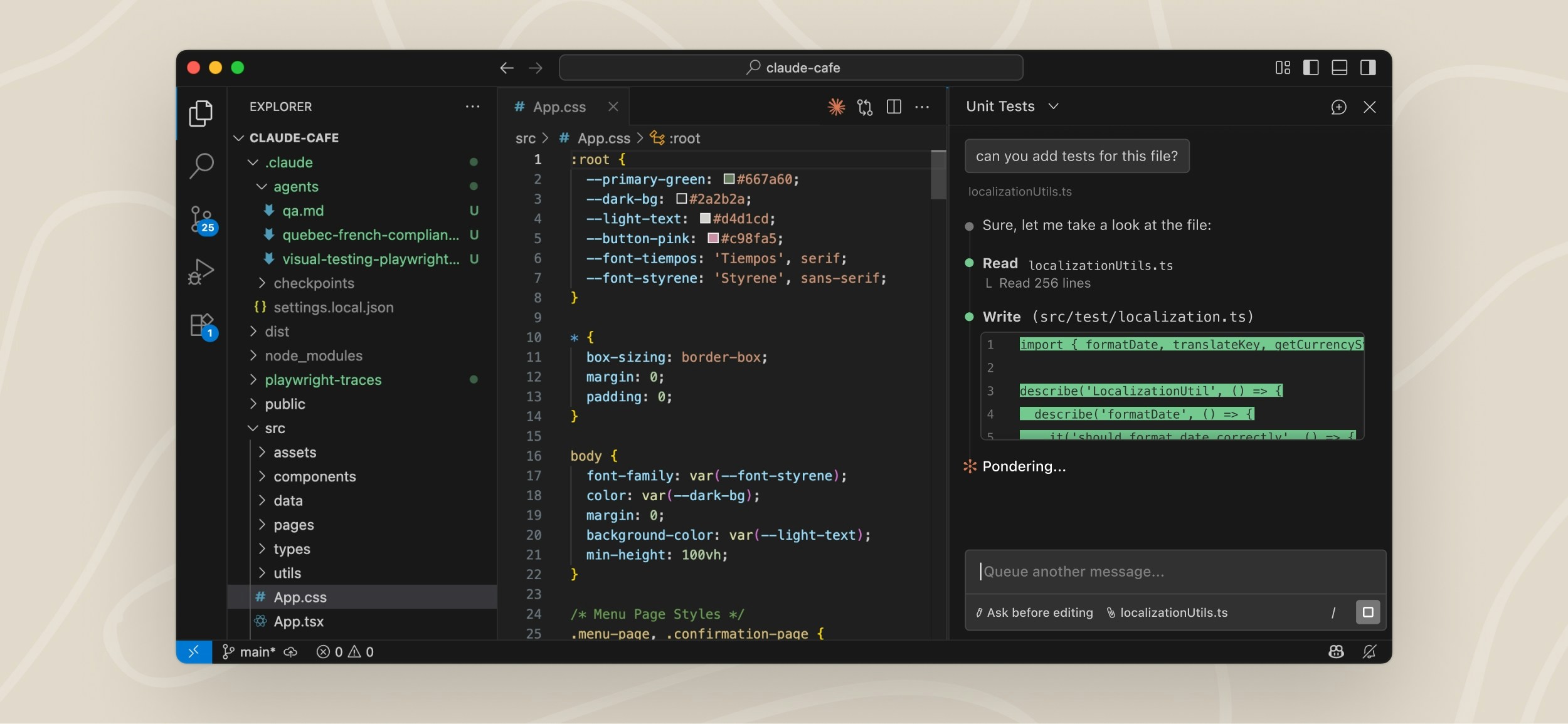
The VS Code extension provides a native graphical interface for Claude Code, integrated directly into your IDE. This is the recommended way to use Claude Code in VS Code.
With the extension, you can review and edit Claude's plans before accepting them, auto-accept edits as they're made, @-mention files with specific line ranges from your selection, access conversation history, and open multiple conversations in separate tabs or windows.
Prerequisites
Before installing, make sure you have:
- VS Code 1.98.0 or higher
- An Anthropic account (you'll sign in when you first open the extension). If you're using a third-party provider like Amazon Bedrock or Google Vertex AI, see Use third-party providers instead.
Tip
The extension includes the CLI (command-line interface), which you can access from VS Code's integrated terminal for advanced features. See VS Code extension vs. Claude Code CLI for details.
Install the extension
Click the link for your IDE to install directly:
Or in VS Code, press Cmd+Shift+X (Mac) or Ctrl+Shift+X (Windows/Linux) to open the Extensions view, search for "Claude Code", and click Install.
Note
If the extension doesn't appear after installation, restart VS Code or run "Developer: Reload Window" from the Command Palette.
Get started
Once installed, you can start using Claude Code through the VS Code interface:
Throughout VS Code, the Spark icon indicates Claude Code: <img src="https://mintcdn.com/claude-code/c5r9_6tjPMzFdDDT/images/vs-code-spark-icon.svg?fit=max&auto=format&n=c5r9_6tjPMzFdDDT&q=85&s=3ca45e00deadec8c8f4b4f807da94505" alt="Spark icon" style={{display: "inline", height: "0.85em", verticalAlign: "middle"}} width="16" height="16" data-path="images/vs-code-spark-icon.svg" />
The quickest way to open Claude is to click the Spark icon in the Editor Toolbar (top-right corner of the editor). The icon only appears when you have a file open.
<img src="https://mintcdn.com/claude-code/mfM-EyoZGnQv8JTc/images/vs-code-editor-icon.png?fit=max&auto=format&n=mfM-EyoZGnQv8JTc&q=85&s=eb4540325d94664c51776dbbfec4cf02" alt="VS Code editor showing the Spark icon in the Editor Toolbar" width="2796" height="734" data-path="images/vs-code-editor-icon.png" />
Other ways to open Claude Code:
- Activity Bar: click the Spark icon in the left sidebar to open the sessions list. Click any session to open it as a full editor tab, or start a new one. This icon is always visible in the Activity Bar.
- Command Palette:
Cmd+Shift+P(Mac) orCtrl+Shift+P(Windows/Linux), type "Claude Code", and select an option like "Open in New Tab" - Status Bar: click ✱ Claude Code in the bottom-right corner of the window. This works even when no file is open.
You can drag the Claude panel to reposition it anywhere in VS Code. See Customize your workflow for details.
The first time you open the panel, a sign-in screen appears. Click Sign in and complete authorization in your browser.
If you see Not logged in · Please run /login later, the extension reopens the sign-in screen automatically. If it doesn't appear, reload the window from the Command Palette with Developer: Reload Window.
If you have ANTHROPIC_API_KEY set in your shell but still see the sign-in prompt, VS Code may not have inherited your shell environment. Launch VS Code from a terminal with code . so it inherits your environment variables, or sign in with your Claude account instead.
After you sign in, a Learn Claude Code checklist appears. Work through each item by clicking Show me, or dismiss it with the X. To reopen it later, uncheck Hide Onboarding in VS Code settings under Extensions → Claude Code.
Ask Claude to help with your code or files, whether that's explaining how something works, debugging an issue, or making changes.
Tip
Claude automatically sees your selected text. Press Option+K (Mac) / Alt+K (Windows/Linux) to also insert an @-mention reference (like @file.ts#5-10) into your prompt.
Here's an example of asking about a particular line in a file:
<img src="https://mintcdn.com/claude-code/FVYz38sRY-VuoGHA/images/vs-code-send-prompt.png?fit=max&auto=format&n=FVYz38sRY-VuoGHA&q=85&s=ede3ed8d8d5f940e01c5de636d009cfd" alt="VS Code editor with lines 2-3 selected in a Python file, and the Claude Code panel showing a question about those lines with an @-mention reference" width="3288" height="1876" data-path="images/vs-code-send-prompt.png" />
When Claude wants to edit a file, it shows a side-by-side comparison of the original and proposed changes, then asks for permission. You can accept, reject, or tell Claude what to do instead.
<img src="https://mintcdn.com/claude-code/FVYz38sRY-VuoGHA/images/vs-code-edits.png?fit=max&auto=format&n=FVYz38sRY-VuoGHA&q=85&s=e005f9b41c541c5c7c59c082f7c4841c" alt="VS Code showing a diff of Claude's proposed changes with a permission prompt asking whether to make the edit" width="3292" height="1876" data-path="images/vs-code-edits.png" />
For more ideas on what you can do with Claude Code, see Common workflows.
Tip
Run "Claude Code: Open Walkthrough" from the Command Palette for a guided tour of the basics.
Use the prompt box
The prompt box supports several features:
- Permission modes: click the mode indicator at the bottom of the prompt box to switch modes. In normal mode, Claude asks permission before each action. In Plan mode, Claude describes what it will do and waits for approval before making changes. VS Code automatically opens the plan as a full markdown document where you can add inline comments to give feedback before Claude begins. In auto-accept mode, Claude makes edits without asking. Set the default in VS Code settings under
claudeCode.initialPermissionMode. - Command menu: click
/or type/to open the command menu. Options include attaching files, switching models, toggling extended thinking, viewing plan usage (/usage), and starting a Remote Control session (/remote-control). The Customize section provides access to MCP servers, hooks, memory, permissions, and plugins. Items with a terminal icon open in the integrated terminal. - Context indicator: the prompt box shows how much of Claude's context window you're using. Claude automatically compacts when needed, or you can run
/compactmanually. - Extended thinking: lets Claude spend more time reasoning through complex problems. Toggle it on via the command menu (
/). See Extended thinking for details. - Multi-line input: press
Shift+Enterto add a new line without sending. This also works in the "Other" free-text input of question dialogs.
Reference files and folders
Use @-mentions to give Claude context about specific files or folders. When you type @ followed by a file or folder name, Claude reads that content and can answer questions about it or make changes to it. Claude Code supports fuzzy matching, so you can type partial names to find what you need:
> Explain the logic in @auth (fuzzy matches auth.js, AuthService.ts, etc.)
> What's in @src/components/ (include a trailing slash for folders)
For large PDFs, you can ask Claude to read specific pages instead of the whole file: a single page, a range like pages 1-10, or an open-ended range like page 3 onward.
When you select text in the editor, Claude can see your highlighted code automatically. The prompt box footer shows how many lines are selected. Press Option+K (Mac) / Alt+K (Windows/Linux) to insert an @-mention with the file path and line numbers (e.g., @app.ts#5-10). Click the selection indicator to toggle whether Claude can see your highlighted text - the eye-slash icon means the selection is hidden from Claude.
You can also hold Shift while dragging files into the prompt box to add them as attachments. Click the X on any attachment to remove it from context.
Resume past conversations
Click the dropdown at the top of the Claude Code panel to access your conversation history. You can search by keyword or browse by time (Today, Yesterday, Last 7 days, etc.). Click any conversation to resume it with the full message history. New sessions receive AI-generated titles based on your first message. Hover over a session to reveal rename and remove actions: rename to give it a descriptive title, or remove to delete it from the list. For more on resuming sessions, see Common workflows.
Resume remote sessions from Claude.ai
If you use Claude Code on the web, you can resume those remote sessions directly in VS Code. This requires signing in with Claude.ai Subscription, not Anthropic Console.
Click the Past Conversations dropdown at the top of the Claude Code panel.
The dialog shows two tabs: Local and Remote. Click Remote to see sessions from claude.ai.
Browse or search your remote sessions. Click any session to download it and continue the conversation locally.
Note
Only web sessions started with a GitHub repository appear in the Remote tab. Resuming loads the conversation history locally; changes are not synced back to claude.ai.
Customize your workflow
Once you're up and running, you can reposition the Claude panel, run multiple sessions, or switch to terminal mode.
Choose where Claude lives
You can drag the Claude panel to reposition it anywhere in VS Code. Grab the panel's tab or title bar and drag it to:
- Secondary sidebar: the right side of the window. Keeps Claude visible while you code.
- Primary sidebar: the left sidebar with icons for Explorer, Search, etc.
- Editor area: opens Claude as a tab alongside your files. Useful for side tasks.
Tip
Use the sidebar for your main Claude session and open additional tabs for side tasks. Claude remembers your preferred location. The Activity Bar sessions list icon is separate from the Claude panel: the sessions list is always visible in the Activity Bar, while the Claude panel icon only appears there when the panel is docked to the left sidebar.
Run multiple conversations
Use Open in New Tab or Open in New Window from the Command Palette to start additional conversations. Each conversation maintains its own history and context, allowing you to work on different tasks in parallel.
When using tabs, a small colored dot on the spark icon indicates status: blue means a permission request is pending, orange means Claude finished while the tab was hidden.
Switch to terminal mode
By default, the extension opens a graphical chat panel. If you prefer the CLI-style interface, open the Use Terminal setting and check the box.
You can also open VS Code settings (Cmd+, on Mac or Ctrl+, on Windows/Linux), go to Extensions → Claude Code, and check Use Terminal.
Manage plugins
The VS Code extension includes a graphical interface for installing and managing plugins. Type /plugins in the prompt box to open the Manage plugins interface.
Install plugins
The plugin dialog shows two tabs: Plugins and Marketplaces.
In the Plugins tab:
- Installed plugins appear at the top with toggle switches to enable or disable them
- Available plugins from your configured marketplaces appear below
- Search to filter plugins by name or description
- Click Install on any available plugin
When you install a plugin, choose the installation scope:
- Install for you: available in all your projects (user scope)
- Install for this project: shared with project collaborators (project scope)
- Install locally: only for you, only in this repository (local scope)
Manage marketplaces
Switch to the Marketplaces tab to add or remove plugin sources:
- Enter a GitHub repo, URL, or local path to add a new marketplace
- Click the refresh icon to update a marketplace's plugin list
- Click the trash icon to remove a marketplace
After making changes, a banner prompts you to restart Claude Code to apply the updates.
Note
Plugin management in VS Code uses the same CLI commands under the hood. Plugins and marketplaces you configure in the extension are also available in the CLI, and vice versa.
For more about the plugin system, see Plugins and Plugin marketplaces.
Automate browser tasks with Chrome
Connect Claude to your Chrome browser to test web apps, debug with console logs, and automate browser workflows without leaving VS Code. This requires the Claude in Chrome extension version 1.0.36 or higher.
Type @browser in the prompt box followed by what you want Claude to do:
@browser go to localhost:3000 and check the console for errors
You can also open the attachment menu to select specific browser tools like opening a new tab or reading page content.
Claude opens new tabs for browser tasks and shares your browser's login state, so it can access any site you're already signed into.
For setup instructions, the full list of capabilities, and troubleshooting, see Use Claude Code with Chrome.
VS Code commands and shortcuts
Open the Command Palette (Cmd+Shift+P on Mac or Ctrl+Shift+P on Windows/Linux) and type "Claude Code" to see all available VS Code commands for the Claude Code extension.
Some shortcuts depend on which panel is "focused" (receiving keyboard input). When your cursor is in a code file, the editor is focused. When your cursor is in Claude's prompt box, Claude is focused. Use Cmd+Esc / Ctrl+Esc to toggle between them.
Note
These are VS Code commands for controlling the extension. Not all built-in Claude Code commands are available in the extension. See VS Code extension vs. Claude Code CLI for details.
| Command | Shortcut | Description |
|---|---|---|
| Focus Input | Cmd+Esc (Mac) / Ctrl+Esc (Windows/Linux) |
Toggle focus between editor and Claude |
| Open in Side Bar | - | Open Claude in the left sidebar |
| Open in Terminal | - | Open Claude in terminal mode |
| Open in New Tab | Cmd+Shift+Esc (Mac) / Ctrl+Shift+Esc (Windows/Linux) |
Open a new conversation as an editor tab |
| Open in New Window | - | Open a new conversation in a separate window |
| New Conversation | Cmd+N (Mac) / Ctrl+N (Windows/Linux) |
Start a new conversation. Requires Claude to be focused and enableNewConversationShortcut set to true |
| Insert @-Mention Reference | Option+K (Mac) / Alt+K (Windows/Linux) |
Insert a reference to the current file and selection (requires editor to be focused) |
| Show Logs | - | View extension debug logs |
| Logout | - | Sign out of your Anthropic account |
Launch a VS Code tab from other tools
The extension registers a URI handler at vscode://anthropic.claude-code/open. Use it to open a new Claude Code tab from your own tooling: a shell alias, a browser bookmarklet, or any script that can open a URL. If VS Code isn't already running, opening the URL launches it first. If VS Code is already running, the URL opens in whichever window is currently focused.
Invoke the handler with your operating system's URL opener. On macOS:
open "vscode://anthropic.claude-code/open"
Use xdg-open on Linux or start on Windows.
The handler accepts two optional query parameters:
| Parameter | Description |
|---|---|
prompt |
Text to pre-fill in the prompt box. Must be URL-encoded. The prompt is pre-filled but not submitted automatically. |
session |
A session ID to resume instead of starting a new conversation. The session must belong to the workspace currently open in VS Code. If the session isn't found, a fresh conversation starts instead. If the session is already open in a tab, that tab is focused. To capture a session ID programmatically, see Continue conversations. |
For example, to open a tab pre-filled with "review my changes":
vscode://anthropic.claude-code/open?prompt=review%20my%20changes
Configure settings
The extension has two types of settings:
- Extension settings in VS Code: control the extension's behavior within VS Code. Open with
Cmd+,(Mac) orCtrl+,(Windows/Linux), then go to Extensions → Claude Code. You can also type/and select General Config to open settings. - Claude Code settings in
~/.claude/settings.json: shared between the extension and CLI. Use for allowed commands, environment variables, hooks, and MCP servers. See Settings for details.
Tip
Add "$schema": "https://json.schemastore.org/claude-code-settings.json" to your settings.json to get autocomplete and inline validation for all available settings directly in VS Code.
Extension settings
| Setting | Default | Description |
|---|---|---|
useTerminal |
false |
Launch Claude in terminal mode instead of graphical panel |
initialPermissionMode |
default |
Controls approval prompts for new conversations: default, plan, acceptEdits, or bypassPermissions. See permission modes. |
preferredLocation |
panel |
Where Claude opens: sidebar (right) or panel (new tab) |
autosave |
true |
Auto-save files before Claude reads or writes them |
useCtrlEnterToSend |
false |
Use Ctrl/Cmd+Enter instead of Enter to send prompts |
enableNewConversationShortcut |
false |
Enable Cmd/Ctrl+N to start a new conversation |
hideOnboarding |
false |
Hide the onboarding checklist (graduation cap icon) |
respectGitIgnore |
true |
Exclude .gitignore patterns from file searches |
usePythonEnvironment |
true |
Activate the workspace's Python environment when running Claude. Requires the Python extension. |
environmentVariables |
[] |
Set environment variables for the Claude process. Use Claude Code settings instead for shared config. |
disableLoginPrompt |
false |
Skip authentication prompts (for third-party provider setups) |
allowDangerouslySkipPermissions |
false |
Adds Auto mode and Bypass permissions to the mode selector. Auto mode has plan, admin, model, and provider requirements, so it may remain unavailable even with this toggle on. Use Bypass permissions only in sandboxes with no internet access. |
claudeProcessWrapper |
- | Executable path used to launch the Claude process |
VS Code extension vs. Claude Code CLI
Claude Code is available as both a VS Code extension (graphical panel) and a CLI (command-line interface in the terminal). Some features are only available in the CLI. If you need a CLI-only feature, run claude in VS Code's integrated terminal.
| Feature | CLI | VS Code Extension |
|---|---|---|
| Commands and skills | All | Subset (type / to see available) |
| MCP server config | Yes | Partial (add servers via CLI; manage existing servers with /mcp in the chat panel) |
| Checkpoints | Yes | Yes |
! bash shortcut |
Yes | No |
| Tab completion | Yes | No |
Rewind with checkpoints
The VS Code extension supports checkpoints, which track Claude's file edits and let you rewind to a previous state. Hover over any message to reveal the rewind button, then choose from three options:
- Fork conversation from here: start a new conversation branch from this message while keeping all code changes intact
- Rewind code to here: revert file changes back to this point in the conversation while keeping the full conversation history
- Fork conversation and rewind code: start a new conversation branch and revert file changes to this point
For full details on how checkpoints work and their limitations, see Checkpointing.
Run CLI in VS Code
To use the CLI while staying in VS Code, open the integrated terminal (Ctrl+` on Windows/Linux or Cmd+` on Mac) and run claude. The CLI automatically integrates with your IDE for features like diff viewing and diagnostic sharing.
If using an external terminal, run /ide inside Claude Code to connect it to VS Code.
Switch between extension and CLI
The extension and CLI share the same conversation history. To continue an extension conversation in the CLI, run claude --resume in the terminal. This opens an interactive picker where you can search for and select your conversation.
Include terminal output in prompts
Reference terminal output in your prompts using @terminal:name where name is the terminal's title. This lets Claude see command output, error messages, or logs without copy-pasting.
Monitor background processes
When Claude runs long-running commands, the extension shows progress in the status bar. However, visibility for background tasks is limited compared to the CLI. For better visibility, have Claude output the command so you can run it in VS Code's integrated terminal.
Connect to external tools with MCP
MCP (Model Context Protocol) servers give Claude access to external tools, databases, and APIs.
To add an MCP server, open the integrated terminal (Ctrl+` or Cmd+`) and run:
claude mcp add --transport http github https://api.githubcopilot.com/mcp/
Once configured, ask Claude to use the tools (e.g., "Review PR #456").
To manage MCP servers without leaving VS Code, type /mcp in the chat panel. The MCP management dialog lets you enable or disable servers, reconnect to a server, and manage OAuth authentication. See the MCP documentation for available servers.
Work with git
Claude Code integrates with git to help with version control workflows directly in VS Code. Ask Claude to commit changes, create pull requests, or work across branches.
Create commits and pull requests
Claude can stage changes, write commit messages, and create pull requests based on your work:
> commit my changes with a descriptive message
> create a pr for this feature
> summarize the changes I've made to the auth module
When creating pull requests, Claude generates descriptions based on the actual code changes and can add context about testing or implementation decisions.
Use git worktrees for parallel tasks
Use the --worktree (-w) flag to start Claude in an isolated worktree with its own files and branch:
claude --worktree feature-auth
Each worktree maintains independent file state while sharing git history. This prevents Claude instances from interfering with each other when working on different tasks. For more details, see Run parallel sessions with Git worktrees.
Use third-party providers
By default, Claude Code connects directly to Anthropic's API. If your organization uses Amazon Bedrock, Google Vertex AI, or Microsoft Foundry to access Claude, configure the extension to use your provider instead:
Open the Disable Login Prompt setting and check the box.
You can also open VS Code settings (Cmd+, on Mac or Ctrl+, on Windows/Linux), search for "Claude Code login", and check Disable Login Prompt.
Follow the setup guide for your provider:
These guides cover configuring your provider in ~/.claude/settings.json, which ensures your settings are shared between the VS Code extension and the CLI.
Security and privacy
Your code stays private. Claude Code processes your code to provide assistance but does not use it to train models. For details on data handling and how to opt out of logging, see Data and privacy.
With auto-edit permissions enabled, Claude Code can modify VS Code configuration files (like settings.json or tasks.json) that VS Code may execute automatically. To reduce risk when working with untrusted code:
- Enable VS Code Restricted Mode for untrusted workspaces
- Use manual approval mode instead of auto-accept for edits
- Review changes carefully before accepting them
The built-in IDE MCP server
When the extension is active, it runs a local MCP server that the CLI connects to automatically. This is how the CLI opens diffs in VS Code's native diff viewer, reads your current selection for @-mentions, and — when you're working in a Jupyter notebook — asks VS Code to execute cells.
The server is named ide and is hidden from /mcp because there's nothing to configure. If your organization uses a PreToolUse hook to allowlist MCP tools, though, you'll need to know it exists.
Transport and authentication. The server binds to 127.0.0.1 on a random high port and is not reachable from other machines. Each extension activation generates a fresh random auth token that the CLI must present to connect. The token is written to a lock file under ~/.claude/ide/ with 0600 permissions in a 0700 directory, so only the user running VS Code can read it.
Tools exposed to the model. The server hosts a dozen tools, but only two are visible to the model. The rest are internal RPC the CLI uses for its own UI — opening diffs, reading selections, saving files — and are filtered out before the tool list reaches Claude.
| Tool name (as seen by hooks) | What it does | Writes? |
|---|---|---|
mcp__ide__getDiagnostics |
Returns language-server diagnostics — the errors and warnings in VS Code's Problems panel. Optionally scoped to one file. | No |
mcp__ide__executeCode |
Runs Python code in the active Jupyter notebook's kernel. See confirmation flow below. | Yes |
Jupyter execution always asks first. mcp__ide__executeCode can't run anything silently. On each call, the code is inserted as a new cell at the end of the active notebook, VS Code scrolls it into view, and a native Quick Pick asks you to Execute or Cancel. Cancelling — or dismissing the picker with Esc — returns an error to Claude and nothing runs. The tool also refuses outright when there's no active notebook, when the Jupyter extension (ms-toolsai.jupyter) isn't installed, or when the kernel isn't Python.
Note
The Quick Pick confirmation is separate from PreToolUse hooks. An allowlist entry for mcp__ide__executeCode lets Claude propose running a cell; the Quick Pick inside VS Code is what lets it actually run.
Fix common issues
Extension won't install
- Ensure you have a compatible version of VS Code (1.98.0 or later)
- Check that VS Code has permission to install extensions
- Try installing directly from the VS Code Marketplace
Spark icon not visible
The Spark icon appears in the Editor Toolbar (top-right of editor) when you have a file open. If you don't see it:
- Open a file: The icon requires a file to be open. Having just a folder open isn't enough.
- Check VS Code version: Requires 1.98.0 or higher (Help → About)
- Restart VS Code: Run "Developer: Reload Window" from the Command Palette
- Disable conflicting extensions: Temporarily disable other AI extensions (Cline, Continue, etc.)
- Check workspace trust: The extension doesn't work in Restricted Mode
Alternatively, click "✱ Claude Code" in the Status Bar (bottom-right corner). This works even without a file open. You can also use the Command Palette (Cmd+Shift+P / Ctrl+Shift+P) and type "Claude Code".
Claude Code never responds
If Claude Code isn't responding to your prompts:
- Check your internet connection: Ensure you have a stable internet connection
- Start a new conversation: Try starting a fresh conversation to see if the issue persists
- Try the CLI: Run
claudefrom the terminal to see if you get more detailed error messages
If problems persist, file an issue on GitHub with details about the error.
Uninstall the extension
To uninstall the Claude Code extension:
- Open the Extensions view (
Cmd+Shift+Xon Mac orCtrl+Shift+Xon Windows/Linux) - Search for "Claude Code"
- Click Uninstall
To also remove extension data and reset all settings:
rm -rf ~/.vscode/globalStorage/anthropic.claude-code
For additional help, see the troubleshooting guide.
Next steps
Now that you have Claude Code set up in VS Code:
- Explore common workflows to get the most out of Claude Code
- Set up MCP servers to extend Claude's capabilities with external tools. Add servers using the CLI, then manage them with
/mcpin the chat panel. - Configure Claude Code settings to customize allowed commands, hooks, and more. These settings are shared between the extension and CLI.
JetBrains IDEs
Use Claude Code with JetBrains IDEs including IntelliJ, PyCharm, WebStorm, and more
Claude Code integrates with JetBrains IDEs through a dedicated plugin, providing features like interactive diff viewing, selection context sharing, and more.
Supported IDEs
The Claude Code plugin works with most JetBrains IDEs, including:
- IntelliJ IDEA
- PyCharm
- Android Studio
- WebStorm
- PhpStorm
- GoLand
Features
- Quick launch: Use
Cmd+Esc(Mac) orCtrl+Esc(Windows/Linux) to open Claude Code directly from your editor, or click the Claude Code button in the UI - Diff viewing: Code changes can be displayed directly in the IDE diff viewer instead of the terminal
- Selection context: The current selection/tab in the IDE is automatically shared with Claude Code
- File reference shortcuts: Use
Cmd+Option+K(Mac) orAlt+Ctrl+K(Linux/Windows) to insert file references (for example, @File#L1-99) - Diagnostic sharing: Diagnostic errors (lint, syntax, etc.) from the IDE are automatically shared with Claude as you work
Installation
Marketplace Installation
Find and install the Claude Code plugin from the JetBrains marketplace and restart your IDE.
If you haven't installed Claude Code yet, see our quickstart guide for installation instructions.
Note
After installing the plugin, you may need to restart your IDE completely for it to take effect.
Usage
From Your IDE
Run claude from your IDE's integrated terminal, and all integration features will be active.
From External Terminals
Use the /ide command in any external terminal to connect Claude Code to your JetBrains IDE and activate all features:
claude
/ide
If you want Claude to have access to the same files as your IDE, start Claude Code from the same directory as your IDE project root.
Configuration
Claude Code Settings
Configure IDE integration through Claude Code's settings:
- Run
claude - Enter the
/configcommand - Set the diff tool to
autofor automatic IDE detection
Plugin Settings
Configure the Claude Code plugin by going to Settings → Tools → Claude Code [Beta]:
General Settings
- Claude command: Specify a custom command to run Claude (for example,
claude,/usr/local/bin/claude, ornpx @anthropic-ai/claude-code) - Suppress notification for Claude command not found: Skip notifications about not finding the Claude command
- Enable using Option+Enter for multi-line prompts (macOS only): When enabled, Option+Enter inserts new lines in Claude Code prompts. Disable if experiencing issues with the Option key being captured unexpectedly (requires terminal restart)
- Enable automatic updates: Automatically check for and install plugin updates (applied on restart)
Tip
For WSL users: Set wsl -d Ubuntu -- bash -lic "claude" as your Claude command (replace Ubuntu with your WSL distribution name)
ESC Key Configuration
If the ESC key doesn't interrupt Claude Code operations in JetBrains terminals:
- Go to Settings → Tools → Terminal
- Either:
- Uncheck "Move focus to the editor with Escape", or
- Click "Configure terminal keybindings" and delete the "Switch focus to Editor" shortcut
- Apply the changes
This allows the ESC key to properly interrupt Claude Code operations.
Special Configurations
Remote Development
Warning
When using JetBrains Remote Development, you must install the plugin in the remote host via Settings → Plugin (Host).
The plugin must be installed on the remote host, not on your local client machine.
WSL Configuration
Warning
WSL users may need additional configuration for IDE detection to work properly. See our WSL troubleshooting guide for detailed setup instructions.
WSL configuration may require:
- Proper terminal configuration
- Networking mode adjustments
- Firewall settings updates
Troubleshooting
Plugin Not Working
- Ensure you're running Claude Code from the project root directory
- Check that the JetBrains plugin is enabled in the IDE settings
- Completely restart the IDE (you may need to do this multiple times)
- For Remote Development, ensure the plugin is installed in the remote host
IDE Not Detected
- Verify the plugin is installed and enabled
- Restart the IDE completely
- Check that you're running Claude Code from the integrated terminal
- For WSL users, see the WSL troubleshooting guide
Command Not Found
If clicking the Claude icon shows "command not found":
- Verify Claude Code is installed:
npm list -g @anthropic-ai/claude-code - Configure the Claude command path in plugin settings
- For WSL users, use the WSL command format mentioned in the configuration section
Security Considerations
When Claude Code runs in a JetBrains IDE with auto-edit permissions enabled, it may be able to modify IDE configuration files that can be automatically executed by your IDE. This may increase the risk of running Claude Code in auto-edit mode and allow bypassing Claude Code's permission prompts for bash execution.
When running in JetBrains IDEs, consider:
- Using manual approval mode for edits
- Taking extra care to ensure Claude is only used with trusted prompts
- Being aware of which files Claude Code has access to modify
For additional help, see our troubleshooting guide.
Claude Code in Slack
Delegate coding tasks directly from your Slack workspace
Claude Code in Slack brings the power of Claude Code directly into your Slack workspace. When you mention @Claude with a coding task, Claude automatically detects the intent and creates a Claude Code session on the web, allowing you to delegate development work without leaving your team conversations.
This integration is built on the existing Claude for Slack app but adds intelligent routing to Claude Code on the web for coding-related requests.
Use cases
- Bug investigation and fixes: Ask Claude to investigate and fix bugs as soon as they're reported in Slack channels.
- Quick code reviews and modifications: Have Claude implement small features or refactor code based on team feedback.
- Collaborative debugging: When team discussions provide crucial context (e.g., error reproductions or user reports), Claude can use that information to inform its debugging approach.
- Parallel task execution: Kick off coding tasks in Slack while you continue other work, receiving notifications when complete.
Prerequisites
Before using Claude Code in Slack, ensure you have the following:
| Requirement | Details |
|---|---|
| Claude Plan | Pro, Max, Team, or Enterprise with Claude Code access (premium seats or Chat + Claude Code seats) |
| Claude Code on the web | Access to Claude Code on the web must be enabled |
| GitHub Account | Connected to Claude Code on the web with at least one repository authenticated |
| Slack Authentication | Your Slack account linked to your Claude account via the Claude app |
Setting up Claude Code in Slack
A workspace administrator must install the Claude app from the Slack App Marketplace. Visit the Slack App Marketplace and click "Add to Slack" to begin the installation process.
After the app is installed, authenticate your individual Claude account:
- Open the Claude app in Slack by clicking on "Claude" in your Apps section
- Navigate to the App Home tab
- Click "Connect" to link your Slack account with your Claude account
- Complete the authentication flow in your browser
Ensure your Claude Code on the web is properly configured:
- Visit claude.ai/code and sign in with the same account you connected to Slack
- Connect your GitHub account if not already connected
- Authenticate at least one repository that you want Claude to work with
After connecting your accounts, configure how Claude handles your messages in Slack. Navigate to the Claude App Home in Slack to find the Routing Mode setting.
| Mode | Behavior |
|---|---|
| Code only | Claude routes all @mentions to Claude Code sessions. Best for teams using Claude in Slack exclusively for development tasks. |
| Code + Chat | Claude analyzes each message and intelligently routes between Claude Code (for coding tasks) and Claude Chat (for writing, analysis, and general questions). Best for teams who want a single @Claude entry point for all types of work. |
Note
In Code + Chat mode, if Claude routes a message to Chat but you wanted a coding session, you can click "Retry as Code" to create a Claude Code session instead. Similarly, if it's routed to Code but you wanted a Chat session, you can choose that option in that thread.
Claude is not automatically added to any channels after installation. To use Claude in a channel, invite it by typing /invite @Claude in that channel. Claude can only respond to @mentions in channels where it has been added.
How it works
Automatic detection
When you mention @Claude in a Slack channel or thread, Claude automatically analyzes your message to determine if it's a coding task. If Claude detects coding intent, it will route your request to Claude Code on the web instead of responding as a regular chat assistant.
You can also explicitly tell Claude to handle a request as a coding task, even if it doesn't automatically detect it.
Note
Claude Code in Slack only works in channels (public or private). It does not work in direct messages (DMs).
Context gathering
From threads: When you @mention Claude in a thread, it gathers context from all messages in that thread to understand the full conversation.
From channels: When mentioned directly in a channel, Claude looks at recent channel messages for relevant context.
This context helps Claude understand the problem, select the appropriate repository, and inform its approach to the task.
Warning
When @Claude is invoked in Slack, Claude is given access to the conversation context to better understand your request. Claude may follow directions from other messages in the context, so users should make sure to only use Claude in trusted Slack conversations.
Session flow
- Initiation: You @mention Claude with a coding request
- Detection: Claude analyzes your message and detects coding intent
- Session creation: A new Claude Code session is created on claude.ai/code
- Progress updates: Claude posts status updates to your Slack thread as work progresses
- Completion: When finished, Claude @mentions you with a summary and action buttons
- Review: Click "View Session" to see the full transcript, or "Create PR" to open a pull request
User interface elements
App Home
The App Home tab shows your connection status and allows you to connect or disconnect your Claude account from Slack.
Message actions
- View Session: Opens the full Claude Code session in your browser where you can see all work performed, continue the session, or make additional requests.
- Create PR: Creates a pull request directly from the session's changes.
- Retry as Code: If Claude initially responds as a chat assistant but you wanted a coding session, click this button to retry the request as a Claude Code task.
- Change Repo: Allows you to select a different repository if Claude chose incorrectly.
Repository selection
Claude automatically selects a repository based on context from your Slack conversation. If multiple repositories could apply, Claude may display a dropdown allowing you to choose the correct one.
Access and permissions
User-level access
| Access Type | Requirement |
|---|---|
| Claude Code Sessions | Each user runs sessions under their own Claude account |
| Usage & Rate Limits | Sessions count against the individual user's plan limits |
| Repository Access | Users can only access repositories they've personally connected |
| Session History | Sessions appear in your Claude Code history on claude.ai/code |
Workspace-level access
Slack workspace administrators control whether the Claude app is available in their workspace:
| Control | Description |
|---|---|
| App installation | Workspace admins decide whether to install the Claude app from the Slack App Marketplace |
| Enterprise Grid distribution | For Enterprise Grid organizations, organization admins can control which workspaces have access to the Claude app |
| App removal | Removing the app from a workspace immediately revokes access for all users in that workspace |
Channel-based access control
Claude is not automatically added to any channels after installation. Users must explicitly invite Claude to channels where they want to use it:
- Invite required: Type
/invite @Claudein any channel to add Claude to that channel - Channel membership controls access: Claude can only respond to @mentions in channels where it has been added
- Access gating through channels: Admins can control who uses Claude Code by managing which channels Claude is invited to and who has access to those channels
- Private channel support: Claude works in both public and private channels, giving teams flexibility in controlling visibility
This channel-based model allows teams to restrict Claude Code usage to specific channels, providing an additional layer of access control beyond workspace-level permissions.
What's accessible where
In Slack: You'll see status updates, completion summaries, and action buttons. The full transcript is preserved and always accessible.
On the web: The complete Claude Code session with full conversation history, all code changes, file operations, and the ability to continue the session or create pull requests.
For Enterprise and Team accounts, sessions created from Claude in Slack are automatically visible to the organization. See Claude Code on the Web sharing for more details.
Best practices
Writing effective requests
- Be specific: Include file names, function names, or error messages when relevant.
- Provide context: Mention the repository or project if it's not clear from the conversation.
- Define success: Explain what "done" looks like—should Claude write tests? Update documentation? Create a PR?
- Use threads: Reply in threads when discussing bugs or features so Claude can gather the full context.
When to use Slack vs. web
Use Slack when: Context already exists in a Slack discussion, you want to kick off a task asynchronously, or you're collaborating with teammates who need visibility.
Use the web directly when: You need to upload files, want real-time interaction during development, or are working on longer, more complex tasks.
Troubleshooting
Sessions not starting
- Verify your Claude account is connected in the Claude App Home
- Check that you have Claude Code on the web access enabled
- Ensure you have at least one GitHub repository connected to Claude Code
Repository not showing
- Connect the repository in Claude Code on the web at claude.ai/code
- Verify your GitHub permissions for that repository
- Try disconnecting and reconnecting your GitHub account
Wrong repository selected
- Click the "Change Repo" button to select a different repository
- Include the repository name in your request for more accurate selection
Authentication errors
- Disconnect and reconnect your Claude account in the App Home
- Ensure you're signed into the correct Claude account in your browser
- Check that your Claude plan includes Claude Code access
Session expiration
- Sessions remain accessible in your Claude Code history on the web
- You can continue or reference past sessions from claude.ai/code
Current limitations
- GitHub only: Currently supports repositories on GitHub.
- One PR at a time: Each session can create one pull request.
- Rate limits apply: Sessions use your individual Claude plan's rate limits.
- Web access required: Users must have Claude Code on the web access; those without it will only get standard Claude chat responses.
Related resources
Get started with Claude Code on the web
Run Claude Code in the cloud from your browser or phone. Connect a GitHub repository, submit a task, and review the PR without local setup.
Note
Claude Code on the web is in research preview for Pro, Max, and Team users, and for Enterprise users with premium seats or Chat + Claude Code seats.
Claude Code on the web runs on Anthropic-managed cloud infrastructure instead of your machine. Submit tasks from claude.ai/code in your browser or the Claude mobile app.
You'll need a GitHub repository to get started. Claude clones it into an isolated virtual machine, makes changes, and pushes a branch for you to review. Sessions persist across devices, so a task you start on your laptop is ready to review from your phone later.
Claude Code on the web works well for:
- Parallel tasks: run several independent tasks at once, each in its own session and branch, without managing multiple worktrees
- Repos you don't have locally: Claude clones the repo fresh every session, so you don't need it checked out
- Tasks that don't need frequent steering: submit a well-defined task, do something else, and review the result when Claude is done
- Code questions and exploration: understand a codebase or trace how a feature is implemented without a local checkout
For work that needs your local config, tools, or environment, running Claude Code locally or using Remote Control is a better fit.
How sessions run
When you submit a task:
- Clone and prepare: your repository is cloned to an Anthropic-managed VM, and your setup script runs if configured.
- Configure network: internet access is set based on your environment's access level.
- Work: Claude analyzes code, makes changes, runs tests, and checks its work. You can watch and steer throughout, or step away and come back when it's done.
- Push the branch: when Claude reaches a stopping point, it pushes its branch to GitHub. You review the diff, leave inline comments, create a PR, or send another message to keep going.
The session doesn't close when the branch is pushed. PR creation and further edits all happen within the same conversation.
Compare ways to run Claude Code
Claude Code behaves the same everywhere. What changes is where code executes and whether your local config is available. offers both local and cloud sessions, so its answers below depend on which you choose:
| On the web | Remote Control | Terminal CLI | |
|---|---|---|---|
| Code runs on | Anthropic cloud VM | Your machine | Your machine |
| You chat from | claude.ai or mobile app | claude.ai or mobile app | Your terminal |
| Uses your local config | No, repo only | Yes | Yes |
| Requires GitHub | Yes, or bundle a local repo via --remote |
No | No |
| Keeps running if you disconnect | Yes | While terminal stays open | No |
| Permission modes | Auto accept edits, Plan | Ask, Auto accept edits, Plan | All modes |
| Network access | Configurable per environment | Your machine's network | Your machine's network |
See the terminal quickstart or Remote Control docs to set those up.
Connect GitHub and create an environment
Setup is a one-time process. If you already use the GitHub CLI, you can do this from your terminal instead of the browser.
Go to claude.ai/code and sign in with your Anthropic account.
After signing in, claude.ai/code prompts you to connect GitHub. Follow the prompt to install the Claude GitHub App and grant it access to your repositories. Cloud sessions work with existing GitHub repositories, so to start a new project, create an empty repository on GitHub first.
After connecting GitHub, you'll be prompted to create a cloud environment. The environment controls what network access Claude has during sessions and what runs when a new session is created. See Installed tools for what's available without any configuration.
The form has these fields:
- Name: a display label. Useful when you have multiple environments for different projects or access levels.
- Network access: controls what the session can reach on the internet. The default,
Trusted, allows connections to common package registries like npm, PyPI, and RubyGems while blocking general internet access. - Environment variables: optional variables available in every session, in
.envformat. Don't wrap values in quotes, since quotes are stored as part of the value. These are visible to anyone who can edit this environment. - Setup script: an optional Bash script that runs before Claude Code launches when a new session is created. Use it to install system tools the cloud VM doesn't include, like
apt install -y gh, or to start services your project needs. See Setup scripts for examples and debugging tips.
For a first project, leave the defaults and click Create environment. You can edit it later or create additional environments for different projects.
Connect from your terminal
If you already use the GitHub CLI (gh), you can set up Claude Code on the web without opening a browser. This requires the Claude Code CLI. /web-setup reads your local gh token, links it to your Claude account, and creates a default cloud environment if you don't have one.
Note
Organizations with Zero Data Retention enabled cannot use /web-setup or other cloud session features. If the GitHub CLI isn't installed or authenticated, /web-setup opens the browser onboarding flow instead.
In your shell, authenticate the GitHub CLI if you haven't already:
gh auth login
In the Claude Code CLI, run /login to sign in with your claude.ai account. Skip this step if you're already signed in.
In the Claude Code CLI, run:
/web-setup
This syncs your gh token to your Claude account. If you don't have a cloud environment yet, /web-setup creates one with Trusted network access and no setup script. You can edit the environment or add variables afterward. Once /web-setup completes, you can start cloud sessions from your terminal with --remote or set up recurring tasks with /schedule.
Start a task
With GitHub connected and an environment created, you're ready to submit tasks.
From claude.ai/code or the Code tab in the Claude mobile app, click the repository selector below the input box and choose a repository for Claude to work in. Each repository shows a branch selector. Change it to start Claude from a feature branch instead of the default. You can add multiple repositories to work across them in one session.
The mode dropdown next to the input defaults to Auto accept edits, where Claude makes changes and pushes a branch without stopping for approval. Switch to Plan mode if you want Claude to propose an approach and wait for your go-ahead before editing files. Cloud sessions don't offer Ask permissions, Auto mode, or Bypass permissions. See Permission modes for the full list.
Type a description of what you want and press Enter. Be specific:
- Name the file or function: "Add a README with setup instructions" or "Fix the failing auth test in
tests/test_auth.py" is better than "fix tests" - Paste error output if you have it
- Describe the expected behavior, not just the symptom
Claude clones the repositories, runs your setup script if configured, and starts working. Each task gets its own session and its own branch, so you don't need to wait for one to finish before starting another.
Review and iterate
When Claude finishes, review the changes, leave feedback on specific lines, and keep going until the diff looks right.
A diff indicator shows lines added and removed across the session, for example +42 -18. Select it to open the diff view, with a file list on the left and changes on the right.
Select any line in the diff, type your feedback, and press Enter. Comments queue up until you send your next message, then they're bundled with it. Claude sees "at src/auth.ts:47, don't catch the error here" alongside your main instruction, so you don't have to describe where the problem is.
When the diff looks right, select Create PR at the top of the diff view. You can open it as a full PR, a draft, or jump to GitHub's compose page with a generated title and description.
The session stays live after the PR is created. Paste CI failure output or reviewer comments into the chat and ask Claude to address them. To have Claude monitor the PR automatically, see Auto-fix pull requests.
Troubleshoot setup
No repositories appear after connecting GitHub
The Claude GitHub App needs explicit access to each repository you want to use. On github.com, open Settings → Applications → Claude → Configure and verify your repo is listed under Repository access. Private repositories need the same authorization as public ones.
The page only shows a GitHub login button
Cloud sessions require a connected GitHub account. Connect via the browser flow above, or run /web-setup from your terminal if you use the GitHub CLI. If you'd rather not connect GitHub at all, see Remote Control to run Claude Code on your own machine and monitor it from the web.
"Not available for the selected organization"
Enterprise organizations may need an admin to enable Claude Code on the web. Contact your Anthropic account team.
/web-setup returns "Unknown command"
/web-setup runs inside the Claude Code CLI, not your shell. Launch claude first, then type /web-setup at the prompt.
If you typed it inside Claude Code and still see the error, your CLI is older than v2.1.80 or you're authenticated with an API key or third-party provider instead of a claude.ai subscription. Run claude update, then /login to sign in with your claude.ai account.
"Could not create a cloud environment" or "No cloud environment available" when using --remote or ultraplan
Remote-session features create a default cloud environment automatically if you don't have one. If you see "Could not create a cloud environment", automatic creation failed. {/* max-version: 2.1.100 */}If you see "No cloud environment available", your CLI predates automatic creation. In either case, run /web-setup in the Claude Code CLI to create one manually, or visit claude.ai/code and follow the Create your environment step above.
Setup script failed
The setup script exited with a non-zero status, which blocks the session from starting. Common causes:
- A package install failed because the registry isn't in your network access level.
Trustedcovers most package managers;Noneblocks them all. - The script references a file or path that doesn't exist in a fresh clone.
- A command that works locally needs a different invocation on Ubuntu.
To debug, add set -x at the top of the script to see which command failed. For non-critical commands, append || true so they don't block session start.
Session keeps running after closing the tab
This is by design. Closing the tab or navigating away doesn't stop the session. It continues running in the background until Claude finishes the current task, then idles. From the sidebar, you can archive a session to hide it from your list, or delete it to remove it permanently.
Next steps
Now that you can submit and review tasks, these pages cover what comes next: starting cloud sessions from your terminal, scheduling recurring work, and giving Claude standing instructions.
- Use Claude Code on the web: the full reference, including teleporting sessions to your terminal, setup scripts, environment variables, and network config
- Schedule tasks on the web: automate recurring work like daily PR reviews and dependency audits
- CLAUDE.md: give Claude persistent instructions and context that load at the start of every session
- Install the Claude mobile app for iOS or Android to monitor sessions from your phone. From the Claude Code CLI,
/mobileshows a QR code.
Use Claude Code on the web
Configure cloud environments, setup scripts, network access, and Docker in Anthropic's sandbox. Move sessions between web and terminal with `--remote` and `--teleport`.
Note
Claude Code on the web is in research preview for Pro, Max, and Team users, and for Enterprise users with premium seats or Chat + Claude Code seats.
Claude Code on the web runs tasks on Anthropic-managed cloud infrastructure at claude.ai/code. Sessions persist even if you close your browser, and you can monitor them from the Claude mobile app.
Tip
New to Claude Code on the web? Start with Get started to connect your GitHub account and submit your first task.
This page covers:
- GitHub authentication options: two ways to connect GitHub
- The cloud environment: what config carries over, what tools are installed, and how to configure environments
- Setup scripts and dependency management
- Network access: levels, proxies, and the default allowlist
- Move tasks between web and terminal with
--remoteand--teleport - Work with sessions: reviewing, sharing, archiving, deleting
- Auto-fix pull requests: respond automatically to CI failures and review comments
- Security and isolation: how sessions are isolated
- Limitations: rate limits and platform restrictions
GitHub authentication options
Cloud sessions need access to your GitHub repositories to clone code and push branches. You can grant access in two ways:
| Method | How it works | Best for |
|---|---|---|
| GitHub App | Install the Claude GitHub App on specific repositories during web onboarding. Access is scoped per repository. | Teams that want explicit per-repo authorization |
/web-setup |
Run /web-setup in your terminal to sync your local gh CLI token to your Claude account. Access matches whatever your gh token can see. |
Individual developers who already use gh |
Either method works. /schedule checks for either form of access and prompts you to run /web-setup if neither is configured. See Connect from your terminal for the /web-setup walkthrough.
The GitHub App is required for Auto-fix, which uses the App to receive PR webhooks. If you connect with /web-setup and later want Auto-fix, install the App on those repositories.
Team and Enterprise admins can disable /web-setup with the Quick web setup toggle at claude.ai/admin-settings/claude-code.
Note
Organizations with Zero Data Retention enabled cannot use /web-setup or other cloud session features.
The cloud environment
Each session runs in a fresh Anthropic-managed VM with your repository cloned. This section covers what's available when a session starts and how to customize it.
What's available in cloud sessions
Cloud sessions start from a fresh clone of your repository. Anything committed to the repo is available. Anything you've installed or configured only on your own machine is not.
| Available in cloud sessions | Why | |
|---|---|---|
Your repo's CLAUDE.md |
Yes | Part of the clone |
Your repo's .claude/settings.json hooks |
Yes | Part of the clone |
Your repo's .mcp.json MCP servers |
Yes | Part of the clone |
Your repo's .claude/rules/ |
Yes | Part of the clone |
Your repo's .claude/skills/, .claude/agents/, .claude/commands/ |
Yes | Part of the clone |
Plugins declared in .claude/settings.json |
Yes | Installed at session start from the marketplace you declared. Requires network access to reach the marketplace source |
Your user ~/.claude/CLAUDE.md |
No | Lives on your machine, not in the repo |
| Plugins enabled only in your user settings | No | User-scoped enabledPlugins lives in ~/.claude/settings.json. Declare them in the repo's .claude/settings.json instead |
MCP servers you added with claude mcp add |
No | Those write to your local user config, not the repo. Declare the server in .mcp.json instead |
| Static API tokens and credentials | No | No dedicated secrets store exists yet. See below |
| Interactive auth like AWS SSO | No | Not supported. SSO requires browser-based login that can't run in a cloud session |
To make configuration available in cloud sessions, commit it to the repo. A dedicated secrets store is not yet available. Both environment variables and setup scripts are stored in the environment configuration, visible to anyone who can edit that environment. If you need secrets in a cloud session, add them as environment variables with that visibility in mind.
Installed tools
Cloud sessions come with common language runtimes, build tools, and databases pre-installed. The table below summarizes what's included by category.
| Category | Included |
|---|---|
| Python | Python 3.x with pip, poetry, uv, black, mypy, pytest, ruff |
| Node.js | 20, 21, and 22 via nvm, with npm, yarn, pnpm, bun¹, eslint, prettier, chromedriver |
| Ruby | 3.1, 3.2, 3.3 with gem, bundler, rbenv |
| PHP | 8.4 with Composer |
| Java | OpenJDK 21 with Maven and Gradle |
| Go | latest stable with module support |
| Rust | rustc and cargo |
| C/C++ | GCC, Clang, cmake, ninja, conan |
| Docker | docker, dockerd, docker compose |
| Databases | PostgreSQL 16, Redis 7.0 |
| Utilities | git, jq, yq, ripgrep, tmux, vim, nano |
¹ Bun is installed but has known proxy compatibility issues for package fetching.
For exact versions, ask Claude to run check-tools in a cloud session. This command only exists in cloud sessions.
Work with GitHub issues and pull requests
Cloud sessions include built-in GitHub tools that let Claude read issues, list pull requests, fetch diffs, and post comments without any setup. These tools authenticate through the GitHub proxy using whichever method you configured under GitHub authentication options, so your token never enters the container.
The gh CLI is not pre-installed. If you need a gh command the built-in tools don't cover, like gh release or gh workflow run, install and authenticate it yourself:
Add apt update && apt install -y gh to your setup script.
Add a GH_TOKEN environment variable to your environment settings with a GitHub personal access token. gh reads GH_TOKEN automatically, so no gh auth login step is needed.
Run tests, start services, and add packages
Claude runs tests as part of working on a task. Ask for it in your prompt, like "fix the failing tests in tests/" or "run pytest after each change." Test runners like pytest, jest, and cargo test work out of the box since they're pre-installed.
PostgreSQL and Redis are pre-installed but not running by default. Start each one in a setup script or ask Claude to start it during the session:
service postgresql start
service redis-server start
Docker is available for running containerized services. Network access to pull images follows your environment's access level.
To add packages that aren't pre-installed, use a setup script so they're available at session start. You can also ask Claude to install packages during the session, but those installs don't persist across sessions.
Resource limits
Cloud sessions run with approximate resource ceilings that may change over time:
- 4 vCPUs
- 16 GB of RAM
- 30 GB of disk
Tasks requiring significantly more memory, such as large build jobs or memory-intensive tests, may fail or be terminated. For workloads beyond these limits, use Remote Control to run Claude Code on your own hardware.
Configure your environment
Environments control network access, environment variables, and the setup script that runs before a session starts. See Installed tools for what's available without any configuration. You can manage environments from the web interface or the terminal:
| Action | How |
|---|---|
| Add an environment | Select the current environment to open the selector, then select Add environment. The dialog includes name, network access level, environment variables, and setup script. |
| Edit an environment | Select the settings icon to the right of the environment name. |
| Archive an environment | Open the environment for editing and select Archive. Archived environments are hidden from the selector but existing sessions keep running. |
Set the default for --remote |
Run /remote-env in your terminal. If you have a single environment, this command shows your current configuration. /remote-env only selects the default; add, edit, and archive environments from the web interface. |
Environment variables use .env format with one KEY=value pair per line. Don't wrap values in quotes, since quotes are stored as part of the value.
NODE_ENV=development
LOG_LEVEL=debug
DATABASE_URL=postgres://localhost:5432/myapp
Setup scripts
A setup script is a Bash script that runs when a new cloud session starts, before Claude Code launches. Use setup scripts to install dependencies, configure tools, or fetch anything the session needs that isn't pre-installed.
Scripts run as root on Ubuntu 24.04, so apt install and most language package managers work.
To add a setup script, open the environment settings dialog and enter your script in the Setup script field.
This example installs the gh CLI, which isn't pre-installed:
#!/bin/bash
apt update && apt install -y gh
Setup scripts run only when creating a new session. They are skipped when resuming an existing session.
If the script exits non-zero, the session fails to start. Append || true to non-critical commands to avoid blocking the session on an intermittent install failure.
Note
Setup scripts that install packages need network access to reach registries. The default Trusted network access allows connections to common package registries including npm, PyPI, RubyGems, and crates.io. Scripts will fail to install packages if your environment uses None network access.
Setup scripts vs. SessionStart hooks
Use a setup script to install things the cloud needs but your laptop already has, like a language runtime or CLI tool. Use a SessionStart hook for project setup that should run everywhere, cloud and local, like npm install.
Both run at the start of a session, but they belong to different places:
| Setup scripts | SessionStart hooks | |
|---|---|---|
| Attached to | The cloud environment | Your repository |
| Configured in | Cloud environment UI | .claude/settings.json in your repo |
| Runs | Before Claude Code launches, on new sessions only | After Claude Code launches, on every session including resumed |
| Scope | Cloud environments only | Both local and cloud |
SessionStart hooks can also be defined in your user-level ~/.claude/settings.json locally, but user-level settings don't carry over to cloud sessions. In the cloud, only hooks committed to the repo run.
Install dependencies with a SessionStart hook
To install dependencies only in cloud sessions, add a SessionStart hook to your repo's .claude/settings.json:
{
  "hooks": {
    "SessionStart": [
      {
        "matcher": "startup|resume",
        "hooks": [
          {
            "type": "command",
            "command": "\"$CLAUDE_PROJECT_DIR\"/scripts/install_pkgs.sh"
          }
        ]
      }
    ]
  }
}
Create the script at scripts/install_pkgs.sh and make it executable with chmod +x. The CLAUDE_CODE_REMOTE environment variable is set to true in cloud sessions, so you can use it to skip local execution:
#!/bin/bash

if [ "$CLAUDE_CODE_REMOTE" != "true" ]; then
  exit 0
fi

npm install
pip install -r requirements.txt
exit 0
SessionStart hooks have some limitations in cloud sessions:
- No cloud-only scoping: hooks run in both local and cloud sessions. To skip local execution, check the
CLAUDE_CODE_REMOTEenvironment variable as shown above. - Requires network access: install commands need to reach package registries. If your environment uses None network access, these hooks fail. The default allowlist under Trusted covers npm, PyPI, RubyGems, and crates.io.
- Proxy compatibility: all outbound traffic passes through a security proxy. Some package managers don't work correctly with this proxy. Bun is a known example.
- Adds startup latency: hooks run each time a session starts or resumes. Keep install scripts fast by checking whether dependencies are already present before reinstalling.
To persist environment variables for subsequent Bash commands, write to the file at $CLAUDE_ENV_FILE. See SessionStart hooks for details.
Custom environment images and snapshots are not yet supported.
Network access
Network access controls outbound connections from the cloud environment. Each environment specifies one access level, and you can extend it with custom allowed domains. The default is Trusted, which allows package registries and other allowlisted domains.
Access levels
Choose an access level when you create or edit an environment:
| Level | Outbound connections |
|---|---|
| None | No outbound network access |
| Trusted | Allowlisted domains only: package registries, GitHub, cloud SDKs |
| Full | Any domain |
| Custom | Your own allowlist, optionally including the defaults |
GitHub operations use a separate proxy that is independent of this setting.
Allow specific domains
To allow domains that aren't in the Trusted list, select Custom in the environment's network access settings. An Allowed domains field appears. Enter one domain per line:
api.example.com
*.internal.example.com
registry.example.com
Use *. for wildcard subdomain matching. Check Also include default list of common package managers to keep the Trusted domains alongside your custom entries, or leave it unchecked to allow only what you list.
GitHub proxy
For security, all GitHub operations go through a dedicated proxy service that transparently handles all git interactions. Inside the sandbox, the git client authenticates using a custom-built scoped credential. This proxy:
- Manages GitHub authentication securely: the git client uses a scoped credential inside the sandbox, which the proxy verifies and translates to your actual GitHub authentication token
- Restricts git push operations to the current working branch for safety
- Enables cloning, fetching, and PR operations while maintaining security boundaries
Security proxy
Environments run behind an HTTP/HTTPS network proxy for security and abuse prevention purposes. All outbound internet traffic passes through this proxy, which provides:
- Protection against malicious requests
- Rate limiting and abuse prevention
- Content filtering for enhanced security
Default allowed domains
When using Trusted network access, the following domains are allowed by default. Domains marked with * indicate wildcard subdomain matching, so *.gcr.io allows any subdomain of gcr.io.
Anthropic services
- api.anthropic.com
- statsig.anthropic.com
- docs.claude.com
- platform.claude.com
- code.claude.com
- claude.ai
Version control
- github.com
- www.github.com
- api.github.com
- npm.pkg.github.com
- raw.githubusercontent.com
- pkg-npm.githubusercontent.com
- objects.githubusercontent.com
- release-assets.githubusercontent.com
- codeload.github.com
- avatars.githubusercontent.com
- camo.githubusercontent.com
- gist.github.com
- gitlab.com
- www.gitlab.com
- registry.gitlab.com
- bitbucket.org
- www.bitbucket.org
- api.bitbucket.org
Container registries
- registry-1.docker.io
- auth.docker.io
- index.docker.io
- hub.docker.com
- www.docker.com
- production.cloudflare.docker.com
- download.docker.com
- gcr.io
- *.gcr.io
- ghcr.io
- mcr.microsoft.com
- *.data.mcr.microsoft.com
- public.ecr.aws
Cloud platforms
- cloud.google.com
- accounts.google.com
- gcloud.google.com
- *.googleapis.com
- storage.googleapis.com
- compute.googleapis.com
- container.googleapis.com
- azure.com
- portal.azure.com
- microsoft.com
- www.microsoft.com
- *.microsoftonline.com
- packages.microsoft.com
- dotnet.microsoft.com
- dot.net
- visualstudio.com
- dev.azure.com
- *.amazonaws.com
- *.api.aws
- oracle.com
- www.oracle.com
- java.com
- www.java.com
- java.net
- www.java.net
- download.oracle.com
- yum.oracle.com
JavaScript and Node package managers
- registry.npmjs.org
- www.npmjs.com
- www.npmjs.org
- npmjs.com
- npmjs.org
- yarnpkg.com
- registry.yarnpkg.com
Python package managers
- pypi.org
- www.pypi.org
- files.pythonhosted.org
- pythonhosted.org
- test.pypi.org
- pypi.python.org
- pypa.io
- www.pypa.io
Ruby package managers
- rubygems.org
- www.rubygems.org
- api.rubygems.org
- index.rubygems.org
- ruby-lang.org
- www.ruby-lang.org
- rubyforge.org
- www.rubyforge.org
- rubyonrails.org
- www.rubyonrails.org
- rvm.io
- get.rvm.io
Rust package managers
- crates.io
- www.crates.io
- index.crates.io
- static.crates.io
- rustup.rs
- static.rust-lang.org
- www.rust-lang.org
Go package managers
- proxy.golang.org
- sum.golang.org
- index.golang.org
- golang.org
- www.golang.org
- goproxy.io
- pkg.go.dev
JVM package managers
- maven.org
- repo.maven.org
- central.maven.org
- repo1.maven.org
- repo.maven.apache.org
- jcenter.bintray.com
- gradle.org
- www.gradle.org
- services.gradle.org
- plugins.gradle.org
- kotlinlang.org
- www.kotlinlang.org
- spring.io
- repo.spring.io
Other package managers
- packagist.org (PHP Composer)
- www.packagist.org
- repo.packagist.org
- nuget.org (.NET NuGet)
- www.nuget.org
- api.nuget.org
- pub.dev (Dart/Flutter)
- api.pub.dev
- hex.pm (Elixir/Erlang)
- www.hex.pm
- cpan.org (Perl CPAN)
- www.cpan.org
- metacpan.org
- www.metacpan.org
- api.metacpan.org
- cocoapods.org (iOS/macOS)
- www.cocoapods.org
- cdn.cocoapods.org
- haskell.org
- www.haskell.org
- hackage.haskell.org
- swift.org
- www.swift.org
Linux distributions
- archive.ubuntu.com
- security.ubuntu.com
- ubuntu.com
- www.ubuntu.com
- *.ubuntu.com
- ppa.launchpad.net
- launchpad.net
- www.launchpad.net
- *.nixos.org
Development tools and platforms
- dl.k8s.io (Kubernetes)
- pkgs.k8s.io
- k8s.io
- www.k8s.io
- releases.hashicorp.com (HashiCorp)
- apt.releases.hashicorp.com
- rpm.releases.hashicorp.com
- archive.releases.hashicorp.com
- hashicorp.com
- www.hashicorp.com
- repo.anaconda.com (Anaconda/Conda)
- conda.anaconda.org
- anaconda.org
- www.anaconda.com
- anaconda.com
- continuum.io
- apache.org (Apache)
- www.apache.org
- archive.apache.org
- downloads.apache.org
- eclipse.org (Eclipse)
- www.eclipse.org
- download.eclipse.org
- nodejs.org (Node.js)
- www.nodejs.org
- developer.apple.com
- developer.android.com
- pkg.stainless.com
- binaries.prisma.sh
Cloud services and monitoring
- statsig.com
- www.statsig.com
- api.statsig.com
- sentry.io
- *.sentry.io
- downloads.sentry-cdn.com
- http-intake.logs.datadoghq.com
- *.datadoghq.com
- *.datadoghq.eu
- api.honeycomb.io
Content delivery and mirrors
- sourceforge.net
- *.sourceforge.net
- packagecloud.io
- *.packagecloud.io
- fonts.googleapis.com
- fonts.gstatic.com
Schema and configuration
- json-schema.org
- www.json-schema.org
- json.schemastore.org
- www.schemastore.org
Model Context Protocol
- *.modelcontextprotocol.io
Move tasks between web and terminal
These workflows require the Claude Code CLI signed in to the same claude.ai account. You can start new cloud sessions from your terminal, or pull cloud sessions into your terminal to continue locally. Cloud sessions persist even if you close your laptop, and you can monitor them from anywhere including the Claude mobile app.
Note
From the CLI, session handoff is one-way: you can pull cloud sessions into your terminal with --teleport, but you can't push an existing terminal session to the web. The --remote flag creates a new cloud session for your current repository. provides a Continue in menu that can send a local session to the web.
From terminal to web
Start a cloud session from the command line with the --remote flag:
claude --remote "Fix the authentication bug in src/auth/login.ts"
This creates a new cloud session on claude.ai. The session clones your current directory's GitHub remote at your current branch, so push first if you have local commits, since the VM clones from GitHub rather than your machine. --remote works with a single repository at a time. The task runs in the cloud while you continue working locally.
Note
--remote creates cloud sessions. --remote-control is unrelated: it exposes a local CLI session for monitoring from the web. See Remote Control.
Use /tasks in the Claude Code CLI to check progress, or open the session on claude.ai or the Claude mobile app to interact directly. From there you can steer Claude, provide feedback, or answer questions just like any other conversation.
Tips for cloud tasks
Plan locally, execute remotely: for complex tasks, start Claude in plan mode to collaborate on the approach, then send work to the cloud:
claude --permission-mode plan
In plan mode, Claude reads files, runs commands to explore, and proposes a plan without editing source code. Once you're satisfied, save the plan to the repo, commit, and push so the cloud VM can clone it. Then start a cloud session for autonomous execution:
claude --remote "Execute the migration plan in docs/migration-plan.md"
This pattern gives you control over the strategy while letting Claude execute autonomously in the cloud.
Plan in the cloud with ultraplan: to draft and review the plan itself in a web session, use ultraplan. Claude generates the plan on Claude Code on the web while you keep working, then you comment on sections in your browser and choose to execute remotely or send the plan back to your terminal.
Run tasks in parallel: each --remote command creates its own cloud session that runs independently. You can start multiple tasks and they'll all run simultaneously in separate sessions:
claude --remote "Fix the flaky test in auth.spec.ts"
claude --remote "Update the API documentation"
claude --remote "Refactor the logger to use structured output"
Monitor all sessions with /tasks in the Claude Code CLI. When a session completes, you can create a PR from the web interface or teleport the session to your terminal to continue working.
Send local repositories without GitHub
When you run claude --remote from a repository that isn't connected to GitHub, Claude Code bundles your local repository and uploads it directly to the cloud session. The bundle includes your full repository history across all branches, plus any uncommitted changes to tracked files.
This fallback activates automatically when GitHub access isn't available. To force it even when GitHub is connected, set CCR_FORCE_BUNDLE=1:
CCR_FORCE_BUNDLE=1 claude --remote "Run the test suite and fix any failures"
Bundled repositories must meet these limits:
- The directory must be a git repository with at least one commit
- The bundled repository must be under 100 MB. Larger repositories fall back to bundling only the current branch, then to a single squashed snapshot of the working tree, and fail only if the snapshot is still too large
- Untracked files are not included; run
git addon files you want the cloud session to see - Sessions created from a bundle can't push back to a remote unless you also have GitHub authentication configured
From web to terminal
Pull a cloud session into your terminal using any of these:
- Using
--teleport: from the command line, runclaude --teleportfor an interactive session picker, orclaude --teleport <session-id>to resume a specific session directly. If you have uncommitted changes, you'll be prompted to stash them first. - Using
/teleport: inside an existing CLI session, run/teleport(or/tp) to open the same session picker without restarting Claude Code. - From
/tasks: run/tasksto see your background sessions, then presstto teleport into one - From the web interface: select Open in CLI to copy a command you can paste into your terminal
When you teleport a session, Claude verifies you're in the correct repository, fetches and checks out the branch from the cloud session, and loads the full conversation history into your terminal.
--teleport is distinct from --resume. --resume reopens a conversation from this machine's local history and doesn't list cloud sessions; --teleport pulls a cloud session and its branch.
Teleport requirements
Teleport checks these requirements before resuming a session. If any requirement isn't met, you'll see an error or be prompted to resolve the issue.
| Requirement | Details |
|---|---|
| Clean git state | Your working directory must have no uncommitted changes. Teleport prompts you to stash changes if needed. |
| Correct repository | You must run --teleport from a checkout of the same repository, not a fork. |
| Branch available | The branch from the cloud session must have been pushed to the remote. Teleport automatically fetches and checks it out. |
| Same account | You must be authenticated to the same claude.ai account used in the cloud session. |
--teleport is unavailable
Teleport requires claude.ai subscription authentication. If you're authenticated via API key, Bedrock, Vertex AI, or Microsoft Foundry, run /login to sign in with your claude.ai account instead. If you're already signed in via claude.ai and --teleport is still unavailable, your organization may have disabled cloud sessions.
Work with sessions
Sessions appear in the sidebar at claude.ai/code. From there you can review changes, share with teammates, archive finished work, or delete sessions permanently.
Manage context
Cloud sessions support built-in commands that produce text output. Commands that open an interactive terminal picker, like /model or /config, are not available.
For context management specifically:
| Command | Works in cloud sessions | Notes |
|---|---|---|
/compact |
Yes | Summarizes the conversation to free up context. Accepts optional focus instructions like /compact keep the test output |
/context |
Yes | Shows what's currently in the context window |
/clear |
No | Start a new session from the sidebar instead |
Auto-compaction runs automatically when the context window approaches capacity, the same as in the CLI. To trigger it earlier, set CLAUDE_AUTOCOMPACT_PCT_OVERRIDE in your environment variables. For example, CLAUDE_AUTOCOMPACT_PCT_OVERRIDE=70 compacts at 70% capacity instead of the default ~95%. To change the effective window size for compaction calculations, use CLAUDE_CODE_AUTO_COMPACT_WINDOW.
Subagents work the same way they do locally. Claude can spawn them with the Task tool to offload research or parallel work into a separate context window, keeping the main conversation lighter. Subagents defined in your repo's .claude/agents/ are picked up automatically. Agent teams are off by default but can be enabled by adding CLAUDE_CODE_EXPERIMENTAL_AGENT_TEAMS=1 to your environment variables.
Review changes
Each session shows a diff indicator with lines added and removed, like +42 -18. Select it to open the diff view, leave inline comments on specific lines, and send them to Claude with your next message. See Review and iterate for the full walkthrough including PR creation. To have Claude monitor the PR for CI failures and review comments automatically, see Auto-fix pull requests.
Share sessions
To share a session, toggle its visibility according to the account types below. After that, share the session link as-is. Recipients see the latest state when they open the link, but their view doesn't update in real time.
Share from an Enterprise or Team account
For Enterprise and Team accounts, the two visibility options are Private and Team. Team visibility makes the session visible to other members of your claude.ai organization. Repository access verification is enabled by default, based on the GitHub account connected to the recipient's account. Your account's display name is visible to all recipients with access. Claude in Slack sessions are automatically shared with Team visibility.
Share from a Max or Pro account
For Max and Pro accounts, the two visibility options are Private and Public. Public visibility makes the session visible to any user logged into claude.ai.
Check your session for sensitive content before sharing. Sessions may contain code and credentials from private GitHub repositories. Repository access verification is not enabled by default.
To require recipients to have repository access, or to hide your name from shared sessions, go to Settings > Claude Code > Sharing settings.
Archive sessions
You can archive sessions to keep your session list organized. Archived sessions are hidden from the default session list but can be viewed by filtering for archived sessions.
To archive a session, hover over the session in the sidebar and select the archive icon.
Delete sessions
Deleting a session permanently removes the session and its data. This action cannot be undone. You can delete a session in two ways:
- From the sidebar: filter for archived sessions, then hover over the session you want to delete and select the delete icon
- From the session menu: open a session, select the dropdown next to the session title, and select Delete
You will be asked to confirm before a session is deleted.
Auto-fix pull requests
Claude can watch a pull request and automatically respond to CI failures and review comments. Claude subscribes to GitHub activity on the PR, and when a check fails or a reviewer leaves a comment, Claude investigates and pushes a fix if one is clear.
Note
Auto-fix requires the Claude GitHub App to be installed on your repository. If you haven't already, install it from the GitHub App page or when prompted during setup.
There are a few ways to turn on auto-fix depending on where the PR came from and what device you're using:
- PRs created in Claude Code on the web: open the CI status bar and select Auto-fix
- From your terminal: run
/autofix-prwhile on the PR's branch. Claude Code detects the open PR withgh, spawns a web session, and turns on auto-fix in one step - From the mobile app: tell Claude to auto-fix the PR, for example "watch this PR and fix any CI failures or review comments"
- Any existing PR: paste the PR URL into a session and tell Claude to auto-fix it
How Claude responds to PR activity
When auto-fix is active, Claude receives GitHub events for the PR including new review comments and CI check failures. For each event, Claude investigates and decides how to proceed:
- Clear fixes: if Claude is confident in a fix and it doesn't conflict with earlier instructions, Claude makes the change, pushes it, and explains what was done in the session
- Ambiguous requests: if a reviewer's comment could be interpreted multiple ways or involves something architecturally significant, Claude asks you before acting
- Duplicate or no-action events: if an event is a duplicate or requires no change, Claude notes it in the session and moves on
Claude may reply to review comment threads on GitHub as part of resolving them. These replies are posted using your GitHub account, so they appear under your username, but each reply is labeled as coming from Claude Code so reviewers know it was written by the agent and not by you directly.
Warning
If your repository uses comment-triggered automation such as Atlantis, Terraform Cloud, or custom GitHub Actions that run on issue_comment events, be aware that Claude can reply on your behalf, which can trigger those workflows. Review your repository's automation before enabling auto-fix, and consider disabling auto-fix for repositories where a PR comment can deploy infrastructure or run privileged operations.
Security and isolation
Each cloud session is separated from your machine and from other sessions through several layers:
- Isolated virtual machines: each session runs in an isolated, Anthropic-managed VM
- Network access controls: network access is limited by default, and can be disabled. When running with network access disabled, Claude Code can still communicate with the Anthropic API, which may allow data to exit the VM.
- Credential protection: sensitive credentials such as git credentials or signing keys are never inside the sandbox with Claude Code. Authentication is handled through a secure proxy using scoped credentials.
- Secure analysis: code is analyzed and modified within isolated VMs before creating PRs
Limitations
Before relying on cloud sessions for a workflow, account for these constraints:
- Rate limits: Claude Code on the web shares rate limits with all other Claude and Claude Code usage within your account. Running multiple tasks in parallel consumes more rate limits proportionately. There is no separate compute charge for the cloud VM.
- Repository authentication: you can only move sessions from web to local when you are authenticated to the same account
- Platform restrictions: repository cloning and pull request creation require GitHub. Self-hosted GitHub Enterprise Server instances are supported for Team and Enterprise plans. GitLab, Bitbucket, and other non-GitHub repositories can be sent to cloud sessions as a local bundle, but the session can't push results back to the remote
Related resources
- Schedule tasks on the web: automate recurring work like daily PR reviews and dependency audits
- Hooks configuration: run scripts at session lifecycle events
- Settings reference: all configuration options
- Security: isolation guarantees and data handling
- Data usage: what Anthropic retains from cloud sessions
Plan in the cloud with ultraplan
Start a plan from your CLI, draft it on Claude Code on the web, then execute it remotely or back in your terminal
Note
Ultraplan is in research preview and requires Claude Code v2.1.91 or later. Behavior and capabilities may change based on feedback.
Ultraplan hands a planning task from your local CLI to a Claude Code on the web session running in plan mode. Claude drafts the plan in the cloud while you keep working in your terminal. When the plan is ready, you open it in your browser to comment on specific sections, ask for revisions, and choose where to execute it.
This is useful when you want a richer review surface than the terminal offers:
- Targeted feedback: comment on individual sections of the plan instead of replying to the whole thing
- Hands-off drafting: the plan is generated remotely, so your terminal stays free for other work
- Flexible execution: approve the plan to run on the web and open a pull request, or send it back to your terminal
Ultraplan requires a Claude Code on the web account and a GitHub repository. Because it runs on Anthropic's cloud infrastructure, it is not available when using Amazon Bedrock, Google Cloud Vertex AI, or Microsoft Foundry. The cloud session runs in your account's default cloud environment. If you don't have a cloud environment yet, ultraplan creates one automatically when it first launches.
Launch ultraplan from the CLI
From your local CLI session, you can launch ultraplan in three ways:
- Command: run
/ultraplanfollowed by your prompt - Keyword: include the word
ultraplananywhere in a normal prompt - From a local plan: when Claude finishes a local plan and shows the approval dialog, choose No, refine with Ultraplan on Claude Code on the web to send the draft to the cloud for further iteration
For example, to plan a service migration with the command:
/ultraplan migrate the auth service from sessions to JWTs
The command and keyword paths open a confirmation dialog before launching. The local plan path skips this dialog because that selection already serves as confirmation. If Remote Control is active, it disconnects when ultraplan starts because both features occupy the claude.ai/code interface and only one can be connected at a time.
After the cloud session launches, your CLI's prompt input shows a status indicator while the remote session works:
| Status | Meaning |
|---|---|
◇ ultraplan |
Claude is researching your codebase and drafting the plan |
◇ ultraplan needs your input |
Claude has a clarifying question; open the session link to respond |
◆ ultraplan ready |
The plan is ready to review in your browser |
Run /tasks and select the ultraplan entry to open a detail view with the session link, agent activity, and a Stop ultraplan action. Stopping archives the cloud session and clears the indicator; nothing is saved to your terminal.
Review and revise the plan in your browser
When the status changes to ◆ ultraplan ready, open the session link to view the plan on claude.ai. The plan appears in a dedicated review view:
- Inline comments: highlight any passage and leave a comment for Claude to address
- Emoji reactions: react to a section to signal approval or concern without writing a full comment
- Outline sidebar: jump between sections of the plan
When you ask Claude to address your comments, it revises the plan and presents an updated draft. You can iterate as many times as needed before choosing where to execute.
Choose where to execute
When the plan looks right, you choose from the browser whether Claude implements it in the same cloud session or sends it back to your waiting terminal.
Execute on the web
Select Approve Claude's plan and start coding in your browser to have Claude implement it in the same Claude Code on the web session. Your terminal shows a confirmation, the status indicator clears, and the work continues in the cloud. When the implementation finishes, review the diff and create a pull request from the web interface.
Send the plan back to your terminal
Select Approve plan and teleport back to terminal in your browser to implement the plan locally with full access to your environment. This option appears when the session was launched from your CLI and the terminal is still polling. The web session is archived so it doesn't continue working in parallel.
Your terminal shows the plan in a dialog titled Ultraplan approved with three options:
- Implement here: inject the plan into your current conversation and continue from where you left off
- Start new session: clear the current conversation and begin fresh with only the plan as context
- Cancel: save the plan to a file without executing it; Claude prints the file path so you can return to it later
If you start a new session, Claude prints a claude --resume command at the top so you can return to your previous conversation later.
Related resources
- Claude Code on the web: the cloud infrastructure ultraplan runs on
- Plan mode: how planning works in a local session
- Remote Control: use the claude.ai/code interface with a session running on your own machine
Schedule tasks on the web
Schedule recurring Claude Code tasks on a cron-like interval. Automate PR reviews, dependency audits, and CI triage in cloud sessions.
A scheduled task runs a prompt on a recurring cadence using Anthropic-managed infrastructure. Tasks keep working even when your computer is off.
A few examples of recurring work you can automate:
- Reviewing open pull requests each morning
- Analyzing CI failures overnight and surfacing summaries
- Syncing documentation after PRs merge
- Running dependency audits every week
Scheduled tasks are available to all Claude Code on the web users, including Pro, Max, Team, and Enterprise.
Compare scheduling options
Claude Code offers three ways to schedule recurring work:
| Cloud | Desktop | /loop |
|
|---|---|---|---|
| Runs on | Anthropic cloud | Your machine | Your machine |
| Requires machine on | No | Yes | Yes |
| Requires open session | No | No | Yes |
| Persistent across restarts | Yes | Yes | No (session-scoped) |
| Access to local files | No (fresh clone) | Yes | Yes |
| MCP servers | Connectors configured per task | Config files and connectors | Inherits from session |
| Permission prompts | No (runs autonomously) | Configurable per task | Inherits from session |
| Customizable schedule | Via /schedule in the CLI |
Yes | Yes |
| Minimum interval | 1 hour | 1 minute | 1 minute |
Tip
Use cloud tasks for work that should run reliably without your machine. Use Desktop tasks when you need access to local files and tools. Use /loop for quick polling during a session.
Create a scheduled task
You can create a scheduled task from three places:
- Web: visit claude.ai/code/scheduled and click New scheduled task
- CLI: run
/schedulein any session. Claude walks you through the setup conversationally. You can also pass a description directly, like/schedule daily PR review at 9am.
The web and Desktop entry points open a form. The CLI collects the same information through a guided conversation.
The steps below walk through the web interface.
Visit claude.ai/code/scheduled and click New scheduled task.
Give the task a descriptive name and write the prompt Claude runs each time. The prompt is the most important part: the task runs autonomously, so the prompt must be self-contained and explicit about what to do and what success looks like.
The prompt input includes a model selector. Claude uses this model for each run of the task.
Add one or more GitHub repositories for Claude to work in. Each repository is cloned at the start of a run, starting from the default branch. Claude creates claude/-prefixed branches for its changes. To allow pushes to any branch, enable Allow unrestricted branch pushes for that repository.
Select a cloud environment for the task. Environments control what the cloud session has access to:
- Network access: set the level of internet access available during each run
- Environment variables: provide API keys, tokens, or other secrets Claude can use
- Setup script: run install commands before each session starts, like installing dependencies or configuring tools
A Default environment is available out of the box. To use a custom environment, create one before creating the task.
Pick how often the task runs from the frequency options. The default is daily at 9:00 AM in your local time zone. Tasks may run a few minutes after their scheduled time due to stagger.
If the preset options don't fit your needs, pick the closest one and update the schedule from the CLI with /schedule update to set a specific schedule.
All of your connected MCP connectors are included by default. Remove any that the task doesn't need. Connectors give Claude access to external services like Slack, Linear, or Google Drive during each run.
Click Create. The task appears in the scheduled tasks list and runs automatically at the next scheduled time. Each run creates a new session alongside your other sessions, where you can see what Claude did, review changes, and create a pull request. To trigger a run immediately, click Run now from the task's detail page.
Frequency options
The schedule picker offers preset frequencies that handle time zone conversion for you. Pick a time in your local zone and the task runs at that wall-clock time regardless of where the cloud infrastructure is located.
Note
Tasks may run a few minutes after their scheduled time. The offset is consistent for each task.
| Frequency | Description |
|---|---|
| Hourly | Runs every hour. |
| Daily | Runs once per day at the time you specify. Defaults to 9:00 AM local time. |
| Weekdays | Same as Daily but skips Saturday and Sunday. |
| Weekly | Runs once per week on the day and time you specify. |
For custom intervals like every 2 hours or first of each month, pick the closest preset and update the schedule from the CLI with /schedule update to set a specific cron expression. The minimum interval is 1 hour. Expressions that fire more frequently, such as */30 * * * *, are rejected.
Repositories and branch permissions
Scheduled tasks need GitHub access to clone repositories. When you create a task from the CLI with /schedule, Claude checks whether your account has GitHub connected and prompts you to run /web-setup if it doesn't. See GitHub authentication options for the two ways to grant access.
Each repository you add is cloned on every run. Claude starts from the repository's default branch unless your prompt specifies otherwise.
By default, Claude can only push to branches prefixed with claude/. This prevents scheduled tasks from accidentally modifying protected or long-lived branches.
To remove this restriction for a specific repository, enable Allow unrestricted branch pushes for that repository when creating or editing the task.
Connectors
Scheduled tasks can use your connected MCP connectors to read from and write to external services during each run. For example, a task that triages support requests might read from a Slack channel and create issues in Linear.
When you create a task, all of your currently connected connectors are included by default. Remove any that aren't needed to limit which tools Claude has access to during the run. You can also add connectors directly from the task form.
To manage or add connectors outside of the task form, visit Settings > Connectors on claude.ai or use /schedule update in the CLI.
Environments
Each task runs in a cloud environment that controls network access, environment variables, and setup scripts. Configure environments before creating a task to give Claude access to APIs, install dependencies, or restrict network scope. See cloud environment for the full setup guide.
Manage scheduled tasks
Click a task in the Scheduled list to open its detail page. The detail page shows the task's repositories, connectors, prompt, schedule, and a list of past runs.
View and interact with runs
Click any run to open it as a full session. From there you can see what Claude did, review changes, create a pull request, or continue the conversation. Each run session works like any other session: use the dropdown menu next to the session title to rename, archive, or delete it.
Edit and control tasks
From the task detail page you can:
- Click Run now to start a run immediately without waiting for the next scheduled time.
- Use the toggle in the Repeats section to pause or resume the schedule. Paused tasks keep their configuration but don't run until you re-enable them.
- Click the edit icon to change the name, prompt, schedule, repositories, environment, or connectors.
- Click the delete icon to remove the task. Past sessions created by the task remain in your session list.
You can also manage tasks from the CLI with /schedule. Run /schedule list to see all tasks, /schedule update to change a task, or /schedule run to trigger one immediately.
Related resources
/loopand CLI scheduled tasks: lightweight scheduling within a CLI session- Cloud environment: configure the runtime environment for cloud tasks
- MCP connectors: connect external services like Slack, Linear, and Google Drive
- GitHub Actions: run Claude in your CI pipeline on repo events
Code Review
Set up automated PR reviews that catch logic errors, security vulnerabilities, and regressions using multi-agent analysis of your full codebase
Note
Code Review is in research preview, available for Team and Enterprise subscriptions. It is not available for organizations with Zero Data Retention enabled.
Code Review analyzes your GitHub pull requests and posts findings as inline comments on the lines of code where it found issues. A fleet of specialized agents examine the code changes in the context of your full codebase, looking for logic errors, security vulnerabilities, broken edge cases, and subtle regressions.
Findings are tagged by severity and don't approve or block your PR, so existing review workflows stay intact. You can tune what Claude flags by adding a CLAUDE.md or REVIEW.md file to your repository.
To run Claude in your own CI infrastructure instead of this managed service, see GitHub Actions or GitLab CI/CD. For repositories on a self-hosted GitHub instance, see GitHub Enterprise Server.
This page covers:
- How reviews work
- Setup
- Triggering reviews manually with
@claude reviewand@claude review once - Customizing reviews with
CLAUDE.mdandREVIEW.md - Pricing
- Troubleshooting failed runs and missing comments
How reviews work
Once an admin enables Code Review for your organization, reviews trigger when a PR opens, on every push, or when manually requested, depending on the repository's configured behavior. Commenting @claude review starts reviews on a PR in any mode.
When a review runs, multiple agents analyze the diff and surrounding code in parallel on Anthropic infrastructure. Each agent looks for a different class of issue, then a verification step checks candidates against actual code behavior to filter out false positives. The results are deduplicated, ranked by severity, and posted as inline comments on the specific lines where issues were found. If no issues are found, Claude posts a short confirmation comment on the PR.
Reviews scale in cost with PR size and complexity, completing in 20 minutes on average. Admins can monitor review activity and spend via the analytics dashboard.
Severity levels
Each finding is tagged with a severity level:
| Marker | Severity | Meaning |
|---|---|---|
| 🔴 | Important | A bug that should be fixed before merging |
| 🟡 | Nit | A minor issue, worth fixing but not blocking |
| 🟣 | Pre-existing | A bug that exists in the codebase but was not introduced by this PR |
Findings include a collapsible extended reasoning section you can expand to understand why Claude flagged the issue and how it verified the problem.
Rate and reply to findings
Each review comment from Claude arrives with 👍 and 👎 already attached so both buttons appear in the GitHub UI for one-click rating. Click 👍 if the finding was useful or 👎 if it was wrong or noisy. Anthropic collects reaction counts after the PR merges and uses them to tune the reviewer. Reactions do not trigger a re-review or change anything on the PR.
Replying to an inline comment does not prompt Claude to respond or update the PR. To act on a finding, fix the code and push. If the PR is subscribed to push-triggered reviews, the next run resolves the thread when the issue is fixed. To request a fresh review without pushing, comment @claude review once as a top-level PR comment.
Check run output
Beyond the inline review comments, each review populates the Claude Code Review check run that appears alongside your CI checks. Expand its Details link to see a summary of every finding in one place, sorted by severity:
| Severity | File:Line | Issue |
|---|---|---|
| 🔴 Important | src/auth/session.ts:142 |
Token refresh races with logout, leaving stale sessions active |
| 🟡 Nit | src/auth/session.ts:88 |
parseExpiry silently returns 0 on malformed input |
Each finding also appears as an annotation in the Files changed tab, marked directly on the relevant diff lines. Important findings render with a red marker, nits with a yellow warning, and pre-existing bugs with a gray notice. Annotations and the severity table are written to the check run independently of inline review comments, so they remain available even if GitHub rejects an inline comment on a line that moved.
The check run always completes with a neutral conclusion so it never blocks merging through branch protection rules. If you want to gate merges on Code Review findings, read the severity breakdown from the check run output in your own CI. The last line of the Details text is a machine-readable comment your workflow can parse with gh and jq:
gh api repos/OWNER/REPO/check-runs/CHECK_RUN_ID \
  --jq '.output.text | split("bughunter-severity: ")[1] | split(" -->")[0] | fromjson'
This returns a JSON object with counts per severity, for example {"normal": 2, "nit": 1, "pre_existing": 0}. The normal key holds the count of Important findings; a non-zero value means Claude found at least one bug worth fixing before merge.
What Code Review checks
By default, Code Review focuses on correctness: bugs that would break production, not formatting preferences or missing test coverage. You can expand what it checks by adding guidance files to your repository.
Set up Code Review
An admin enables Code Review once for the organization and selects which repositories to include.
Go to claude.ai/admin-settings/claude-code and find the Code Review section. You need admin access to your Claude organization and permission to install GitHub Apps in your GitHub organization.
Click Setup. This begins the GitHub App installation flow.
Follow the prompts to install the Claude GitHub App to your GitHub organization. The app requests these repository permissions:
- Contents: read and write
- Issues: read and write
- Pull requests: read and write
Code Review uses read access to contents and write access to pull requests. The broader permission set also supports GitHub Actions if you enable that later.
Choose which repositories to enable for Code Review. If you don't see a repository, make sure you gave the Claude GitHub App access to it during installation. You can add more repositories later.
After setup completes, the Code Review section shows your repositories in a table. For each repository, use the Review Behavior dropdown to choose when reviews run:
- Once after PR creation: review runs once when a PR is opened or marked ready for review
- After every push: review runs on every push to the PR branch, catching new issues as the PR evolves and auto-resolving threads when you fix flagged issues
- Manual: reviews start only when someone comments
@claude reviewor@claude review onceon a PR;@claude reviewalso subscribes the PR to reviews on subsequent pushes
Reviewing on every push runs the most reviews and costs the most. Manual mode is useful for high-traffic repos where you want to opt specific PRs into review, or to only start reviewing your PRs once they're ready.
The repositories table also shows the average cost per review for each repo based on recent activity. Use the row actions menu to turn Code Review on or off per repository, or to remove a repository entirely.
To verify setup, open a test PR. If you chose an automatic trigger, a check run named Claude Code Review appears within a few minutes. If you chose Manual, comment @claude review on the PR to start the first review. If no check run appears, confirm the repository is listed in your admin settings and the Claude GitHub App has access to it.
Manually trigger reviews
Two comment commands start a review on demand. Both work regardless of the repository's configured trigger, so you can use them to opt specific PRs into review in Manual mode or to get an immediate re-review in other modes.
| Command | What it does |
|---|---|
@claude review |
Starts a review and subscribes the PR to push-triggered reviews going forward |
@claude review once |
Starts a single review without subscribing the PR to future pushes |
Use @claude review once when you want feedback on the current state of a PR but don't want every subsequent push to incur a review. This is useful for long-running PRs with frequent pushes, or when you want a one-off second opinion without changing the PR's review behavior.
For either command to trigger a review:
- Post it as a top-level PR comment, not an inline comment on a diff line
- Put the command at the start of the comment, with
onceon the same line if you're using the one-shot form - You must have owner, member, or collaborator access to the repository
- The PR must be open
Unlike automatic triggers, manual triggers run on draft PRs, since an explicit request signals you want the review now regardless of draft status.
If a review is already running on that PR, the request is queued until the in-progress review completes. You can monitor progress via the check run on the PR.
Customize reviews
Code Review reads two files from your repository to guide what it flags. Both are additive on top of the default correctness checks:
CLAUDE.md: shared project instructions that Claude Code uses for all tasks, not just reviews. Use it when guidance also applies to interactive Claude Code sessions.REVIEW.md: review-only guidance, read exclusively during code reviews. Use it for rules that are strictly about what to flag or skip during review and would clutter your generalCLAUDE.md.
CLAUDE.md
Code Review reads your repository's CLAUDE.md files and treats newly-introduced violations as nit-level findings. This works bidirectionally: if your PR changes code in a way that makes a CLAUDE.md statement outdated, Claude flags that the docs need updating too.
Claude reads CLAUDE.md files at every level of your directory hierarchy, so rules in a subdirectory's CLAUDE.md apply only to files under that path. See the memory documentation for more on how CLAUDE.md works.
For review-specific guidance that you don't want applied to general Claude Code sessions, use REVIEW.md instead.
REVIEW.md
Add a REVIEW.md file to your repository root for review-specific rules. Use it to encode:
- Company or team style guidelines: "prefer early returns over nested conditionals"
- Language- or framework-specific conventions not covered by linters
- Things Claude should always flag: "any new API route must have an integration test"
- Things Claude should skip: "don't comment on formatting in generated code under
/gen/"
Example REVIEW.md:
# Code Review Guidelines

## Always check
- New API endpoints have corresponding integration tests
- Database migrations are backward-compatible
- Error messages don't leak internal details to users

## Style
- Prefer `match` statements over chained `isinstance` checks
- Use structured logging, not f-string interpolation in log calls

## Skip
- Generated files under `src/gen/`
- Formatting-only changes in `*.lock` files
Claude auto-discovers REVIEW.md at the repository root. No configuration needed.
View usage
Go to claude.ai/analytics/code-review to see Code Review activity across your organization. The dashboard shows:
| Section | What it shows |
|---|---|
| PRs reviewed | Daily count of pull requests reviewed over the selected time range |
| Cost weekly | Weekly spend on Code Review |
| Feedback | Count of review comments that were auto-resolved because a developer addressed the issue |
| Repository breakdown | Per-repo counts of PRs reviewed and comments resolved |
The repositories table in admin settings also shows average cost per review for each repo.
Pricing
Code Review is billed based on token usage. Each review averages $15-25 in cost, scaling with PR size, codebase complexity, and how many issues require verification. Code Review usage is billed separately through extra usage and does not count against your plan's included usage.
The review trigger you choose affects total cost:
- Once after PR creation: runs once per PR
- After every push: runs on each push, multiplying cost by the number of pushes
- Manual: no reviews until someone comments
@claude reviewon a PR
In any mode, commenting @claude review opts the PR into push-triggered reviews, so additional cost accrues per push after that comment. To run a single review without subscribing to future pushes, comment @claude review once instead.
Costs appear on your Anthropic bill regardless of whether your organization uses AWS Bedrock or Google Vertex AI for other Claude Code features. To set a monthly spend cap for Code Review, go to claude.ai/admin-settings/usage and configure the limit for the Claude Code Review service.
Monitor spend via the weekly cost chart in analytics or the per-repo average cost column in admin settings.
Troubleshooting
Review runs are best-effort. A failed run never blocks your PR, but it also doesn't retry on its own. This section covers how to recover from a failed run and where to look when the check run reports issues you can't find.
Retrigger a failed or timed-out review
When the review infrastructure hits an internal error or exceeds its time limit, the check run completes with a title of Code review encountered an error or Code review timed out. The conclusion is still neutral, so nothing blocks your merge, but no findings are posted.
To run the review again, comment @claude review once on the PR. This starts a fresh review without subscribing the PR to future pushes. If the PR is already subscribed to push-triggered reviews, pushing a new commit also starts a new review.
The Re-run button in GitHub's Checks tab does not retrigger Code Review. Use the comment command or a new push instead.
Find issues that aren't showing as inline comments
If the check run title says issues were found but you don't see inline review comments on the diff, look in these other locations where findings are surfaced:
- Check run Details: click Details next to the Claude Code Review check in the Checks tab. The severity table lists every finding with its file, line, and summary regardless of whether the inline comment was accepted.
- Files changed annotations: open the Files changed tab on the PR. Findings render as annotations attached directly to the diff lines, separate from review comments.
- Review body: if you pushed to the PR while a review was running, some findings may reference lines that no longer exist in the current diff. Those appear under an Additional findings heading in the review body text rather than as inline comments.
Related resources
Code Review is designed to work alongside the rest of Claude Code. If you want to run reviews locally before opening a PR, need a self-hosted setup, or want to go deeper on how CLAUDE.md shapes Claude's behavior across tools, these pages are good next stops:
- Plugins: browse the plugin marketplace, including a
code-reviewplugin for running on-demand reviews locally before pushing - GitHub Actions: run Claude in your own GitHub Actions workflows for custom automation beyond code review
- GitLab CI/CD: self-hosted Claude integration for GitLab pipelines
- Memory: how
CLAUDE.mdfiles work across Claude Code - Analytics: track Claude Code usage beyond code review
Claude Code GitHub Actions
Learn about integrating Claude Code into your development workflow with Claude Code GitHub Actions
Claude Code GitHub Actions brings AI-powered automation to your GitHub workflow. With a simple @claude mention in any PR or issue, Claude can analyze your code, create pull requests, implement features, and fix bugs - all while following your project's standards. For automatic reviews posted on every PR without a trigger, see GitHub Code Review.
Note
Claude Code GitHub Actions is built on top of the Claude Agent SDK, which enables programmatic integration of Claude Code into your applications. You can use the SDK to build custom automation workflows beyond GitHub Actions.
Info
Claude Opus 4.6 is now available. Claude Code GitHub Actions default to Sonnet. To use Opus 4.6, configure the model parameter to use claude-opus-4-6.
Why use Claude Code GitHub Actions?
- Instant PR creation: Describe what you need, and Claude creates a complete PR with all necessary changes
- Automated code implementation: Turn issues into working code with a single command
- Follows your standards: Claude respects your
CLAUDE.mdguidelines and existing code patterns - Simple setup: Get started in minutes with our installer and API key
- Secure by default: Your code stays on Github's runners
What can Claude do?
Claude Code provides a powerful GitHub Action that transforms how you work with code:
Claude Code Action
This GitHub Action allows you to run Claude Code within your GitHub Actions workflows. You can use this to build any custom workflow on top of Claude Code.
Setup
Quick setup
The easiest way to set up this action is through Claude Code in the terminal. Just open claude and run /install-github-app.
This command will guide you through setting up the GitHub app and required secrets.
Note
- You must be a repository admin to install the GitHub app and add secrets
- The GitHub app will request read & write permissions for Contents, Issues, and Pull requests
- This quickstart method is only available for direct Claude API users. If you're using AWS Bedrock or Google Vertex AI, please see the Using with AWS Bedrock & Google Vertex AI section.
Manual setup
If the /install-github-app command fails or you prefer manual setup, please follow these manual setup instructions:
Install the Claude GitHub app to your repository: https://github.com/apps/claude
The Claude GitHub app requires the following repository permissions:
- Contents: Read & write (to modify repository files)
- Issues: Read & write (to respond to issues)
- Pull requests: Read & write (to create PRs and push changes)
For more details on security and permissions, see the security documentation.
Add ANTHROPIC_API_KEY to your repository secrets (Learn how to use secrets in GitHub Actions)
Copy the workflow file from examples/claude.yml into your repository's
.github/workflows/
Tip
After completing either the quickstart or manual setup, test the action by tagging @claude in an issue or PR comment.
Upgrading from Beta
Warning
Claude Code GitHub Actions v1.0 introduces breaking changes that require updating your workflow files in order to upgrade to v1.0 from the beta version.
If you're currently using the beta version of Claude Code GitHub Actions, we recommend that you update your workflows to use the GA version. The new version simplifies configuration while adding powerful new features like automatic mode detection.
Essential changes
All beta users must make these changes to their workflow files in order to upgrade:
- Update the action version: Change
@betato@v1 - Remove mode configuration: Delete
mode: "tag"ormode: "agent"(now auto-detected) - Update prompt inputs: Replace
direct_promptwithprompt - Move CLI options: Convert
max_turns,model,custom_instructions, etc. toclaude_args
Breaking Changes Reference
| Old Beta Input | New v1.0 Input |
|---|---|
mode |
(Removed - auto-detected) |
direct_prompt |
prompt |
override_prompt |
prompt with GitHub variables |
custom_instructions |
claude_args: --append-system-prompt |
max_turns |
claude_args: --max-turns |
model |
claude_args: --model |
allowed_tools |
claude_args: --allowedTools |
disallowed_tools |
claude_args: --disallowedTools |
claude_env |
settings JSON format |
Before and After Example
Beta version:
- uses: anthropics/claude-code-action@beta
  with:
    mode: "tag"
    direct_prompt: "Review this PR for security issues"
    anthropic_api_key: ${{ secrets.ANTHROPIC_API_KEY }}
    custom_instructions: "Follow our coding standards"
    max_turns: "10"
    model: "claude-sonnet-4-6"
GA version (v1.0):
- uses: anthropics/claude-code-action@v1
  with:
    prompt: "Review this PR for security issues"
    anthropic_api_key: ${{ secrets.ANTHROPIC_API_KEY }}
    claude_args: |
      --append-system-prompt "Follow our coding standards"
      --max-turns 10
      --model claude-sonnet-4-6
Tip
The action now automatically detects whether to run in interactive mode (responds to @claude mentions) or automation mode (runs immediately with a prompt) based on your configuration.
Example use cases
Claude Code GitHub Actions can help you with a variety of tasks. The examples directory contains ready-to-use workflows for different scenarios.
Basic workflow
name: Claude Code
on:
  issue_comment:
    types: [created]
  pull_request_review_comment:
    types: [created]
jobs:
  claude:
    runs-on: ubuntu-latest
    steps:
      - uses: anthropics/claude-code-action@v1
        with:
          anthropic_api_key: ${{ secrets.ANTHROPIC_API_KEY }}
          # Responds to @claude mentions in comments
Using skills
name: Code Review
on:
  pull_request:
    types: [opened, synchronize]
jobs:
  review:
    runs-on: ubuntu-latest
    steps:
      - uses: anthropics/claude-code-action@v1
        with:
          anthropic_api_key: ${{ secrets.ANTHROPIC_API_KEY }}
          prompt: "Review this pull request for code quality, correctness, and security. Analyze the diff, then post your findings as review comments."
          claude_args: "--max-turns 5"
Custom automation with prompts
name: Daily Report
on:
  schedule:
    - cron: "0 9 * * *"
jobs:
  report:
    runs-on: ubuntu-latest
    steps:
      - uses: anthropics/claude-code-action@v1
        with:
          anthropic_api_key: ${{ secrets.ANTHROPIC_API_KEY }}
          prompt: "Generate a summary of yesterday's commits and open issues"
          claude_args: "--model opus"
Common use cases
In issue or PR comments:
@claude implement this feature based on the issue description
@claude how should I implement user authentication for this endpoint?
@claude fix the TypeError in the user dashboard component
Claude will automatically analyze the context and respond appropriately.
Best practices
CLAUDE.md configuration
Create a CLAUDE.md file in your repository root to define code style guidelines, review criteria, project-specific rules, and preferred patterns. This file guides Claude's understanding of your project standards.
Security considerations
Warning
Never commit API keys directly to your repository.
For comprehensive security guidance including permissions, authentication, and best practices, see the Claude Code Action security documentation.
Always use GitHub Secrets for API keys:
- Add your API key as a repository secret named
ANTHROPIC_API_KEY - Reference it in workflows:
anthropic_api_key: ${{ secrets.ANTHROPIC_API_KEY }} - Limit action permissions to only what's necessary
- Review Claude's suggestions before merging
Always use GitHub Secrets (for example, ${{ secrets.ANTHROPIC_API_KEY }}) rather than hardcoding API keys directly in your workflow files.
Optimizing performance
Use issue templates to provide context, keep your CLAUDE.md concise and focused, and configure appropriate timeouts for your workflows.
CI costs
When using Claude Code GitHub Actions, be aware of the associated costs:
GitHub Actions costs:
- Claude Code runs on GitHub-hosted runners, which consume your GitHub Actions minutes
- See GitHub's billing documentation for detailed pricing and minute limits
API costs:
- Each Claude interaction consumes API tokens based on the length of prompts and responses
- Token usage varies by task complexity and codebase size
- See Claude's pricing page for current token rates
Cost optimization tips:
- Use specific
@claudecommands to reduce unnecessary API calls - Configure appropriate
--max-turnsinclaude_argsto prevent excessive iterations - Set workflow-level timeouts to avoid runaway jobs
- Consider using GitHub's concurrency controls to limit parallel runs
Configuration examples
The Claude Code Action v1 simplifies configuration with unified parameters:
- uses: anthropics/claude-code-action@v1
  with:
    anthropic_api_key: ${{ secrets.ANTHROPIC_API_KEY }}
    prompt: "Your instructions here" # Optional
    claude_args: "--max-turns 5" # Optional CLI arguments
Key features:
- Unified prompt interface - Use
promptfor all instructions - Skills - Invoke installed skills directly from the prompt
- CLI passthrough - Any Claude Code CLI argument via
claude_args - Flexible triggers - Works with any GitHub event
Visit the examples directory for complete workflow files.
Tip
When responding to issue or PR comments, Claude automatically responds to @claude mentions. For other events, use the prompt parameter to provide instructions.
Using with AWS Bedrock & Google Vertex AI
For enterprise environments, you can use Claude Code GitHub Actions with your own cloud infrastructure. This approach gives you control over data residency and billing while maintaining the same functionality.
Prerequisites
Before setting up Claude Code GitHub Actions with cloud providers, you need:
For Google Cloud Vertex AI:
- A Google Cloud Project with Vertex AI enabled
- Workload Identity Federation configured for GitHub Actions
- A service account with the required permissions
- A GitHub App (recommended) or use the default GITHUB_TOKEN
For AWS Bedrock:
- An AWS account with Amazon Bedrock enabled
- GitHub OIDC Identity Provider configured in AWS
- An IAM role with Bedrock permissions
- A GitHub App (recommended) or use the default GITHUB_TOKEN
For best control and security when using 3P providers like Vertex AI or Bedrock, we recommend creating your own GitHub App:
- Go to https://github.com/settings/apps/new
- Fill in the basic information:
- GitHub App name: Choose a unique name (e.g., "YourOrg Claude Assistant")
- Homepage URL: Your organization's website or the repository URL
- Configure the app settings:
- Webhooks: Uncheck "Active" (not needed for this integration)
- Set the required permissions:
- Repository permissions:
- Contents: Read & Write
- Issues: Read & Write
- Pull requests: Read & Write
- Repository permissions:
- Click "Create GitHub App"
- After creation, click "Generate a private key" and save the downloaded
.pemfile - Note your App ID from the app settings page
- Install the app to your repository:
- From your app's settings page, click "Install App" in the left sidebar
- Select your account or organization
- Choose "Only select repositories" and select the specific repository
- Click "Install"
- Add the private key as a secret to your repository:
- Go to your repository's Settings → Secrets and variables → Actions
- Create a new secret named
APP_PRIVATE_KEYwith the contents of the.pemfile
- Add the App ID as a secret:
- Create a new secret named
APP_IDwith your GitHub App's ID
Note
This app will be used with the actions/create-github-app-token action to generate authentication tokens in your workflows.
Alternative for Claude API or if you don't want to setup your own Github app: Use the official Anthropic app:
- Install from: https://github.com/apps/claude
- No additional configuration needed for authentication
Choose your cloud provider and set up secure authentication:
AWS Bedrock
Configure AWS to allow GitHub Actions to authenticate securely without storing credentials.
Security Note: Use repository-specific configurations and grant only the minimum required permissions.
Required Setup:
Enable Amazon Bedrock:
- Request access to Claude models in Amazon Bedrock
- For cross-region models, request access in all required regions
Set up GitHub OIDC Identity Provider:
- Provider URL:
https://token.actions.githubusercontent.com - Audience:
sts.amazonaws.com
- Provider URL:
Create IAM Role for GitHub Actions:
- Trusted entity type: Web identity
- Identity provider:
token.actions.githubusercontent.com - Permissions:
AmazonBedrockFullAccesspolicy - Configure trust policy for your specific repository
Required Values:
After setup, you'll need:
- AWS_ROLE_TO_ASSUME: The ARN of the IAM role you created
Tip
OIDC is more secure than using static AWS access keys because credentials are temporary and automatically rotated.
See AWS documentation for detailed OIDC setup instructions.
Google Vertex AI
Configure Google Cloud to allow GitHub Actions to authenticate securely without storing credentials.
Security Note: Use repository-specific configurations and grant only the minimum required permissions.
Required Setup:
Enable APIs in your Google Cloud project:
- IAM Credentials API
- Security Token Service (STS) API
- Vertex AI API
Create Workload Identity Federation resources:
- Create a Workload Identity Pool
- Add a GitHub OIDC provider with:
- Issuer:
https://token.actions.githubusercontent.com - Attribute mappings for repository and owner
- Security recommendation: Use repository-specific attribute conditions
- Issuer:
Create a Service Account:
- Grant only
Vertex AI Userrole - Security recommendation: Create a dedicated service account per repository
- Grant only
Configure IAM bindings:
- Allow the Workload Identity Pool to impersonate the service account
- Security recommendation: Use repository-specific principal sets
Required Values:
After setup, you'll need:
- GCP_WORKLOAD_IDENTITY_PROVIDER: The full provider resource name
- GCP_SERVICE_ACCOUNT: The service account email address
Tip
Workload Identity Federation eliminates the need for downloadable service account keys, improving security.
For detailed setup instructions, consult the Google Cloud Workload Identity Federation documentation.
Add the following secrets to your repository (Settings → Secrets and variables → Actions):
For Claude API (Direct):
For API Authentication:
ANTHROPIC_API_KEY: Your Claude API key from console.anthropic.com
For GitHub App (if using your own app):
APP_ID: Your GitHub App's IDAPP_PRIVATE_KEY: The private key (.pem) content
For Google Cloud Vertex AI
For GCP Authentication:
GCP_WORKLOAD_IDENTITY_PROVIDERGCP_SERVICE_ACCOUNT
For GitHub App (if using your own app):
APP_ID: Your GitHub App's IDAPP_PRIVATE_KEY: The private key (.pem) content
For AWS Bedrock
For AWS Authentication:
AWS_ROLE_TO_ASSUME
For GitHub App (if using your own app):
APP_ID: Your GitHub App's IDAPP_PRIVATE_KEY: The private key (.pem) content
Create GitHub Actions workflow files that integrate with your cloud provider. The examples below show complete configurations for both AWS Bedrock and Google Vertex AI:
AWS Bedrock workflow
Prerequisites:
- AWS Bedrock access enabled with Claude model permissions
- GitHub configured as an OIDC identity provider in AWS
- IAM role with Bedrock permissions that trusts GitHub Actions
Required GitHub secrets:
| Secret Name | Description |
|---|---|
AWS_ROLE_TO_ASSUME |
ARN of the IAM role for Bedrock access |
APP_ID |
Your GitHub App ID (from app settings) |
APP_PRIVATE_KEY |
The private key you generated for your GitHub App |
name: Claude PR Action

permissions:
  contents: write
  pull-requests: write
  issues: write
  id-token: write

on:
  issue_comment:
    types: [created]
  pull_request_review_comment:
    types: [created]
  issues:
    types: [opened, assigned]

jobs:
  claude-pr:
    if: |
      (github.event_name == 'issue_comment' && contains(github.event.comment.body, '@claude')) ||
      (github.event_name == 'pull_request_review_comment' && contains(github.event.comment.body, '@claude')) ||
      (github.event_name == 'issues' && contains(github.event.issue.body, '@claude'))
    runs-on: ubuntu-latest
    env:
      AWS_REGION: us-west-2
    steps:
      - name: Checkout repository
        uses: actions/checkout@v4

      - name: Generate GitHub App token
        id: app-token
        uses: actions/create-github-app-token@v2
        with:
          app-id: ${{ secrets.APP_ID }}
          private-key: ${{ secrets.APP_PRIVATE_KEY }}

      - name: Configure AWS Credentials (OIDC)
        uses: aws-actions/configure-aws-credentials@v4
        with:
          role-to-assume: ${{ secrets.AWS_ROLE_TO_ASSUME }}
          aws-region: us-west-2

      - uses: anthropics/claude-code-action@v1
        with:
          github_token: ${{ steps.app-token.outputs.token }}
          use_bedrock: "true"
          claude_args: '--model us.anthropic.claude-sonnet-4-6 --max-turns 10'
Tip
The model ID format for Bedrock includes a region prefix (for example, us.anthropic.claude-sonnet-4-6).
Google Vertex AI workflow
Prerequisites:
- Vertex AI API enabled in your GCP project
- Workload Identity Federation configured for GitHub
- Service account with Vertex AI permissions
Required GitHub secrets:
| Secret Name | Description |
|---|---|
GCP_WORKLOAD_IDENTITY_PROVIDER |
Workload identity provider resource name |
GCP_SERVICE_ACCOUNT |
Service account email with Vertex AI access |
APP_ID |
Your GitHub App ID (from app settings) |
APP_PRIVATE_KEY |
The private key you generated for your GitHub App |
name: Claude PR Action

permissions:
  contents: write
  pull-requests: write
  issues: write
  id-token: write

on:
  issue_comment:
    types: [created]
  pull_request_review_comment:
    types: [created]
  issues:
    types: [opened, assigned]

jobs:
  claude-pr:
    if: |
      (github.event_name == 'issue_comment' && contains(github.event.comment.body, '@claude')) ||
      (github.event_name == 'pull_request_review_comment' && contains(github.event.comment.body, '@claude')) ||
      (github.event_name == 'issues' && contains(github.event.issue.body, '@claude'))
    runs-on: ubuntu-latest
    steps:
      - name: Checkout repository
        uses: actions/checkout@v4

      - name: Generate GitHub App token
        id: app-token
        uses: actions/create-github-app-token@v2
        with:
          app-id: ${{ secrets.APP_ID }}
          private-key: ${{ secrets.APP_PRIVATE_KEY }}

      - name: Authenticate to Google Cloud
        id: auth
        uses: google-github-actions/auth@v2
        with:
          workload_identity_provider: ${{ secrets.GCP_WORKLOAD_IDENTITY_PROVIDER }}
          service_account: ${{ secrets.GCP_SERVICE_ACCOUNT }}

      - uses: anthropics/claude-code-action@v1
        with:
          github_token: ${{ steps.app-token.outputs.token }}
          trigger_phrase: "@claude"
          use_vertex: "true"
          claude_args: '--model claude-sonnet-4-5@20250929 --max-turns 10'
        env:
          ANTHROPIC_VERTEX_PROJECT_ID: ${{ steps.auth.outputs.project_id }}
          CLOUD_ML_REGION: us-east5
          VERTEX_REGION_CLAUDE_4_5_SONNET: us-east5
Tip
The project ID is automatically retrieved from the Google Cloud authentication step, so you don't need to hardcode it.
Troubleshooting
Claude not responding to @claude commands
Verify the GitHub App is installed correctly, check that workflows are enabled, ensure API key is set in repository secrets, and confirm the comment contains @claude (not /claude).
CI not running on Claude's commits
Ensure you're using the GitHub App or custom app (not Actions user), check workflow triggers include the necessary events, and verify app permissions include CI triggers.
Authentication errors
Confirm API key is valid and has sufficient permissions. For Bedrock/Vertex, check credentials configuration and ensure secrets are named correctly in workflows.
Advanced configuration
Action parameters
The Claude Code Action v1 uses a simplified configuration:
| Parameter | Description | Required |
|---|---|---|
prompt |
Instructions for Claude (plain text or a skill name) | No* |
claude_args |
CLI arguments passed to Claude Code | No |
anthropic_api_key |
Claude API key | Yes** |
github_token |
GitHub token for API access | No |
trigger_phrase |
Custom trigger phrase (default: "@claude") | No |
use_bedrock |
Use AWS Bedrock instead of Claude API | No |
use_vertex |
Use Google Vertex AI instead of Claude API | No |
*Prompt is optional - when omitted for issue/PR comments, Claude responds to trigger phrase
**Required for direct Claude API, not for Bedrock/Vertex
Pass CLI arguments
The claude_args parameter accepts any Claude Code CLI arguments:
claude_args: "--max-turns 5 --model claude-sonnet-4-6 --mcp-config /path/to/config.json"
Common arguments:
--max-turns: Maximum conversation turns (default: 10)--model: Model to use (for example,claude-sonnet-4-6)--mcp-config: Path to MCP configuration--allowedTools: Comma-separated list of allowed tools. The--allowed-toolsalias also works.--debug: Enable debug output
Alternative integration methods
While the /install-github-app command is the recommended approach, you can also:
- Custom GitHub App: For organizations needing branded usernames or custom authentication flows. Create your own GitHub App with required permissions (contents, issues, pull requests) and use the actions/create-github-app-token action to generate tokens in your workflows.
- Manual GitHub Actions: Direct workflow configuration for maximum flexibility
- MCP Configuration: Dynamic loading of Model Context Protocol servers
See the Claude Code Action documentation for detailed guides on authentication, security, and advanced configuration.
Customizing Claude's behavior
You can configure Claude's behavior in two ways:
- CLAUDE.md: Define coding standards, review criteria, and project-specific rules in a
CLAUDE.mdfile at the root of your repository. Claude will follow these guidelines when creating PRs and responding to requests. Check out our Memory documentation for more details. - Custom prompts: Use the
promptparameter in the workflow file to provide workflow-specific instructions. This allows you to customize Claude's behavior for different workflows or tasks.
Claude will follow these guidelines when creating PRs and responding to requests.
Claude Code with GitHub Enterprise Server
Connect Claude Code to your self-hosted GitHub Enterprise Server instance for web sessions, code review, and plugin marketplaces.
Note
GitHub Enterprise Server support is available for Team and Enterprise plans.
GitHub Enterprise Server (GHES) support lets your organization use Claude Code with repositories hosted on your self-managed GitHub instance instead of github.com. Once an admin connects your GHES instance, developers can run web sessions, get automated code reviews, and install plugins from internal marketplaces without any per-repository configuration.
For repositories on github.com, see Claude Code on the web and Code Review. To run Claude in your own CI infrastructure, see GitHub Actions.
What works with GitHub Enterprise Server
The table below shows which Claude Code features support GHES and any differences from github.com behavior.
| Feature | GHES support | Notes |
|---|---|---|
| Claude Code on the web | ✅ Supported | Admin connects the GHES instance once; developers use claude --remote or claude.ai/code as usual |
| Code Review | ✅ Supported | Same automated PR reviews as github.com |
| Teleport sessions | ✅ Supported | Move sessions between web and terminal with --teleport |
| Plugin marketplaces | ✅ Supported | Use full git URLs instead of owner/repo shorthand |
| Contribution metrics | ✅ Supported | Delivered via webhooks to the analytics dashboard |
| GitHub Actions | ✅ Supported | Requires manual workflow setup; /install-github-app is github.com only |
| GitHub MCP server | ❌ Not supported | The GitHub MCP server does not work with GHES instances |
Admin setup
An admin connects your GHES instance to Claude Code once. After that, developers in your organization can use GHES repositories without any additional configuration. You need admin access to your Claude organization and permission to create GitHub Apps on your GHES instance.
The guided setup generates a GitHub App manifest and redirects you to your GHES instance to create the app in one click. If your environment blocks the redirect flow, an alternative manual setup is available.
Go to claude.ai/admin-settings/claude-code and find the GitHub Enterprise Server section.
Click Connect. Enter a display name for the connection and your GHES hostname, for example github.example.com. If your GHES instance uses a self-signed or private certificate authority, paste the CA certificate in the optional field.
Click Continue to GitHub Enterprise. Your browser redirects to your GHES instance with a pre-filled app manifest. Review the configuration and click Create GitHub App. GHES redirects you back to Claude with the app credentials stored automatically.
From the GitHub App page on your GHES instance, install the app on the repositories or organizations you want Claude to access. You can start with a subset and add more later.
Return to claude.ai/admin-settings/claude-code and enable Code Review and contribution metrics for your GHES repositories using the same configuration as github.com.
GitHub App permissions
The manifest configures the GitHub App with the permissions and webhook events Claude needs across web sessions, Code Review, and contribution metrics:
| Permission | Access | Used for |
|---|---|---|
| Contents | Read and write | Cloning repositories and pushing branches |
| Pull requests | Read and write | Creating PRs and posting review comments |
| Issues | Read and write | Responding to issue mentions |
| Checks | Read and write | Posting Code Review check runs |
| Actions | Read | Reading CI status for auto-fix |
| Repository hooks | Read and write | Receiving webhooks for contribution metrics |
| Metadata | Read | Required by GitHub for all apps |
The app subscribes to pull_request, issue_comment, pull_request_review_comment, pull_request_review, and check_run events.
Manual setup
If the guided redirect flow is blocked by your network configuration, click Add manually instead of Connect. Create a GitHub App on your GHES instance with the permissions and events above, then enter the app credentials in the form: hostname, OAuth client ID and secret, GitHub App ID, client ID, client secret, webhook secret, and private key.
Network requirements
Your GHES instance must be reachable from Anthropic infrastructure so Claude can clone repositories and post review comments. If your GHES instance is behind a firewall, allowlist the Anthropic API IP addresses.
Developer workflow
Once your admin has connected the GHES instance, no developer-side configuration is needed. Claude Code detects your GHES hostname automatically from the git remote in your working directory.
Clone a repository from your GHES instance as you normally would:
git clone git@github.example.com:platform/api-service.git
cd api-service
Then start a web session. Claude detects the GHES host from your git remote and routes the session through your organization's configured instance:
claude --remote "Add retry logic to the payment webhook handler"
The session runs on Anthropic infrastructure, clones your repository from GHES, and pushes changes back to a branch. Monitor progress with /tasks or at claude.ai/code. See Claude Code on the web for the full remote session workflow including diff review, auto-fix, and scheduled tasks.
Teleport sessions to your terminal
Pull a web session into your local terminal with claude --teleport. Teleport verifies you're in a checkout of the same GHES repository before fetching the branch and loading the session history. See teleport requirements for details.
Plugin marketplaces on GHES
Host plugin marketplaces on your GHES instance to distribute internal tooling across your organization. The marketplace structure is identical to github.com-hosted marketplaces; the only difference is how you reference them.
Add a GHES marketplace
The owner/repo shorthand always resolves to github.com. For GHES-hosted marketplaces, use the full git URL:
/plugin marketplace add git@github.example.com:platform/claude-plugins.git
HTTPS URLs work as well:
/plugin marketplace add https://github.example.com/platform/claude-plugins.git
See Create and distribute a plugin marketplace for the full guide to building marketplaces.
Allowlist GHES marketplaces in managed settings
If your organization uses managed settings to restrict which marketplaces developers can add, use the hostPattern source type to allow all marketplaces from your GHES instance without enumerating each repository:
{
  "strictKnownMarketplaces": [
    {
      "source": "hostPattern",
      "hostPattern": "^github\\.example\\.com$"
    }
  ]
}
You can also pre-register marketplaces for developers so they appear without manual setup. This example makes an internal tools marketplace available organization-wide:
{
  "extraKnownMarketplaces": {
    "internal-tools": {
      "source": {
        "source": "git",
        "url": "git@github.example.com:platform/claude-plugins.git"
      }
    }
  }
}
See the strictKnownMarketplaces and extraKnownMarketplaces settings reference for the complete schema.
Limitations
A few features behave differently on GHES than on github.com. The feature table summarizes support; this section covers the workarounds.
/install-github-appcommand: follow the admin setup flow on claude.ai instead. If you also want GitHub Actions workflows on GHES, adapt the example workflow manually.- GitHub MCP server: use the
ghCLI configured for your GHES host instead. Rungh auth login --hostname github.example.comto authenticate, then Claude can useghcommands in sessions.
Troubleshooting
Web session fails to clone repository
If claude --remote fails with a clone error, verify that your admin has completed setup for your GHES instance and that the GitHub App is installed on the repository you're working in. Check with your admin that the instance hostname registered in Claude settings matches the hostname in your git remote.
Marketplace add fails with a policy error
If /plugin marketplace add is blocked for your GHES URL, your organization has restricted marketplace sources. Ask your admin to add a hostPattern entry for your GHES hostname in managed settings.
GHES instance not reachable
If reviews or web sessions time out, your GHES instance may not be reachable from Anthropic infrastructure. Confirm your firewall allows inbound connections from the Anthropic API IP addresses.
Related resources
These pages cover the features referenced throughout this guide in more depth:
- Claude Code on the web: run Claude Code sessions on cloud infrastructure
- Code Review: automated PR reviews
- Plugin marketplaces: build and distribute plugin catalogs
- Analytics: track usage and contribution metrics
- Managed settings: organization-wide policy configuration
- Network configuration: firewall and IP allowlist requirements
Claude Code GitLab CI/CD
Learn about integrating Claude Code into your development workflow with GitLab CI/CD
Info
Claude Code for GitLab CI/CD is currently in beta. Features and functionality may evolve as we refine the experience.
This integration is maintained by GitLab. For support, see the following GitLab issue.
Note
This integration is built on top of the Claude Code CLI and Agent SDK, enabling programmatic use of Claude in your CI/CD jobs and custom automation workflows.
Why use Claude Code with GitLab?
- Instant MR creation: Describe what you need, and Claude proposes a complete MR with changes and explanation
- Automated implementation: Turn issues into working code with a single command or mention
- Project-aware: Claude follows your
CLAUDE.mdguidelines and existing code patterns - Simple setup: Add one job to
.gitlab-ci.ymland a masked CI/CD variable - Enterprise-ready: Choose Claude API, AWS Bedrock, or Google Vertex AI to meet data residency and procurement needs
- Secure by default: Runs in your GitLab runners with your branch protection and approvals
How it works
Claude Code uses GitLab CI/CD to run AI tasks in isolated jobs and commit results back via MRs:
Event-driven orchestration: GitLab listens for your chosen triggers (for example, a comment that mentions
@claudein an issue, MR, or review thread). The job collects context from the thread and repository, builds prompts from that input, and runs Claude Code.Provider abstraction: Use the provider that fits your environment:
- Claude API (SaaS)
- AWS Bedrock (IAM-based access, cross-region options)
- Google Vertex AI (GCP-native, Workload Identity Federation)
Sandboxed execution: Each interaction runs in a container with strict network and filesystem rules. Claude Code enforces workspace-scoped permissions to constrain writes. Every change flows through an MR so reviewers see the diff and approvals still apply.
Pick regional endpoints to reduce latency and meet data-sovereignty requirements while using existing cloud agreements.
What can Claude do?
Claude Code enables powerful CI/CD workflows that transform how you work with code:
- Create and update MRs from issue descriptions or comments
- Analyze performance regressions and propose optimizations
- Implement features directly in a branch, then open an MR
- Fix bugs and regressions identified by tests or comments
- Respond to follow-up comments to iterate on requested changes
Setup
Quick setup
The fastest way to get started is to add a minimal job to your .gitlab-ci.yml and set your API key as a masked variable.
Add a masked CI/CD variable
- Go to Settings → CI/CD → Variables
- Add
ANTHROPIC_API_KEY(masked, protected as needed)
Add a Claude job to
.gitlab-ci.yml
stages:
  - ai

claude:
  stage: ai
  image: node:24-alpine3.21
  # Adjust rules to fit how you want to trigger the job:
  # - manual runs
  # - merge request events
  # - web/API triggers when a comment contains '@claude'
  rules:
    - if: '$CI_PIPELINE_SOURCE == "web"'
    - if: '$CI_PIPELINE_SOURCE == "merge_request_event"'
  variables:
    GIT_STRATEGY: fetch
  before_script:
    - apk update
    - apk add --no-cache git curl bash
    - curl -fsSL https://claude.ai/install.sh | bash
  script:
    # Optional: start a GitLab MCP server if your setup provides one
    - /bin/gitlab-mcp-server || true
    # Use AI_FLOW_* variables when invoking via web/API triggers with context payloads
    - echo "$AI_FLOW_INPUT for $AI_FLOW_CONTEXT on $AI_FLOW_EVENT"
    - >
      claude
      -p "${AI_FLOW_INPUT:-'Review this MR and implement the requested changes'}"
      --permission-mode acceptEdits
      --allowedTools "Bash Read Edit Write mcp__gitlab"
      --debug
After adding the job and your ANTHROPIC_API_KEY variable, test by running the job manually from CI/CD → Pipelines, or trigger it from an MR to let Claude propose updates in a branch and open an MR if needed.
Note
To run on AWS Bedrock or Google Vertex AI instead of the Claude API, see the Using with AWS Bedrock & Google Vertex AI section below for authentication and environment setup.
Manual setup (recommended for production)
If you prefer a more controlled setup or need enterprise providers:
Configure provider access:
- Claude API: Create and store
ANTHROPIC_API_KEYas a masked CI/CD variable - AWS Bedrock: Configure GitLab → AWS OIDC and create an IAM role for Bedrock
- Google Vertex AI: Configure Workload Identity Federation for GitLab → GCP
- Claude API: Create and store
Add project credentials for GitLab API operations:
- Use
CI_JOB_TOKENby default, or create a Project Access Token withapiscope - Store as
GITLAB_ACCESS_TOKEN(masked) if using a PAT
- Use
Add the Claude job to
.gitlab-ci.yml(see examples below)(Optional) Enable mention-driven triggers:
- Add a project webhook for "Comments (notes)" to your event listener (if you use one)
- Have the listener call the pipeline trigger API with variables like
AI_FLOW_INPUTandAI_FLOW_CONTEXTwhen a comment contains@claude
Example use cases
Turn issues into MRs
In an issue comment:
@claude implement this feature based on the issue description
Claude analyzes the issue and codebase, writes changes in a branch, and opens an MR for review.
Get implementation help
In an MR discussion:
@claude suggest a concrete approach to cache the results of this API call
Claude proposes changes, adds code with appropriate caching, and updates the MR.
Fix bugs quickly
In an issue or MR comment:
@claude fix the TypeError in the user dashboard component
Claude locates the bug, implements a fix, and updates the branch or opens a new MR.
Using with AWS Bedrock & Google Vertex AI
For enterprise environments, you can run Claude Code entirely on your cloud infrastructure with the same developer experience.
- AWS Bedrock
- Google Vertex AI
Prerequisites
Before setting up Claude Code with AWS Bedrock, you need:
- An AWS account with Amazon Bedrock access to the desired Claude models
- GitLab configured as an OIDC identity provider in AWS IAM
- An IAM role with Bedrock permissions and a trust policy restricted to your GitLab project/refs
- GitLab CI/CD variables for role assumption:
AWS_ROLE_TO_ASSUME(role ARN)AWS_REGION(Bedrock region)
Setup instructions
Configure AWS to allow GitLab CI jobs to assume an IAM role via OIDC (no static keys).
Required setup:
- Enable Amazon Bedrock and request access to your target Claude models
- Create an IAM OIDC provider for GitLab if not already present
- Create an IAM role trusted by the GitLab OIDC provider, restricted to your project and protected refs
- Attach least-privilege permissions for Bedrock invoke APIs
Required values to store in CI/CD variables:
AWS_ROLE_TO_ASSUMEAWS_REGION
Add variables in Settings → CI/CD → Variables:
# For AWS Bedrock:
- AWS_ROLE_TO_ASSUME
- AWS_REGION
Use the AWS Bedrock job example above to exchange the GitLab job token for temporary AWS credentials at runtime.
Prerequisites
Before setting up Claude Code with Google Vertex AI, you need:
- A Google Cloud project with:
- Vertex AI API enabled
- Workload Identity Federation configured to trust GitLab OIDC
- A dedicated service account with only the required Vertex AI roles
- GitLab CI/CD variables for WIF:
GCP_WORKLOAD_IDENTITY_PROVIDER(full resource name)GCP_SERVICE_ACCOUNT(service account email)
Setup instructions
Configure Google Cloud to allow GitLab CI jobs to impersonate a service account via Workload Identity Federation.
Required setup:
- Enable IAM Credentials API, STS API, and Vertex AI API
- Create a Workload Identity Pool and provider for GitLab OIDC
- Create a dedicated service account with Vertex AI roles
- Grant the WIF principal permission to impersonate the service account
Required values to store in CI/CD variables:
GCP_WORKLOAD_IDENTITY_PROVIDERGCP_SERVICE_ACCOUNT
Add variables in Settings → CI/CD → Variables:
# For Google Vertex AI:
- GCP_WORKLOAD_IDENTITY_PROVIDER
- GCP_SERVICE_ACCOUNT
- CLOUD_ML_REGION (for example, us-east5)
Use the Google Vertex AI job example above to authenticate without storing keys.
Configuration examples
Below are ready-to-use snippets you can adapt to your pipeline.
Basic .gitlab-ci.yml (Claude API)
stages:
  - ai

claude:
  stage: ai
  image: node:24-alpine3.21
  rules:
    - if: '$CI_PIPELINE_SOURCE == "web"'
    - if: '$CI_PIPELINE_SOURCE == "merge_request_event"'
  variables:
    GIT_STRATEGY: fetch
  before_script:
    - apk update
    - apk add --no-cache git curl bash
    - curl -fsSL https://claude.ai/install.sh | bash
  script:
    - /bin/gitlab-mcp-server || true
    - >
      claude
      -p "${AI_FLOW_INPUT:-'Summarize recent changes and suggest improvements'}"
      --permission-mode acceptEdits
      --allowedTools "Bash Read Edit Write mcp__gitlab"
      --debug
  # Claude Code will use ANTHROPIC_API_KEY from CI/CD variables
AWS Bedrock job example (OIDC)
Prerequisites:
- Amazon Bedrock enabled with access to your chosen Claude model(s)
- GitLab OIDC configured in AWS with a role that trusts your GitLab project and refs
- IAM role with Bedrock permissions (least privilege recommended)
Required CI/CD variables:
AWS_ROLE_TO_ASSUME: ARN of the IAM role for Bedrock accessAWS_REGION: Bedrock region (for example,us-west-2)
claude-bedrock:
  stage: ai
  image: node:24-alpine3.21
  rules:
    - if: '$CI_PIPELINE_SOURCE == "web"'
  before_script:
    - apk add --no-cache bash curl jq git python3 py3-pip
    - pip install --no-cache-dir awscli
    - curl -fsSL https://claude.ai/install.sh | bash
    # Exchange GitLab OIDC token for AWS credentials
    - export AWS_WEB_IDENTITY_TOKEN_FILE="${CI_JOB_JWT_FILE:-/tmp/oidc_token}"
    - if [ -n "${CI_JOB_JWT_V2}" ]; then printf "%s" "$CI_JOB_JWT_V2" > "$AWS_WEB_IDENTITY_TOKEN_FILE"; fi
    - >
      aws sts assume-role-with-web-identity
      --role-arn "$AWS_ROLE_TO_ASSUME"
      --role-session-name "gitlab-claude-$(date +%s)"
      --web-identity-token "file://$AWS_WEB_IDENTITY_TOKEN_FILE"
      --duration-seconds 3600 > /tmp/aws_creds.json
    - export AWS_ACCESS_KEY_ID="$(jq -r .Credentials.AccessKeyId /tmp/aws_creds.json)"
    - export AWS_SECRET_ACCESS_KEY="$(jq -r .Credentials.SecretAccessKey /tmp/aws_creds.json)"
    - export AWS_SESSION_TOKEN="$(jq -r .Credentials.SessionToken /tmp/aws_creds.json)"
  script:
    - /bin/gitlab-mcp-server || true
    - >
      claude
      -p "${AI_FLOW_INPUT:-'Implement the requested changes and open an MR'}"
      --permission-mode acceptEdits
      --allowedTools "Bash Read Edit Write mcp__gitlab"
      --debug
  variables:
    AWS_REGION: "us-west-2"
Note
Model IDs for Bedrock include region-specific prefixes (for example, us.anthropic.claude-sonnet-4-6). Pass the desired model via your job configuration or prompt if your workflow supports it.
Google Vertex AI job example (Workload Identity Federation)
Prerequisites:
- Vertex AI API enabled in your GCP project
- Workload Identity Federation configured to trust GitLab OIDC
- A service account with Vertex AI permissions
Required CI/CD variables:
GCP_WORKLOAD_IDENTITY_PROVIDER: Full provider resource nameGCP_SERVICE_ACCOUNT: Service account emailCLOUD_ML_REGION: Vertex region (for example,us-east5)
claude-vertex:
  stage: ai
  image: gcr.io/google.com/cloudsdktool/google-cloud-cli:slim
  rules:
    - if: '$CI_PIPELINE_SOURCE == "web"'
  before_script:
    - apt-get update && apt-get install -y git && apt-get clean
    - curl -fsSL https://claude.ai/install.sh | bash
    # Authenticate to Google Cloud via WIF (no downloaded keys)
    - >
      gcloud auth login --cred-file=<(cat <<EOF
      {
        "type": "external_account",
        "audience": "${GCP_WORKLOAD_IDENTITY_PROVIDER}",
        "subject_token_type": "urn:ietf:params:oauth:token-type:jwt",
        "service_account_impersonation_url": "https://iamcredentials.googleapis.com/v1/projects/-/serviceAccounts/${GCP_SERVICE_ACCOUNT}:generateAccessToken",
        "token_url": "https://sts.googleapis.com/v1/token"
      }
      EOF
      )
    - gcloud config set project "$(gcloud projects list --format='value(projectId)' --filter="name:${CI_PROJECT_NAMESPACE}" | head -n1)" || true
  script:
    - /bin/gitlab-mcp-server || true
    - >
      CLOUD_ML_REGION="${CLOUD_ML_REGION:-us-east5}"
      claude
      -p "${AI_FLOW_INPUT:-'Review and update code as requested'}"
      --permission-mode acceptEdits
      --allowedTools "Bash Read Edit Write mcp__gitlab"
      --debug
  variables:
    CLOUD_ML_REGION: "us-east5"
Note
With Workload Identity Federation, you do not need to store service account keys. Use repository-specific trust conditions and least-privilege service accounts.
Best practices
CLAUDE.md configuration
Create a CLAUDE.md file at the repository root to define coding standards, review criteria, and project-specific rules. Claude reads this file during runs and follows your conventions when proposing changes.
Security considerations
Never commit API keys or cloud credentials to your repository. Always use GitLab CI/CD variables:
- Add
ANTHROPIC_API_KEYas a masked variable (and protect it if needed) - Use provider-specific OIDC where possible (no long-lived keys)
- Limit job permissions and network egress
- Review Claude's MRs like any other contributor
Optimizing performance
- Keep
CLAUDE.mdfocused and concise - Provide clear issue/MR descriptions to reduce iterations
- Configure sensible job timeouts to avoid runaway runs
- Cache npm and package installs in runners where possible
CI costs
When using Claude Code with GitLab CI/CD, be aware of associated costs:
GitLab Runner time:
- Claude runs on your GitLab runners and consumes compute minutes
- See your GitLab plan's runner billing for details
API costs:
- Each Claude interaction consumes tokens based on prompt and response size
- Token usage varies by task complexity and codebase size
- See Anthropic pricing for details
Cost optimization tips:
- Use specific
@claudecommands to reduce unnecessary turns - Set appropriate
max_turnsand job timeout values - Limit concurrency to control parallel runs
- Use specific
Security and governance
- Each job runs in an isolated container with restricted network access
- Claude's changes flow through MRs so reviewers see every diff
- Branch protection and approval rules apply to AI-generated code
- Claude Code uses workspace-scoped permissions to constrain writes
- Costs remain under your control because you bring your own provider credentials
Troubleshooting
Claude not responding to @claude commands
- Verify your pipeline is being triggered (manually, MR event, or via a note event listener/webhook)
- Ensure CI/CD variables (
ANTHROPIC_API_KEYor cloud provider settings) are present and unmasked - Check that the comment contains
@claude(not/claude) and that your mention trigger is configured
Job can't write comments or open MRs
- Ensure
CI_JOB_TOKENhas sufficient permissions for the project, or use a Project Access Token withapiscope - Check the
mcp__gitlabtool is enabled in--allowedTools - Confirm the job runs in the context of the MR or has enough context via
AI_FLOW_*variables
Authentication errors
- For Claude API: Confirm
ANTHROPIC_API_KEYis valid and unexpired - For Bedrock/Vertex: Verify OIDC/WIF configuration, role impersonation, and secret names; confirm region and model availability
Advanced configuration
Common parameters and variables
Claude Code supports these commonly used inputs:
prompt/prompt_file: Provide instructions inline (-p) or via a filemax_turns: Limit the number of back-and-forth iterationstimeout_minutes: Limit total execution timeANTHROPIC_API_KEY: Required for the Claude API (not used for Bedrock/Vertex)- Provider-specific environment:
AWS_REGION, project/region vars for Vertex
Note
Exact flags and parameters may vary by version of @anthropic-ai/claude-code. Run claude --help in your job to see supported options.
Customizing Claude's behavior
You can guide Claude in two primary ways:
- CLAUDE.md: Define coding standards, security requirements, and project conventions. Claude reads this during runs and follows your rules.
- Custom prompts: Pass task-specific instructions via
prompt/prompt_filein the job. Use different prompts for different jobs (for example, review, implement, refactor).